AOL Desktop Gold can print one open message to PDF from the File menu, which is fine for a single receipt. For a whole mailbox as PDF, the Univik AOL Desktop Gold Converter renders every Saved on My PC folder to PDF in one run and keeps the attachments. You choose one PDF per email or a single file per folder, with no AOL sign-in.
You want your AOL mail as PDF. Maybe a lawyer asked for a set. Maybe you are closing the account and want copies you can still read. Maybe you prefer a format that opens on any phone or laptop with no AOL app in the way. AOL Desktop Gold will make a PDF, but only of the message on your screen. This guide covers that built-in route, the bulk route for a full folder and what each one saves.
The Built-In Way: One Message to PDF
AOL Desktop Gold has a print path, and a PDF printer turns that into a file. Open the email you want, go to the File menu and choose Print, then pick a PDF printer such as Microsoft Print to PDF as the destination. Give the file a name and you have a tidy PDF of that one message. Some builds also offer Save As on an open message. Either way the result is a single email, printed the way it looked on screen.
This is the right tool for a handful of messages. The catch shows up with volume. Each PDF means opening the message, printing it and naming the file by hand, while the attached files never reach the printout. For ten receipts it is a quick job. For a folder built over fifteen years it is days of work.
Convert AOL Desktop Gold to PDF in Bulk
The bulk route is a tool that reads the store where your kept mail lives and prints every message for you. It opens your Saved on My PC folders, renders each email as a PDF and gathers the attachments as it goes. The Univik AOL Desktop Gold Converter handles it across four short steps, so a folder of any size turns into a neat set of PDFs with no manual printing at all. It works straight from the kept-mail store already on your machine, which is why no AOL sign-in or password comes into it. The route also keeps going after a Desktop Gold subscription lapses. You can filter by date or by folder first, so only the mail you need turns into a PDF.
- Load your AOL store Browse to the AOLDesktopData folder on the PC, or give it a spare .v2 file or a My Data backup. The screen names then appear.
- Choose PDF Set the output to PDF and decide on a file per message or one combined file for each folder.
- Keep attachments and headers Turn on the options that save attachments and stamp the From, To, Date and Subject on each page.
- Run and read Start the batch, then open the PDFs on any device, no AOL and no Outlook required.
The Univik AOL Desktop Gold Converter opens your local store, renders every Saved on My PC message to PDF and holds on to the attachments. It needs no AOL sign-in and no live subscription, so it still works after you cancel.
Free Download See All FeaturesWhat Lands in Each PDF
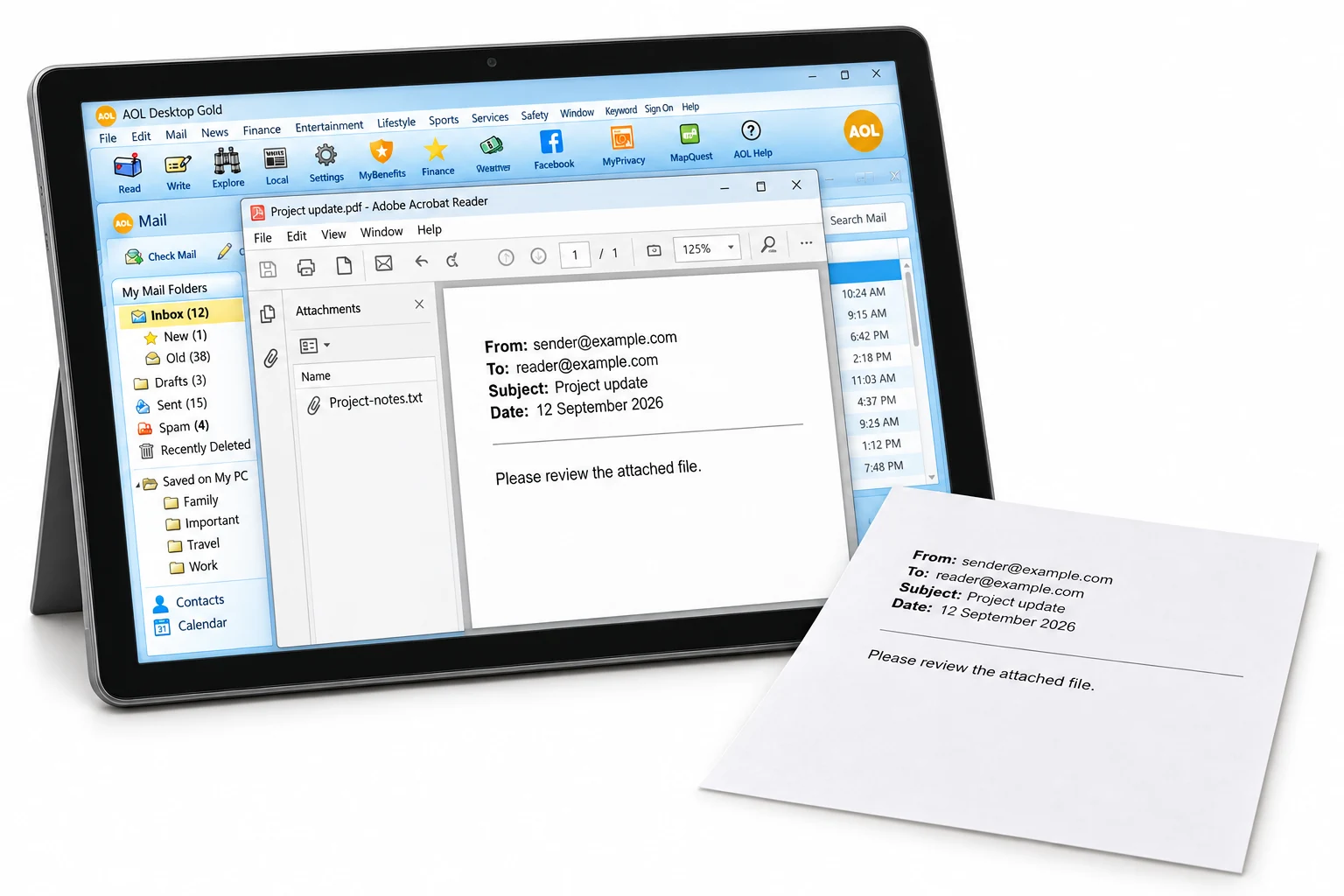
A store-aware run puts real detail on the page. The header sits at the top of each PDF, so the sender, the recipients, the date and the subject read the way they did in the mailbox. The body follows below with its inline images in place. Attachments are pulled from the database and saved beside the PDF or placed inside it, whichever you pick. And because the words are real text and not a picture, you can search a finished PDF and copy from it, which matters when the reason for the export is a search or a review.
Per-Message PDFs or One Combined PDF
The bulk route gives you a choice, and it is worth a thought before you start. One PDF per message keeps each email as its own file, named by date or subject, which suits filing a few important items where each stands alone. One combined PDF per folder gathers a whole folder into a single document you scroll through, and it can hold bookmarks so a long run stays easy to move around. For a legal bundle the combined file with bookmarks tends to win. For a small set you will file by hand, the per-message files are tidier.
Why Save AOL Desktop Gold Mail as PDF
PDF is the format people reach for when a message has to last and travel. It opens on a phone or a tablet or any computer with no email app behind it. It prints the same on every one. A court or an auditor accepts it. Someone with no AOL account can still read it. And once you leave AOL Desktop Gold, a folder of PDFs is a copy nobody can lock you out of. If your plan is to land the mail in Outlook rather than file it flat, our guide on moving AOL Desktop Gold to Outlook covers the PST route instead.
When AOL Desktop Gold to PDF Comes Up
The request tends to arrive with a deadline. A legal matter asks for a set of emails as PDF for review. An accountant wants receipts and invoices in a form they can file. A relative is closing an older family member's AOL account and wants the letters kept where anyone can open them. A small office is retiring AOL and needs a fixed record of a few mailboxes. In each of these the goal is the same: a searchable copy that outlives the app. Should the old mail instead sit inside an older AOL 9 Personal Filing Cabinet, our AOL PFC Converter opens that older .pfc format.
AOL Desktop Gold to PDF Questions
Can AOL Desktop Gold save emails as PDF?
Yes, one at a time. Open a message and choose Print from the File menu, then set a PDF printer as the destination. Some builds also offer Save As on the open message. That gives you a clean PDF of it. The route turns slow once a whole folder needs the same handling, which is where a bulk tool helps.
How do I save a whole AOL Desktop Gold folder as PDF at once?
A converter that reads the Saved on My PC store does the whole folder in one run. It goes through every message, saves each as a PDF and can bundle a folder into a single file. You tick the folders you want, choose PDF and start it, rather than opening and printing messages by hand.
Do attachments come across when saving AOL mail to PDF?
With a store-aware tool, yes. AOL keeps attachments inside its database, so the converter pulls them out and either saves them beside each PDF or places them within the file. The print-one-at-a-time route captures the message body but leaves the attached files sitting in the mailbox.
Can I make one PDF per email or one combined PDF?
Both are on offer. One PDF per message suits filing by subject or date, and each file carries its own header and body. A single combined PDF per folder suits a printed run or an archive you scroll through, and it can carry bookmarks so you jump to any message. Pick the mode that matches how you plan to read them.
Do I need AOL Desktop Gold open to make the PDFs?
Not for the bulk route. The converter reads the database on disk, so AOL Desktop Gold can be shut or removed and no sign-in is asked for. The built-in Print route does need the app running, since you open each message inside it first.
Does the PDF keep the date, sender and subject?
Yes. Each PDF prints the From, To, Date and Subject at the top, the way the email looked on screen, with the body and inline images below. Because the text is real text rather than a photo of the message, you can search inside the PDF and copy from it later.
Do I need to sign in to AOL to save the emails?
No. The bulk route works from the kept-mail store already sitting on your machine, which is why no AOL sign-in or password enters the picture. IMAP backup tools run the other way: they ask for an AOL app password and only reach mail still on the server.
Can I turn an AOL Desktop Gold My Data backup into PDFs?
Yes. If you used My Data in AOL Desktop Gold to write a .AolSave backup, the bulk route opens that file too. It pulls messages straight from the backup, so a backup you carried onto another PC still becomes a clean set of documents.

Written and maintained by Leena Taylor Paul and the Univik team, developers of Windows data conversion and recovery software since 2013. The details here on the built-in print and where AOL keeps the mail were checked on a live AOL Desktop Gold 11.1.5138 install of our own. Last verified September 2026. Need a set of emails as PDF and stuck on where to start? Contact our support team.