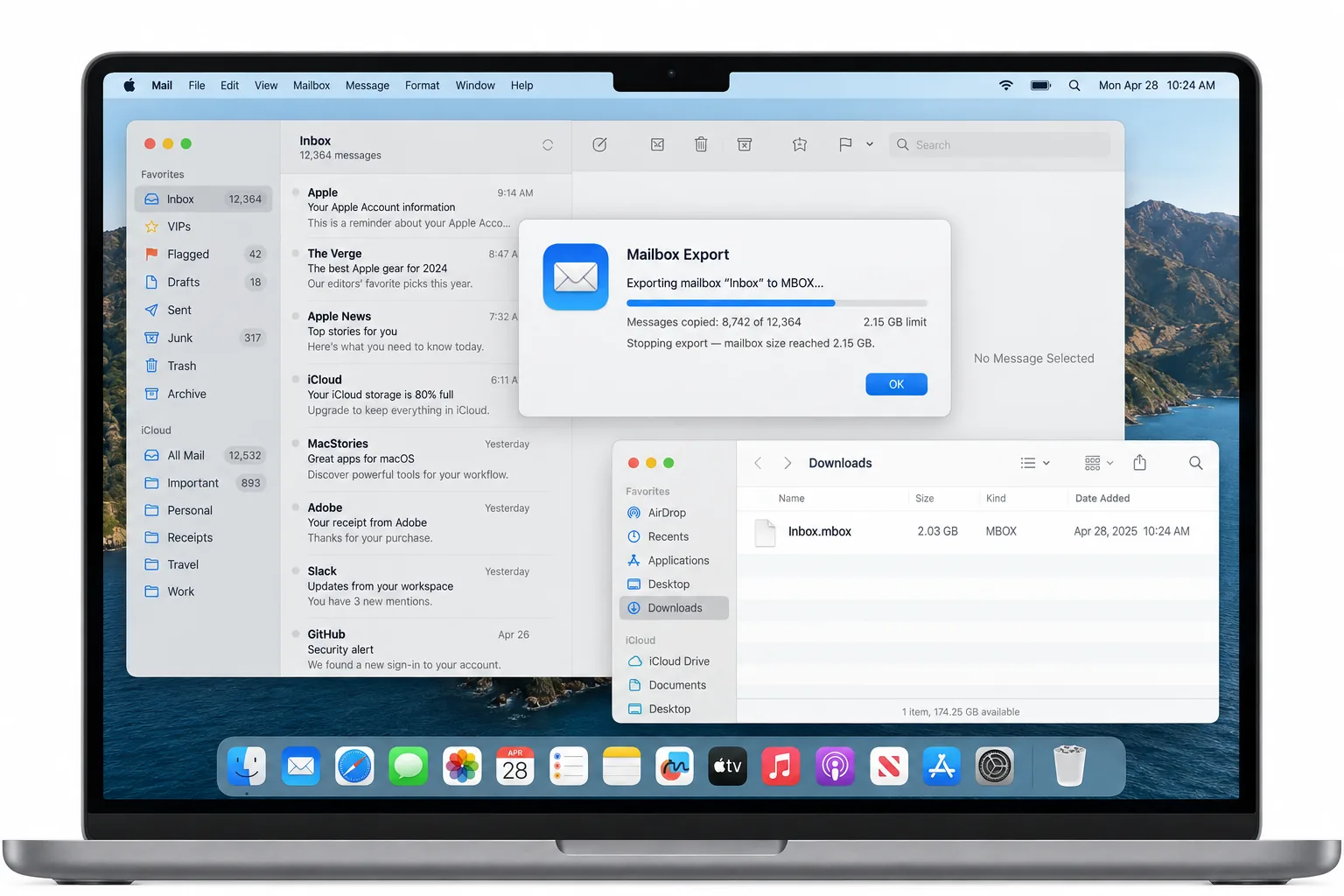
Apple Mail stops writing or reading a mailbox file near 2.15 GB. An export of a bigger mailbox ends there and the messages after that point are not in the file. To keep every message, split the mailbox into parts under 2 GB and import each part with File > Import Mailboxes.
Mail shows no warning when this happens. A message count that is lower than the original is often the only sign.
Apple Mail has a size limit that it never mentions on screen. When a mailbox export grows past about 2.15 GB, the file stops there and the rest of the messages are left out. The same thing happens on import: Mail reads the file up to that point and then stops. This guide shows how to spot the problem, how to prove which messages are missing and how to fix it by splitting the mailbox into parts under 2 GB with Univik MBOX Splitter.
What Happens When an Apple Mail Export Passes 2 GB?
The export ends close to 2.15 GB and the messages that come after it are missing from the file. Mail does not show an error. You find the gap later, when the import on the other Mac shows a smaller count than the original mailbox.
Here is what the export looks like on disk. Mailbox > Export Mailbox writes a folder named after the mailbox with .mbox on the end, such as Work 2019.mbox. Inside is a file called mbox that holds the messages one after another. When the mailbox is larger than the limit, that inner file stops near 2.15 GB and the rest is never written.
Import has the same limit. File > Import Mailboxes reads an mbox file up to the same point and then stops. A complete file from another program can be cut short the same way. Users have reported both cases in Apple Support Community thread 250165788, which is where the 2.15 GB figure comes from.
How Do You Prove Apple Mail Lost Messages After the Import?
Count the messages in the original mailbox, then count them again after the import. If the two numbers differ, the export or the import was cut short.
On the Mac that holds the original, select the mailbox in the sidebar. Choose Edit > Select All. The preview pane on the right shows how many messages are selected. Write that number down. On the Mac that received the import, open the Import mailbox that Mail created under On My Mac and count the same way. A lower number means messages are missing. The missing ones sat after the cut, so also compare the newest dates in both lists.
Also check the file size in Finder with Command-I. A size that stops close to 2.15 GB for a bigger mailbox is the clearest sign.
Which Symptom Points to the Apple Mail 2 GB Limit?
A finished export that is smaller than the mailbox and an import with a short message count are the two symptoms that point to the limit.
| Symptom | Cause | Fix |
|---|---|---|
| Export finished with no error but the mbox file is about 2.15 GB and the mailbox held more | The export reached the limit and stopped writing | Make smaller mailboxes in Mail (one per year, for example), move the messages into them and export each one |
| Import finished but the Import mailbox holds fewer messages than the source | Mail stopped reading the file near 2.15 GB | Split the file into parts under 2 GB and import each part |
| The file will not copy to a USB stick | FAT32 sticks refuse any single file above 4 GB | Parts under 2 GB copy without trouble and import in full |
The first row is different. When the export itself was cut short, the missing messages were never written to the file and no tool can bring them back from it. They are still in Mail on the original Mac, so export again from smaller mailboxes. In the other rows the file is complete and the fix is to split it before Mail reads it.
How Do You Import a Mailbox Over 2 GB into Apple Mail Without Losing Messages?
Split the file into parts under 2 GB, then import the parts one after another with File > Import Mailboxes. Each part is a complete mbox file on its own. Mail reads each one to the end because none of them reaches the limit.
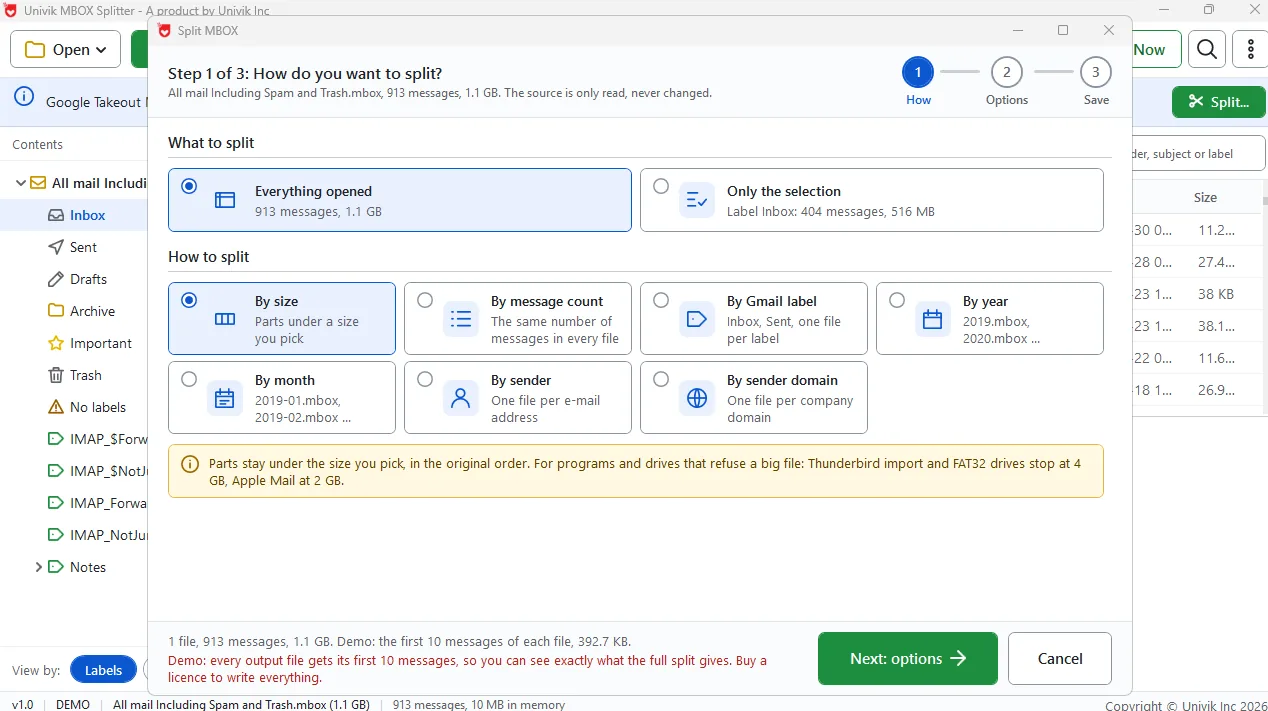
One thing to say plainly: the splitter used here is Windows software and does not run on a Mac. If your only computer is a Mac, copy the mbox file to a Windows PC, split it there and copy the parts back. Parts under 2 GB fit on a FAT32 stick, which refuses any single file above 4 GB.
The split-by-size mode has a preset named 2 GB (safe for Apple Mail and older programs). Pick it and every part stays under that size and keeps the original order. The tool never divides one message across two parts. Turn on the option that keeps conversations together and a message and its replies land in the same part.
When the split finishes, the tool re-reads every part and compares it with the source. A report lists each message and the part it went to. Compare that total with the count from Mail.
The 2 GB preset in Univik MBOX Splitter cuts a mailbox into parts that Apple Mail imports in full.
Free Download See all featuresWhy Is the 2 GB Split Preset Marked Safe for Apple Mail?
The preset is named for this limit. A part under 2 GB stays below the point near 2.15 GB where Apple Mail stops reading, with some room left over.
Google Takeout uses the number 2 GB as well, but for a different reason. Takeout asks for an archive size of 1, 2, 4, 10 or 50 GB and 2 GB is the default. That choice controls the size of the zip pieces you download. Do not treat it as a check for Apple Mail. Check the size of the mbox file itself and split it if it is near 2 GB.
- Apple Mail cuts an export or an import short near 2.15 GB. Messages past that point are not in the result.
- Mail shows no error, so the only sign is a message count that is lower than the original.
- Count messages in the source mailbox and in the Import mailbox before you delete anything.
- If the export itself was cut short, the missing messages were never written. Export again from smaller mailboxes in Mail.
- If the file is complete but the import is short, split it into parts under 2 GB and import each part.
- The splitter runs on Windows only. Split on a PC and copy the parts back to the Mac.

Apple Mail 2 GB Limit Questions

Leena Taylor Paul prepared this guide together with the Univik team, who have moved mail between Windows and Mac programs since 2013. The 2.15 GB figure comes from Apple Support Community threads, not from us. The fix here is the one that held up in testing. Last checked September 2026. Missing messages after an import? Contact our support team.