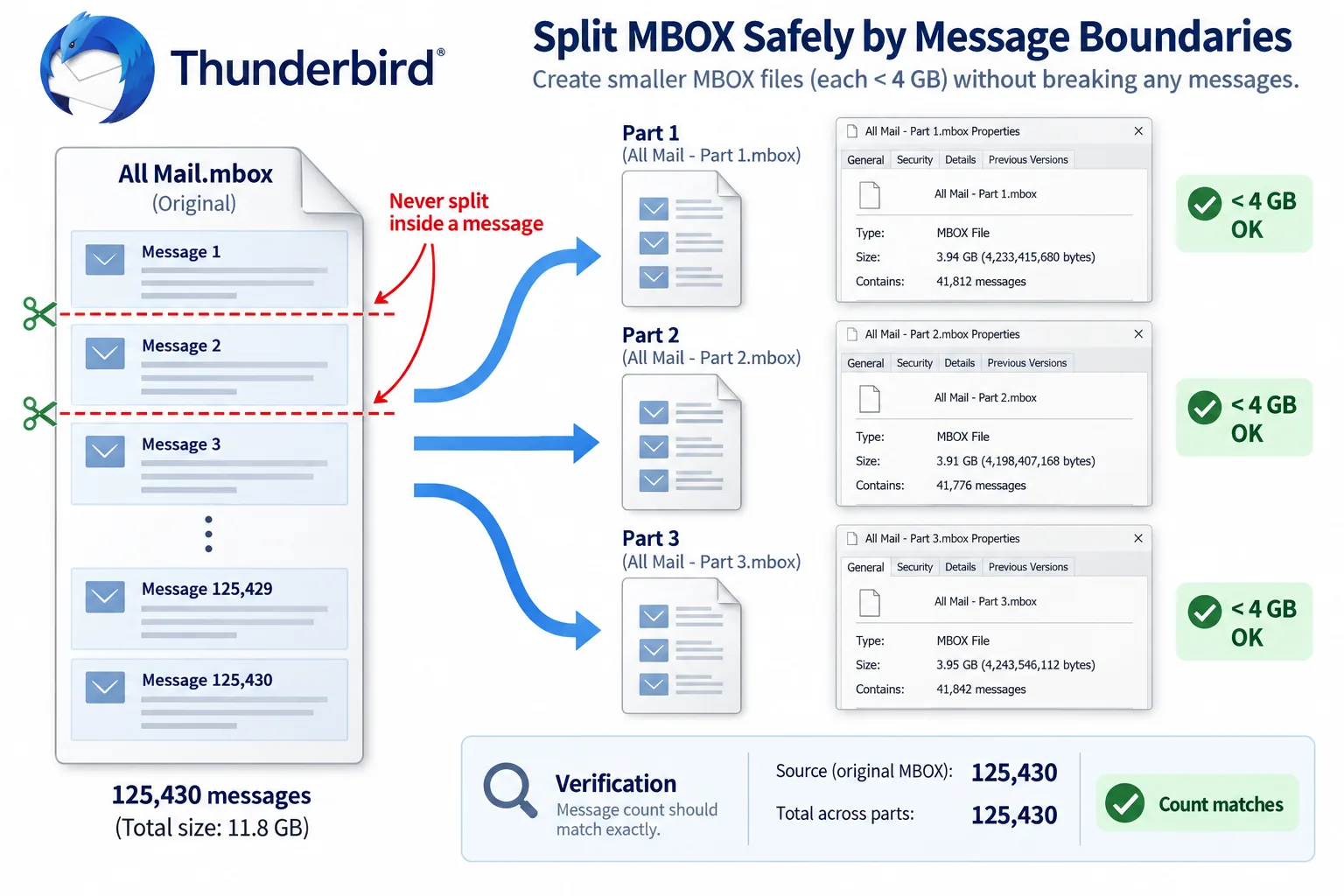
Split the file into parts that stay under the size limit of the program that will import them. Cut only between two messages, never inside one. Keep each part under 4 GB for Thunderbird, under 2 GB for Apple Mail and under a few hundred megabytes for webmail uploads. Then count the messages before and after.
Thunderbird with a free add-on, a short Python script or a Windows desktop splitter can all do the split.
A mailbox export that is too large to import is a common problem after a Google Takeout download or a move away from an old mail program. The program on the other side refuses it because of a size limit. This guide shows three ways to split the file into smaller parts: Thunderbird with a free add-on, a Python script and the Univik MBOX Splitter desktop tool. It also gives a safe part size for each mail program and shows how to prove that no message was lost.
Why Is an MBOX File Too Large to Import?
An MBOX file is too large to import when it passes a limit set by the program that reads it, not by the format. An .mbox file is plain text. Each message starts with a From line (the word From followed by a space). The format has no upper size. The programs that read it do. ImportExportTools NG (the free Thunderbird add-on that imports mbox files) refuses any file over 4 GB, as its bug reports on GitHub (issue 452) show. Apple Mail stops an export or an import near 2.15 GB.
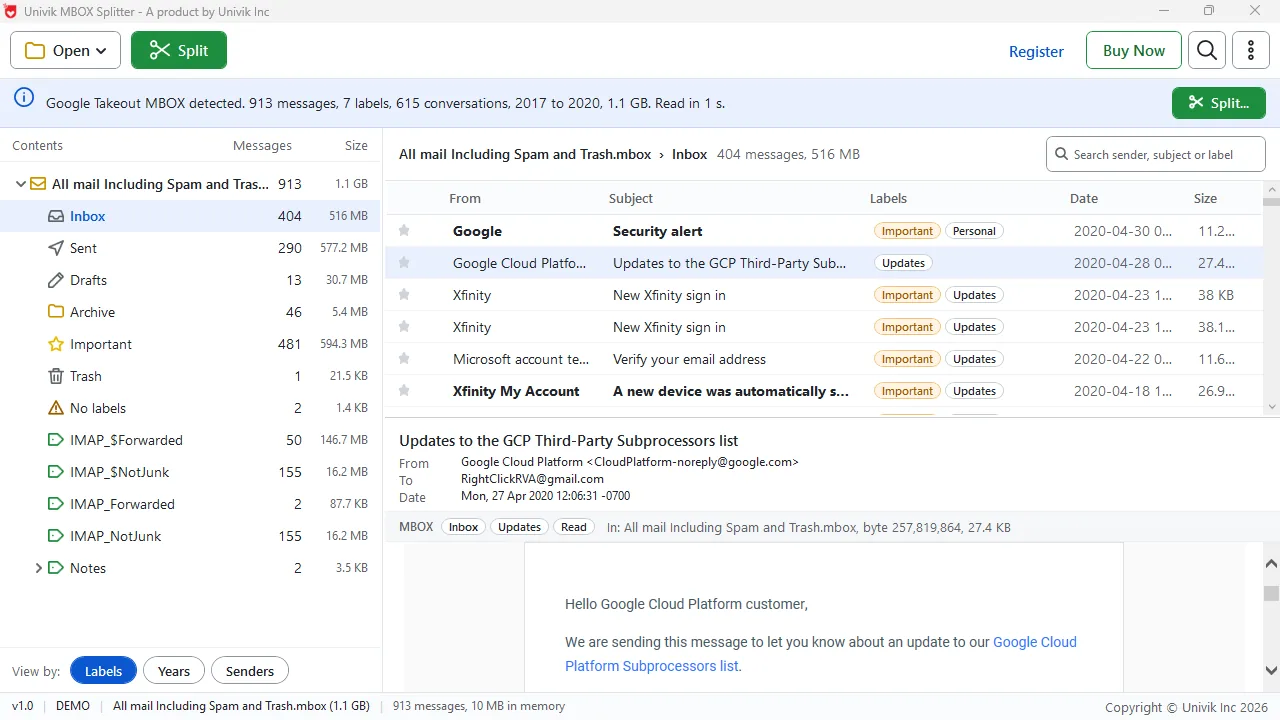
Google Takeout is the most common source of an oversized file. It writes every Gmail message, including Spam and Trash, into one file.
What Part Size Should You Pick for Smaller MBOX Files?
Pick a part size that stays under the smallest limit on the path the file will take. Leave a margin. A part of 3.9 GB passes a 4 GB check. A part of 4.0 GB may not, because programs count gigabytes in more than one way.
| Where the parts will go | Keep each part under | Reason |
|---|---|---|
| Thunderbird with ImportExportTools NG | 4 GB | The add-on skips any mbox over 4 GB. Source: the add-on's GitHub bug reports, issue 452. |
| A FAT32 USB stick or memory card | 4 GB | FAT32 cannot store a single file over 4 GB. |
| Apple Mail (File > Import Mailboxes) | 2 GB | Export and import stop near 2.15 GB. Source: Apple Support Community thread 250165788. |
| A webmail import page | A few hundred MB | Some webmail importers cap a single upload at a few hundred megabytes. |
Whatever size you choose, the cut has to fall between two messages. A message split across two files is broken in both. A good splitter looks for the next From line before it closes a part. A single message bigger than your limit gets a part of its own.
How Do You Split an MBOX File with Thunderbird or a Python Script?
You can split an MBOX file with free tools you may already have.
Route 1: Thunderbird and ImportExportTools NG. Install the add-on from Add-ons and Themes. Right-click a folder under Local Folders and pick ImportExportTools NG, then Import mbox file. Once the mail is in, move messages into subfolders by year or by sender. Then right-click each subfolder and use the add-on's export menu to save it as an mbox file. Each exported folder is one smaller part. The weak point is the first step. A source file over 4 GB will not import at all. Our guide on the Thunderbird larger than 4 GB message covers that case.
Route 2: the Python mailbox module. Python ships with a standard library module named mailbox. It reads an mbox file one message at a time. A short script adds each message to the current part and starts a new part when the byte count passes your limit. Because it works message by message, it never cuts inside one. f00b4r0/gmail-mboxsplitter splits a Takeout file by label. ryosama/mbox_spliter (Perl) splits by year, month, week or day. devgiants/mbox-splitter (PHP) splits by size for Roundcube upload limits. All of them need a command window and none of them checks that the parts add up.
How Do You Split a Large MBOX File on a Windows PC in Three Steps?
On a Windows PC a desktop splitter does the same work with no code. Univik MBOX Splitter works on Windows 11 or 10, 64-bit only. It opens .mbox files of any size, the zip parts from Google Takeout with no unzipping or a folder that holds many mbox files. On our test file, a 1.1 GB Takeout export with 913 messages opened in one second and used 10 MB of memory. There are seven split modes: by size, by message count, by Gmail label, by year, by month, by sender or by sender domain. For a file that is too large to import, split by size is the one you want. The 2 GB preset is marked as safe for Apple Mail and older programs. Keep conversations together puts a message and its replies in the same part.
Univik MBOX Splitter cuts a big mailbox file into parts under any size you choose, then reads each part back and writes an index.
Free Download See all featuresHow Can You Check That the Split MBOX Files Are Complete?
Check the split by counting messages in the source file and in all the parts together. The two totals must match. On Windows, PowerShell can count the From lines, one per message: Select-String -Path file.mbox -Pattern '^From ' -CaseSensitive | Measure-Object. On a Mac or Linux machine, grep -c '^From ' file.mbox gives the same number.
A desktop splitter can run this check for you. After it writes a part, it opens that part again and compares the message count and the content with the source. It also saves split-index.csv, one row per message with the position in the source, the output file, the date, the sender and the subject. The source file is never touched.
- An .mbox file has no size limit of its own. The importing program does: 4 GB for ImportExportTools NG and FAT32 sticks, about 2 GB for Apple Mail.
- Pick a part size under the smallest limit on the file's path and leave a margin.
- A cut must fall between two messages. A message split across two files is broken in both.
- Thunderbird and the Python mailbox module are free routes. Neither checks the result for you.
- Univik MBOX Splitter splits by size, count, label, year, month, sender or domain on Windows and reads every part back.
- Count the messages in the source and in all the parts before you import anything.

Large MBOX File Questions

Leena Taylor Paul wrote this guide with the Univik team, which has shipped Windows mail tools since 2013. This guide keeps to the three ways that work on a normal PC and says which part size each mail program accepts. Last checked September 2026. Stuck with a file that will not import? Contact our support team.