The message comes from the ImportExportTools NG add-on, not from Thunderbird. The add-on refuses any mbox file over 4 GB on purpose and imports nothing from it. To get the mail in, make the file smaller first. Cut it into pieces that stay below 4 GB, or make one file for each label or year, then import each piece the normal way.
A manual copy into the Local Folders directory also works, but it gives you one giant folder with no label folders.
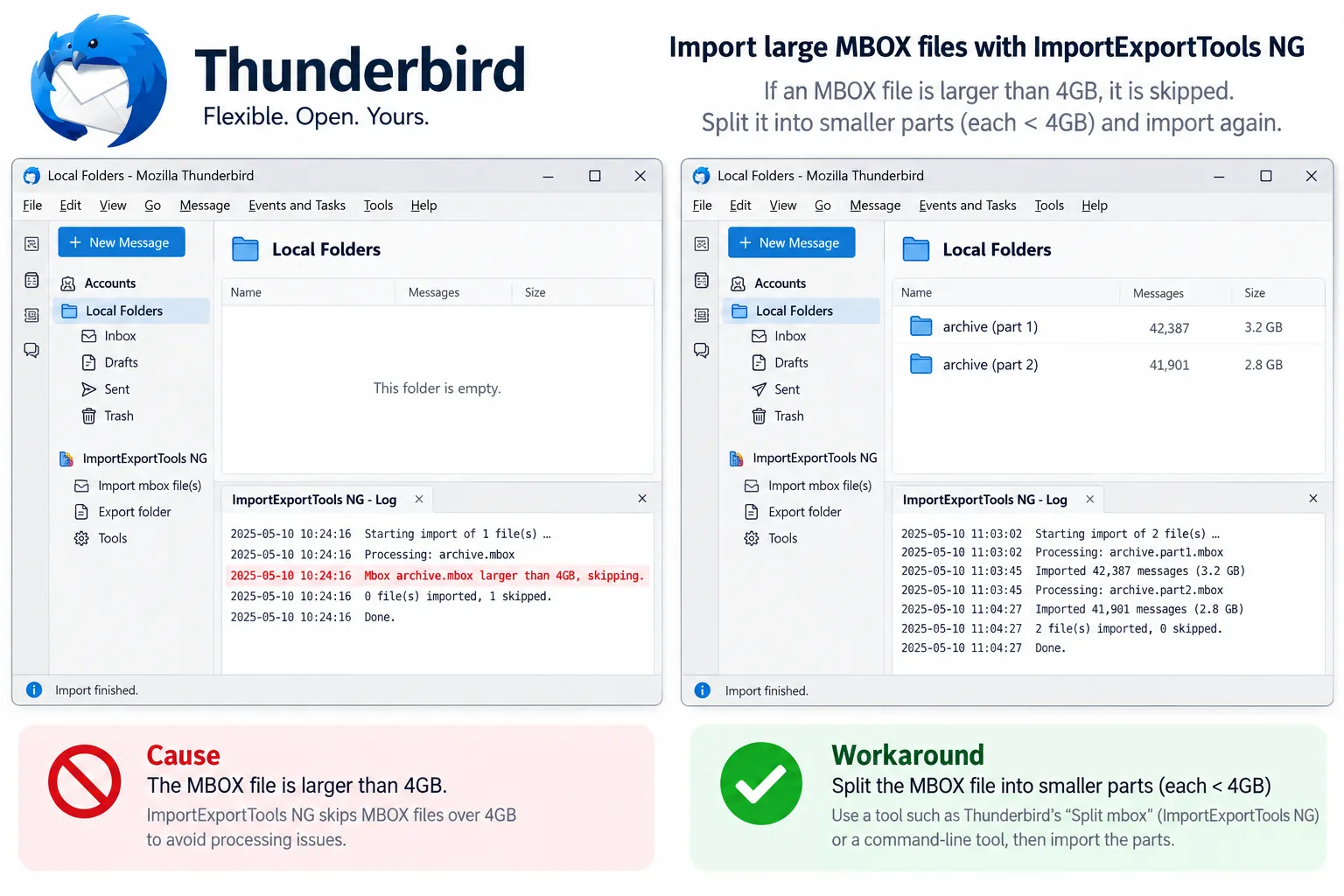
ImportExportTools NG (the free add-on Thunderbird users install to import mbox files) checks the size of a file before it reads a single message. When the file is over 4 GB the add-on writes "Mbox <name> larger than 4GB, skipping" and moves on. The folder you right-clicked stays empty. This guide explains where that line comes from and why it sits at 4 GB. It then covers three fixes in order: the manual copy that Mozilla Support threads describe, a size split with Univik MBOX Splitter and a split by label or year that gives Thunderbird proper folders.
What Does "Mbox Larger Than 4GB, Skipping" Mean in Thunderbird?
It means the add-on looked at your file, saw a size over 4 GB and refused to open it. The import never started. Thunderbird shows no error window, so people wait for a progress bar that never appears. The only trace is the skip line in the add-on's log and an empty target folder.
The add-on's bug tracker on GitHub records this. Issue 452 and the older issue 323 both come from people who tried to import a Google Takeout export and watched the add-on skip it. The answer in both threads is the same. The file has to be made smaller first. Takeout is the usual cause, because it writes the whole Gmail account into one mbox file. A few years of mail with attachments often passes 4 GB.
Why Does ImportExportTools NG Refuse an Mbox Over 4 GB?
The 4 GB check is a rule the add-on applies on purpose, not a defect in your file. The bug reports treat it as expected behaviour rather than something to fix. An import reads every message, copies it into a Thunderbird folder and builds the folder's .msf file (Thunderbird's index for a folder) at the same time. The add-on stops at 4 GB rather than start a job it may not finish.
The number 4 GB shows up in one more place. A USB stick formatted as FAT32 cannot hold a single file over 4 GB, so the same file will not copy onto many older sticks either. Parts under 4 GB solve both problems. Thunderbird's own mail store has no such limit. A folder under Local Folders can grow past 4 GB, which is why the manual workaround below works at all.
Does the Mozilla Support Workaround Import the Large Mbox?
Yes, and it costs you folders and time. Mozilla Support threads describe this manual route. Close Thunderbird. Open your profile folder and go to the Mail\Local Folders directory inside it. Copy the mbox file there and remove the .mbox extension, so "All mail Including Spam and Trash.mbox" becomes "All mail Including Spam and Trash". Delete any .msf file with the same name. Start Thunderbird again and the file appears as a folder under Local Folders.
The result is a single folder with every message from the file. Indexing a multi-gigabyte file takes a long time. Gmail labels do not turn into folders. Every message still carries its X-Gmail-Labels header (the header where Gmail stores a message's labels) but Thunderbird does not read it. Inbox, Sent, Spam and Trash all sit together in one long list.
| What you compare | Copy into Local Folders by hand | Split under 4 GB, then import |
|---|---|---|
| Tools involved | File Explorer and Thunderbird | A splitter on your PC, then the add-on |
| What Thunderbird shows | One folder with everything in it | One folder per part, or per label or year |
| Gmail labels | Lost as folders | Kept as folders when you split by label |
| Proof that nothing was lost | None, you count by hand | Split report and split-index.csv to compare with the folder count |
How Do You Split the Mbox Under 4 GB for ImportExportTools NG?
A size split gives you parts the add-on accepts with no extra steps. You pick a limit under 4 GB and each part stays under it, with the messages in their original order. A cut lands only where one message ends and the next one begins, so no message is split across two files. A single message bigger than the limit gets a file to itself. The split needs a Windows PC, because the tool does not run on Mac or Linux.
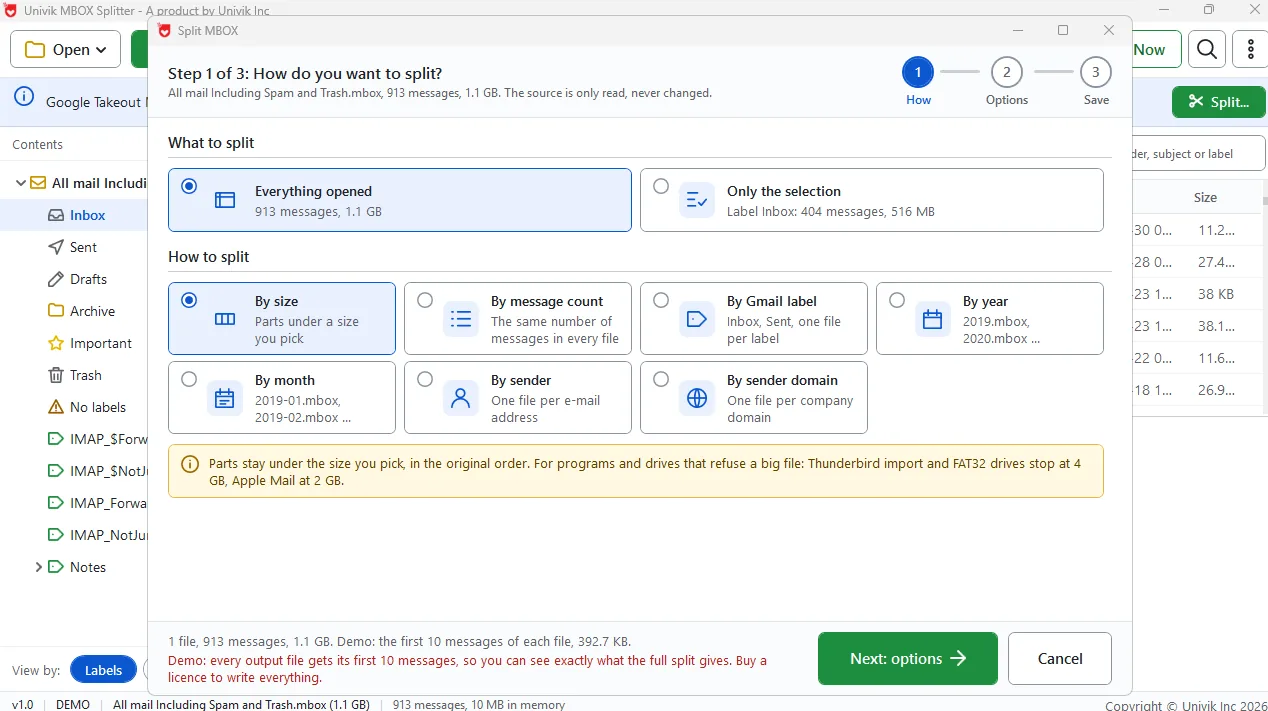
A short script built on the Python mailbox module can make the same cut, but it needs Python installed and does not check the parts afterwards. The three steps below need no code.
Univik MBOX Splitter writes parts under 4 GB, or one file per label or year, so ImportExportTools NG accepts every one.
Free Download See all featuresShould You Split by Label or Year Instead of by Size for Thunderbird?
For a Gmail export, yes, if you want the folders back. A size split gives you part 1, part 2 and part 3. Each part still mixes Inbox, Sent and every label. A label split reads X-Gmail-Labels on each message and writes one mbox per label. Import those files and Thunderbird shows Inbox, Sent and your own labels as separate folders. A nested label such as Clients/Acme becomes a subfolder. A label file is usually far smaller than the whole export. If one still passes 4 GB, split that file by year as well.
A year split works for any mbox. Each message goes into the file for the year in its Date header. A reply and the message it answers stay in the same file.
Whichever route you pick, count the messages at both ends. The split report says how many messages went into each part and Thunderbird shows a total for each folder in its folder properties. When the two numbers differ, import that part again.
- The "larger than 4GB, skipping" line comes from ImportExportTools NG, not from Thunderbird.
- The add-on stops at 4 GB on purpose. Nothing is imported and the target folder stays empty.
- The Mozilla Support workaround copies the file into Local Folders by hand. Result: one giant folder, no label folders.
- Parts under 4 GB import with the add-on the normal way, one part at a time.
- A split by Gmail label or by year gives Thunderbird folders that match Gmail.
- Count the messages on both sides after the import to prove nothing was lost.

Thunderbird 4 GB Import Questions

This guide was put together by Leena Taylor Paul working with the Univik team, who have answered Thunderbird import questions since 2013. The error text, the add-on behaviour and the workaround here come from the add-on's own bug reports and Mozilla Support threads. Last checked September 2026. Still seeing the skip message? Contact our support team.