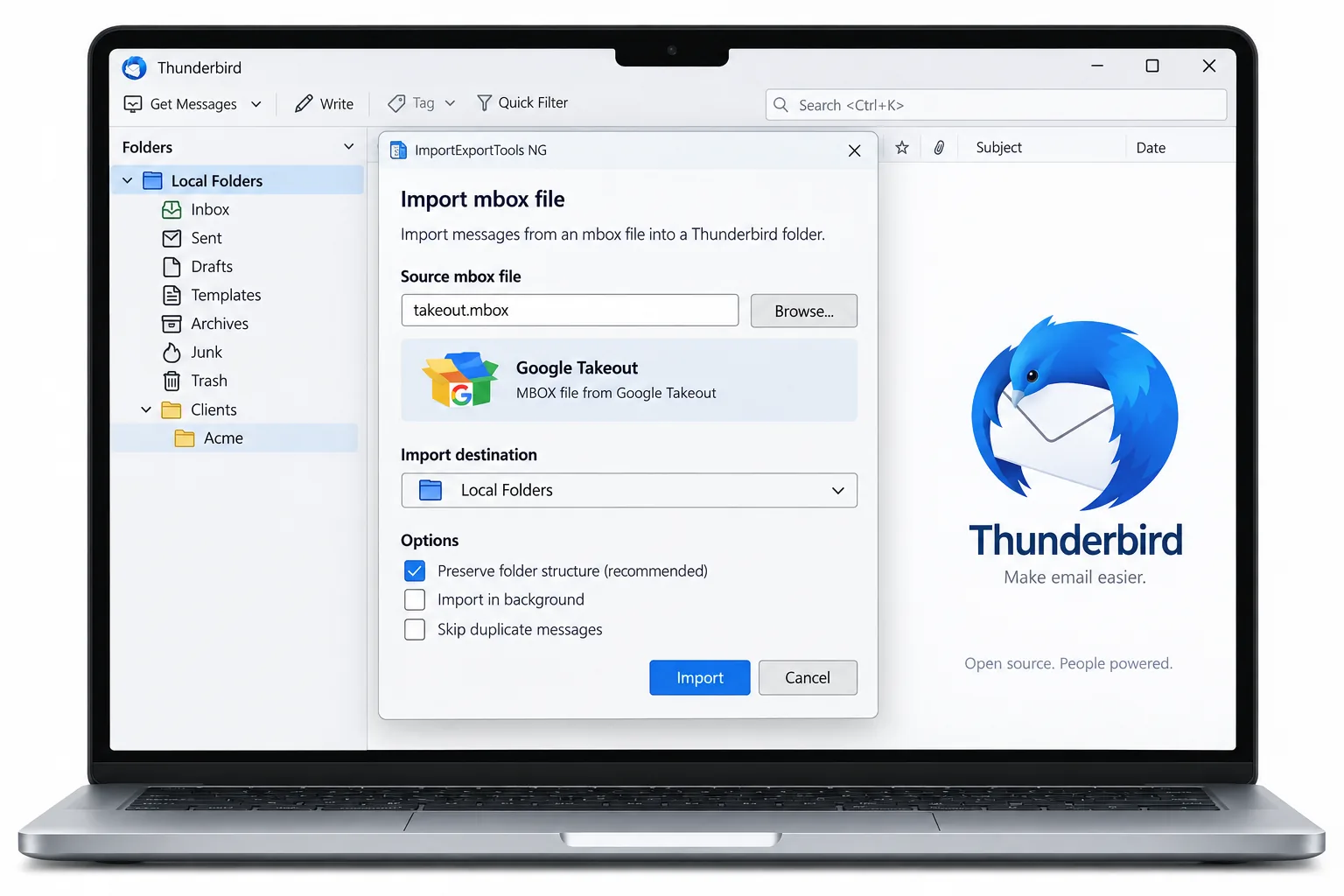
Thunderbird does not read an mbox file on its own. Add the free ImportExportTools NG add-on, then right-click Local Folders and pick the option to import an mbox file. Choose your Takeout export. The mail appears in a new Thunderbird folder.
Local Folders works with no email account set up, so you can read the export offline. The one snag is size, since the add-on turns away a file over 4 GB.
A Google Takeout export lands as an mbox file, and Thunderbird cannot open that format until you add a small helper. The free ImportExportTools NG add-on teaches Thunderbird to read and write mbox files, and once it is in place the import takes a couple of clicks. This guide covers installing the add-on, importing into Local Folders with no account needed, the 4 GB size catch that trips up a big export and how splitting the file by label first with the Univik MBOX Splitter brings your Gmail folders back.
Which Add-On Lets Thunderbird Import an MBOX File?
Thunderbird needs the ImportExportTools NG add-on to read an mbox file. Out of the box Thunderbird stores mail in the mbox format but gives you no menu to bring an outside mbox in. The add-on adds that menu. Open the Thunderbird menu, choose Add-ons and Themes, then look up ImportExportTools NG and install it. Restart Thunderbird when it asks. From that point a right-click on any mail folder shows a new set of import and export choices. You install it once and it stays available for every import you do afterwards.
How Do You Import a Takeout MBOX into Thunderbird?
You import into Local Folders, which exists even when no email account is set up. In the folder list, right-click Local Folders, open the ImportExportTools NG submenu and choose to import one mbox file. A file picker opens. Select the mbox from your Takeout download and confirm. Thunderbird copies the messages into a new folder named after the file, and after a short wait the mail is there to read and search. Because Local Folders is local, none of this needs an account or an internet connection, so you can go through an old export in private.
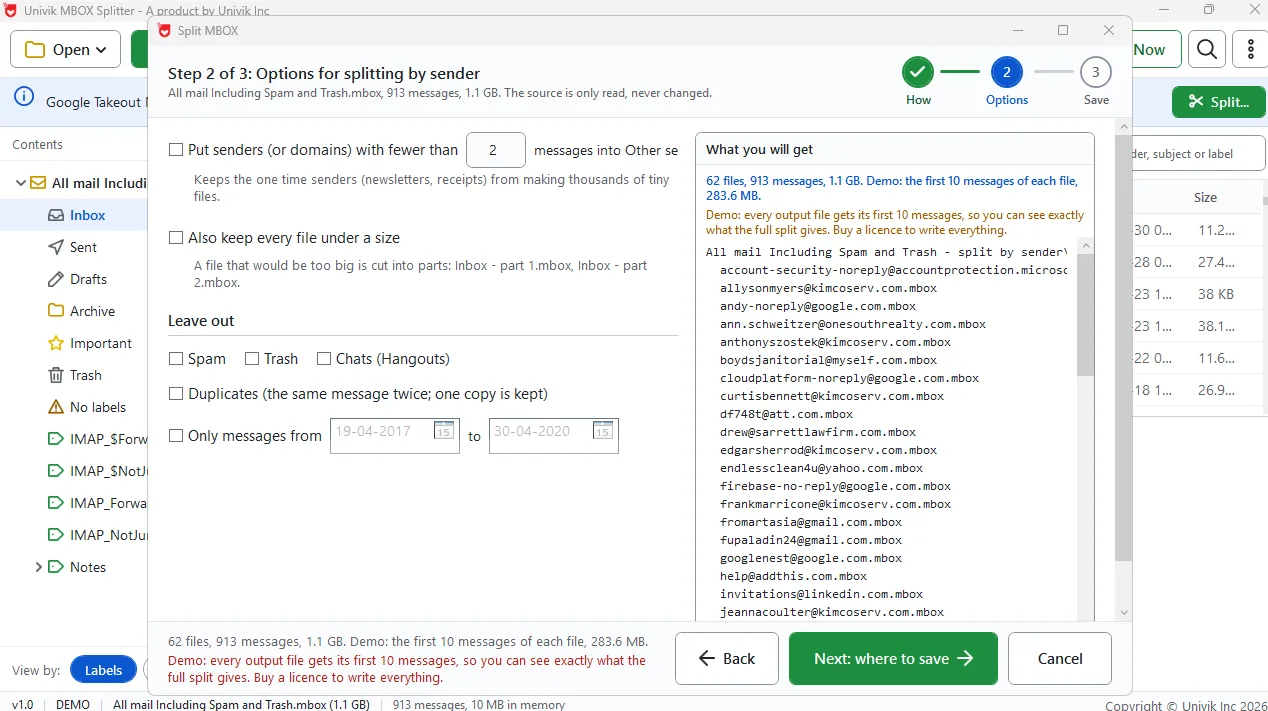
Univik MBOX Splitter turns the Takeout export into one mbox per label, each under 4 GB, ready for ImportExportTools NG.
Free Download See all featuresWhat Happens If You Import the Whole Takeout File at Once?
Importing the export as one file gives you one flat folder with everything in it. Gmail keeps mail under labels, but a Takeout mbox stores those labels as a hidden header rather than as separate mailboxes. So when the whole file comes in, every message piles into a single Thunderbird folder with no Inbox, no Sent and no label folders. For a small account you can live with that and use search. For years of mail it is hard to work with. The way to get the folder structure back is to break the export into one file per label before you import, which the last section covers.
| How you import | Import the whole file | Import label parts |
|---|---|---|
| Folders in Thunderbird | One flat folder | One folder per label |
| Inbox and Sent kept apart | No | Yes |
| Works over 4 GB | Skipped by the add-on | Each part imports |
| Effort | One import | One import per part |
Why Does the Import Skip a Takeout File Over 4 GB?
ImportExportTools NG turns away an mbox once it goes over 4 GB and leaves the folder empty. A large Gmail account often exports to more than that, so the import that worked for a friend with a small mailbox does nothing for you. The add-on draws the line on purpose, and a FAT32 drive cannot hold a file that big either. The answer is to make the file smaller before you import it. Our guide on the Thunderbird 4 GB skip message goes through the causes and the older manual workaround. For most people the cleaner fix is to split the export into parts under the limit, then import each part.
How Do You Get Gmail Labels Back as Thunderbird Folders?
Split the export by label first, then import the parts. The Univik MBOX Splitter reads each message's label header and saves a separate mbox for every label, each one under 4 GB and safe for the add-on. Bring those files into Thunderbird one by one and each label becomes its own folder, so Inbox, Sent and every label you kept in Gmail show up the way they did there. It reads the Takeout zip parts as they are, so you skip the unzip step. It also checks each part after writing so you know the count is right. After each import, compare the message total in Thunderbird against what the splitter reported to confirm nothing dropped out.
- Thunderbird needs the free ImportExportTools NG add-on to read an mbox file.
- Import into Local Folders, which works with no email account and no internet.
- Importing the whole export gives one flat folder with no label structure.
- Any mbox over 4 GB is turned away by the add-on, which leaves the folder empty.
- Split the export by label first to keep each part under 4 GB and get folders back.
- Compare the count in Thunderbird against the splitter report to confirm nothing dropped.

Takeout to Thunderbird Import Questions

Thunderbird migration guides have come from the Univik team since 2013, and Leena Taylor Paul wrote this one with them. The menu paths here match ImportExportTools NG on Thunderbird 115 and later. Last checked September 2026. Import not showing your mail? Contact our support team.