Read each message's X-Gmail-Labels header and write the message into an mbox file named after its label. Decide whether a message carrying several labels is copied into each label file or saved once. A nested label like Clients/Acme turns into a subfolder. Spam, Trash and Chats can be left out.
A free Python script does this with one copy per message. A Windows desktop tool adds the duplicate choice, nested folders and a check of every output file.
Google Takeout gives you Gmail as one file. Open it in a mail program and every message sits in one folder with no Inbox, no Sent and none of your labels. The labels are not gone. Gmail writes them into a header on each message and a splitter can sort the file on that header. This guide shows the header, the two ways to split on it, how nested and system labels come out and what Thunderbird shows afterwards, using a free script or Univik MBOX Splitter.
Why Does a Google Takeout MBOX Have No Label Folders?
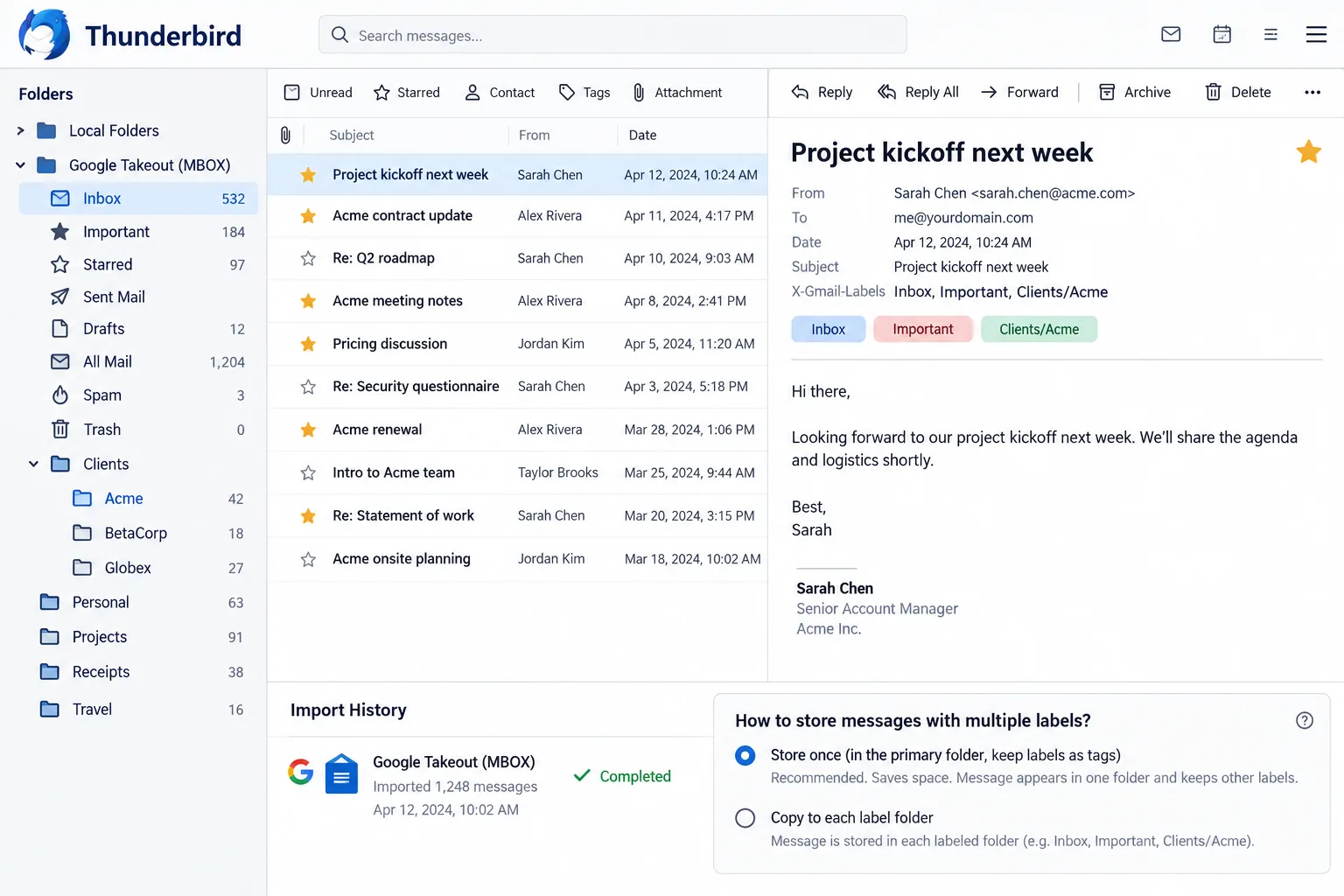
The Takeout file has no label folders because Gmail does not use folders. Gmail keeps one copy of each message and attaches labels to it. One message can carry Inbox, Important and Clients/Acme at the same time. Takeout copies each message once and lists its labels in a header named X-Gmail-Labels (the header that records a message's Gmail labels). The mbox format has no folder structure, so the export arrives flat.
A typical message carries this line:
X-Gmail-Labels: Inbox,Important,Clients/Acme
Read that line and you know which folders the message belongs in. A second header, X-GM-THRID (Gmail's thread id), names its conversation, so a reply can stay with the message it answers. Exporting label by label from Takeout also gives folders, but a message with two labels is then written into both exports.
Should a Message with Two Gmail Labels Go Into Every Label File or One?
Put a message into every label file when the result should look like Gmail. Put it into one file when each message should exist once on disk.
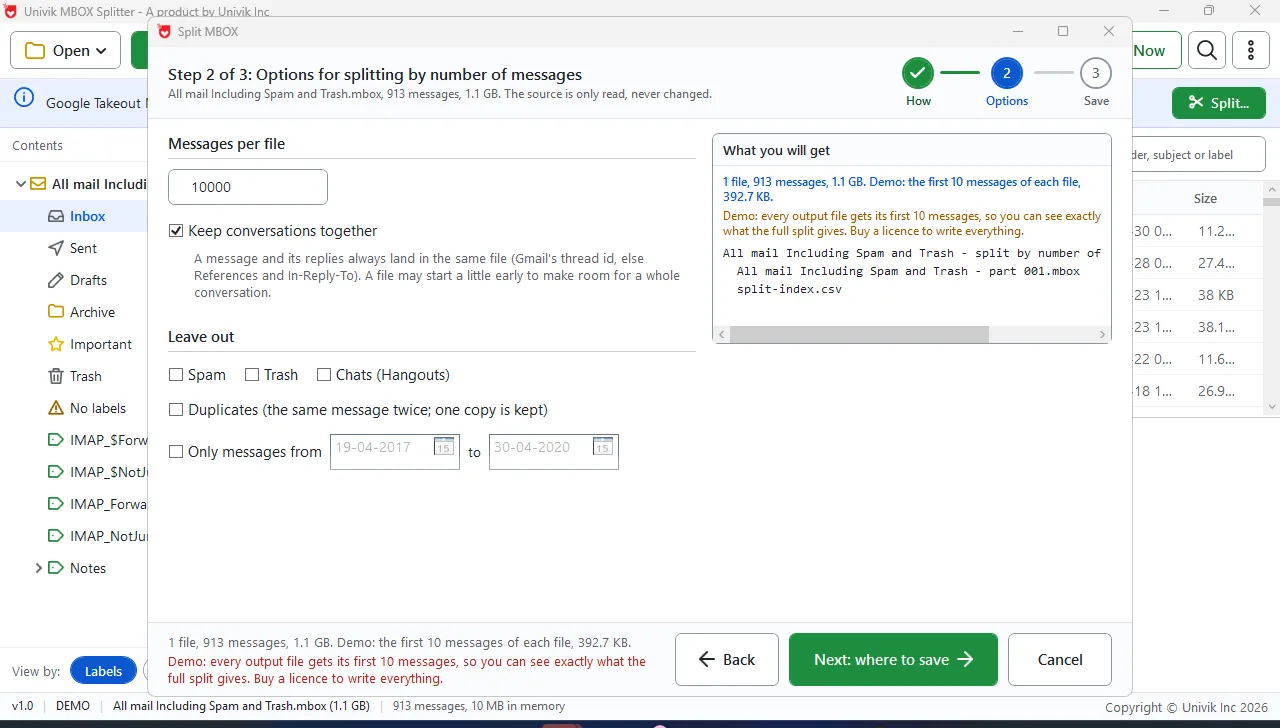
In every label, like Gmail. A message tagged Inbox, Important and Clients/Acme is written into Inbox.mbox, Important.mbox and Clients\Acme.mbox. The cost is size. On our test export, 913 messages became 1,162 copies across 13 label files and the output grew from 1.1 GB to 1.3 GB.
Once, no duplicates. Each message is written one time. Inbox, Sent or Drafts wins when present. Otherwise the first label in the header wins. The other labels stay in the header inside the message, so a later search still finds them.
| Label rule | What you get | When to use it |
|---|---|---|
| In every label, like Gmail | One mbox per label. A message with three labels appears in three files. | The folders should match Gmail and disk space is not tight. |
| Once, no duplicates | One mbox per label. Each message lands in one file. Inbox, Sent or Drafts first, then the first label listed. | A clean count for an archive or a handover. |
| Leave out Spam, Trash and Chats | Spam, Trash and Hangouts chat records are skipped. | Almost always. Few people want them in a new mail program. |
How Do Nested Labels and System Labels Come Out After the Split?
A nested label becomes a subfolder and a system label becomes a file like any other label. Gmail writes a nested label with a slash, such as Clients/Acme. The split turns the slash into a folder: Acme.mbox sits inside a Clients folder. When the Clients label holds messages of its own, you also get Clients.mbox next to the Clients folder.
System labels are the ones Gmail made for you. Inbox, Sent, Drafts, Important, Starred, Spam, Trash and Chat appear in X-Gmail-Labels the same way your own labels do, along with tab labels such as Category Promotions. Each one gets a file. Starred and Important can be folders too, which under the every-label rule means a second copy of each starred message. Spam, Trash and Chats have their own leave-out option.
How Do You Split the Takeout MBOX by Label with a Script or a Windows Tool?
You have two routes: a free Python script or a desktop program on Windows.
The script route. f00b4r0/gmail-mboxsplitter on GitHub splits a Takeout mbox by label and, as its README says, stores each message only once. You need Python installed and a command window. Python's own mailbox module can do a plain version: read each message, take the header and append the message to a file named after the label. Neither checks the output against the source. For one copy per message the script is a fair choice.
The desktop route. Univik MBOX Splitter runs on Windows 11 and 10 (64-bit) and needs no code. It lists the labels with a count for each before you split. You choose the every-label rule or the once rule, leave out Spam, Trash and Chats and get nested labels as folders. Afterwards it re-reads every output file, compares it with the source and lists each message in split-index.csv. The trial runs the complete split and keeps the first ten messages of each output file.
Univik MBOX Splitter reads X-Gmail-Labels and writes one mbox per label, with nested labels as subfolders and duplicates handled the way you choose.
Free Download See all featuresWhat Does the Gmail Label Split Look Like in Thunderbird?
Thunderbird shows one folder per label file, the view the flat export could not give you. Import Inbox.mbox and you get an Inbox folder. Import Acme.mbox under a Clients folder and Acme appears as a subfolder, the same shape as the Clients/Acme label.
The import uses ImportExportTools NG (the free add-on that brings mbox files into Thunderbird). Right-click a folder under Local Folders, open the add-on's menu and pick Import mbox file. To place Acme under Clients, right-click the Clients folder first. Our guide on importing a Takeout export into Thunderbird covers the full import.
Under the every-label rule a message tagged Inbox and Clients/Acme appears in both folders, as in Gmail. Under the once rule it appears in one folder.
Last, compare the split report's count for each label file with the folder properties in Thunderbird. Under the every-label rule the files add up to more than the source, 1,162 against 913 on our test export. Under the once rule the totals match.
- A Takeout export is flat because Gmail labels live in a header on each message, X-Gmail-Labels, not in folders.
- Split on that header and each label becomes its own mbox file. Clients/Acme becomes a Clients folder with Acme.mbox inside.
- In every label, like Gmail matches Gmail's folders but repeats a message once per label.
- Once, no duplicates writes each message one time. Inbox, Sent or Drafts wins and the other labels stay in the header.
- Inbox, Sent, Starred and Category Promotions are labels too. Spam, Trash and Chats can be left out.
- f00b4r0/gmail-mboxsplitter is the free script route. Univik MBOX Splitter adds the duplicate choice, nested folders and a read-back check.

Takeout Label Split Questions

Researched and put together by Leena Taylor Paul with help from the Univik team, who have handled Gmail exports since 2013. The label behaviour described here was checked on a real Takeout export with 7 labels and 913 messages. Last checked September 2026. Labels not coming out right? Contact our support team.