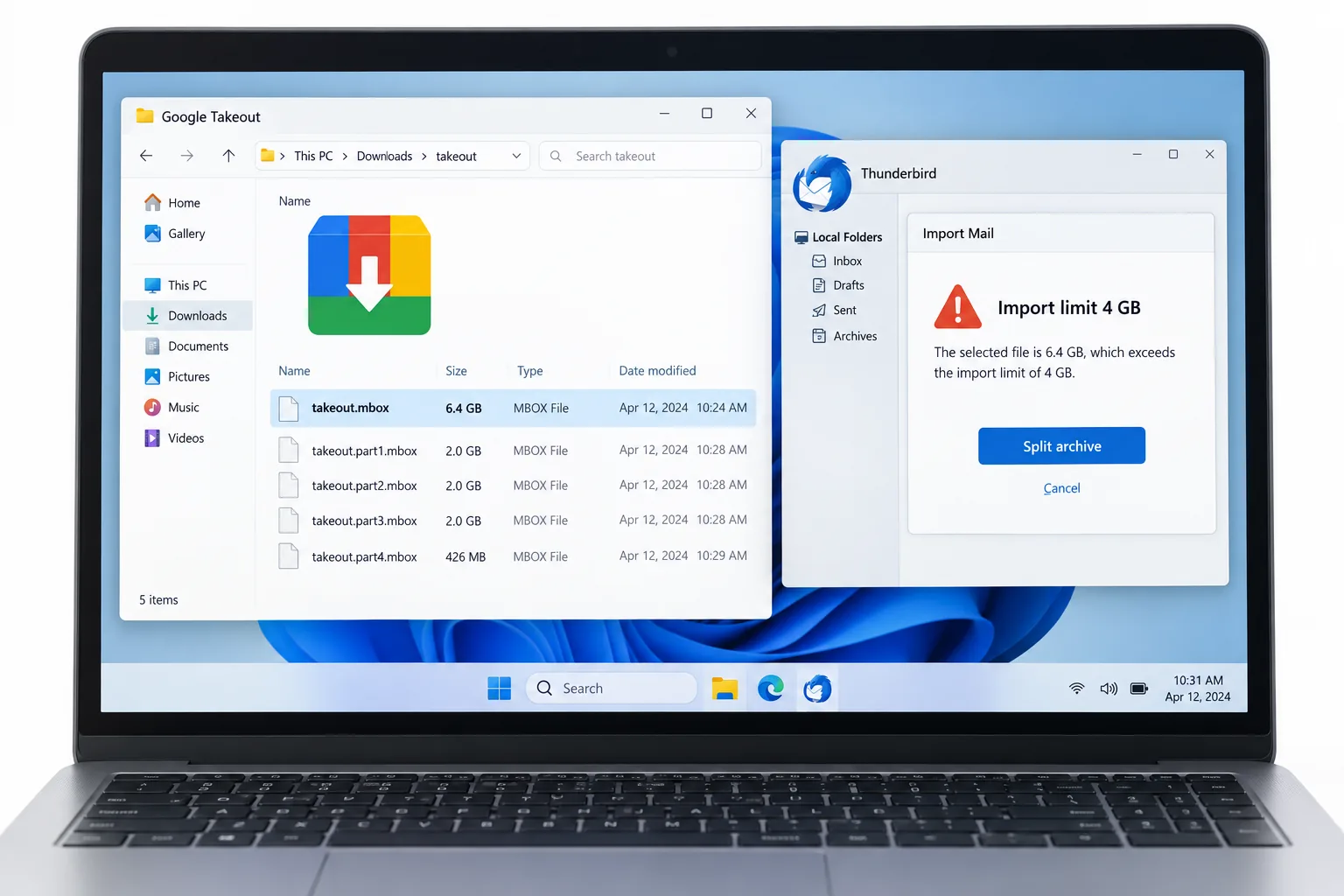
Google Takeout hands your whole Gmail account back as one mbox file, which can run to many gigabytes. No program on Windows opens an mbox by double-click, and mail apps stall or refuse a file that size. You either look inside it with a viewer or cut it into smaller parts first.
The file is big because it carries every message, every attachment and a copy for each label. The fix is to view it or split it rather than fight to open the whole thing at once.
You asked Google Takeout for your Gmail and it gave you one enormous mbox file that will not open. Double-click it and Windows does not know what it is. Drag it into a mail app and the app freezes or turns it away. The file is not broken. It is far too large and in a format Windows has no built-in reader for. This guide explains why the export is one giant file, why nothing opens it and three routes that make it usable, one of which is the Univik MBOX Splitter.
Why Is a Google Takeout Gmail Export One Giant File?
Takeout packs your whole mailbox into a single file. Every message you ever kept goes into one mbox, and Spam and Trash go in too unless you trim them first. The file carries its attachments inside itself, so a mailbox heavy on photos and PDFs balloons far past the message count you expect. On top of that, a message that carries three labels is written three times, once under each label, so the total can be larger than your real mail. Put together, an account with years behind it often produces a file of several gigabytes from what felt like a modest inbox.
Why Will Nothing Open the Takeout MBOX on Windows?
Two things block it. First, Windows has no program tied to the mbox format, so a double-click brings up a chooser rather than your mail. An mbox is a plain-text container that holds every message end to end, and desktop mail apps read it, not File Explorer. Second, size defeats the apps that could read it. A mail program tries to load or index the whole file, and on a multi-gigabyte export that means a long freeze or an outright refusal. The format problem and the size problem stack, so the export sits there looking unopenable when it is really only waiting for the right tool.
What Are the Takeout Zip Parts and the Spam and Trash File?
Takeout does not always give you a single download. When you set it up you choose a size limit for each archive: 1 GB, 2 GB, 4 GB, 10 GB or 50 GB. The default sits at 2 GB. A mailbox larger than the size you pick is split across several numbered zip files, the first ending 001.zip and the rest counting up from there. Inside, your mail sits in a file with a long name that begins with All mail Including Spam and Trash and ends in the mbox extension. That single file is the thing that is too large. One more catch worth knowing: the download link from Takeout lasts only about a week, so if you leave it and it expires you have to run the whole export again.
| What you got | What it means |
|---|---|
| Several takeout-...-001.zip parts | The archive was cut at the size you chose, 2 GB by default |
| One long file ending in .mbox | Your whole mailbox, the file that is too large |
| Spam and Trash in the name | Junk and deleted mail are included unless you removed them |
| A download link that expired | Takeout links last about a week, so re-run the export |
How Do You Make a Too-Large Takeout MBOX Usable?
Three routes work, and which one you pick depends on what you want to do. To read a few messages without importing anything, open the file in a viewer. The Univik Online MBOX Viewer shows it in a browser and the Univik MBOX Viewer reads it on Windows. To actually work with the mail, cut the giant file into smaller parts by label, year or size so each piece opens and imports on its own. To start over with less, re-run Takeout and pick fewer labels, though a label-by-label export makes duplicate copies of any message that carries more than one label. The Univik MBOX Splitter takes the second route and opens the zip parts as they are.
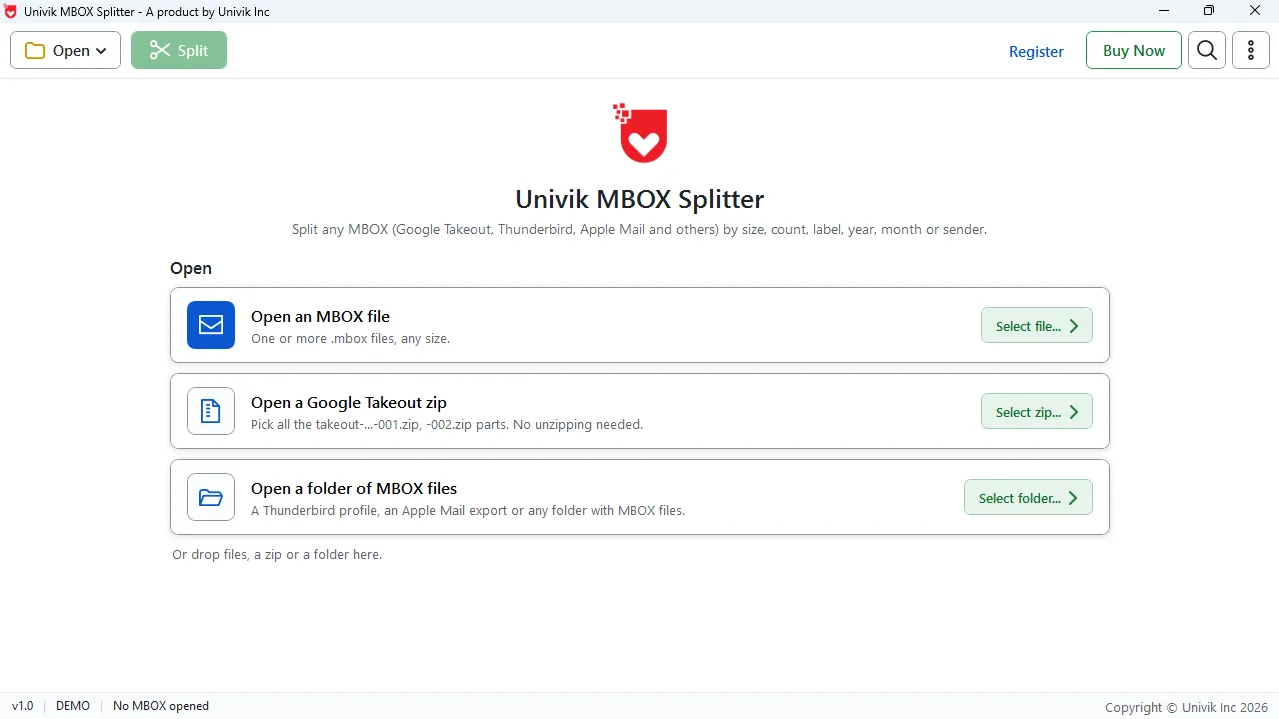
Univik MBOX Splitter reads the downloaded Takeout zip parts with no unzipping, then splits the mailbox inside by label, year or size.
Free Download See all featuresDo You Have to Unzip the Takeout Download First?
Not with the right tool. Most guides tell you to extract every zip part before you touch the mail, which doubles the disk space you need and takes time on a big export. The Univik MBOX Splitter opens the zip parts directly and reads the mailbox inside without an extraction step. You point it at the parts you downloaded and it does the rest. If you would rather extract them yourself, that works too, but on a 50 GB export skipping the unzip saves a lot of waiting and a lot of disk. Either way, once the tool can read the mailbox you split it by label, year or size and each part becomes a file you can open.
- A Takeout export is one mbox that holds your whole account, so it can reach many gigabytes.
- It is large because attachments sit inside it and a multi-label message is copied once per label.
- Windows has no reader for the mbox format, and mail apps stall on a file that size.
- Takeout cuts the download into zip parts at the size you chose, 2 GB by default.
- The download link lasts about a week before you must run the export again.
- View the file with an MBOX viewer, or split it by label, year or size to make it usable.

Takeout MBOX Too Large Questions

The Univik team has helped people open Google Takeout exports since 2013, and Leena Taylor Paul pulled this guide together with them. The archive sizes and file names here are what Takeout produces today. Last checked September 2026. Export still stuck? Contact our support team.