To convert ENEX to Markdown, open the .enex file in a converter, pick Markdown as the output and run it. Each note becomes an .md file with its images saved beside it. The Univik ENEX Converter does this in one batch, with no Evernote install needed.
Markdown is where most Evernote escapes end up. The notes turn into small text files that any app can read, and nothing about them belongs to a company any more.
Evernote cannot write Markdown itself. It exports ENEX, and ENEX needs one more step. That step is this guide.
Why Markdown Fits Evernote Notes
A Markdown file is plain text with a few small marks for structure. A # makes a heading, a - makes a list item, and stars make bold. Notes stored this way open in any text editor, on any system, twenty years from now. Obsidian, Notion, Logseq and Joplin all read Markdown as their home format, which is why almost every Evernote migration passes through it.
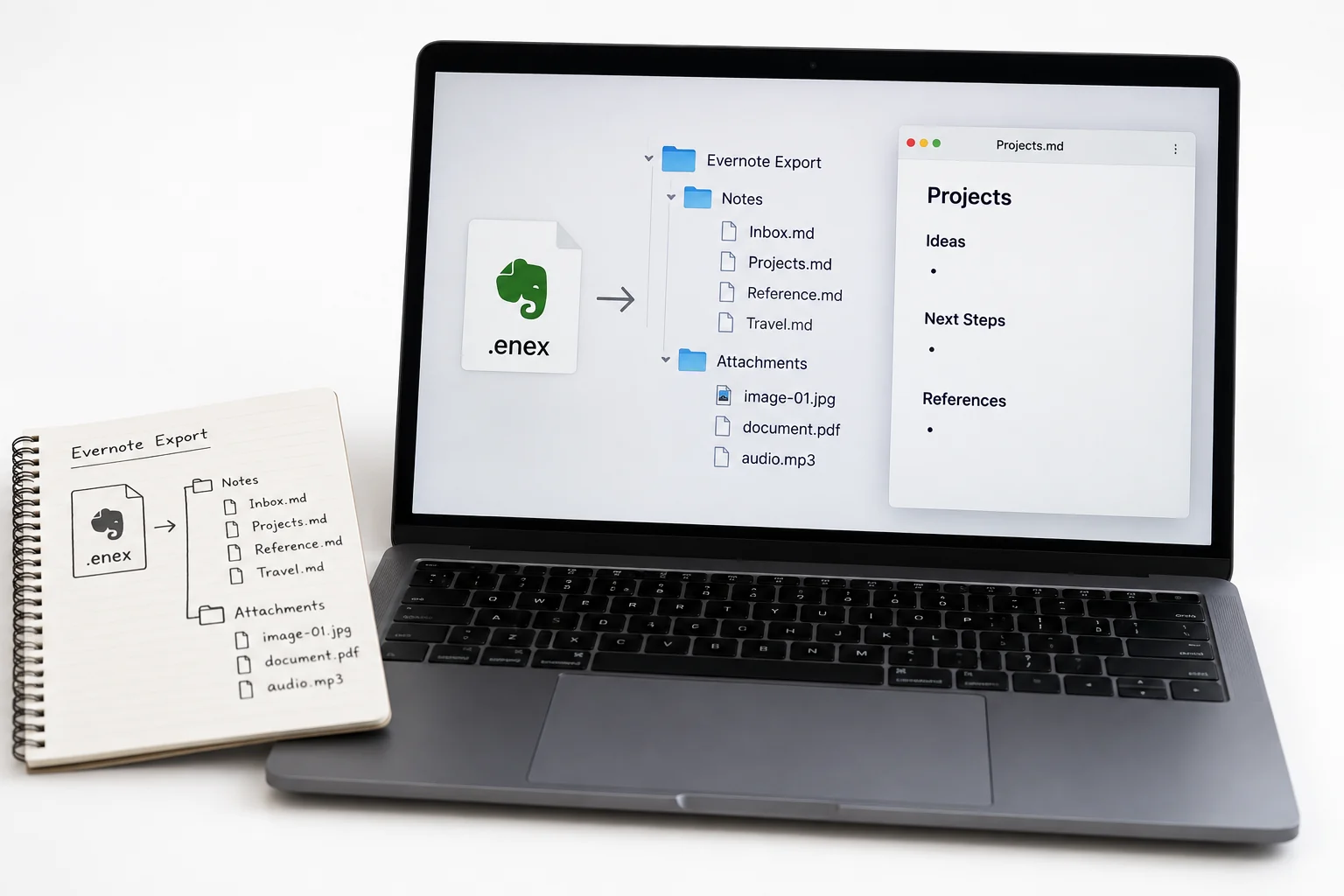
Convert ENEX to Markdown in Four Steps
Start with the .enex files on your disk. If they are still inside Evernote, the export guide shows how to get them out, one file per notebook.
- Open the .enex filesLoad one or a whole folder into the converter.
- Check the note listUntick anything you do not want.
- Pick MarkdownChoose it from the output formats.
- Choose a folder and runThe .md files and images appear there.
A few hundred notes take a minute or two. Bigger accounts mostly wait on the attachments, since those carry the size.
The Univik ENEX Converter reads .enex files straight from disk, writes one .md file per note and puts every image and attachment in a folder beside them.
Free Download See All FeaturesWhat Goes into the .md Files
Each note keeps its shape, written in Markdown marks instead of Evernote formatting.
#, one per level.- items, with - [ ] for unchecked boxes.[text](url)..tags: recipes and created: 2026-08-12.Frontmatter is the part people miss. It is a short block between two --- lines at the top of the file, and it is where the note title, tags and both dates live on. Obsidian and Logseq read it and bring the tags back as real tags.
Where Attachments Go in Markdown
Inside an ENEX file, every image and PDF is stored as one long block of encoded text. That is why the file is so big and why nothing else opens it well. A converter decodes those blocks back into normal files.
Keep that folder with the notes. Copy the .md files alone and every image link points at nothing.
Free Tools for ENEX to Markdown
Three free tools do this job well, each with its own trade off.
Yarle gives the most control and expects some patience with its config file. evernote2md is quick if a terminal does not scare you. The Importer makes sense when Obsidian is the goal, and the Evernote to Obsidian guide walks that whole path. The Univik converter covers the same ground with a preview of every note before you commit, which matters when the export holds years of mixed content.
The Parts Markdown Leaves Out
Markdown is a small language on purpose. Some Evernote details have no place in it.
None of this blocks a migration. It sets what to expect when you open a heavy table for the first time in its new home.
Where the Markdown Files Work
Point Obsidian at the folder and it treats every note as part of a vault, tags included. Logseq and Joplin open the same files. Notion imports them. A plain text editor reads them with zero setup, which is the quiet win, because it means the notes stay readable even with no note app installed at all. If some notes need to become fixed pages for sharing or print, the ENEX to PDF guide handles that side.
Check the Files Before You Move On
Open five or six converted notes before deleting anything. Look at one heavy note with a table, one web clipping and one with images. Check that the frontmatter shows the right tags and dates. If a note came out strange, run it again on its own and compare. Keep the original .enex files either way. They are your source, and disk space is cheaper than a lost note. The free online ENEX viewer shows what a file held before conversion, which makes the comparison quick.
ENEX to Markdown Questions

Written and maintained by Leena Taylor Paul and the Univik team, developers of Windows data conversion and recovery software since 2013. Half the migration folders people send us are Evernote exports on the way to Obsidian, so this guide is built from watching which conversions came out clean and which needed a second run. Last verified August 2026. Stuck with an export that will not convert? Contact our support team.