To move Evernote to Obsidian, export your notebooks as .enex files, then run them through Obsidian's free Importer plugin, which turns every note into Markdown inside your vault. For a preview first, or Markdown you can use outside Obsidian too, the Univik ENEX Converter covers that route.
Obsidian keeps notes as plain Markdown files on your own disk, which is the opposite of how Evernote holds them. That difference is the whole reason people switch.
The move itself is short. Two tools, three files, maybe ten minutes.
Obsidian Imports ENEX Files Itself
Obsidian's team ships a free plugin called Importer, and Evernote is its main job. It reads .enex files and rewrites every note as Markdown during the import, using the same Yarle engine that powers the best standalone converters. You install it once from Community Plugins and it stays in your vault for the next import too. The same plugin also imports Notion, Apple Notes and OneNote files, so one install covers more than this move. There is no cost and no account, and Obsidian's own help page keeps the current steps.
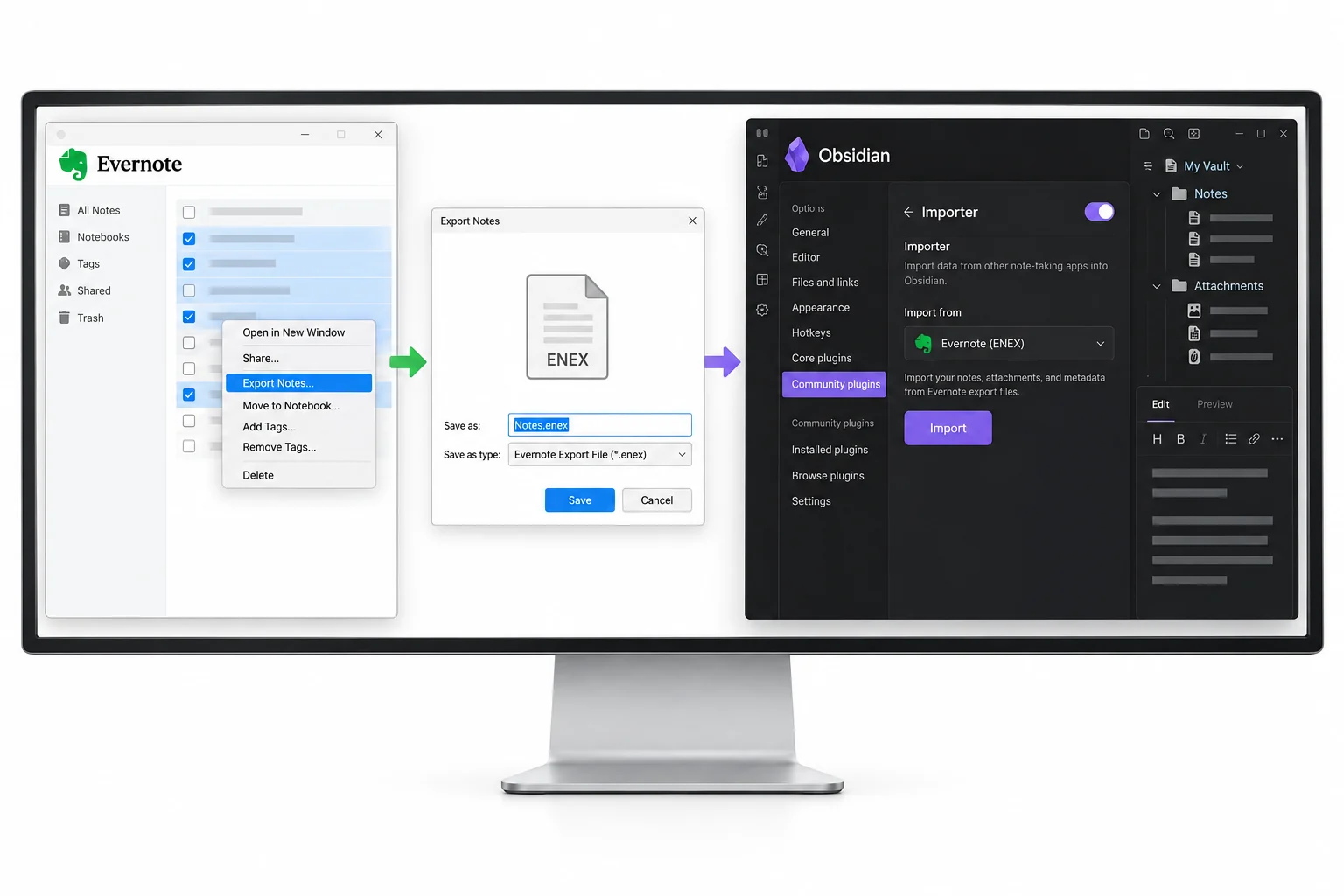
Import Evernote Notes into Obsidian
Start with your notebooks exported as .enex files, one per notebook. The export guide covers that part in full.
- Install the Importer pluginFind it under Settings, then Community Plugins, and enable it.
- Open it and set the formatPick Evernote (.enex) under File format.
- Choose your .enex filesSelect one or several at once.
- Pick a folder and hit ImportThe notes appear in your vault as Markdown.
A notebook of a few hundred notes finishes in well under a minute. The plugin reports what it converted and flags anything it skipped.
The Univik ENEX Converter shows every note inside an export, lets you tick the ones worth keeping and writes Markdown that works in Obsidian and anywhere else.
Free Download See All FeaturesWhere Notes Go in the Vault
A vault is a folder of Markdown files, and the import writes into it like any other folder. Each .enex file you feed in becomes its own subfolder of notes, so the notebook borders you had in Evernote stay visible. Media has a home of its own, a _resources folder beside the notes, which holds every image and attachment the import pulled out. If you used notebook stacks, rename the file to Stack1@@@NotebookA before importing and the notes come out under a matching Stack1/NotebookA path. The import can also run again later. A notebook you missed the first time slots in as a new folder beside the others, with nothing already imported disturbed.
Tags, Dates and Note Links
Most of what made your notes findable comes across with them.
The formatting losses come from Markdown itself, and the ENEX to Markdown guide lists them in full. Reminders on tasks belong to that list too.
The Importer Runs on Desktop Only
The plugin needs direct access to your files, so it works in the Obsidian desktop app on Windows and Mac and sits out on phones and tablets.
Check the Vault After Import
Give the vault ten minutes before you call the move done. Open the biggest note you had, one web clipping and one note full of pictures. Click a tag and count what it lists. Follow two or three links between notes to catch the broken ones early. If a note looks wrong, the free online ENEX viewer shows what the export held, so you can tell an import problem from a note that was already messy in Evernote. Keep the Evernote account alive until the vault has earned your trust. A month of real use tells you more than any checklist, and the .enex files stay as your fallback either way.
When a Converter Fits Better
The plugin imports everything you hand it. A converter earns its place when you want to pick. The Univik ENEX Converter previews the notes inside each export, lets you tick a shopping list and skip ten years of clippings, and writes the Markdown before Obsidian ever opens. The same run can put a folder of files where other apps reach them too, since the output is ordinary Markdown rather than something tied to one vault. And when a few notebooks should become PDF for sharing while the rest go to Obsidian, one tool covers both jobs.
Other Ways into Obsidian
Two standalone tools cover special cases. Yarle is the engine inside the Importer, and running it on its own opens up templates and settings the plugin keeps hidden, which suits people with strong opinions about frontmatter. evernote2md does the same conversion from a command line. Both write Markdown files that you then drop into the vault by hand, and the Markdown guide covers how those files are built. For one clean move into a single vault, the plugin wins on effort. The extras only matter when its defaults get in your way.
Evernote to Obsidian Questions

Written and maintained by Leena Taylor Paul and the Univik team, developers of Windows data conversion and recovery software since 2013. Obsidian is the destination we hear about most this year, so this guide follows the same Importer run we walk people through on support calls, with the checks that catch messy clippings early. Last verified August 2026. Import came out wrong somewhere? Contact our support team.