To convert ENEX to PDF, load the .enex file into a converter, tick the notes you want, choose PDF and run it. Each note becomes pages, or the whole export becomes one merged PDF. The Univik ENEX Converter handles both, plus passwords and PDF/A, with Evernote nowhere in the picture.
An .enex file sits on your disk holding years of notes, and nothing on the computer will show them to you. PDF ends that. Pages that open on any machine, print cleanly and never ask for an account.
Why PDF Suits Exported Notes
A PDF is a fixed page. What you see on your screen is what a lawyer, a colleague or your future self sees on theirs, down to the line breaks. That makes it the format for sharing notes, printing them and keeping copies that must still look right long after Evernote is gone from your life. When the plan is to edit the notes or move them into another app, this format is the wrong tool, and the last section points to better ones.
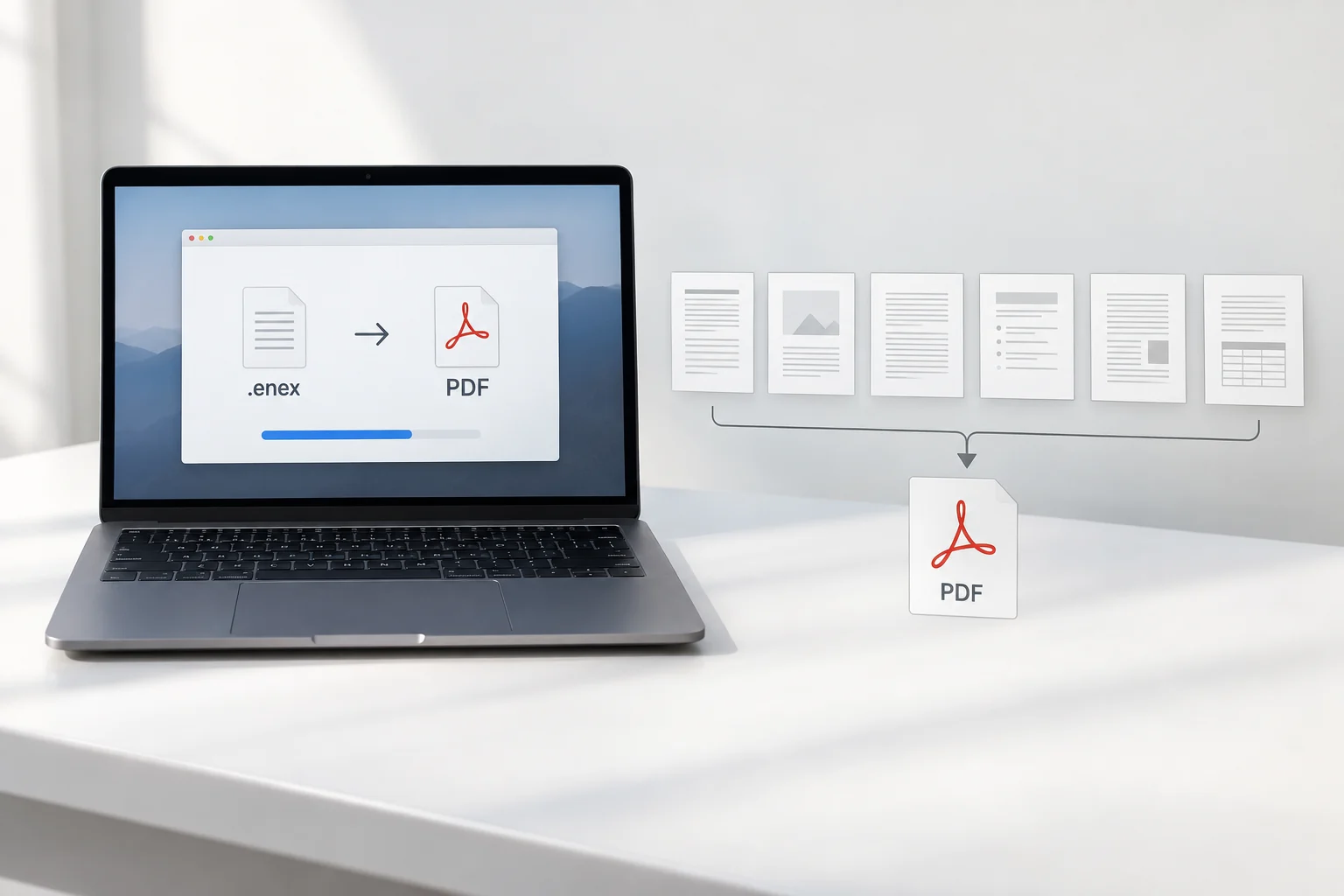
Convert ENEX to PDF in Four Steps
You need the exported .enex files first, one per notebook. The export guide covers getting them out of Evernote. From there the conversion is short.
- Load your .enex filesAdd one file or a folder of exports.
- Tick the notes to keepThe preview lists everything inside.
- Pick PDF from the formatsSet the password, merge or PDF/A options if you need them.
- Set a folder and startThe finished PDFs appear there.
Text notes convert fast. Notebooks heavy with scans and photos take longer, since the pictures make up most of the work.
The Univik ENEX Converter previews every note, converts whole folders of exports and offers passwords, merging and PDF/A on the way out.
Free Download See All FeaturesOne PDF per Note or One Merged File
The first real choice in the run is the shape of the output.
A tax notebook going to an accountant wants the merged file. A recipe collection you cook from wants a file per note. Pick per export, since the converter runs each .enex on its own terms.
Passwords, PDF/A and Smaller Files
PDF is the output with the most switches, and three of them matter for notes.
PDF/A is a real standard rather than a marketing name, and Nutrient's plain guide to PDF/A explains what it locks down. For everyday sharing, a normal PDF with the smaller size switch is the sensible default.
What Shows Up on the Pages
Each note becomes pages with its text and pictures laid out like the original. Checklists print with their boxes, tables come through as tables and web clippings keep their reading order. Files that were attached to notes, a bill or a spreadsheet, cannot sit inside a page, so they come out beside the converted notes as separate files with nothing left behind in the export. The MyInfo write up on the ENEX format shows how deeply Evernote buries those attachments, which is why pulling them out matters.
Old Exports Convert Too
Plenty of .enex files outlive their accounts. A backup from a plan cancelled in 2019, an export found on a dead laptop, a file a colleague made before leaving. These convert like any fresh export.
The Free Routes for ENEX to PDF
Two free paths exist, both with a bill paid in time. The first goes back through Evernote itself, which can print a note to PDF one at a time, and the Evernote to PDF guide walks that side. The second uses free tools to turn the export into HTML files, after which a browser prints each page to PDF. Fine for a dozen notes. For a full account it turns into an evening of clicking, there is no merging and no passwords, and every note passes through two conversions instead of one.
Other Formats for Other Jobs
PDF freezes notes. When they still have work to do, freeze the wrong ones and you will retype them later. Notes you want to edit or move into a new app belong in Markdown, and a vault based app like Obsidian has its own import path. A sound split is PDF for the finished and the private, Markdown for the living notes, and the free online ENEX viewer to peek inside a file when you cannot remember which pile it belongs to.
ENEX to PDF Questions

Written and maintained by Leena Taylor Paul and the Univik team, developers of Windows data conversion and recovery software since 2013. The ENEX files people bring us most are the old ones, backups from closed accounts, and PDF is what they ask for first, so this guide leans on those cases. Last verified August 2026. Have an export that will not open anywhere? Contact our support team.