To export Evernote to PDF, select notes or a notebook in the desktop app, open More actions and choose Export as PDF. For one note, use Print with Save as PDF as the destination. For a whole account, export ENEX files and batch them through the Univik ENEX Converter.
Evernote can do this itself these days, and for small piles it does it well. The trouble starts with scale, and the fix for scale sits outside the app.
This guide covers all three sizes of the job.
Three Ways from Evernote to PDF
Print handles one note. Export as PDF handles a selection or a notebook. An ENEX export plus a converter handles everything at once, along with the extras like passwords and merged files. Match the route to the size of the pile and none of them feels like work.
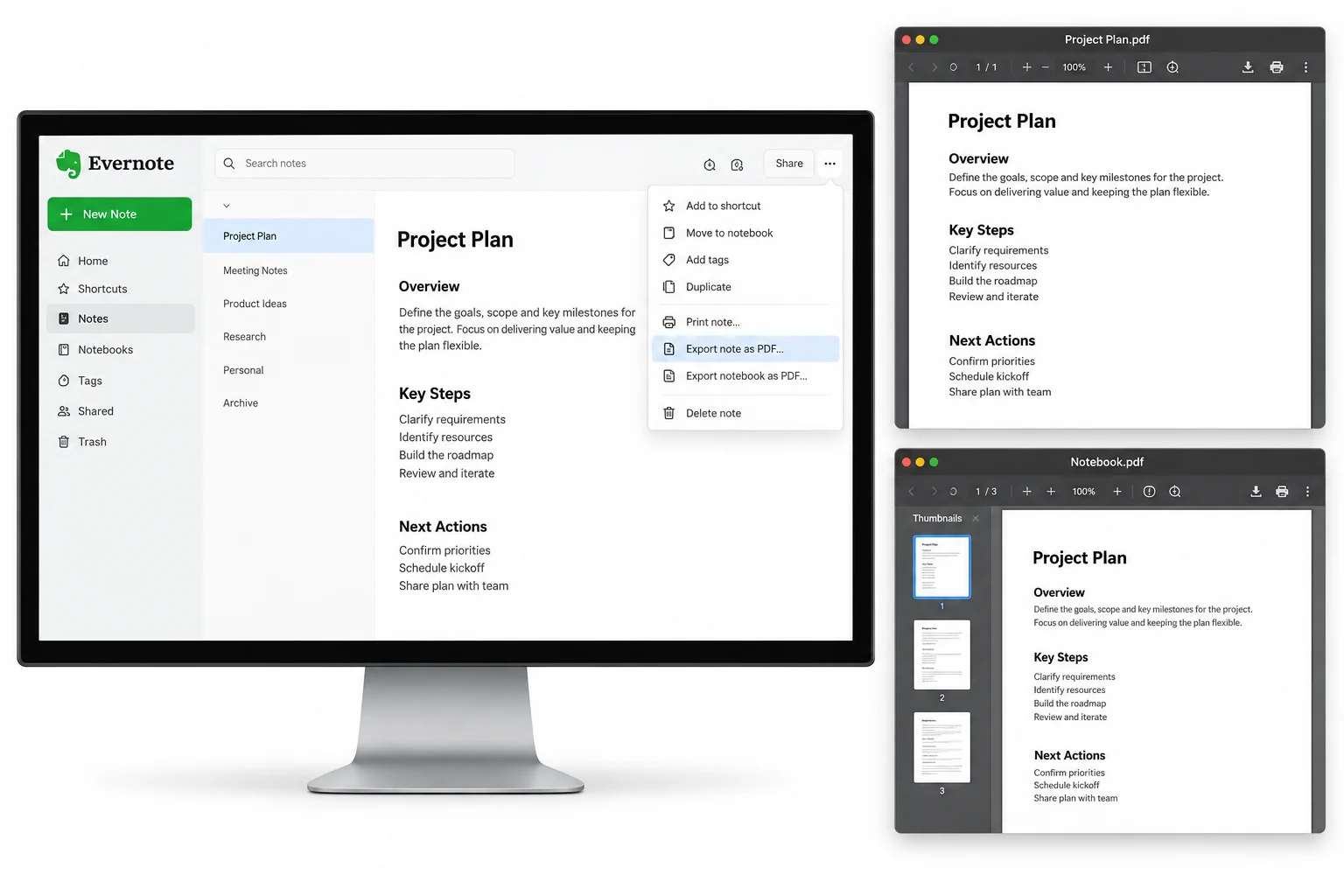
Print a Single Note to PDF
For the one note going to a colleague today, the print dialog is the shortest path.
- Open the noteClick it so it fills the editor.
- Click More actionsThe three dots at the top right of the note.
- Select PrintThe print dialog opens.
- Set the destination to Save as PDFClick Save and name the file.
The same trick works anywhere a print dialog exists, including Evernote in a browser.
Export as PDF for Notes and Notebooks
Select several notes with Shift or Ctrl and an action bar appears at the bottom of the screen. Its More actions menu holds Export as PDF, which writes the selection into a document after a short page options step. A hand picked selection stops at 100 notes. A whole notebook has no ceiling, and its own More actions menu carries the same option, so the cleanest big native export is notebook by notebook. Evernote's PDF export help keeps the current click path for each system.
The Univik ENEX Converter takes a folder of exports and writes the lot, with per note files or merged documents, passwords and PDF/A on the menu.
Free Download See All FeaturesPDF for the Whole Account
Past a few notebooks, leave the app. Export each notebook as an .enex file, the format Evernote documents and the export guide walks through, then convert the folder of exports in a single run. The ENEX to PDF guide holds the conversion steps and the choices that come with them, a file per note or one merged document per notebook, a password on private material and PDF/A for anything headed into long storage. The native export offers none of those switches, which is the real gap between the two routes.
The Online Converter Question
Search results push web tools that take an upload and hand back a finished file. Think about what the upload is.
Web tools also choke on size, since attachments make .enex files far bigger than the notes look. For a couple of harmless notes they work. Beyond that, the desktop routes above cost nothing extra and keep everything home.
PDF on the Web and on Your Phone
The phone app manages single notes through printing. Open the note, choose Print note, then use the share icon to save the result into your files. On the web version, the browser's own print dialog does the same per note trick. Anything past single notes still calls for the desktop app, since the ENEX export and the multi note selection both live there, a limit the export guide explains.
Which Route Fits the Job
Formats Beyond PDF
A PDF is for reading, not for editing, so notes with a future still ahead of them deserve a different container. Markdown keeps them editable everywhere, and a move into Obsidian has a clean path of its own. When you cannot recall what an old export even holds, the free online ENEX viewer answers that in the browser before you convert anything.
Evernote to PDF Questions

Written and maintained by Leena Taylor Paul and the Univik team, developers of Windows data conversion and recovery software since 2013. Most people who write in have already tried the app's own PDF export and hit its edges, the selection cap or the notebook grind, so this guide sorts the jobs by size the way we do on calls. Last verified August 2026. Stuck between routes? Contact our support team.