Evernote makes a PDF searchable, not editable, so the text stays locked in the document. To get it out, free the PDF from the note, then use a text tool for a digital PDF or an OCR tool for a scanned one. The Univik ENEX Converter unpacks those attachments and writes each note's own typed text to a plain file.
Here is the surprise that sends people searching. Evernote seems to read your PDFs, it finds words inside scanned contracts, yet when you try to copy that text nothing selects. The reading is real. The copying was never on offer.
What Evernote PDF to Text Means
The phrase covers two jobs people mix up. One is the note's own typed body, the words you wrote in Evernote, which come out as text with ease. The other is a PDF attached to a note, a scanned invoice or a downloaded report, whose text you want as something you can edit. That second job is the hard one, and it splits again by the kind of PDF you are holding. Sorting your goal into the right bucket saves the wasted hour of fighting the wrong tool.
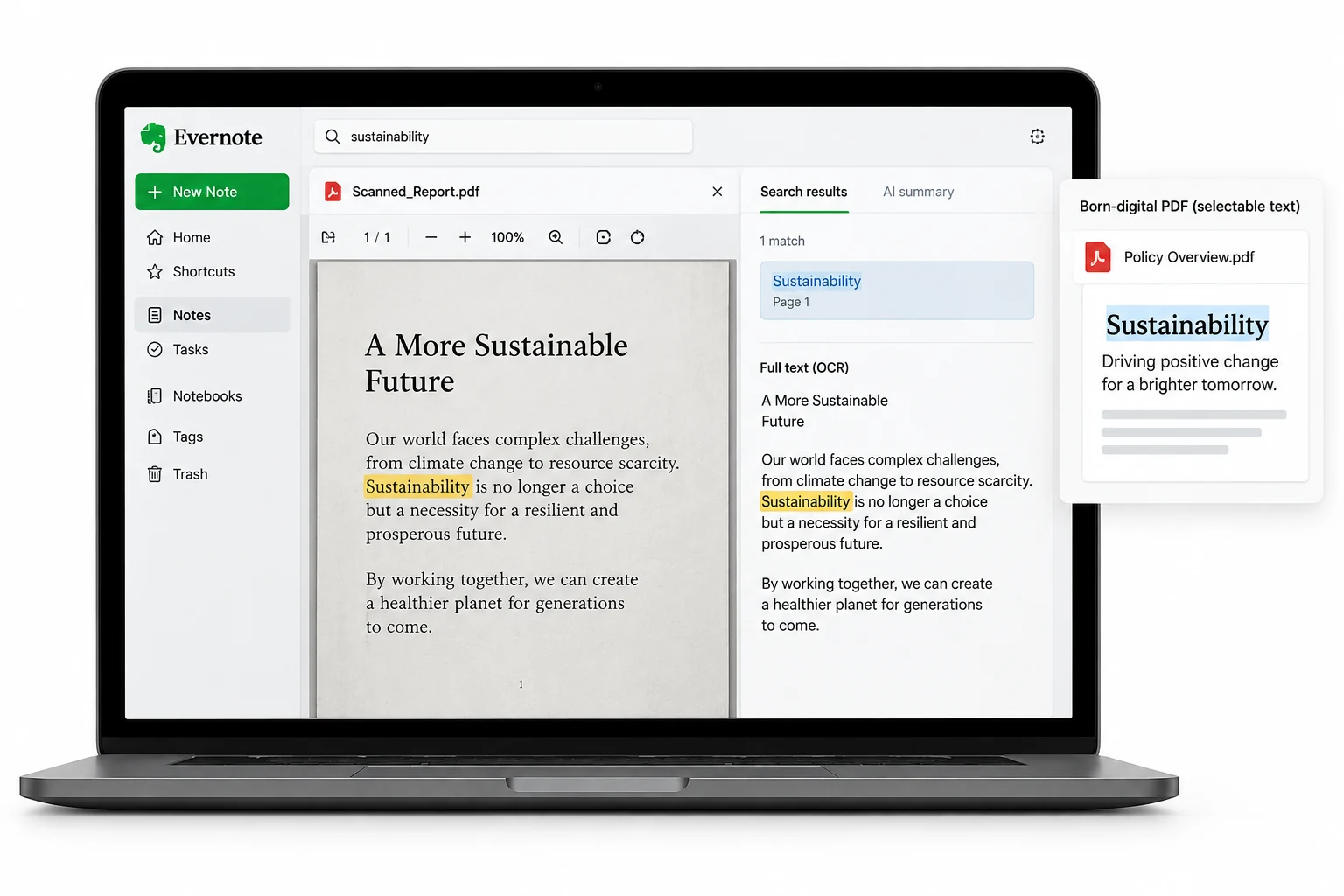
Evernote OCR Only Makes PDFs Searchable
This is the misconception at the heart of it. On paid tiers Evernote runs OCR across attached PDFs, indexes the words and lets search surface the file and highlight the matching page. What it never adds is a way to select, copy or export those words. OneNote hands you the recognised text. Evernote keeps it locked away, readable to the search box and to nobody's clipboard. So a PDF can feel fully digitised in Evernote while giving you nothing you can paste into a document.
Two Kinds of PDF, Two Different Jobs
Before you extract anything, work out which PDF you have. The answer decides the tool.
The quick test is your cursor. Open the PDF and try to drag across a line. If words highlight, it is digital. If the whole page acts like a picture, it is scanned and OCR is in your future.
Free the PDF from the Note First
Whatever the PDF type, no text tool can touch it while it sits inside a note or an export. The attachment has to become a file on your disk. Exporting the notebook as .enex packs those attachments into encoded text, which the MyInfo look at the ENEX format shows in detail, so the step that matters is pulling them back out as real files. The export guide covers getting the notebooks out to begin with.
The Univik ENEX Converter unpacks every attachment beside its note and writes the note's own typed content to text, Word and more, so each PDF is a real file ready for the tool that suits it.
Free Download See All FeaturesDigital PDFs Already Hold Real Text
Once a digital PDF is a file on your disk, its text is already there for the taking. Open it in any PDF reader, select the passage and copy it. For a whole document, most readers offer a save as text option, or you drop the file into a word processor that reads PDF. No OCR, no cost, no guesswork, since the characters were real from the start. This is the easy half, and plenty of Evernote PDFs land here.
Scanned PDFs Need Real OCR
A scanned PDF holds no text to copy, so extraction means OCR reading the picture and writing out the words. Dedicated OCR tools do this well, and quality tracks the scan, a crisp page reads near perfectly while a faint fax fights back. Evernote's own newer Image to Text tool exists, yet its own page notes it works on images and not on PDFs directly, so you convert the PDF pages to images first, and it returns plain text with no layout. Whichever tool you use, expect to proofread. OCR is very good and not flawless, and numbers in a scanned invoice are exactly where a stray misread hurts.
The Converter's Part in This
The Univik ENEX Converter is not an OCR engine, and being clear about that shows where it does help. It frees the attachments so a trapped PDF becomes a real file you can hand to a reader or an OCR tool. It turns each note's own typed text straight into a Word document or a text file, no OCR needed since that text was never an image. And it previews the export so you can tell which notes carry PDFs worth the effort before you start. For the scanned pages themselves, an OCR tool takes the baton, and the free online ENEX viewer lets you scout an export beforehand.
When You Only Need to Find It
Sometimes the extraction you are chasing is not the extraction you need. If the goal is to find a document later, not to reuse its words, Evernote's search already does that, and so does a folder of PDFs your computer indexes. Save the OCR effort for the pages whose text you truly have to edit, quote or paste. A thousand receipts you only ever search do not need converting to text at all, and knowing that is half the job.
Evernote PDF Text Extraction Questions

Written and maintained by Leena Taylor Paul and the Univik team, developers of Windows data conversion and recovery software since 2013. The search versus extract confusion is one we untangle on calls most weeks, so this guide names it early and points each PDF type at the tool that actually works on it. Last verified August 2026. Stuck on a PDF that will not give up its text? Contact our support team.