To export notes from Evernote, select the notes or a whole notebook in the desktop app, right click, choose Export and pick ENEX or HTML. Once the files are out, the Univik ENEX Converter turns them into everyday documents like PDF, Word and Markdown.
Your notes belong to you, and Evernote does let you take them out. The problem is that the export tools sit behind a right click, limit a selection to 100 notes and run on the desktop only.
The steps below cover all of it, from a single note to the full account.
The Two Formats Evernote Exports
Evernote saves exports in its own ENEX format or as HTML, and the dialog splits HTML into two kinds.
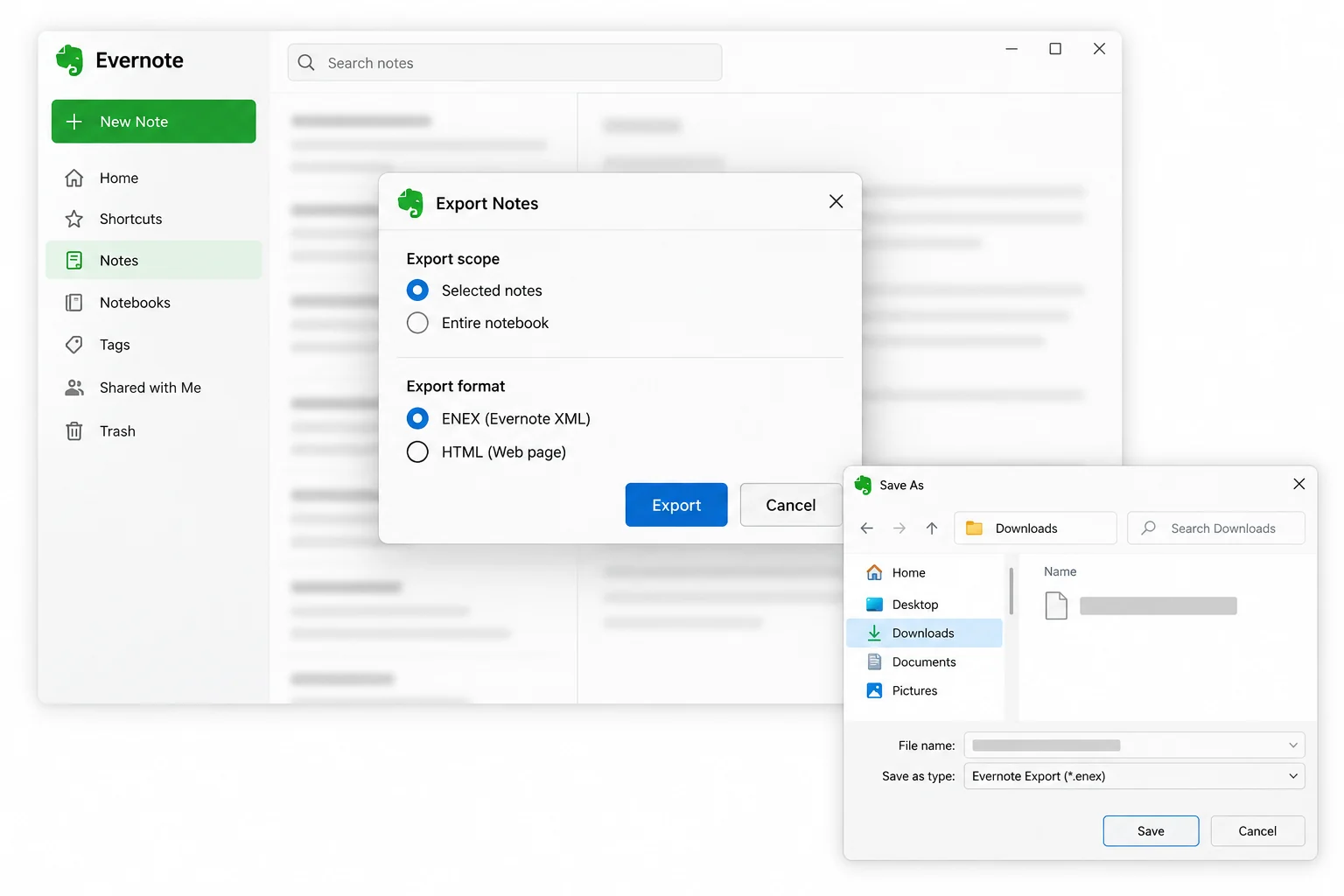
Pick ENEX when the notes are going somewhere else, an archive, a converter or a different app. Pick HTML when you want pages a browser opens right away.
Export Selected Notes
The export takes seconds in the Evernote app for Mac or Windows, and Evernote's own export help shows the same steps. The dialog also lets you tick which attributes go with the notes, like tags, created date and author. A big ENEX export can be split into pieces, with a size you set between 300 MB and 2 GB.
- Select the notesClick one or pick several in the list.
- Right click and hit ExportThe export dialog opens.
- Pick ENEX or HTMLTick the attributes to keep.
- Save the fileIt saves to your desktop.
That is the whole job for a few notes. Things get tricky past a hundred at once, and the next sections deal with that.
The Univik ENEX Converter reads exported files without Evernote installed. The free online viewer shows what a file holds before you convert anything.
Free Download See All FeaturesExport a Whole Notebook
Evernote puts no cap on a whole notebook. Right click a notebook in the sidebar, choose Export notebook, pick the format and the entire thing goes out in one file, no matter how many notes are inside. Notebooks export one at a time, there is no way to do several together, but each one is a single clean export with its attachments included. When your selection of notes goes past the cap, exporting the whole notebook is the answer.
Get Every Note Out of Evernote
Old versions of Evernote had an export for everything at once. That button is gone, so a full account backup now means going down the sidebar, one notebook at a time. Export the first notebook, then the second, until each has its own ENEX file. The cap of 100 notes applies only to hand picked selections, never to a notebook, so the method works even for thousands of notes. Name the files after their notebooks as you go and you can tell them apart later.
Why Export Needs the Desktop App
Export is a desktop feature only. The Evernote apps for Mac and Windows have it, the phone apps and the browser version do not. If you run Evernote on a tablet or only on the web, install the desktop app first, sign in, give it time to download your notes and then run the exports there.
What Gets Lost in an ENEX Export
An ENEX file holds a lot, but not everything. Knowing the gaps early means no surprises later.
The MyInfo team's guide to the ENEX format explains these gaps in detail. The fix for the lost structure is the same as before, one ENEX per notebook, so the file names keep what the format loses.
Where the ENEX Files Go Next
An .enex on its own is hard to use, plain XML with your attachments hidden inside coded text, and only Evernote can open it directly. Three options cover nearly every need. To check what a file holds, drop it on the free online ENEX viewer and read it in the browser. To turn notes into documents, a converter writes them out as PDF, Word or Markdown, each covered in its own guide. And if the goal was PDF from the start, the Evernote to PDF guide covers every way to get there.
Turn Exports into a Regular Backup
One export only saves what you had that day. Notes you keep adding need a routine. Do a fresh notebook by notebook export every month or every three months, keep dated folders on a drive you control and hold on to the old set until you check the new one. Open a few files after each export to check they hold what they should. If an export ever stops in the middle or shows an error, the export troubleshooting guide covers the usual causes and fixes.
Evernote Export Questions

Written and maintained by Leena Taylor Paul and the Univik team, developers of Windows data conversion and recovery software since 2013. Export questions come into our inbox every day, and the answer is nearly always the same two facts. The cap only applies to hand picked notes, and whole notebooks skip it. This guide is built around both. Last verified August 2026. Emptying a big Evernote account and unsure where to start? Contact our support team.