Google Keep has no import feature, so there is no way to load an Evernote export straight in. The real move is to convert your notes to readable text, then copy the ones you want into Keep by hand. The Univik ENEX Converter turns the export into clean text and PDF so both the copying and the archive are easy.
Most pages promising a smooth Evernote to Keep migration are selling something that cannot exist. Keep will not take an .enex file, an HTML file or a PDF. There is no import anywhere in it.
That sounds like bad news. It is actually the moment to decide what you really want in Keep, because the answer is rarely everything.
No Import Feature in Google Keep
Evernote exports notes as ENEX, HTML and PDF, none of which Keep reads. Evernote's export article lists those three and no other. The only files it accepts at all are images, the JPG and PNG kind, so even a tidy export has no door into the app. Sites that claim otherwise are pointing at sketchy web services that ask for your Google login, and handing a stranger the keys to your whole Google account to save some copy and paste is a bad trade. The honest picture is simpler. There is no import, and the move is manual.
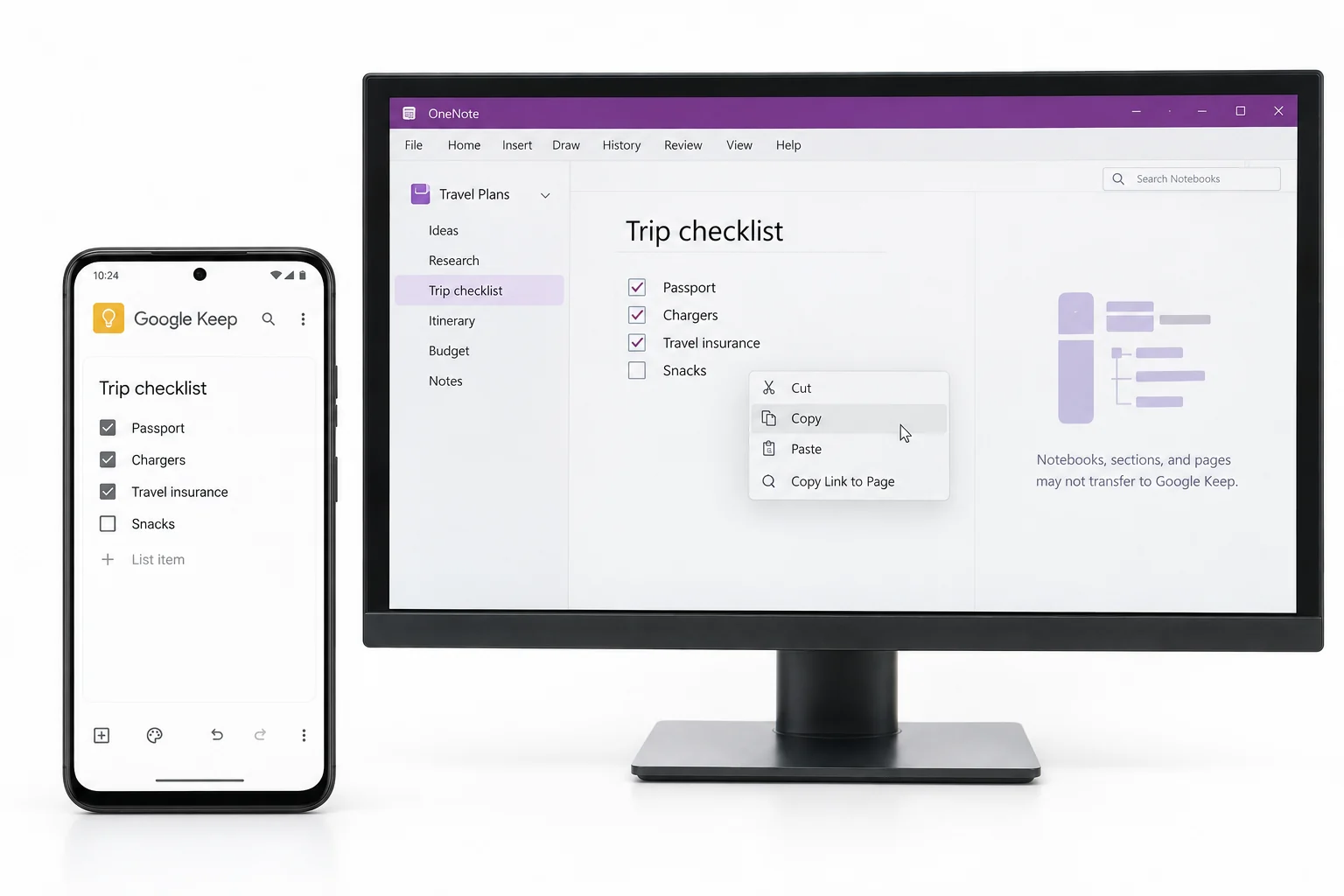
Keep Stays Deliberately Small
The missing import is not an oversight. Keep is a fast scratchpad for short notes, lists and reminders, and its limits, laid out in Google's help pages, reflect that on purpose.
Read that list as a filter, not a wall. It tells you exactly which of your notes belong in Keep and which were always going to need a home elsewhere.
Convert First, Then Copy What Counts
Copying notes straight out of Evernote is painful, since the app fights you on selection and formatting. Converting the export to clean text first makes the copying quick. The steps stay the same whatever size your library.
- Export the notebooks as .enexThe standard export, covered in the export guide.
- Convert them to text and PDFYou get readable notes to copy from and an archive in one pass.
- Copy the keepers inOpen a converted note, select its text, paste it into a new Keep note.
- Label as you goAdd a label per note while it is fresh in your mind.
The Univik ENEX Converter reads your exports on your own PC and writes them as text, PDF, Word and Markdown, so the notes headed for Keep are easy to copy and the notes that are not are safely kept.
Free Download See All FeaturesWhich Notes Belong in Keep
It works best with the notes you reach for daily and want a tap away. Grocery and packing lists. A few reference cards, a wifi password, a gate code, a booking reference. Quick thoughts you jot on a phone. Short checklists you tick through and reset. These are small, plain and frequent, which is the whole point of the app. The moment a note runs long, carries a PDF or belongs to a filing system, it is telling you it wants a different home.
Archive Everything Else
The bulk of an old Evernote account is reference material, and reference material wants an archive, not a scratchpad. Convert the whole export to PDF for a fixed readable record, or to Markdown if you want the notes editable later. Either way the attachments come out as real files beside the notes, so the bills and forms Keep would have refused stay with you. The free online ENEX viewer lets you look through an export first and decide what is worth copying at all.
Apps That Import Evernote Directly
If the manual copying sounds grim, the honest question is whether Keep is the right target. Three apps read .enex directly and spare you the paste marathon. Apple Notes imports on a Mac or iPhone. OneNote imports through Microsoft's tool, with the migration guide covering its quirks. Obsidian pulls .enex in through an official plugin. Any of them takes a whole library in a way Keep never will, so pick Keep because you want its simplicity, not because you assumed it could hold everything.
A Realistic Move to Keep
Put the pieces together and the plan is short. Export the account as .enex. Convert it once, giving you clean text for copying and a PDF archive for keeping. Copy your thirty or forty live notes into Keep and label them. Store the archive somewhere safe and let the rest of the account live there. You end with a lean, fast Keep and nothing lost, which beats a bloated one every time.
Evernote to Google Keep Questions

Written and maintained by Leena Taylor Paul and the Univik team, developers of Windows data conversion and recovery software since 2013. People arrive at this one expecting a one click import and leave glad to hear the truth early, so this guide leads with it and hands them a plan that actually holds. Last verified August 2026. Not sure Keep is the right home? Contact our support team.