To move Evernote to Apple Notes, pull each notebook out as an .enex file, then use File and Import to Notes on a Mac, or share the files to Notes through the Files app on an iPhone or iPad. Before the move, the Univik ENEX Converter previews old exports and keeps archive copies in formats no app owns.
Apple Notes went from Evernote's little cousin to its most common replacement. It ships on every device, costs nothing extra and imports Evernote's own export files without a helper.
The move takes an afternoon. Here is the whole of it, including the version for people who own an iPhone and a Windows PC and no Mac at all.
Apple Notes Imports ENEX Files
The Notes app reads .enex files on the Mac, the iPhone and the iPad. Every note inside a file becomes a fresh note in the app, so a full Evernote account travels as a stack of exports, one per notebook. Apple's import article holds the current mechanics for each device. First get your .enex files out of Evernote, which the export guide covers in detail.
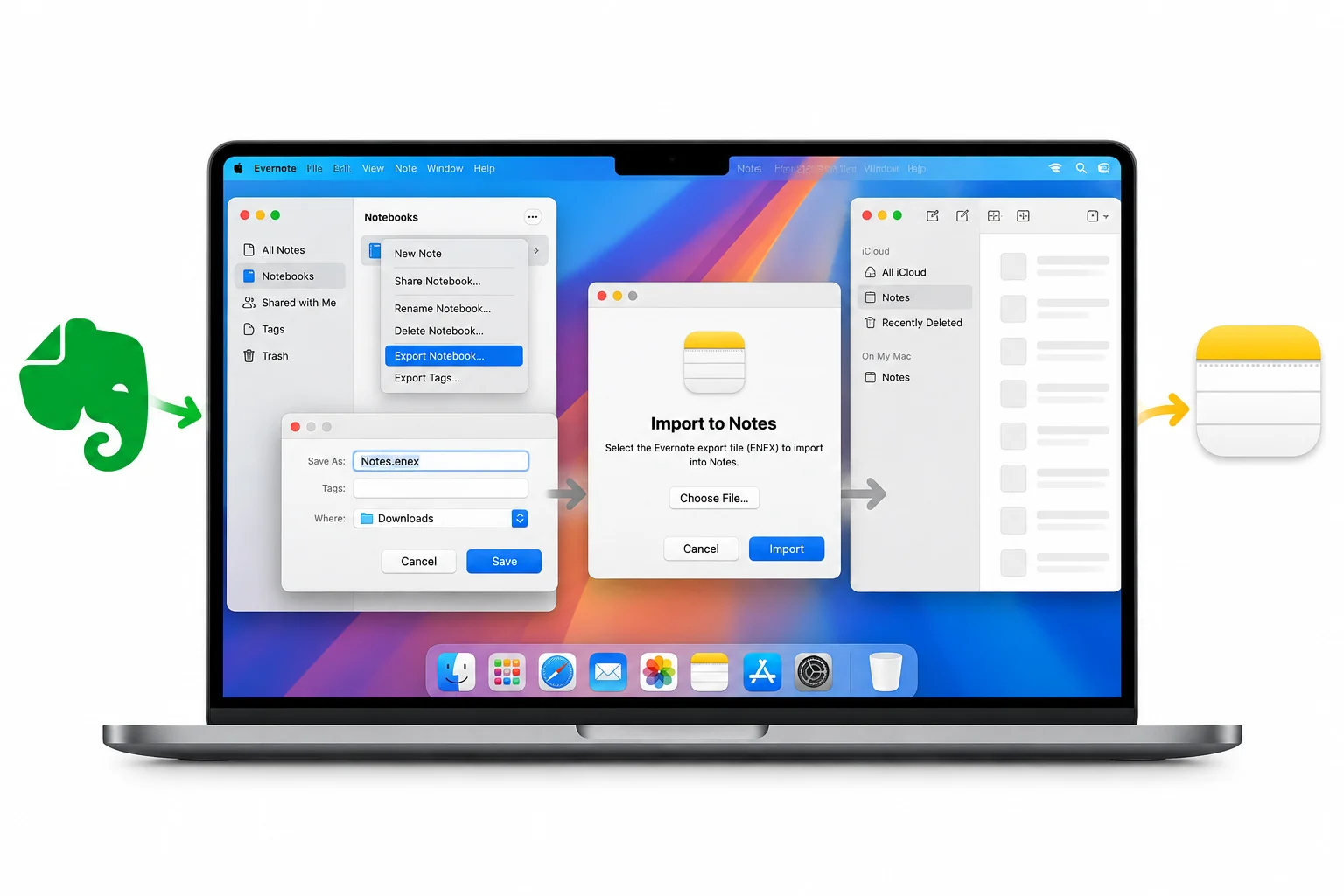
Import Evernote Notes on a Mac
- Click a folder in the sidebarUnder iCloud for synced notes or On My Mac for local ones.
- Choose File, then Import to NotesThe picker opens.
- Select your .enex files or their folderPicking the folder offers Preserve folder structure on import.
- Confirm the importNotes converts everything and reports the count.
Files stored under iCloud sync out to every signed in device on their own, so the Mac import is also the iPhone import.
The Univik ENEX Converter turns your exports into PDF, Word and Markdown on your Windows PC, an archive that stays readable whatever app comes next.
Free Download See All FeaturesImport on iPhone and iPad Without a Mac
This is the route for the Windows and iPhone household. Export the .enex files on the PC, drop them into iCloud Drive through the iCloud app or icloud.com, then open the Files app on the phone. From there, sharing an .enex file to Notes runs the same conversion the Mac does, note by note. A USB cable or any cloud drive the Files app can reach works in place of iCloud Drive. Big notebooks convert slower on a phone, so start the largest file and let it finish before feeding the next.
Tags, Attachments and What Survives
Long time movers also report that a few thousand imported notes can weigh the app down on older phones, so clearing out dead weight before the move pays twice. The tag detail sits in Apple's Notes guide for the Mac.
The Imported Notes Folder
Every run goes into a folder called Imported Notes, under iCloud or under On My Mac, whichever side you imported into. Nothing already in the app gets touched. Sort the arrivals into folders of your own at whatever pace suits you, since the pile keeps working from where it is. Checking Preserve folder structure on import when selecting a folder of exports keeps some of that sorting from ever being needed.
A Big Account, One Notebook at a Time
The clean way through a large account is pairs of small jobs. Export one notebook as .enex, import it, spot check three of them, move on. Errors surface while you still know which notebook caused them, and the Imported Notes folder never becomes a thousand note mystery. Anyone stuck on the export half of that loop, the caps and the missing menus, has a troubleshooting guide waiting.
Where the Converter Fits
The Univik ENEX Converter writes PDF, Word, Markdown and 15 other formats rather than Apple's own note format, so its place in this move is honest and specific. It previews an old export so you know what a mystery file holds before pushing it into iCloud. It builds the archive copy, everything frozen as PDF on your own disk while the originals live in Apple's cloud. And for the household with no Apple computer and no iPhone yet, it turns the exports into files any device reads today. The free online ENEX viewer handles the quick look cases without an install.
Other Homes for the Notes
Apple Notes rewards people who live on Apple hardware. Plain files reward everyone else. A vault of Markdown through the Obsidian route keeps everything portable for decades, and Markdown conversion works even with no new app picked yet. Whatever the destination, keep the .enex files until the new home has earned a few months of trust.
Evernote to Apple Notes Questions

Written and maintained by Leena Taylor Paul and the Univik team, developers of Windows data conversion and recovery software since 2013. The Windows PC plus iPhone household writes to us more than any other about this move, so the no Mac route in this guide gets tested every time Apple reshuffles the Files app. Last verified August 2026. Import behaving oddly? Contact our support team.