When Evernote fails to export notes, update the app, restart it, let sync settle and split the export into smaller parts. One error message covers many causes, and splitting finds the real one. Files that did export can go straight to work through the Univik ENEX Converter while you chase the rest.
The export that matters most is the one that breaks. People meet this error while leaving the service, backing up before a plan change or pulling records for someone who needs them today.
The good news buried in the forums, nearly every case gets the notes out in the end. The routes below are ordered by how little work they cost.
The Failed to Export Notes Error
The dialog says Failed to Export Notes, then adds one line. There was a problem and we couldn't export your notes. Please try again. No cause, no code, no hint. The same words appear for an old app version, a notebook too big for a single run, one broken note in the middle and a menu that moved. Treating them as one problem is why people burn evenings on it. The sections below take the causes one at a time, cheapest fix first.
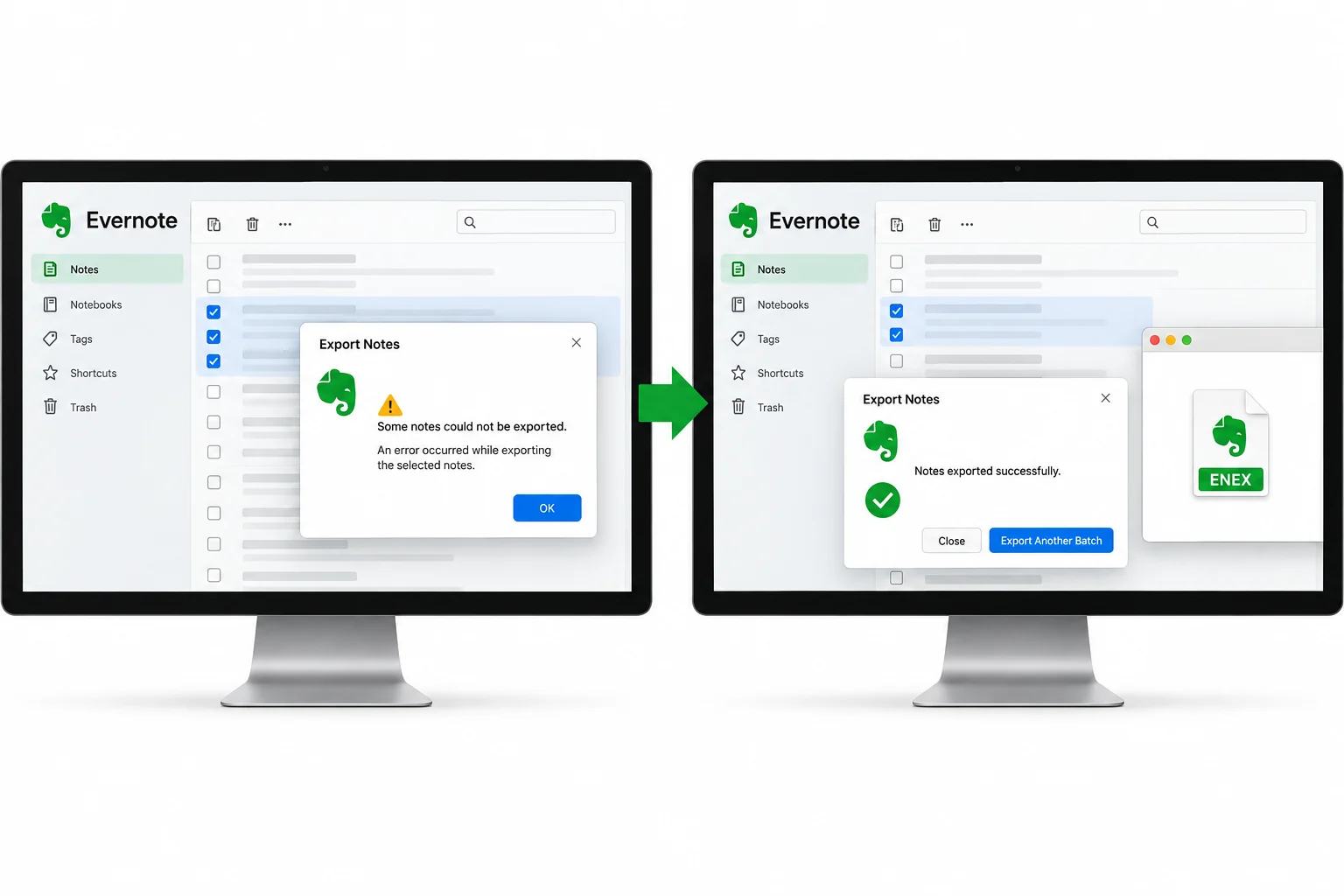
Four Fixes to Try First
Run these before any detective work. Between them they clear most cases.
- Update EvernoteExport bugs have shipped and been patched in later releases, so an old build may be the whole story.
- Restart and sign in againClose the app fully, open it and retry the same export.
- Let sync settleGive the app a quiet minute connected to the internet before a big run.
- Split the job smallerExport one notebook at a time rather than everything at once.
Still failing? The cause is now one of four specific walls below.
The 100 Note Wall
A selection of notes picked by hand exports up to 100 at a time and refuses beyond it. This wall wears the same error costume as everything else, so nobody connects it to their 250 selected notes. Two ways around it. Export the containing notebook, which ignores the count entirely, or work the selection in blocks of 100. The export guide covers both click paths.
Big Notebooks That Keep Failing
Forum threads are full of notebooks in the thousands of notes that error out run after run, even with the file size splitting option set. Users on the community's long running thread report the pattern across versions and machines. The move that works is exporting the notebook in parts. Sort by created date, select the first block of notes and export it, then the next. Slower than one clean run, and it finishes, which one clean run was refusing to do.
Find the Note That Breaks It
When one part keeps failing wherever you cut it, a single damaged note is behind it, and there is a fast way to corner it.
Ten rounds of halving searches a thousand notes. The common culprits are a damaged attachment or a web clipping that saved badly years ago.
Stacks and Other Missing Menus
One class of failure shows no dialog at all. The menu is missing. A stack has no export option of its own in the current app, and people who exported stacks in older versions go looking for a choice that is gone. The unit that exports is the notebook, so a stack of five notebooks means five runs. Other old right click paths moved in the version 10 redesign too, which is worth remembering before concluding that export itself is broken.
Exporting from the Wrong App
The web version and the phone apps carry no ENEX export at all, so hunting for it there feels exactly like a failure. The feature lives in the desktop app on Windows and Mac, as Evernote's export article lays out. Away from a computer, the phone can still make single note copies through printing, and the Evernote to PDF guide covers those side doors.
Rescue What Already Exported
Failed runs still leave finished .enex files behind from the notebooks that worked, and those files are already out of danger. Check each one in the free online ENEX viewer and compare its note count with the app's count for that notebook. Complete files are done, cross those notebooks off. The Univik ENEX Converter then turns them into PDF, Word, Markdown and 15 other formats on your own PC, so the rescued part of the account gets safe while the stubborn part is still being cornered.
The Univik ENEX Converter opens every .enex the failed session produced, shows what made it out and converts the lot into formats anything can read.
Free Download See All FeaturesEvernote Export Failure Questions

Written and maintained by Leena Taylor Paul and the Univik team, developers of Windows data conversion and recovery software since 2013. Export failures land in our inbox weekly because people find us while rescuing their .enex files, and the halving method in this guide is the one that closes those tickets. Last verified August 2026. Export still fighting you? Contact our support team.