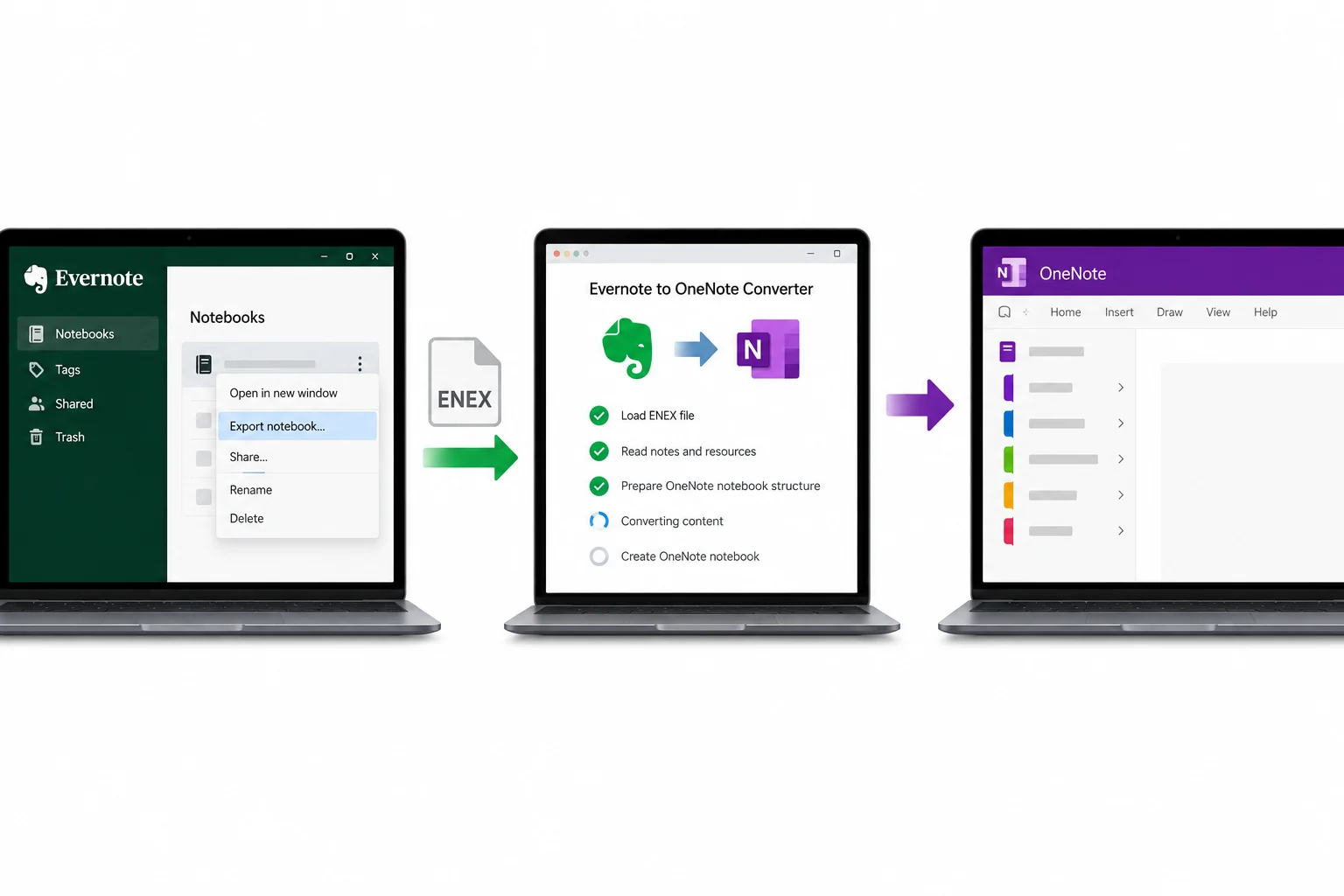
To move Evernote to OneNote, get your notebooks out as .enex files, then load them into Microsoft's OneNote Importer or the community tool Evernote2Onenote. Before you start, the Univik ENEX Converter previews the exports and keeps a safe copy in formats that outlast either app.
Moving from Evernote to OneNote should be a solved problem. It nearly is, with one honest snag in the middle that most guides skip past.
The export half is easy. The import half depends on a tool whose reliability has drifted, so this guide gives you the working path and the fallback both.
The State of Evernote to OneNote Today
For years Microsoft's OneNote Importer did this job cleanly, reading .enex files straight into OneNote. That tool has become harder to count on, and Microsoft's own support answers now send people toward third party options. So the real advice is layered. Try the official importer first, keep the community tool ready for when it stalls and hold a converted archive of the notes so nothing rides on either one. First get the .enex files out, which the export guide covers.
The Official OneNote Importer
When it runs, this is the smoothest route. Download Microsoft's OneNote Importer, accept the terms and start it. If Evernote is not installed, it asks for a file, so point it at your .enex export. Sign in with the Microsoft account behind your OneNote and let it write the notes across. It reads an export made on any machine, so a file from a closed Evernote account imports the same as a fresh one. The problem is availability. On some systems the tool no longer launches or finish cleanly, which is where the next section earns its place.
Evernote2Onenote, the Reliable Fallback
Stefan Kueng's free Evernote2Onenote has become the route people trust when the official one fails. It runs on Windows, needs the desktop OneNote and .NET Framework 4.8, and imports an .enex export tab by tab. No install, just run the file, set the options and point it at your export.
The tool's own page keeps the current build and its notes on options. One of those options carries a trap worth its own section.
The Univik ENEX Converter writes your notes out as PDF, Word and Markdown files on your own machine, a safe copy that stands whether the OneNote import works the first try or the fifth.
Free Download See All FeaturesThe Duplicate Note Trap
Evernote2Onenote files each note under its tag. A note with one tag comes in once. A note with three tags comes in three times, one copy per tag, and a big library can swell into thousands of copies before you notice.
This one detail separates a clean import from a mess that takes hours to prune. Most guides never mention it.
Desktop OneNote, Not the Store App
The community tool writes into the desktop OneNote, the one you download and install. The version that comes preinstalled on Windows from the Microsoft Store will not accept the import. Install desktop OneNote before you begin, or the run has nowhere to put your notes. That mismatch is the top reason an import appears to do nothing.
What Changes on the Way Over
OneNote and Evernote organise notes differently, so some reshaping is part of the deal. A notebook maps to a OneNote section. Tags have no direct match, so they end up as section names or get dropped, depending on the tool. Formatting and pictures come through, while some attachments and web clippings arrive looking different from the original. Plan an hour of tidying after any import, sorting the arrivals into the structure you actually want.
The Converter's Role in This Move
The Univik ENEX Converter does not write OneNote's own file format, and that honesty shapes where it helps. It previews an export so you know what a file holds before importing it. It builds the safe archive Nick describes, notes frozen as PDF or turned into Word documents on your disk, untouched by whatever the OneNote import does or fails to do. And a converted Word document drops into a OneNote page by hand when a stubborn note refuses every importer, a manual last resort that always works. The free online ENEX viewer covers the quick look before any of that.
When OneNote Falls Short
Some people land on OneNote and stay happy. Others find the import friction is a sign to look wider. Notes kept as Markdown stay readable in any editor with none of this tool roulette, and Obsidian imports .enex through an official plugin with none of this fuss. Worth a look before you commit a weekend to fighting importers.
OneNote Migration Questions

Written and maintained by Leena Taylor Paul and the Univik team, developers of Windows data conversion and recovery software since 2013. This is the migration our support hears the most horror stories about, half a library stranded between two apps, so the backup first advice in this guide comes from cleaning those messes up. Last verified August 2026. Caught between the two apps? Contact our support team.