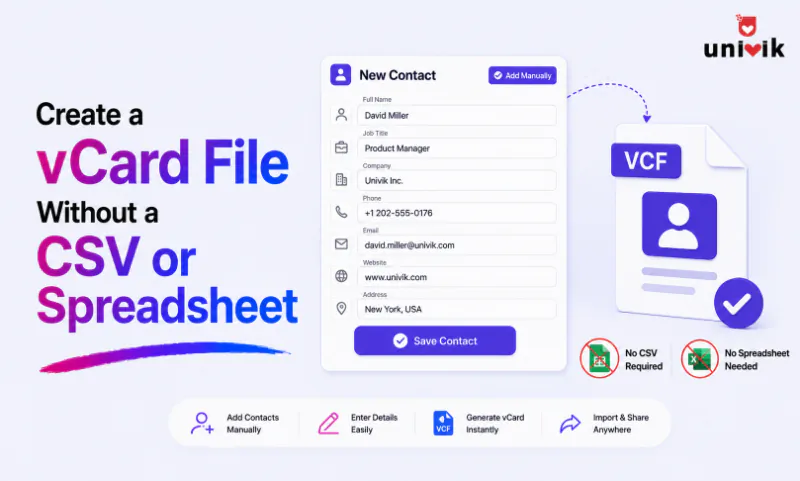
You do not need a CSV or spreadsheet to create a vCard. When your contacts are in hand but not in a structured file, a printed list, an email or a stack of business cards, a form-based tool like the Univik VCF Generator lets you type each one in and export a .vcf directly. A converter is only the faster route when the details already sit in a CSV or Excel sheet. For one or two contacts you can also write the vCard by hand in a text editor.
When You Have the Contacts But Not in a Spreadsheet
Plenty of contact details never start life in a spreadsheet. You come back from a conference with a stack of business cards. A colleague hands you a printed member list. Someone’s details sit in an email signature. You have the people, you just do not have them in a neat CSV with columns.
That is the gap this covers. Most guides on making a vCard assume you already have structured data and only need to convert it. When you do not, the question changes. It is not how to convert a file, it is how to build the cards from what is in front of you. And the answer does not involve a spreadsheet at all.
You Do Not Need a CSV to Make a vCard
A vCard is just a small text file, one per contact, holding a name, phone, email and a few other fields. Nothing about it requires a spreadsheet. A converter turns a CSV or Excel sheet into vCards, which is ideal when the data already sits in rows and columns. But if it does not, building a spreadsheet first only to convert it is two steps where one will do.
Typing the contacts straight into a form skips the CSV entirely and gives you the same clean .vcf at the end. For a handful of cards from an event, that is faster than opening a spreadsheet at all, and you avoid the column mapping that trips people up when a converter guesses which field is which.
The Direct Way: Type Them Into a Generator
A form-based generator is built for exactly this. You enter a name, phone, email and whatever else you have for each person, and it writes a valid vCard, single or in bulk. The Univik VCF Generator works this way on Windows. Add each contact, pick vCard 3.0, and export the result, as one combined file or one file per contact. No CSV, no column mapping, no formatting to get wrong.
Because you are typing the fields yourself, you also control exactly what goes in. You can add a photo, a job title or a website where you have it and leave the rest blank. The card comes out valid either way, which is the part hand typing in a text editor cannot promise.
Build vCards from what you have, no spreadsheet needed. The Univik VCF Generator writes clean vCards from a simple form, single or in bulk, in vCard 2.1, 3.0 or 4.0, with a photo and a QR code if you want them. Built for Windows and fully offline. The free demo creates up to 5 contacts.
From Business Cards and Printed Lists
This is the case the spreadsheet route handles worst. After an event you have forty business cards and no time to build a CSV. Work through the stack and type each card into the generator, and you finish with a single .vcf you can load onto your phone and share with the team. The pile of cards becomes one file in the time it would take to set up a spreadsheet’s headers.
📄 Printed list
✉ Email signature
A printed directory works the same way. Read down the page, enter each person, and the paper list becomes a digital contact file you can use everywhere. Details in an email or a signature are quicker still, since you can read and type them in one pass. None of these sources is a spreadsheet, and none of them needs to be.
If you would rather not type, a phone tool like Google Lens can read a card and save it to your contacts, which you then export to a .vcf. That is fast for a card or two, though it routes through an account and the scan needs a check for mistakes. When you want a clean file built directly and offline, without an account in the loop, typing the details into the generator is the reliable path.
The Hand Way: Writing One vCard in a Text Editor
For a single contact you do not need any tool at all. A vCard is plain text, so you can type it in Notepad and save it with a .vcf extension. The structure is fixed but short.
BEGIN:VCARD
VERSION:3.0
N:Rogers;Nick;;;
FN:Nick Rogers
TEL;TYPE=CELL:+1-555-0100
EMAIL;TYPE=WORK:nick@example.com
END:VCARD
That works for one card. Past a few it gets slow and fragile, because every field has to follow the format exactly and a single misplaced semicolon can break the whole file. That is the point where typing into a generator stops being optional and starts saving real time.
Already Have a Spreadsheet? Use a Converter Instead
If your contacts do already sit in a CSV or Excel file, do not retype them. That is the one case where a converter is the right tool. It maps your columns to vCard fields and turns the whole sheet into cards in a single pass, which beats typing once you are past a handful of rows. Our VCF Converter handles that route.
And if the contacts are already saved in your phone or a Google or iCloud account, you do not need to build anything. Export them straight to VCF, covered in our guides to exporting Google contacts and exporting iPhone contacts. The rule is simple. Structured data in a sheet goes to a converter, contacts in an account get exported and loose details in hand go to a generator.
Which vCard Version to Choose
Whichever way you build the file, save it as vCard 3.0. It opens cleanly on iPhone, Android, Outlook and Google Contacts, so the cards you type today work wherever they need to go. Version 2.1 is only for very old devices, and 4.0 is newer but a few apps still skip it. For the full comparison, see our guide to vCard 2.1, 3.0 and 4.0. If you are building several cards at once, the same approach scales, covered in how to create a VCF file for multiple contacts.
Frequently Asked Questions
How do I create a vCard without a CSV file?
Type the contacts straight into a form-based generator and export a .vcf. A converter needs a CSV or Excel sheet to work from, but a generator does not, you enter each person’s details by hand and it writes the file. For a single contact you can also type the vCard directly in a text editor and save it with a .vcf extension.
Can I make a vCard from business cards?
Yes. Type the details from each card into a generator and export them as one combined file or one file per contact. This is the fastest route for a stack of cards from an event, since you skip building a spreadsheet and finish with a single .vcf you can load onto your phone and share.
Do I need Excel or a spreadsheet to create a vCard?
No. You can create a vCard without Excel. A vCard is a small text file, and a spreadsheet only helps when your contacts are already in rows and columns, where a converter turns the sheet into vCards. If the details are loose, on paper, in an email or on cards, a generator builds the file directly without a spreadsheet.
How do I turn a printed contact list into vCards?
Read down the printed list and enter each person into a generator, then export the group. There is no way to convert paper directly, so the work is typing it up once, but a form-based tool makes that quick and produces a valid file. The result is the same clean .vcf you would get from any other source.
Is it better to type contacts in or build a spreadsheet first?
For a small number of loose contacts, type them straight into a generator. Building a spreadsheet only to convert it adds a step for no gain. A spreadsheet is worth it only when the data is already structured or you have hundreds of rows, where a converter then does the heavy lifting in one pass.
What is the easiest way to create a vCard from scratch?
Use a form-based generator. You fill in the fields you have, pick vCard 3.0 and export, with no coding and no file to prepare first. It is easier than hand typing the vCard format, which is exact and easy to break, and quicker than building a spreadsheet when you only have a few contacts in hand.
Can I scan a business card instead of typing it?
Yes. A phone tool like Google Lens, free on most modern phones, can read a paper card and save it to your contacts, which you then export to a .vcf. It is quick for a card or two. The catch is that it saves into your phone or Google account rather than a standalone file, and a scan can misread a name or number, so check it before saving. To build a clean .vcf directly and offline, typing the details into a generator is the more reliable route.
The Short Version
A spreadsheet is one way to feed a vCard, not a requirement for making one. When your contacts are in hand, a stack of cards, a printed list or an email, you skip the CSV and type them straight into a form, ending with the same clean .vcf. Save it as vCard 3.0 so it loads anywhere, and keep the simple rule in mind, a sheet goes to a converter, an account gets exported and loose details go to a generator.
The value is in not making work for yourself. Building a spreadsheet you do not need, or hand typing a format that breaks on a stray semicolon, both cost more time than typing the contacts once into a tool that writes the file for you.