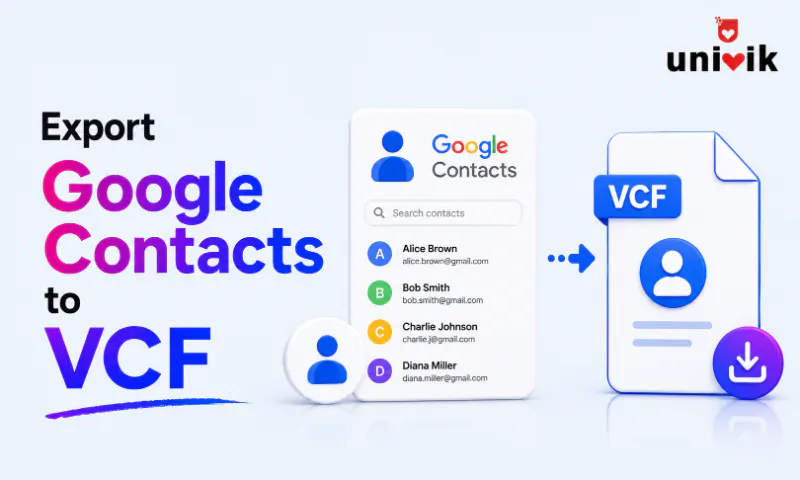
Go to contacts.google.com, select the contacts or choose them all, click Export and pick vCard (for iOS Contacts). Ignore the label, what downloads is ordinary vCard 3.0, saved as contacts.vcf, and every platform reads it. One warning before you rely on it, Google keeps contact photos out of the file, and the free Univik VCF Viewer confirms on Windows exactly what made it in.
Google Contacts holds the address book behind Gmail and most Android phones, and pulling those contacts into a VCF file takes less than a minute from any browser. The export itself is simple. What trips people is everything written on it, a format label that points at iOS for no good reason, a photo gap nobody warns about and a CSV option sitting next to the right answer. We inspect Google’s export output continuously while maintaining our vCard tools. This page walks the export and each of those three surprises. If your address book lives on LinkedIn instead of Google, our guide on exporting LinkedIn contacts to a VCF file covers that source separately.
Export Google Contacts to a VCF File on the Web
If your export comes out as a CSV, a CSV to vCard converter turns it into a clean .vcf contact file in one step.
The export runs from the same page as everything else in Google Contacts, on any computer with a browser.
- Open contacts.google.com in any browser and sign in with the account holding the contacts.
- Select what to export. Tick the box that appears over a contact’s picture, and for everything, tick any contact, then click Selection Actions at the top left and choose All.
- Click Export, under the More actions menu at the top right on the current layout and in the left sidebar on the older one.
- Pick vCard (for iOS Contacts) in the dialog and click Export. The browser saves contacts.vcf to the Downloads folder.
The file is plain text written as vCard 3.0 in UTF-8, which means names in any alphabet come through intact. Google’s contacts help documents the same dialog from the CSV side.

“Google Contacts exports are a standard part of our test set. We convert them, open the result in the target application and also import the result back into Google to be sure nothing was lost on the way.”
Nick Rogers
|Founder, Univik, building file conversion tools since 2013
What the vCard for iOS Contacts Label Really Means
The export dialog’s wording makes the vCard option look like an Apple only format, and plenty of people pick CSV for an Android or Outlook destination because of it. The label is the only misleading thing about the file. What downloads is a standard vCard 3.0, the same format Pixel phones and iCloud write, and it imports cleanly on Android, iPhone, Outlook, Thunderbird and every CRM that takes vCards.
The label has read that way for years, and the file behind it has been ordinary vCard 3.0 the whole time. Read it as vCard, nothing more, then pick it whenever the contacts are headed to any phone or contacts app rather than a spreadsheet.
Export One Label or a Few Contacts Instead of All
The export follows your selection, which makes partial exports painless. Ticking three contacts before clicking Export produces a three contact file. Clicking a label in the left sidebar first, then exporting, produces a file holding just that label’s members, the clean way to hand a team list or a client group to someone as a single vCard. A single contact exports from its own card as well, open it, click the three dots and pick Export. And the export dialog itself offers a scope choice, so exporting everything never requires ticking everything by hand.
The Photo Gap in Every Google Contacts Export
Here is the catch our testing keeps confirming, Google Contacts does not put photos in the exported file. Contacts with pictures on screen arrive in the vCard as text only, and no export setting changes it. The gap surprises people precisely because everything else in the file is complete, names, every number and email with labels, addresses, birthdays, organizations and notes.
When the pictures matter, export where the photos live instead. A phone export embeds them, through the Contacts app on any Android phone or a Galaxy specifically, and the resulting file carries every picture inside. The trade off runs the other way too, Samsung’s phone export brings photos but the older vCard 2.1 format, while Google’s web export brings clean 3.0 but no photos. Only the non Samsung phone route delivers both at once.
Pick vCard or CSV, the Format Decision
The export dialog offers three formats and the destination decides. vCard is the pick for anything that manages contacts, phones, Apple devices, Thunderbird and CRMs with vCard import. Google CSV is the pick for spreadsheets and for moving into another Google account. Outlook CSV exists for Outlook’s own importer, with its column names arranged the way Outlook expects. Choosing CSV for a phone or vCard for Excel both end in conversion work, and our VCF to CSV guide covers the crossover cases in both directions, column mapping included.
Export Gmail Contacts, Same Address Book, Same Button
People hunt for a Gmail export button that is not there, because the contacts live one app over. Gmail and Google Contacts run on a single shared address book, and the export lives on the Contacts side. From Gmail, click the Google Apps grid at the top right, pick Contacts and the export steps above take over. Every contact you have emailed enough to save is there, and the Other contacts view in the sidebar holds the addresses Gmail collected on its own, worth a look before exporting so the file includes the people who matter.
When Sync Handles the Job Without an Export
Moving to another Android phone with the same Google account needs no export at all, signing in carries the contacts over through sync. The export earns its place in three situations, leaving the Google ecosystem for Apple or a CRM, handing contacts to another person or account and keeping an offline copy that survives account problems. That last one is a habit worth building properly, and our contact backup guide turns the one off export into a routine with verification built in. For a whole account move, Google Takeout at takeout.google.com bundles the contacts into the same vCard format alongside mail and files.
Files from several exports, a Google file, a phone file and an old backup, merge into one master vCard with Univik VCF Joiner on Windows, duplicates flagged before anything gets written.
Fix a Google Contacts Export That Came Up Short
Missing photos are not a failure, that is the export working as designed, and the photo section above has the workaround. Missing people mean the file scope or the account, either the export ran on a selection or label narrower than intended, or the browser was signed into a different Google account than the contacts live in. Glance at the account avatar at the top right and run it again. Contacts sitting only under Other contacts are not part of the main list’s export, so move the ones you need into Contacts first and they join the next export. And a file that needs checking before it travels opens in seconds in the free VCF Viewer on Windows, every field visible, with file size expectations mapped in our size guide.
Bringing contacts back into Google later runs through the Google Contacts import guide, dated undo label and all. And when the exported file needs a different vCard version or a cleanup on the way to somewhere strict, Univik VCF Converter reshapes it on Windows in one pass.
Know what left Google before it arrives anywhere
Univik’s free VCF Viewer opens the Google export on Windows and lays out every contact and field it holds, so a narrow selection or a missing group surfaces before the file reaches its destination.
Frequently Asked Questions
How do I Export Google Contacts to a VCF File?
Sign in at contacts.google.com, select the contacts or leave the selection empty for all of them, click Export and take the vCard (for iOS Contacts) option. The browser downloads contacts.vcf, a standard vCard 3.0 file, to the Downloads folder. The whole export takes under a minute from any computer.
Does a Google Contacts Export Include Photos?
No. The exported vCard carries every text field, names, numbers, emails, addresses and notes, but contact pictures stay behind. No setting changes that. To get photos inside the file, export from a phone instead, where the Contacts app embeds pictures directly into the vCard.
What is the vCard for iOS Contacts Format?
A standard vCard 3.0 file with a misleading name. Despite the label, the download works on Android phones, Outlook, Thunderbird and every contacts platform that reads vCards, not just Apple devices. Pick it whenever the destination manages contacts, and save the CSV options for spreadsheets.
Can I Export Just One Label From Google Contacts?
Yes. Click the label in the left sidebar so its members are showing, then click Export and the file holds only that label’s contacts. Ticking individual contacts before exporting works the same way, and either route produces one vCard scoped exactly to what you chose.
How do I Export Gmail Contacts to VCF?
Gmail has no exporter of its own, its contacts live in Google Contacts. Click the Google Apps grid at the top right of Gmail, open Contacts, select what you need and click Export with the vCard option. The file covers everything saved in the account, Gmail sourced contacts included.
Should I Export as vCard or Google CSV?
vCard for anything that manages contacts, phones, Apple devices and CRMs. Google CSV for spreadsheets and for importing into another Google account. Outlook CSV only for Outlook’s importer. Picking the wrong one is recoverable but costs a conversion step, so match the format to the destination up front.