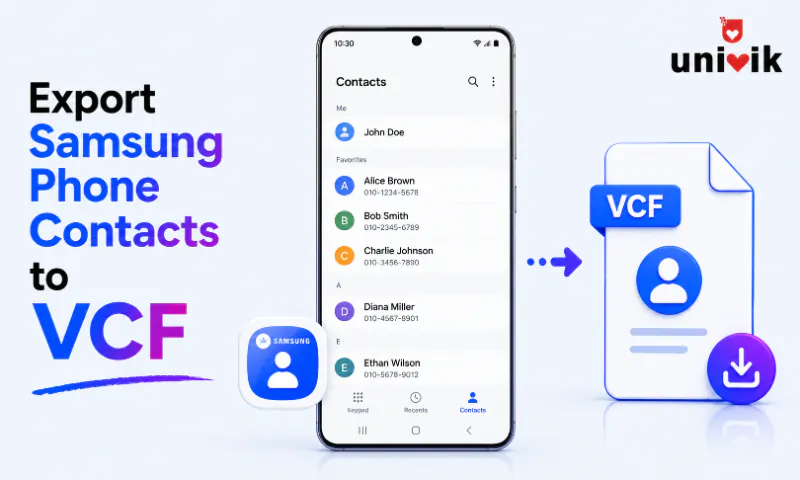
Open the Samsung Contacts app and tap the three line menu, then Manage contacts and Export contacts. The phone writes Contacts.vcf to internal storage. One catch, Samsung exports the old vCard 2.1 format, which garbles non Latin names and drops group labels. Univik VCF Converter rewrites the file as vCard 3.0 with UTF-8 before it goes anywhere fussy.
Every Galaxy phone exports its address book to a VCF file in a few taps, and the taps have stayed in roughly the same menu across One UI versions. What makes Samsung different from every other Android brand is what comes out, a vCard 2.1 file with quirks that surface later, on iPhones, in iCloud and in CRM imports. We test exports on a Galaxy S24 running One UI 6.1 for our converter’s test suite, comparing its output against other brands byte by byte. This page covers the Samsung menus, the 2.1 problem and the clean way around it.
Export All Contacts With the Samsung Contacts App
The export lives in the Contacts app, the blue icon with the person silhouette, also reachable from the Contacts tab inside the Phone app. The same path works across the Galaxy S, A, Z, M and F series.
- Open Contacts and tap the three line menu at the bottom left. On some One UI versions it is a three dot menu at the top right instead.
- Tap Manage contacts, then Export contacts. Older One UI shows Import or export contacts first, with Export inside.
- Pick where the file goes, internal storage, the SD card or a cloud drive when one is installed, and confirm.
- Collect the file from the Download folder on internal storage, easy to reach in the My Files app. Samsung names it Contacts.vcf, sometimes with a date stamped in, Contacts_20260214.vcf style.
The export takes seconds even with thousands of contacts, and nothing is removed from the phone, the file is a copy. What that file looks like inside is where Samsung differs from other brands, covered two sections down.

“Samsung phones still write vCard 2.1 in 2026. A contact list with Hindi or German names comes out quoted-printable, and the next phone shows question marks. We see it every week. Convert to 3.0 with UTF-8 before the file goes anywhere else.”
Nick Rogers
|Founder, Univik, building file conversion tools since 2013
Set Contacts to Display to All First
A Galaxy phone spreads contacts across more places than most, a Google account, a Samsung account, the phone’s own storage and the SIM card, and the screen merges them into one list. The export does not, it takes only the contacts currently set to display. A phone showing just the Samsung account exports just the Samsung account, with no warning about the rest.
Before exporting, open Manage contacts and pick Contacts to display, then choose All. That single setting is the difference between a complete file and one quietly missing half the address book, and it is the first thing to check whenever an export from a Samsung account or any other source comes up short. One more prep step for cloud stored contacts, open Settings, Accounts and tap Sync now on the Google or Samsung account, so the newest entries land in the file.
The vCard 2.1 Problem Every Samsung Export Carries
The Contacts app on every Galaxy writes vCard 2.1, a format from 1996, while Pixel phones, iCloud and Google Contacts all write vCard 3.0. The age shows in three ways. Non Latin names, Chinese, Arabic, Korean, Hindi and even accented European characters, get wrapped in quoted printable encoding that plenty of importers decode wrongly, arriving as question marks and symbol strings. Group and label assignments, the categories a sorted address book relies on, are not carried at all, so the contacts arrive flat. And fields with several entries of the same type can lose their labels along the way.
None of this shows on the Samsung phone itself, the file looks fine until it lands somewhere strict. The full breakdown of what changed between the generations sits in our vCard version comparison.
Three Ways to a Clean vCard 3.0 File
The direct way is a converter. Univik VCF Converter loads the Samsung export on Windows, decodes the quoted printable text and produces clean 3.0 output with UTF-8 in a single pass, photos intact. The roundabout way uses Google as the translator, import the 2.1 file into Google Contacts and export it back out, since Google writes everything back out as 3.0, at the cost of photos, which Google’s export leaves behind. And the third way skips the phone export entirely, when the contacts are already syncing with a Google account, export them from Google Contacts on the web and the file starts life as clean 3.0.
Move Samsung Contacts to an iPhone
The Samsung to iPhone switch is where the 2.1 format causes the most trouble, since iPhone reads Samsung’s export unreliably, sometimes cleanly and sometimes with an Unsupported vCard error. The safe path adds one step in the middle.
Send the converted file to the iPhone by email or a cloud drive and open it there. The iPhone side of the trip, every tap from file to address book, is in our guide to importing a VCF to iPhone. Heading to a new Galaxy or another Android instead is simpler, the phone reads its own format fine, and the Android import guide has the menu paths.
Get the Contacts File Onto a PC
Exporting contacts from a Samsung phone to a computer is a two step job, export on the phone, then move the file. Connect the phone by USB and choose File transfer, the MTP mode, when the phone asks, then browse to internal storage and the Download folder on the PC and copy Contacts.vcf across. Cloud drives and email attachments do the same move without the cable.
Two shortcuts are worth knowing. Contacts living in a Google account skip the phone entirely, exported straight from the web on the PC. And a Smart Switch backup made on the computer holds the contacts too, on Windows under Documents\Samsung\SmartSwitch\backup as Contact.vcf or a contacts folder, useful when a backup already exists. Once on the PC, the free Univik VCF Viewer opens the file and shows every contact and photo before anything gets imported anywhere.
Export Selected Contacts or a Group by Sharing
For a few contacts instead of the whole book, touch and hold one contact in the list, mark the rest you want, then tap Share and choose a destination in the sheet, with Save to Files keeping it on the phone. Samsung builds a single VCF holding just the ticked entries. One contact shares the same way from its own card. Whole groups need one extra move, open the group, select its members and share, since the group label itself will not survive the 2.1 export anyway.
Fix a Samsung Export That Came Out Wrong
Fewer contacts than the phone shows means the display setting was filtering, set Contacts to display to All and export again. Garbled names on the receiving end mean the 2.1 encoding problem, fixed by converting to 3.0, and already damaged files are covered in the encoding fix guide. An iPhone or iCloud refusing the file is the same 2.1 story, convert the vCard version first. And an export option missing from the menu on a very old Galaxy means the Google Contacts app from the Play Store can do the job instead, its path is in our Android export guide.
Leave the 1996 format on the phone
Univik VCF Converter takes the Samsung vCard 2.1 export and rewrites it as vCard 3.0 with UTF-8 on a Windows PC, names in every alphabet intact and photos preserved, ready for iPhone, iCloud or any CRM.
Frequently Asked Questions
How do I Export Contacts From a Samsung Phone to a VCF File?
Open the Contacts app, tap the three line menu at the bottom left, then Manage contacts, then Export contacts. Pick internal storage or the SD card and confirm, and the phone writes Contacts.vcf there in seconds. Set Contacts to display to All beforehand so the file includes every account.
Why are Names Garbled in a Samsung Contact Export?
Samsung writes vCard 2.1, which stores non Latin and accented characters in quoted printable encoding, and the app reading the file decoded it wrongly. The phone and file are fine, the format is the problem. Rewriting the file as vCard 3.0 with UTF-8 fixes the names for every destination at once.
Which vCard Version Comes From a Samsung Export?
vCard 2.1, the oldest version of the format. It carries names, numbers, emails and photos, but its encoding trips up non Latin text and it drops group labels entirely. Pixel phones and Google Contacts write vCard 3.0 instead, which is why files from those sources cause fewer import problems.
Does Exporting Contacts Remove Them From My Samsung Phone?
No. The export writes a copy into the file and the phone keeps everything, in the app, in whichever Google or Samsung account backs them and on the SIM. Export as many times as needed. Deleting the exported .vcf file later has no effect on the contacts either.
How do I Export Samsung Contacts to Gmail or Google Contacts?
When a Google account is on the phone with contact sync active, the contacts flow to Google on their own with no export needed. Otherwise, export the VCF from the Contacts app and import it at contacts.google.com, and our Google Contacts import guide covers that upload step by step.
Can I Export Contacts From My Samsung to Excel?
Not directly, Excel does not read vCard files well. Export the VCF from the phone, then convert it to a spreadsheet on Windows, and our guide on converting VCF to Excel maps the whole route including how contact fields become columns.