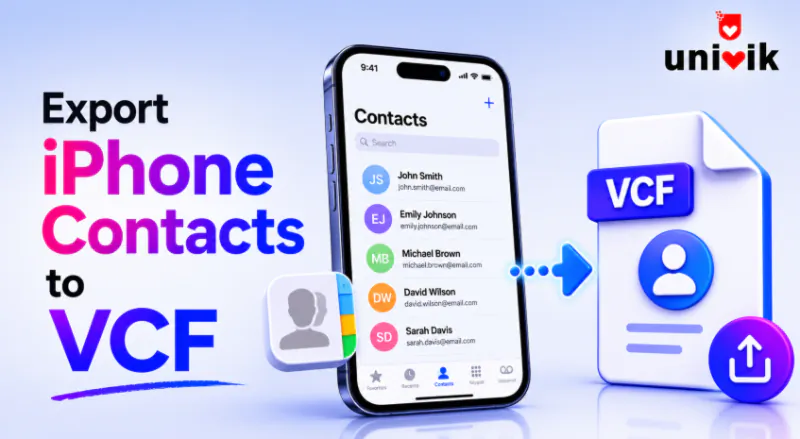
To export iPhone contacts to VCF on the phone itself, open Contacts, tap Lists, touch and hold All Contacts, tap Export, keep every field selected and save the file through the share sheet. No iCloud, no computer. The classic route from a computer is icloud.com, select all contacts and Export vCard. Checking what actually landed in the file takes seconds on Windows with the free Univik VCF Viewer.
For years the honest answer to exporting iPhone contacts was you cannot do it on the phone, go to iCloud on a computer. That answer is out of date. Modern iOS exports a full vCard file straight from the Contacts app, hidden behind a long press most people never try. We export test sets from iPhones on iOS 15 through 18 and from iCloud on the web while building our vCard tools. Everything below reflects that testing, the phone route first, the classic routes after it and the two traps that leave contacts out of the file.
Export All iPhone Contacts From the Phone Itself
This is the route that works with no iCloud, no computer and no outside app, and it is the one most guides still miss.
- Open the Contacts app and tap Lists at the top left, called Groups on older iOS versions.
- Touch and hold All Contacts, and a menu appears with Export in it.
- Tap Export and pick which fields to include. Tap Select All Fields at the bottom so the complete contact cards travel.
- The share sheet opens holding a file named All Contacts.vcf. Save it to the Files app, email it to yourself or AirDrop it to a computer.
The whole export runs on the phone in seconds. If the long press shows no Export option, the iOS version predates the feature, and the iCloud route below does the same job from a browser.

“iPhone exports go through the same lab process as every other source: convert, save in each format, open in the application and check real contacts. Photos and notes are the first things we look at.”
Nick Rogers
|Founder, Univik, building file conversion tools since 2013
Export Every Contact Through iCloud on the Web
When the contacts sync to iCloud, any computer can pull them into a file. Sign in at icloud.com and open Contacts, then open the Select menu at the top of the list, shown as three dots, then choose Select All Contacts. Open the menu on the right, shown as a gear icon on the older iCloud layout, and pick Export vCard. The browser drops a file named vCards.vcf into the computer’s Downloads folder, written as vCard 3.0 with contact photos inside.
This route needs iCloud Contacts turned on for the phone, which is the default on most iPhones, and it needs a computer or tablet, since the phone’s own browser does not offer Contacts on iCloud. Its real advantage over the phone export is scale and comfort, picking through hundreds of contacts is easier with a mouse.
Export Just Some Contacts With a List or Share
For a single contact, open it in the Contacts app, scroll down and tap Share Contact, and iOS builds a one contact .vcf for any app in the share sheet. For a chosen group, make the group first, create a list in the Contacts app, add the contacts you want and then run the same long press Export on that list instead of All Contacts. The exported file holds just the list’s members, which turns the Lists feature into a selective exporter.
Export Through the Mac Contacts App
The Mac Contacts app syncs the same iCloud contacts and exports them in two clicks. Open Contacts, select the contacts or press Cmd+A for all of them, then go to File, Export, Export vCard and save. Photos are included by default, with a toggle under the app’s vCard settings for leaving them out when a smaller file matters. The Contacts Archive option in the same menu makes an .abbu file instead, an Apple only backup that no other platform reads, so vCard stays the right pick for anything headed outside Apple devices.
Which iPhone Export Route Fits Your Situation
Whichever route runs, the result behaves the same downstream. One habit worth keeping from our contact backup guide, open the exported file once and confirm the count before trusting it with anything.
What an iPhone vCard Export Carries
The export writes complete contact cards, names, every number and email with its label, addresses, birthdays, companies, job titles and notes. Photos come along on the iCloud and Mac routes by default, and on the phone route when the photo field stays selected in step 3. What never travels is anything outside the card, message threads, call history and shared activity all stay on the phone, and our VCF file size guide covers how big the file gets when photos are stored inside.
Check Which Cloud Actually Holds Your Contacts
The sneakiest gap in an iPhone export has nothing to do with the export. An iPhone shows contacts from several accounts at once, iCloud, Gmail, Exchange and work accounts, all merged into one list on screen. The export routes above pull from iCloud, and contacts that actually live in a Gmail or Exchange account are not in iCloud to be pulled.
Contacts living in a Google account come out through our Google Contacts export guide instead, and merging that file with the iCloud export into one complete address book is a one pass job for Univik VCF Joiner on Windows.
When the Export Comes Up Missing Contacts
Fewer contacts in the file than on the phone points at visibility or accounts. Open Lists in the Contacts app and check whether a filter is hiding some lists from view, since only visible contacts export. Then check the wrong cloud trap above, a card that says Gmail under its account belongs to Google’s exporter. And an iCloud web export missing the newest contacts points to sync lag, give the phone a minute on a network and export again.
Once the file is complete, it goes anywhere, into an Android phone, back into another iPhone, into Apple Contacts across devices or into a spreadsheet through our guide on converting VCF to Excel. For CRM and spreadsheet destinations, Univik VCF Converter reshapes the export on Windows with photos preserved.
See inside the export before you trust it
The free Univik VCF Viewer opens an iPhone export on Windows and lists every contact, field and photo, so a short count or a missing picture surfaces before the file goes anywhere important.
Frequently Asked Questions
How do I Export All Contacts From My iPhone to a VCF File?
Open Contacts, tap Lists at the top left, touch and hold All Contacts and tap Export. Keep all fields selected, and the share sheet hands you a file named All Contacts.vcf to save, email or AirDrop. On iOS versions without the Export option, use icloud.com from a computer instead.
Can I Export iPhone Contacts to VCF Without iCloud?
Yes. The Lists export runs entirely on the phone, works offline and touches no Apple servers. It is the answer when iCloud Contacts is switched off, when storage is full or when the contacts should not pass through a cloud at all. iCloud only becomes necessary on iOS versions too old for the feature.
Does the Export Include Contact Photos?
The iCloud web and Mac routes include photos by default, and the Mac app has a setting to leave them out. The phone route includes whatever fields stay selected in the export step, so keeping Select All Fields ticked keeps the pictures. Photos are also what makes the file large, thousands of contacts with pictures add up fast.
Which vCard Version Comes From an iPhone Export?
vCard 3.0 with UTF-8 text, the version nearly every platform reads cleanly. Android phones, Google Contacts, Outlook and every major CRM accept it directly, which is why an iPhone export rarely needs converting before import somewhere else. Version differences only matter when files from older sources get mixed in.
How do I Move iPhone Contacts to an Android Phone?
Export the VCF on the iPhone with the Lists long press, move the file across by email or a shared drive, then import it on the Android side, the Android Contacts app has a built in import our Android import guide maps brand by brand. The single file carries names, numbers, emails and photos across in one trip.
Why are Some Contacts Missing From the Export?
Two causes cover nearly every case. Hidden lists, since only contacts visible in the Contacts app export, so open Lists and clear any filter. And contacts stored in a Gmail or Exchange account rather than iCloud, which show on the phone but export through their own service, not through Apple’s routes.