OneNote has no native way to export all images at once, so to get the embedded pictures out of a .one file you need a tool that reads the file and saves every image to a folder. The Univik ONE Converter does this through its Extract Images option, with no OneNote installed.
You pasted a hundred screenshots and photos into OneNote over the years, and now you want them back as real files. It sounds simple. It is one of the tasks OneNote makes surprisingly hard, because a picture in a note is not a file you can grab.
Here is why the images are stuck, which methods actually free them and how to pull an entire notebook of pictures out at once.
Can You Extract Images from OneNote Without a Tool?
Not in bulk. OneNote has no command to export all the images from a page, section or notebook in one step, a gap Microsoft has confirmed on its own support forum. You can copy pictures out one at a time by hand, but there is no Save All Images anywhere in the app.
That leaves two routes that work. Save each picture manually, which suits a handful of images, or read the .one file with a converter that writes every image out for you. The rest of this guide covers both and why the popular shortcuts fail.
Why OneNote Keeps Images Locked Inside the .one File
A OneNote picture is an object embedded in the .one file, not an image sitting in a folder. The .one format is a proprietary revision store that packs text, ink, tables and pictures together into one file, so the images have no separate existence you can browse to. Microsoft's own OneNote file format spec describes pages holding text, images and other content as one structure.
This is the root of the whole problem. Because the pictures are objects inside a closed format, freeing them means reading that format, which OneNote itself will not do for you and Windows cannot do on its own.
Why the ZIP Rename Trick Fails on OneNote
Renaming a .one file to .zip does nothing, because a OneNote file is not a ZIP package. The trick you may have read about works on Word and PowerPoint because those are built on ZIP, with a media folder full of images inside that you can open once you rename the file. A .one is a proprietary revision store with no archive to unzip.
So the advice to rename and browse the media folder, which is real for a .docx or a .pptx, leads nowhere for OneNote. The file opens as a jumble of binary data, not a folder of pictures. This is one reason people give up and assume the images are gone.
How to Save a Single Image from OneNote by Hand
To save one picture, right click it in OneNote and choose Save As if your version offers it, or Copy the picture and paste it into an image editor, then save from there. It works fine for a picture or two. For a page of fifty screenshots it turns into an afternoon of clicking, copying and naming files one by one.
The manual route also depends on OneNote being installed and able to open the notebook, which is a problem if all you have is a folder of .one files and no working app. That is where reading the file directly wins.
How to Extract All Images from OneNote at Once
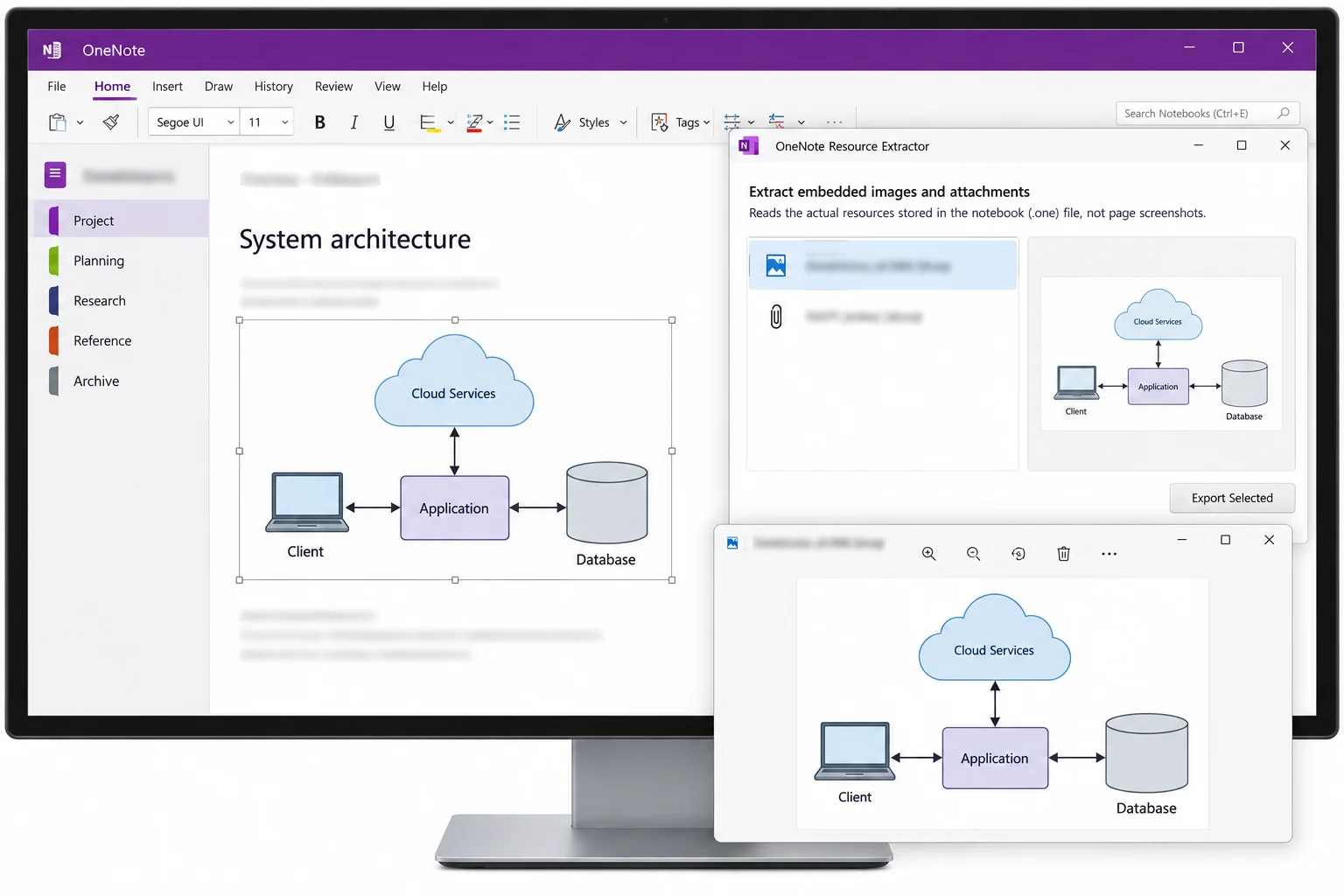
To pull every image out at once, use a converter that reads the .one file directly and writes each embedded picture to a folder. The Univik ONE Converter does this with its Extract Images option, turning a notebook full of pasted pictures into a folder of image files in one run, with no OneNote installed. The routes compare like this.
| Method | Needs OneNote | All at once | Keeps the original |
|---|---|---|---|
| Copy and paste by hand | Yes | No, one at a time | Yes |
| Rename the file to .zip | No | Does not work | No |
| Univik Extract Images | No | Yes | Yes |
- Add your OneNote filesLoad the .one or .onepkg files, or point at a whole notebook folder.
- Turn on Extract ImagesIn the Saving options, tick Extract Images.
- Pick an output folderChoose where the pictures should land.
- Run the batchEvery embedded image saves out as its own file.
The tool opens .one sections, .onepkg packaged notebooks and the .onetoc2 files that index a notebook folder, and the full feature set is laid out on the OneNote converter page. Because it reads the files directly, OneNote does not need to be installed at any point.
Point the ONE Converter at a notebook, turn on Extract Images and get every pasted photo and screenshot back as a real file, in one batch and entirely offline.
Free Download See All FeaturesExtract Embedded Images vs Save a Page as an Image
These are two different jobs, and mixing them up wastes time. Extracting embedded images gives you back the original pictures you pasted in, each as its own file. Saving a page as an image renders the whole note, text and layout included, into one flat picture.
Univik ONE Converter can do both, since it outputs to images as well as PDF, Word and HTML. Reach for Extract Images when the pictures themselves are what you are after. Reach for a normal image conversion when you want a copy of how the note looks.
Where OneNote Stores Your .one Files
Local notebooks sit under Documents\OneNote Notebooks, and the desktop app keeps backup copies under AppData\Local\Microsoft\OneNote in its backup folder. Each section is one .one file, and those are the files you point the converter at.
A notebook kept only in OneDrive has no local file on your disk, so there is nothing on the drive to read. Export it as a .onepkg package first from OneNote, then extract from that. This matters more now that Microsoft made OneNote for Windows 10 read only on October 14, 2025, which leaves many people with backup .one files and no app that edits them.
What You Cannot Extract from a OneNote Page
Some things on a page are not images and will not come out as picture files. Typed text, tables and note tags are content, not pictures, so they belong in a PDF or Word conversion instead. Ink drawings are vector strokes rather than raster images, so they render with the page rather than saving out as a photo.
What you get back are the raster pictures you pasted or inserted, the screenshots, photos and diagrams, in the format they came in. For everything else on the page, converting the note to PDF or Word keeps the text and layout you actually want. Univik builds converters for other closed formats too, gathered on the file converters hub and the wider solutions page, and converted notes can be merged into one file with the PDF combiner.
Want to see the pictures in place first? The online OneNote viewer displays the pages in a browser before you pull the images out.
OneNote Image Extraction Questions

Written and maintained by Leena Taylor Paul and the Univik team, developers of Windows data conversion and recovery software since 2013. OneNote stores every pasted picture as an object inside a closed file rather than as a saved image, which is why getting them back out stumps so many people, so this guide sticks to the routes that actually work. Last verified August 2026. Notes locked in a .one file? Contact our support team.