To convert OneNote to Excel, run a converter that reads the .one and writes XLSX, lifting the tables into worksheet cells. The Univik ONE Converter does a whole notebook of tables in one batch, with no OneNote needed.
Excel is the right home for one kind of OneNote content, the tables. Logs, trackers, planning grids and any page built as a table drop into cells cleanly.
The rest of a notebook, the prose and the pictures, does not belong in a spreadsheet. This guide shows how to get the tables into Excel and where to send the rest.
Excel Suits the Tables in Your Notes
A spreadsheet holds rows and columns, so it fits the parts of OneNote already shaped that way. A weekly log, a budget grid or a contact list in a table becomes worksheet data you can sort and total. Free form pages, a wall of notes with a diagram pasted in, do not, and those read better as a document. Sort your pages along that line before you start, and the conversion goes smoothly.
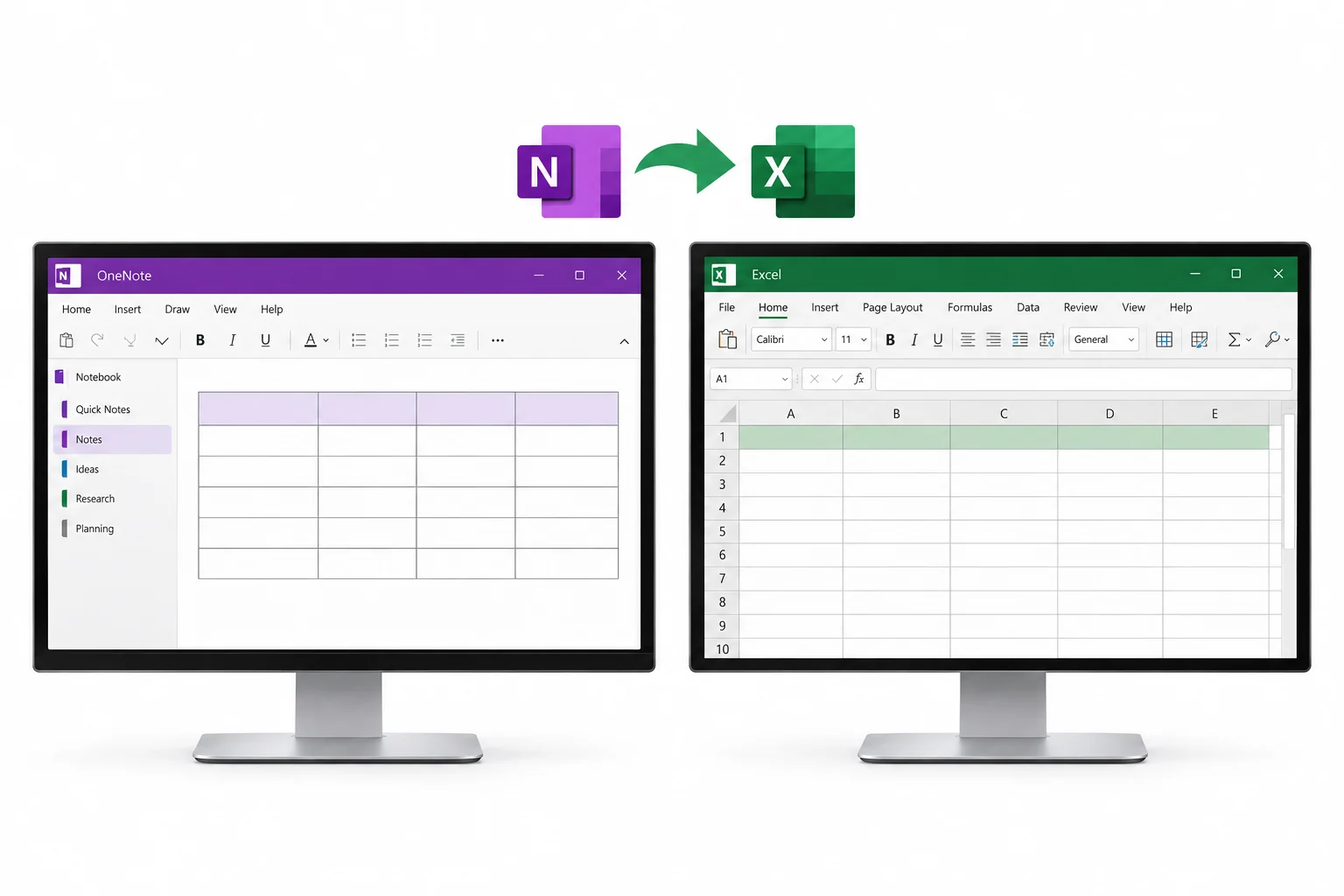
Convert OneNote Tables to a Workbook
If you only need to read the notes rather than convert them, you can online OneNote viewer first — it opens .one and .onepkg files with nothing to install.
To pull the tables out as a workbook, reach for a tool that reads the .one and writes XLSX. The Univik ONE Converter opens a notebook, lifts the tables into worksheet cells and saves an .xlsx, with no OneNote and nothing copied by hand.
- Load the OneNote notebooksPick the notebook files or a folder.
- Set the output to XLSXChoose the Excel format.
- Run the conversionThe tables land in worksheet cells.
- Open in ExcelSort, filter and total from there.
The full set of output formats is listed on the OneNote converter page, so a page you would rather keep as a document can go to another format from the same run.
The ONE Converter reads a .one or .onepkg notebook and drops its tables into XLSX worksheets, ready to sort, filter and total in Excel, no OneNote in the loop.
Free Download See All FeaturesWhat Lands in the Spreadsheet Cells
Not everything on a page fits a grid, so a conversion sorts the content by what a cell can hold. The .one keeps a table as real rows and columns, catalogued in Microsoft's OneNote file format spec, so a converter reads those cells straight rather than guessing at them.
The Free Excel Routes and Where They Break
OneNote has a couple of built in ways to reach Excel, and each has a ceiling. The desktop app for 2013 or 2016 has a Convert to Excel Spreadsheet button on the Table Tools tab that turns one table into a worksheet embedded on the page, described on Microsoft's own help page. It handles one table at a time and needs the desktop app, so the read only Windows 10 version and the web app do not offer it. Copying a table and pasting it into Excel works for a short one, though merged cells and long tables come across messy.
Turn a Whole Notebook into Sheets at Once
A converter that reads the files itself works through a whole notebook and writes the tables out together, one workbook or a file per page depending on the setting. That scales to hundreds of pages the manual button never could.
Tidy the Workbook After Converting
A converted sheet wants a quick pass. Give each column a header row, set the number and date cells to the right type so Excel treats them as values and split any merged block that came in as one cell. From there the built in sort, filter and formula tools take over, which is the whole reason to have the notes in a spreadsheet.
What a Spreadsheet Cannot Hold
A grid is narrower than a note page, so parts of it are left behind. Drawn ink and pasted pictures have no cell to sit in and are left out. Rich text styling, the colours and fonts, flattens to plain values. A merged block of cells may split back into single ones. The data itself, the rows and columns, is what comes through intact and ready to work with.
When to Skip Excel for Word or PDF
If a page is mostly writing rather than a table, Excel is the wrong target. A document format keeps the layout and reads the way the note was written. Send prose heavy pages to Word with the OneNote to Word guide, a fixed copy to PDF with the OneNote to PDF guide, or a web page with the OneNote to HTML guide. Keep Excel for the pages that are truly tables.
OneNote to Excel Questions

Written and maintained by Leena Taylor Paul and the Univik team, developers of Windows data conversion and recovery software since 2013. Excel is the request we are most careful with, because half the pages people want in it are really documents, so this guide draws the line between the tables that belong in a workbook and the notes that do not. Last verified August 2026. Turning a pile of tracker notebooks into spreadsheets? Contact our support team.