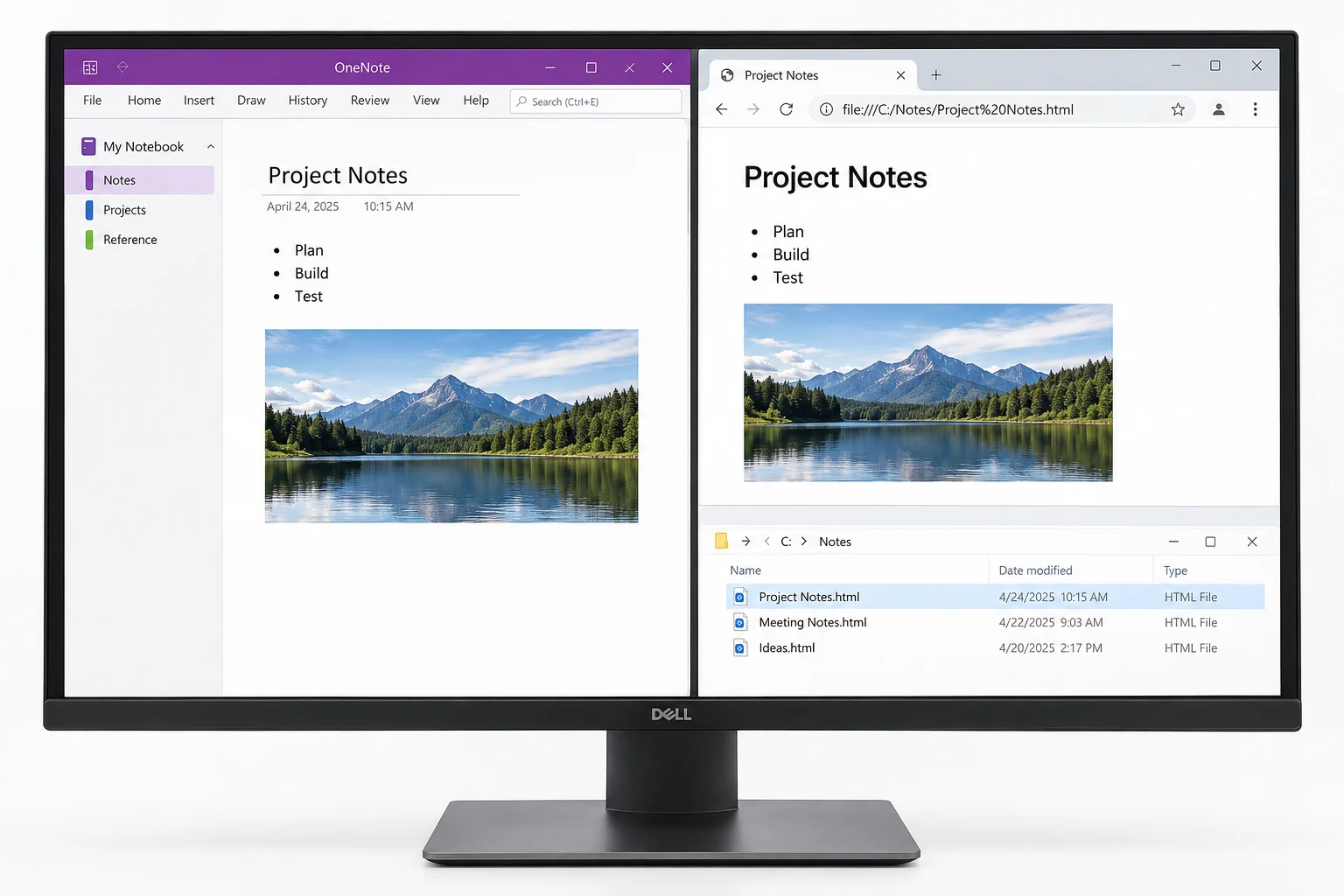
To convert OneNote to HTML without OneNote, run a converter that opens the .one section and writes clean HTML pages, since OneNote's own export drops out an MHT archive a page at a time and wants the app running. The Univik ONE Converter turns whole notebooks into HTML in one batch, offline.
You want your OneNote notes as web pages, so they open in any browser, sit on a website or drop into an intranet with no app in the way. OneNote can save a web page, though it hands you an MHT archive one page at a time.
Here is how to convert OneNote to clean HTML, why the native web page option is awkward and how to turn a whole notebook into web pages at once.
Convert OneNote to HTML Without Installing OneNote
Yes, a converter turns the .one file into standard HTML with no OneNote on the PC. OneNote's own export can make a web page too, but it wants the app running and drops out an MHT file rather than clean HTML. A tool that reads the section content writes proper pages that any browser opens. HTML is the markup the whole web runs on, documented by MDN, so a converted note opens anywhere without a plugin.
Why Convert OneNote Notes to HTML
HTML is the one format the web already understands. Three things pull people toward it.
How OneNote's Own Export Saves a Web Page
From the desktop app, File > Export offers Single File Web Page, which writes a .mht file for the pages you select. It bundles the page and its images into one archive. OneNote for Windows 10 offers no Export command at all, so that app cannot make a web page.
Turn a Whole Notebook into HTML Pages in One Run
To turn a whole notebook, or a pile of them, into HTML at once, reach for a tool that opens the files itself. The Univik ONE Converter reads a folder of .one and .onepkg files and writes an HTML page for every section, all in one pass, without OneNote and without saving page by page.
- Pick your OneNote filesLoad .one or .onepkg files, or point at a whole notebook folder.
- Choose HTML as the outputSet the format to HTML.
- Run the batchEach section becomes its own web page.
- Open in any browserDouble click a page and read it anywhere.
It works through loose sections, opens packed notebooks and holds the notebook order, and every option is covered on the OneNote converter page. For a fixed copy or an editable document instead, the OneNote to PDF guide and the OneNote to Word guide cover those routes.
Aim the ONE Converter at your notebooks and pull back a browser ready HTML page for every section, images kept inline, as one batch, with OneNote nowhere in the picture.
Free Download See All FeaturesClean HTML or an MHT Web Archive
The choice comes down to what opens the file later. Clean HTML is a normal web page any browser and any editor reads. An MHT archive is a single file that leans on older browser support and does not drop neatly into a website.
Keep Your Images and Layout in the HTML
A good conversion keeps the parts that make a note readable. Text and headings become real HTML, tables come across as tables and pictures sit inline in the page.
The stored note, recorded in Microsoft's OneNote file format spec, holds all of this, so a reader that works from the source keeps more than a rushed screen save.
HTML, PDF or Word for Your OneNote Notes
Pick by what you plan to do with the notes. HTML suits the web, a page you publish, embed or open in any browser. PDF suits a frozen copy that reads the same everywhere. Word suits notes you plan to edit on as a document.
| What you want | HTML | Word | |
|---|---|---|---|
| Opens in any browser | |||
| Publish or embed on the web | |||
| Fixed unchangeable layout | |||
| Edit as a document |
Where an HTML Copy Falls Short
A few things do not survive the trip to a web page. Ink and handwriting land as images, not editable text. Audio and video notes do not play in the page. A busy free canvas layout gets tidied into normal page flow.
What does come through is the readable body of the notes as web pages you can open, host or hand on. Univik makes readers for plenty of other closed formats too, all collected under the converters hub, or the full solutions listing.
If you just want to read the notes and not keep a copy, the online OneNote viewer opens a .one in the browser, free and with nothing uploaded.
OneNote to HTML Questions

Written and maintained by Leena Taylor Paul and the Univik team, developers of Windows data conversion and recovery software since 2013. People convert notes to HTML to put them on a website or an intranet, and the trouble is that OneNote's own export saves an MHT archive some browsers refuse, so this guide maps the routes that write clean HTML instead. Last verified August 2026. Publishing a notebook to the web? Contact our support team.