To convert OneNote to Word without OneNote, run a converter that turns the .one file into an editable DOCX, since OneNote's own export needs the app and cannot handle a whole notebook at once. The Univik ONE Converter turns entire notebooks into editable DOCX in one batch, offline.
You want your notes in Word, to edit them, drop them into a report or hand them to someone who has never opened OneNote. The export button gets you part of the way, then stops short in a couple of spots worth knowing about.
Here is how to export to Word the native way, why it will not take a whole notebook and how to convert a full notebook to editable DOCX at once.
Do You Need OneNote to Convert Notes to Word?
Yes. A converter that parses the .one file writes an editable Word document without OneNote on the PC. The app's own export can make one too, though it needs the app open and synced. A tool that opens the section files on its own works from a plain folder of .one files, which is the case once the app is gone. Because the notes live in a proprietary format, one Microsoft documents in its OneNote file format specification, a plain text editor cannot read them.
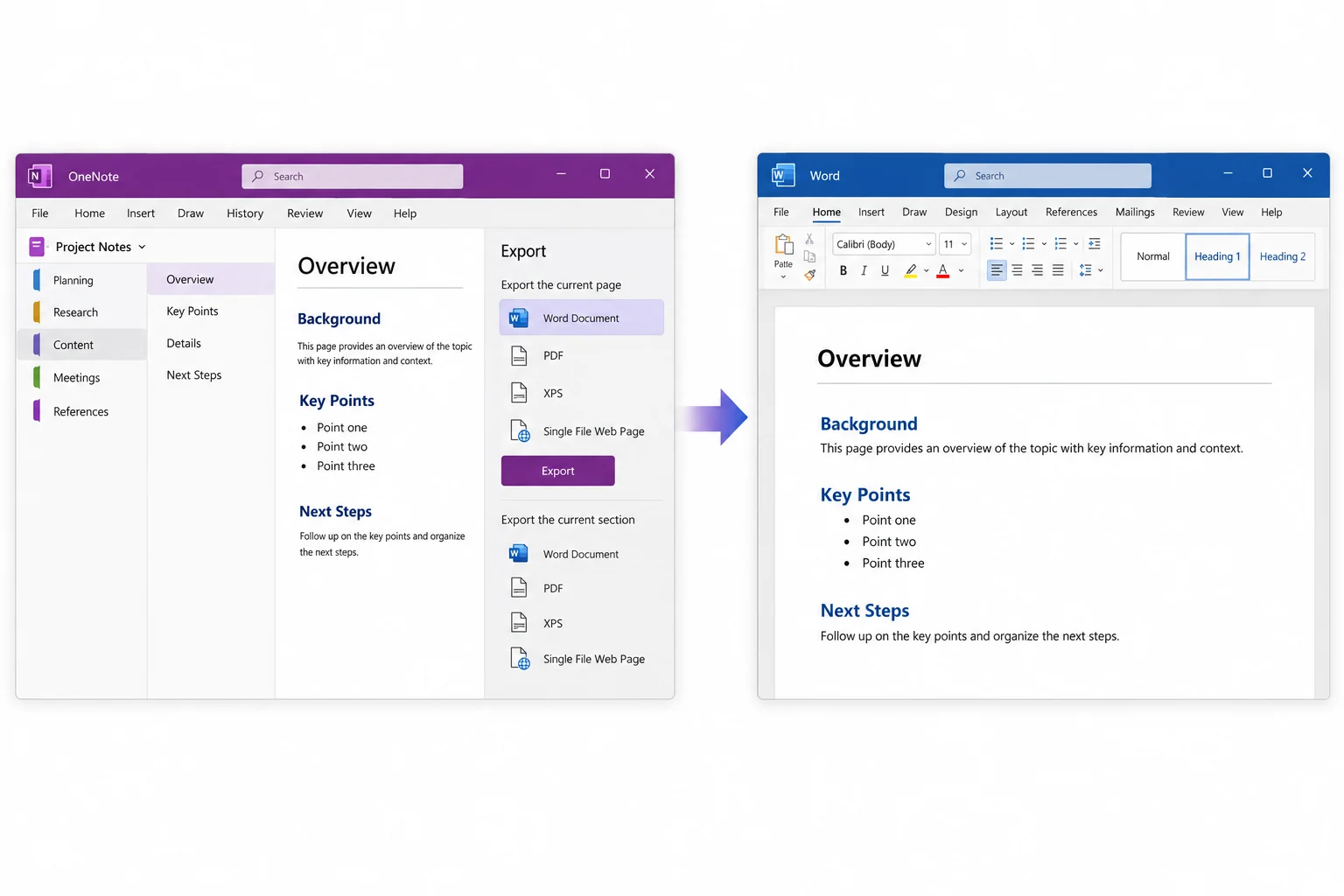
How to Export OneNote to Word in the App
In the desktop app, open File > Export, pick the pages or the section, choose Word Document and save. To grab several pages in one go, hold Ctrl and right click each page first. It writes a .doc or .docx for the pages you picked.
The Windows 10 version of OneNote has no Export command, so that app cannot make one at all. With it now read only, the route there is a converter that pulls the files from disk instead.
Why OneNote Cannot Export a Whole Notebook to Word
OneNote's own export tops out at a page or a section once the format is Word. There is no setting to send a whole notebook into one document or into a batch of them. A wide notebook means exporting section by section, one save at a time, which turns a big archive into an afternoon of clicking.
Convert a Whole OneNote Notebook to Word at Once
To turn an entire notebook, or a stack of them, into Word files at once, lean on a converter that reads the files straight from disk. The Univik ONE Converter loads .one sections and .onepkg packages and writes a DOCX for each, in a single run, with no OneNote and no page by page saving.
- Choose your OneNote filesLoad .one or .onepkg files, or point at a whole notebook folder.
- Set the output to WordPick DOCX as the format.
- Run the conversionEach section becomes its own editable Word file.
- Edit in WordOpen the DOCX in Word or Google Docs and change anything.
The tool reads loose .one sections, opens .onepkg notebooks and preserves the section order from the notebook, and every option is documented on the OneNote converter page. If you want a fixed copy instead of an editable one, the OneNote to PDF guide covers that route.
Point the ONE Converter at your notebooks and get a clean DOCX for every section, ready to edit in Word or Google Docs, in one batch and with no OneNote in the way.
Free Download See All FeaturesKeep Your Formatting When Converting OneNote to Word
The worry with any OneNote to Word document conversion is formatting, and OneNote lays notes on a free canvas while Word runs top to bottom, so an export has to reflow the page. Text, headings, tables and images do carry across. Items floating in odd spots on the canvas get pulled into normal document order rather than staying where they sat.
Converting without losing formatting comes down to how the note is read. A conversion that reads the real note content holds structure better than a hurried export from a page you barely have open. The closer the tool sticks to the stored note, the less you fix up in Word afterwards.
OneNote to Word or OneNote to PDF
Pick Word when you plan to keep editing the notes, in a report, an essay or a draft you pass around. Pick PDF when you want a fixed copy that looks the same everywhere and will not change by accident. Word reflows and stays editable, PDF freezes the layout.
DOC or DOCX for Your OneNote Notes
For OneNote to DOCX, choose DOCX unless something old needs DOC. DOCX is the modern Word format, smaller on disk and read by current Word and by Google Docs. DOC is the older binary format from Word 2003 and earlier, worth picking only for a program that cannot open the newer one.
| Trait | DOC | DOCX |
|---|---|---|
| Word version | 97 to 2003 | 2007 and later |
| Format | Older binary file | Open XML, ZIP based |
| Opens in | Old Word | Current Word and Google Docs |
| Pick when | A program needs the old format | Almost every case |
What Does Not Convert to Word
A few things on a OneNote page have no Word match. Ink and handwriting land as images rather than editable text, so a scribbled diagram stays a picture. Audio and video notes do not travel into a document at all. The free placement of items on the canvas is squared into a linear layout.
What does come through is the body of the notes, the text, headings, tables and images, in a document you can edit and share. The same approach powers Univik's other format readers, which you will find on the converters hub and the solutions page.
Only need to check what a section holds? The online OneNote viewer shows the pages in a browser first, with nothing to install.
OneNote to Word Questions

Written and maintained by Leena Taylor Paul and the Univik team, developers of Windows data conversion and recovery software since 2013. People convert to Word to edit notes that OneNote keeps locked in its own app. The catch is that OneNote's own export handles a page or a section but not a whole notebook, so this guide lays out the ways to convert the lot. Last verified August 2026. Stuck exporting a big notebook? Contact our support team.