To convert OneNote to PDF without pages getting cut off, use a tool that reads the .one file directly instead of printing it onto fixed sheets, which is what clips long notes. The Univik ONE Converter turns whole notebooks into searchable PDF in one batch, with no OneNote installed.
Saving a note as a PDF sounds like a one click job, until half a long page vanishes off the bottom or the whole export needs an app you no longer run. OneNote makes PDF harder than it should be, in a couple of specific ways.
Here is why pages get clipped, how to export the built in way and how to convert a whole notebook to clean, searchable PDF at once.
Can You Convert OneNote to PDF Without OneNote?
Yes. A tool that opens the .one file on its own turns your notes into PDF, with no OneNote installed. OneNote's own File Export needs the app running and synced, and a converter that parses the section files itself does not, which helps when a folder of .one files is all that is left. Because the format is proprietary, described in Microsoft's OneNote file format spec, reading it takes a dedicated tool rather than a browser or PDF reader.
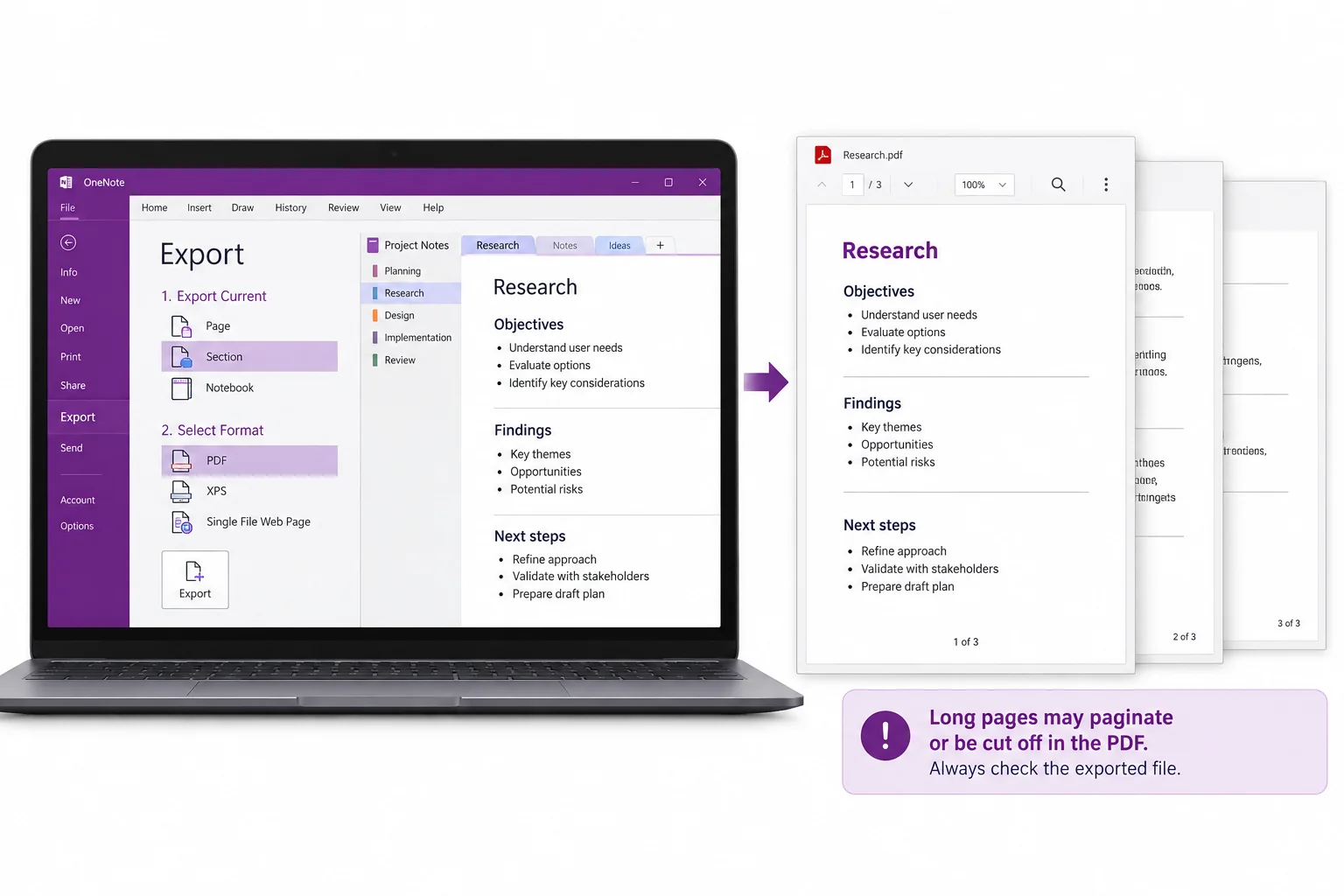
Why OneNote Cuts Off Long Pages in a PDF
OneNote pages live on an infinite canvas, but its PDF export prints them onto fixed sheets. Anything taller or wider than a sheet gets clipped at the page break, so a long note or a wide table loses its edges in the PDF. This is the reason so many searches for OneNote and PDF end in the words cut off.
You can soften it by hand in OneNote, setting a fixed page size and pulling content inside the margins before you export. That helps a little, and it still breaks wide tables and misses collapsed outlines. The reliable answer is a converter that renders the note itself.
How to Export OneNote to PDF the Native Way
In the desktop app, open File > Export, choose Page, Section or Notebook, pick PDF and click Export. It handles one page or one notebook at a time, and it needs OneNote installed and synced. That built in route is fine for a single note you have open in front of you.
OneNote for Windows 10 has no Export command at all, so there the only native option is printing to a PDF printer, page by page. With that app now read only, leaning on it for a big export is slow going, which is where reading the files directly pays off.
How to Batch Convert a OneNote Notebook to PDF
To convert a whole notebook, or a folder of them, in one go, use a tool that reads the files directly and runs them as a batch. The Univik ONE Converter takes .one sections and .onepkg notebooks, turns each into PDF and names the output after its section, with no page clipping and no OneNote open.
- Load your OneNote filesLoad .one or .onepkg files, or point at a whole notebook folder.
- Choose PDF as the outputPick PDF from the output formats.
- Run the batchEvery section converts to its own PDF in a single pass.
- Open anywhereThe PDFs open on any device, with OneNote nowhere in sight.
It handles loose .one sections, unpacks .onepkg notebooks on its own and follows the .onetoc2 index so a notebook folder stays in order. The full run down of options sits on the OneNote converter page. If you also want the pictures out of those notes as separate files, the guide on extracting images from OneNote walks through that.
Point the ONE Converter at your notebooks and get clean PDF copies with the pages kept whole and the text still searchable, in one batch and fully offline.
Free Download See All FeaturesConvert OneNote to PDF Without Losing Formatting
Reading the note content directly, rather than printing it to sheets, keeps the parts a print export drops. Long pages stay whole, tables and attachments stay in place and the text stays selectable so you can search the PDF afterwards.
Ctrl+F finds anything across years of notes.Once you have a set of PDFs, several notes can be merged into one document with the PDF combiner, which turns a notebook of sections into a single file to share.
Which OneNote to PDF Method to Use
For one page you have open, OneNote's own export does the job. For a whole archive or files with no OneNote installed, a converter wins on batch, page fidelity and privacy. Free online uploaders sit in the middle, at the cost of sending private notes to someone else's server.
| Method | Needs OneNote | Whole notebook at once | Long pages kept whole |
|---|---|---|---|
| OneNote File Export | Yes | One notebook at a time | Long pages clipped |
| Free online converter | No | File by file | Varies |
| Univik ONE Converter | No | One run | Yes |
Where Your OneNote Files Live on Disk
Your .one files sit in one of two spots. A local notebook keeps its sections in Documents\OneNote Notebooks, while the desktop app also stashes recovery copies in AppData\Local\Microsoft\OneNote. Aim the converter at whichever holds your notes and the sections become PDF.
When a notebook lives only in OneDrive, nothing sits on the disk to convert, so pull down a local copy or turn it into a .onepkg package before you start. That situation is common now that OneNote for Windows 10 went read only in October 2025, which stranded plenty of people with backup files and no app to open them.
What OneNote to PDF Conversion Cannot Do
A PDF is a fixed page, so a few OneNote behaviours do not carry across. The infinite canvas becomes ordinary pages, so items placed freely around the canvas get squared up into a normal layout. Ink stays as drawn strokes rendered onto the page, not as notes you can keep editing.
OneNote's own export also makes no bookmarks for each subpage, a gap Microsoft notes on its forum. What a good conversion does keep is the content, the text, images, tables and attachments, landing in a PDF that opens and searches anywhere. Univik makes the same kind of reader for other locked formats, and you can browse them on the converters hub or the full solutions list.
Not ready to make a file yet? The online OneNote viewer opens a .one in your browser so you can read the pages before you convert.
OneNote to PDF Questions

Written and maintained by Leena Taylor Paul and the Univik team, developers of Windows data conversion and recovery software since 2013. The complaint we hear most about OneNote and PDF is pages getting cut off at the edge, which traces to how OneNote prints an endless canvas onto fixed sheets, so this guide covers the routes that keep a note whole. Last verified August 2026. Notes still not fitting a page? Contact our support team.