To convert OneNote to PowerPoint, run the notebook through a converter that writes .pptx, which lays each page onto its own slide. The Univik ONE Converter builds the deck offline, with no OneNote or Office needed.
OneNote can send a notebook to PDF or Word, but not to PowerPoint. If you want your notes as slides, the export menu is a dead end.
That leaves a converter or a manual workaround, and this guide walks through both. The short version, one notebook page becomes one slide.
The Missing PowerPoint Export in OneNote
If you only need to read the notes rather than convert them, you can open OneNote in your browser first — it opens .one and .onepkg files with nothing to install.
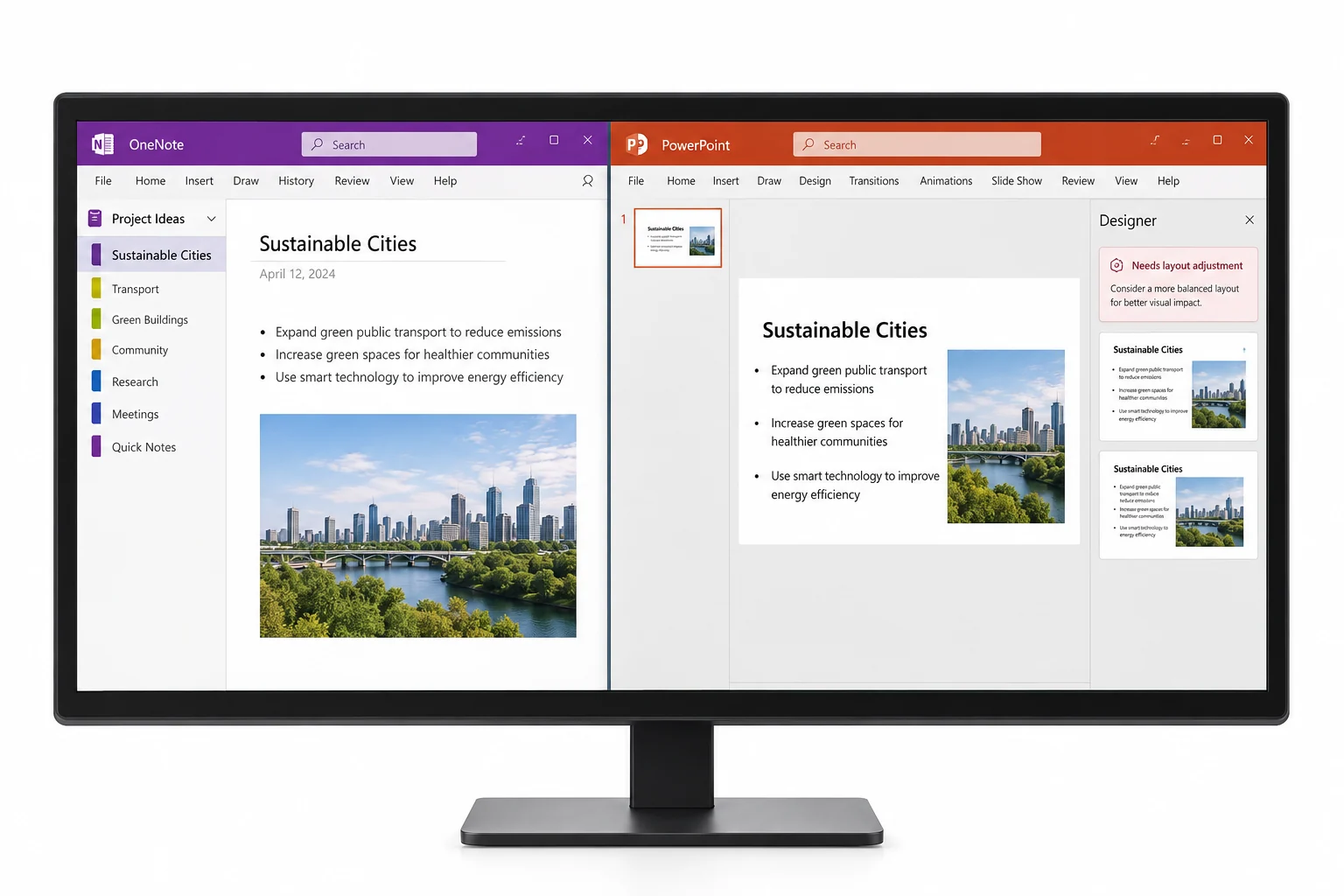
OneNote's own File then Export gives you three targets, a PDF, a Word document or a web page, and that is the whole menu. There is no PowerPoint entry, so a notebook cannot go straight to a .pptx from inside the app. Two honest paths get you there instead. You run the notebook through a converter that writes PowerPoint, or you rebuild the slides by hand from an exported outline. The sections below take each in turn.
Turn a Notebook into Slides
A converter reads the notebook and writes a .pptx with one slide per page. It places the page content onto the slide and saves the deck with no need for OneNote or PowerPoint on the machine. The Univik ONE Converter does this offline, reading the .one directly, a notebook format Microsoft has laid open in its format specification.
- Open the notebookLoad a .one or .onepkg file.
- Choose PowerPointPick PowerPoint from the list.
- Convert to the deckThe .pptx builds and saves.
- Open the slidesReview and restyle.
The full list of output formats is on the OneNote converter page.
The ONE Converter lays each page onto its own slide and writes the .pptx offline, so you start from your content instead of a blank presentation.
Free Download See All FeaturesOne Page Becomes One Slide
The mapping is one page to one slide, the same way a page maps to a sheet in a PDF. That works cleanly when a page is roughly slide shaped. It gets awkward when a page is not. A OneNote page is a free form canvas that can run very tall or spread wide, while a slide is a fixed frame, so a long page has to be scaled down or spilled to fit. Short, tidy pages convert best.
What Lands on the Slide and What Needs Work
Expect the text and pictures to arrive and the free form extras to fall away.
The Free Word Outline Route
There is a route that costs nothing when your notes are mostly text. Export the notebook to Word (making that file is covered in the OneNote to Word guide), apply Heading 1 to the lines you want as slide titles and Heading 2 to the points under them, then close the file. In PowerPoint, choose New Slide and then Slides from Outline, and pick the Word document. Each Heading 1 turns into a slide title and each Heading 2 into a bullet, and with no headings at all PowerPoint makes one slide per paragraph, per Microsoft's own steps.
A Starting Deck, Not a Finished Presentation
Set your expectations before you open the result. What any conversion gives you is your notes on slides, not a designed presentation, one slide per page with the content placed where it fell. You will still pick a theme, reflow the crowded slides and trim what does not belong on a screen. That is normal. The conversion buys back the hours of copying and pasting. The polish is yours to add.
When Slides Miss the Mark
Slides are not always the right shape for the job. If you want something to read or edit, convert to Word rather than force notes into a deck. If you only need the pictures out of a notebook, the images route is more direct. And if the goal is a fixed record to share or file, a PDF holds the page layout better than a slide will. Reach for PowerPoint when you mean to stand up and present.
When a Slide Deck Fits
A deck earns its place when the notes are headed for a room. Lecture notes you will teach from, meeting points you will walk a team through, a research summary you will present, a training outline you will deliver. Anywhere your notebook is the raw material for a talk, converting it to slides gives you a running start in place of a blank deck.
OneNote to PowerPoint Questions

Written and maintained by Leena Taylor Paul and the Univik team, developers of Windows data conversion and recovery software since 2013. Turning notes into slides is the conversion people expect the most from and get burned by, so this guide is upfront that a free form page and a fixed slide fight each other and that the deck arrives as a start, not a finish. Last verified August 2026. Stuck getting a busy notebook into presentable shape? Contact our support team.