To move OneNote to another app, convert your notebooks to the file that app imports, Markdown, HTML or Word, then bring those files in. The Univik ONE Converter writes every one of those formats straight from your .one files, with no OneNote running.
You are leaving OneNote. The notes have to land somewhere that reads them, and each app on your shortlist wants a particular file.
This page is the map. Pick the app, find the format it reads, convert your notebooks to that format and bring them in.
Pick the Format Your New App Reads
The whole move turns on one thing, the format your new app can import. Get that right and the rest falls into place. Three families cover almost every destination.
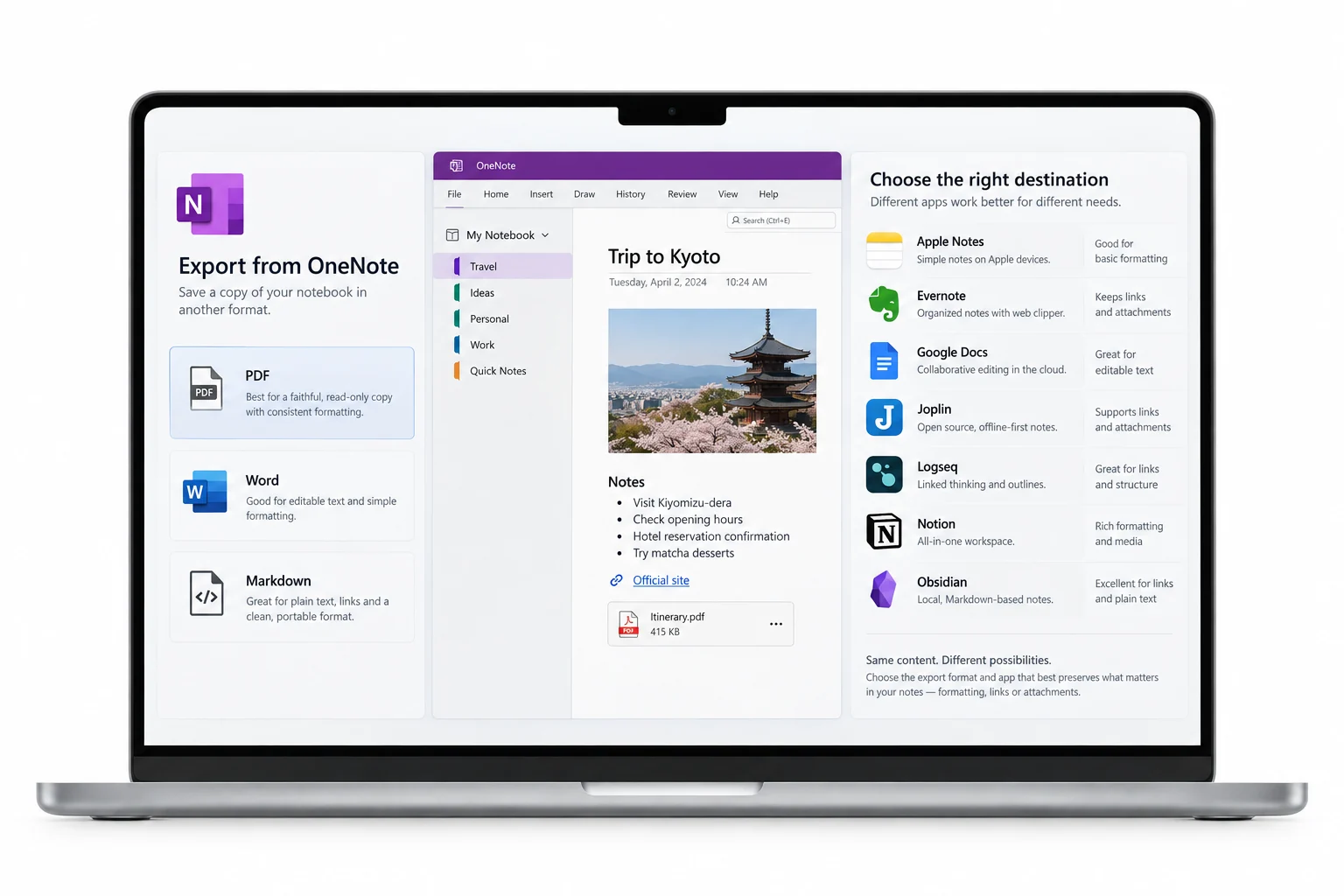
OneNote writes none of these past a short export list, so a converter fills the gap and produces the file the app on the other side is waiting for.
Which Format for Which App
Here is where the common destinations land, and the guide that makes each file.
| Destination app | Reads best as | Make it with |
|---|---|---|
| Obsidian | Markdown | OneNote to Markdown |
| Logseq | Markdown | OneNote to Markdown |
| Joplin | Markdown | OneNote to Markdown |
| Notion | HTML | OneNote to HTML |
| Google Docs | Word | OneNote to Word |
A few take more than one route. Notion's import list also accepts DOCX and Markdown, and Joplin reads HTML as well as Markdown. Where an app offers a choice, go with the format it treats as first class.
Why Convert Before You Import
OneNote keeps the notes locked inside a .one file that only OneNote opens. Its export menu offers a PDF, a Word document and a web page, and the Windows 10 version has none at all. So the notes have to be lifted out before any new app can read them.
How each format turns out is spelled out on the matching guide, the Markdown, HTML and Word walkthroughs, and every output choice sits on the OneNote converter page.
Move a Whole Notebook at Once
Migrating a page at a time falls apart past a notebook or two. The Univik ONE Converter takes a pile of .one and .onepkg files, turns each section into the format you picked and runs them all in a single pass.
- Load the notebookAdd the .one or .onepkg files, or a whole folder.
- Choose the target formatSet the output to what your app reads.
- Convert the batchEvery section is written in that format.
- Import into your appBring the files into the new home.
Hand the ONE Converter your notebooks and it writes them out as Markdown, HTML or Word, a file per section, the whole set done in one pass, and OneNote never has to run.
Free Download See All FeaturesKeep a OneNote Archive Copy Too
A move and an archive are not the same job. Once the notes live in the new app, keep a frozen copy of the originals as PDF, so a page you barely touch stays readable years from now with nothing to install. The OneNote to PDF guide covers that side, and if you only want to look at a .one before deciding, the Online OneNote Viewer opens it in a browser for free.
When an App Brings Its Own Importer
Some apps offer a built in importer that reaches into OneNote for you. There is a catch worth checking first.
Obsidian's plugin can read exported files as well as a synced account, yet it still only takes notebooks you personally own. Where an importer stops, a shared notebook, a work or school one or a format the app will not read, the converter produces the file it will accept. The Obsidian Importer and Notion's importer are the two people ask about most.
Check the Move Before You Delete Anything
Do not delete the OneNote originals until the import checks out. Open a handful of the migrated notes and look for the parts that matter, the headings, the tables, the pictures and any links. If something dropped, you still hold the .one to convert again in a different format. Joplin's import notes are a good example of how much the exact format changes what lands, so it pays to test a few before you commit the whole library.
What a Move Cannot Carry
Portable files hold text and pictures well and leave the rest behind.
Password protected sections stay shut until you unlock them in OneNote, so open those before you convert. Everything else, the written body of the notes and the images beside it, comes across ready for the new app.
OneNote Migration Questions

Written and maintained by Leena Taylor Paul and the Univik team, developers of Windows data conversion and recovery software since 2013. Moving off OneNote comes down to one question, the format the new app reads, so this guide maps each destination to the file it wants and points you at the converter that writes it. Last verified August 2026. Weighing up a note app move? Contact our support team.