To convert OneNote to Markdown, run a converter that opens the section and writes clean .md files, since OneNote itself has no Markdown export in any version. The Univik ONE Converter writes Markdown for a whole notebook in one batch, offline.
You are moving to Obsidian, Logseq or another plain text app, and it wants Markdown. OneNote does not hand you Markdown from any menu.
This guide covers how to get clean .md files out of a .one, why the app never writes them itself and how a whole notebook converts in one run.
Convert OneNote to Markdown Without OneNote
Yes, a converter reads the notes inside a .one file and rewrites them as Markdown, and OneNote need not be on the PC. There is no Export to Markdown anywhere in OneNote's menus, so a tool that reads the section is the way to get .md files. Markdown is plain text with light marks for headings, lists and links, so the result opens in any editor and drops into most modern note apps.
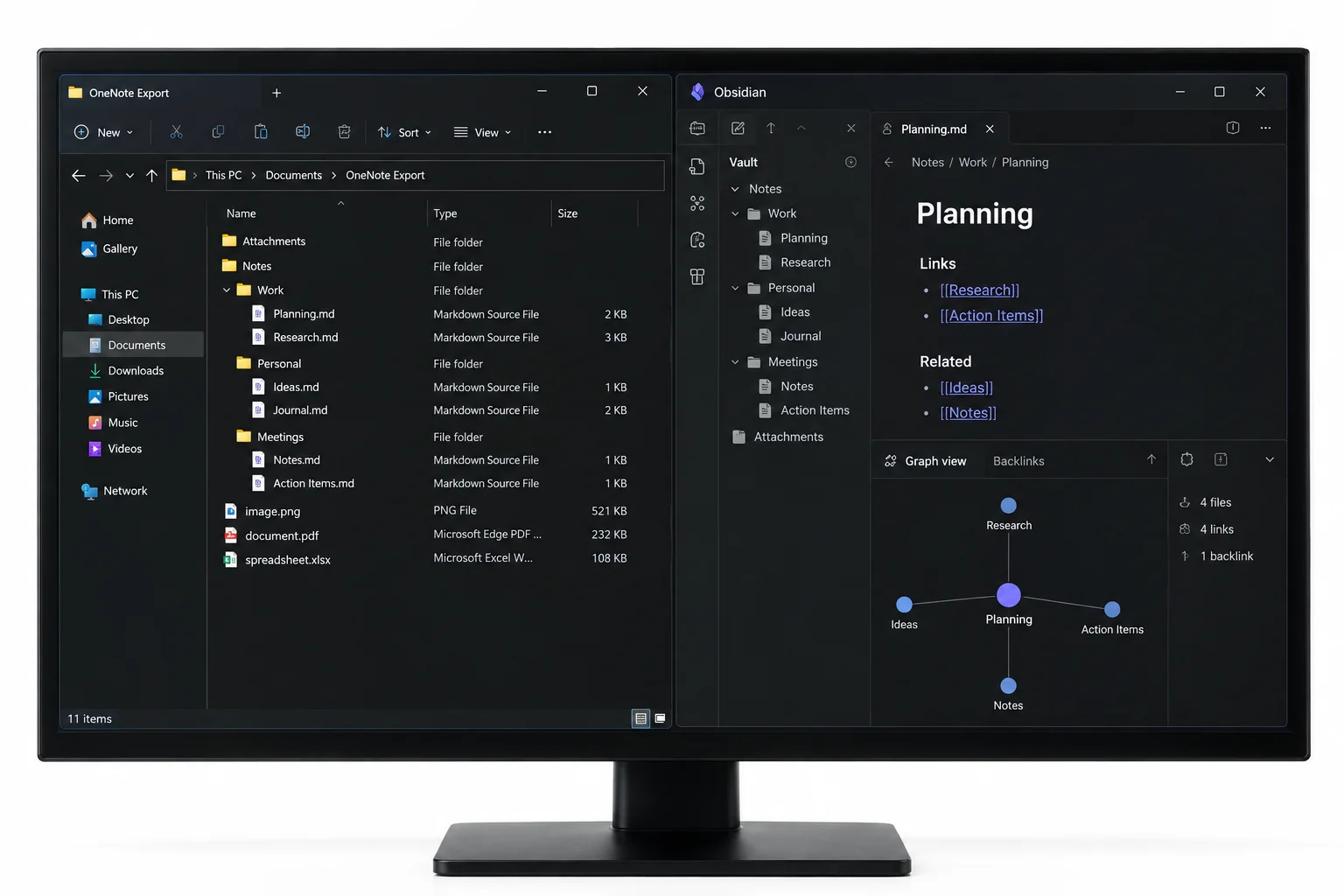
Why Convert OneNote Notes to Markdown
Markdown is the plain text format the note taking world settled on. Three things pull people toward it.
No Markdown Export in OneNote
Open the export list in OneNote and Markdown is not on it. The choices are PDF, Word and a web page, nothing that writes a .md file. That gap is why people end up pasting notes by hand or hunting for a converter.
Convert a Whole Notebook to Markdown Files
To batch a whole notebook, or several of them, into Markdown, use a tool that parses the sections for you. Feed the Univik ONE Converter a notebook and it writes one .md file per section. It runs the whole batch at once, with no OneNote and no copying by hand.
- Point at your OneNote filesAdd .one or .onepkg files, or a whole notebook folder.
- Choose Markdown from the listSet the format to MD.
- Start the runEach section is written as one .md file.
- Open in your appDrop the files into Obsidian, Logseq or any editor.
It reads a stray section, unpacks a whole package and follows the table of contents for order, and the settings all live on the OneNote converter page. To make a web page or an editable document instead, the OneNote to HTML guide and the OneNote to Word guide handle those.
Run the ONE Converter over your notebooks and it hands back a clean .md file for every section, images kept beside them, all in one batch and no OneNote required.
Free Download See All FeaturesYour Next Note App Reads Markdown
The reason Markdown matters is the app you are moving to. The plain text apps people leave OneNote for read Markdown directly, and it carries into every one of them.
| Note app | Reads Markdown | Reads HTML |
|---|---|---|
| Obsidian | ||
| Logseq | ||
| Joplin | ||
| Notion |
It lands in all four, which is why it is the safe pick when you are not sure yet where the notes will end up. Joplin's import docs spell out its Markdown and HTML routes if you want the detail.
Move OneNote to Obsidian
Obsidian is the app most people ask about. Its Importer plugin turns OneNote into Markdown, working from a Microsoft account online or from exported files on disk. One limit decides whether it fits your notebook.
So a work, school or shared notebook the plugin blocks still has a route. Convert it to Markdown, then move the .md files into the vault. The Obsidian Importer covers the plugin side, and the full walkthrough of both routes sits in the OneNote to Obsidian guide.
What Carries into the .md Files
A good conversion keeps the parts Markdown can hold. Headings, lists, bold and links become Markdown marks, tables come across as Markdown tables and pictures are saved beside the text as linked files.
Microsoft's OneNote file format spec shows the note holds more than plain text, so a reader that works from the source keeps the parts that matter.
Where the .md Files Fall Short
Plain text trades richness for portability. Handwriting and ink arrive as pictures, not as text you can edit. Sound and video clips are left behind. OneNote's loose canvas, where notes float anywhere on a page, is straightened into an ordinary top to bottom document.
The readable body of the notes comes across as .md files you can edit, sync or check into a repo. Univik builds the same kind of reader for a pile of other closed Microsoft formats, all gathered under the converters hub or listed on the solutions page.
OneNote to Markdown Questions

Written and maintained by Leena Taylor Paul and the Univik team, developers of Windows data conversion and recovery software since 2013. People reach for Markdown when they are leaving OneNote for Obsidian or a plain text vault, and the catch is that OneNote never had a Markdown export, so this guide covers the route that writes clean .md files instead. Last verified August 2026. Planning a move off OneNote? Contact our support team.