To move OneNote to Obsidian, either run Obsidian's Importer plugin or convert your notebooks to Markdown and copy the .md files into your vault. A tool like the Univik ONE Converter writes those .md files from .one and .onepkg even when the plugin cannot reach the notebook.
You have picked Obsidian, and the OneNote notes need to land in a vault as Markdown.
Two paths do it, Obsidian's own Importer plugin and a converter that writes the .md files for you. Here is how each works and which one fits your notebooks.
The Two Ways OneNote Reaches Obsidian
Obsidian keeps every note as a plain .md file in a folder it calls a vault. Getting OneNote into that shape happens one of two ways.
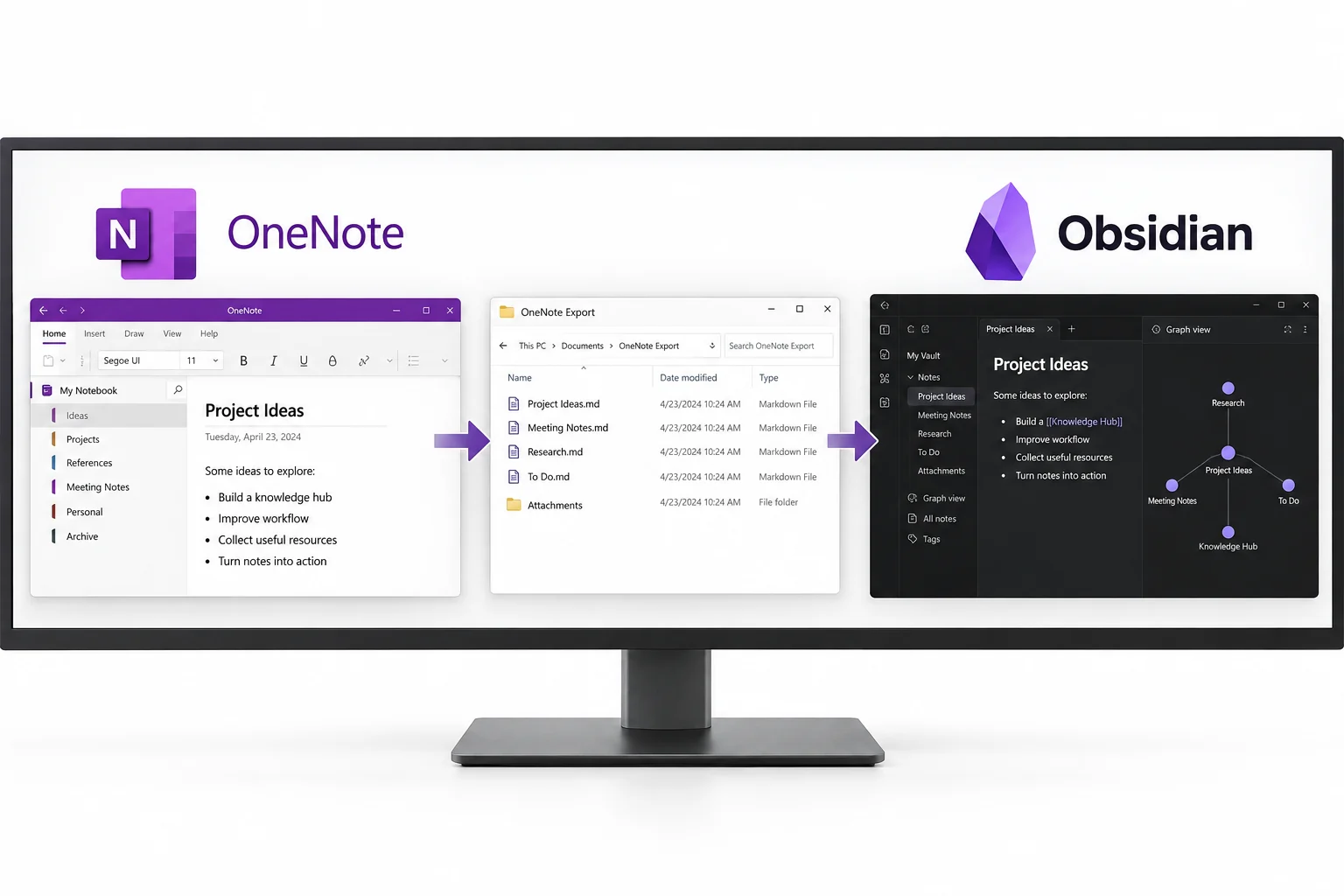
Which one you want comes down to who owns the notebook and where it lives. The rest of this guide walks both.
Obsidian's OneNote Importer Plugin
Obsidian ships a community Importer plugin that turns OneNote notes into Markdown. Install it from Community Plugins, then choose Microsoft OneNote as the format. It runs in two modes. One signs into your Microsoft account and pulls the notebooks synced to OneDrive, which needs a connection. The other reads exported .one and .onepkg files off the disk, with no account and no internet.
The plugin is community maintained and rebuilds OneNote's own HTML into Markdown as it runs. When it fits your notebook it is the quickest path, and the full steps live on Obsidian's OneNote import page and the Importer plugin repo.
Convert to Markdown and Drop It In
When the plugin cannot reach a notebook, one owned by a work or school account, one someone else shared or a loose export you would rather not sign in for, a converter fills the gap. It reads the .one and .onepkg directly and writes .md files you copy into the vault, and those files work in any Markdown app, not only Obsidian.
Producing the .md files is its own job, walked through end to end in the OneNote to Markdown guide. If Obsidian is not the final pick after all, the migration hub maps the other apps and the file each of them wants.
Drop the Files into Your Vault
A vault is a plain folder on your disk. Obsidian shows whatever .md files sit inside it as notes, so bringing them in by hand is a copy and paste.
- Open the vault folderFind it on disk, the folder you opened as a vault.
- Copy the notes inPaste the .md files where you want them.
- Copy the images folderKeep the attachments beside the notes.
- Reopen ObsidianThe new notes show up in the sidebar.
Aim the ONE Converter at a work, school or backed up notebook and it writes .md files, images tucked beside them, ready to copy straight into your Obsidian vault.
Free Download See All FeaturesWhere Your OneNote Images Land in the Vault
Obsidian stores pictures as files and links to them from the note. When a converter writes your notes, it saves the images in a folder next to the .md and points each note at them. Keep that folder together with the notes as you copy them in, and set Obsidian's attachment folder so fresh pictures land in the same place.
How Notebooks and Sections Map to a Vault
OneNote stacks notebooks, sections and pages. A vault uses folders and notes, and the two line up cleanly.
| In OneNote | In your vault |
|---|---|
| Notebook | A folder in the vault |
| Section | A subfolder or a note |
| Page | A Markdown note |
The page body carries over, the headings, lists, bold and tables. Links that jumped between OneNote pages do not turn into vault wikilinks, so a handful of cross references may want a manual fix once the notes are all in.
Tidy the Vault After the Import
A fresh import wants a little cleanup. Fold single note subfolders up a level, rename notes that arrived with section prefixes and add tags or frontmatter if you sort by them. Obsidian's own Format converter can standardise list and link styles across the new notes in one pass, which saves editing them one by one.
What Obsidian Cannot Take from OneNote
Some things do not survive the trip into plain text.
Password protected sections have to be unlocked in OneNote first, whichever route you take. Everything else, the written notes and the pictures beside them, lands ready to use in the vault.
OneNote to Obsidian Questions

Written and maintained by Leena Taylor Paul and the Univik team, developers of Windows data conversion and recovery software since 2013. Most Obsidian questions that reach us start where the built in importer stops, a work notebook it will not touch or an export it cannot read, so this guide sets both routes side by side and is honest about which one your notebook needs. Last verified August 2026. Stuck moving a notebook into Obsidian? Contact our support team.