To move OneNote to Logseq, convert the notebooks to Markdown and move the .md into your graph's pages folder. Logseq reads no OneNote file, so the Univik ONE Converter writes the Markdown that drops into the graph.
You are moving to Logseq, the outliner that keeps every note as a local Markdown file.
Logseq has no OneNote import of its own, so the route is short. Convert the notebooks to Markdown, then copy the files into your graph. The twist is how Logseq reshapes what you bring in.
The Markdown Path into Logseq
If you only need to read the notes rather than convert them, you can view OneNote files in browser first — it opens .one and .onepkg files with nothing to install.
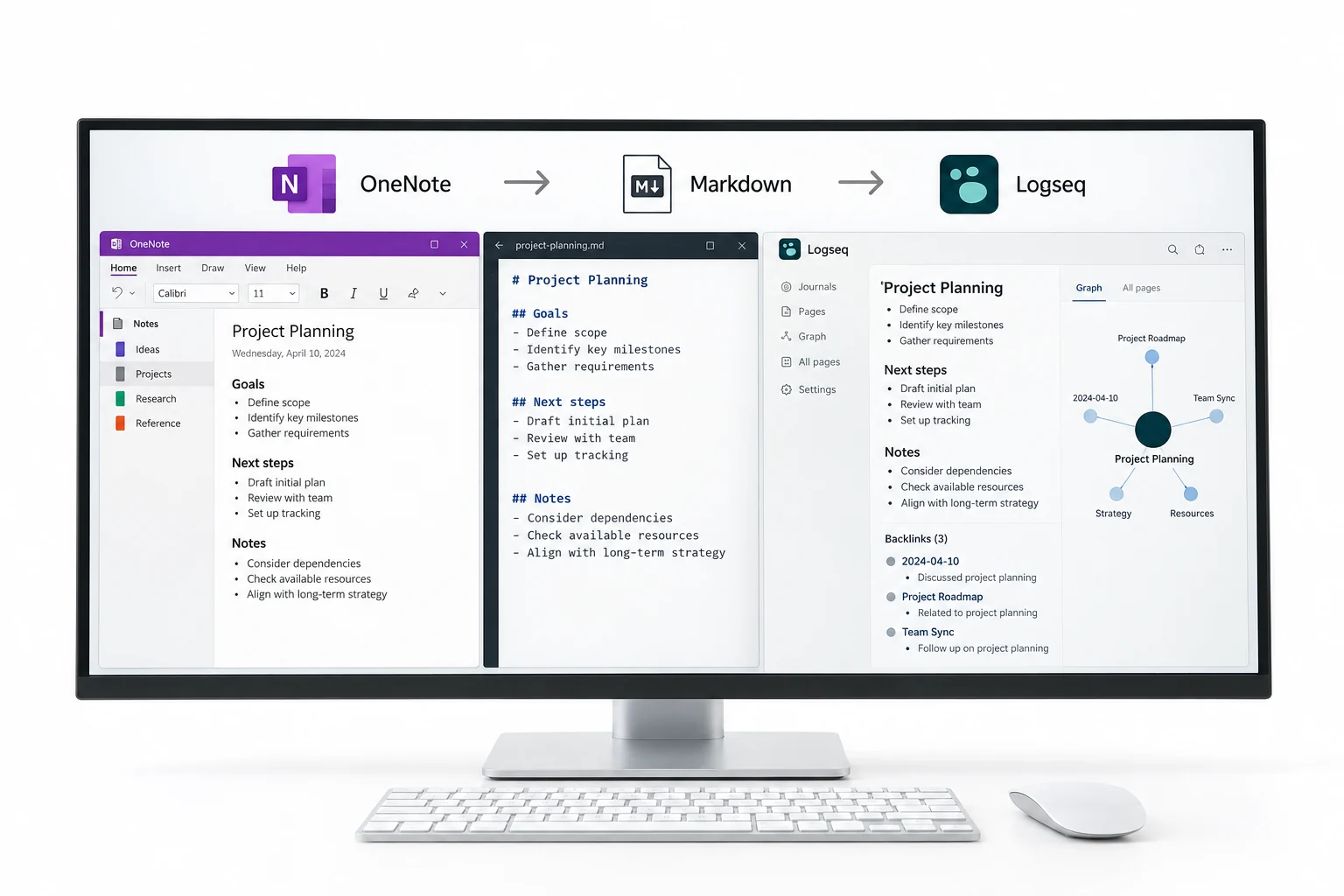
Logseq reads Markdown and Org mode, and nothing from OneNote directly. That makes the path one step of conversion followed by a copy. Turn the notebooks into .md with a converter, then bring the files into the graph. Building the Markdown is its own task, taken up in the OneNote to Markdown guide, and the output choices live on the OneNote converter page.
Drop the Markdown into Your Graph
A Logseq graph is a folder on your disk, with a pages folder for notes, a journals folder for daily notes and an assets folder for images. Bringing notes in is a copy into that pages folder.
- Open the graph folderFind it where you set up the graph.
- Copy the .md into pagesPaste the note files there.
- Copy images into assetsMove the pictures alongside.
- Refresh LogseqRe-index and the notes appear.
Starting a graph from a folder of existing files works the same way, laid out in Logseq's own guide.
Set the ONE Converter on a notebook and it turns out .md files with the pictures beside them, ready for the pages and assets folders on the next refresh.
Free Download See All FeaturesLogseq Turns Every Note into Blocks
Logseq is an outliner, so a page is not a flowing document but a stack of blocks, one per bullet. When a Markdown note comes in, its paragraphs and list items become blocks, and a plain paragraph lands as a single top level block. This is the part that catches people coming from OneNote, where a page is free form. The words are all there, only they sit in the outline instead of a page of prose.
Notebooks and Sections Become Namespaces
Logseq does not lean on folders for hierarchy the way some apps do. It uses namespaces, page names built with a slash such as OneNote/Project/Meeting, together with nested blocks inside a page. A notebook and its sections map onto that naming scheme rather than a folder tree.
| In OneNote | In Logseq |
|---|---|
| Notebook | A top namespace |
| Section | A nested namespace |
| Page | A page or a block |
You set these up by naming the .md files with slashes or with a processor that does the naming for you.
Where Your Images Land in the Graph
Logseq keeps images in the assets folder and links to them from the block. A converter drops the pictures next to the Markdown it makes, so copy those into assets and the links resolve. Leave the file names as the converter made them, or a block will point at a picture that is not there.
Reshape the Hierarchy in Logseq
A raw import gives you the notes as flat pages. To get the old OneNote structure back as namespaces and nested blocks, a community processor can rebuild it. OneNoteMD2Logseq takes the Markdown from a OneNote export and folds a section's pages into one page with the hierarchy kept in blocks. It is optional. Plenty of people drop the flat .md in and tidy the outline by hand later.
Your Notes Stay Local Markdown
Once the notes are in, they are plain .md files in a folder you control, with no cloud lock in and no closed store. You can grep them with any tool, sync the folder however you like and keep the whole graph in git. That is the case for a Markdown move over retyping pages into the app by hand.
What Stays Behind in the Move to Logseq
Parts of a OneNote page get left out.
Locked sections must be opened in OneNote before the move. What comes through is the written note, its tables and pictures, ready to fold into your outline.
OneNote to Logseq Questions

Written and maintained by Leena Taylor Paul and the Univik team, developers of Windows data conversion and recovery software since 2013. Logseq has no OneNote import at all, so the questions here are about the block outline and namespaces your notes land in, which is what this guide spends its time on. Last verified August 2026. Building a Logseq graph out of old notebooks? Contact our support team.