To move OneNote to Joplin, use Joplin's own OneNote import, or convert the notebooks to HTML or Markdown and import those files. When OneNote will not export a notebook, the Univik ONE Converter reads the .one and writes the files Joplin takes.
You are moving to Joplin, the open source app that keeps every note as Markdown.
Joplin can read OneNote two ways, through its own importer or through HTML and Markdown files you make first. Here is how each works and when to reach for it.
The Two Ways OneNote Reaches Joplin
If you only need to read the notes rather than convert them, you can open .one files online first — it opens .one and .onepkg files with nothing to install.
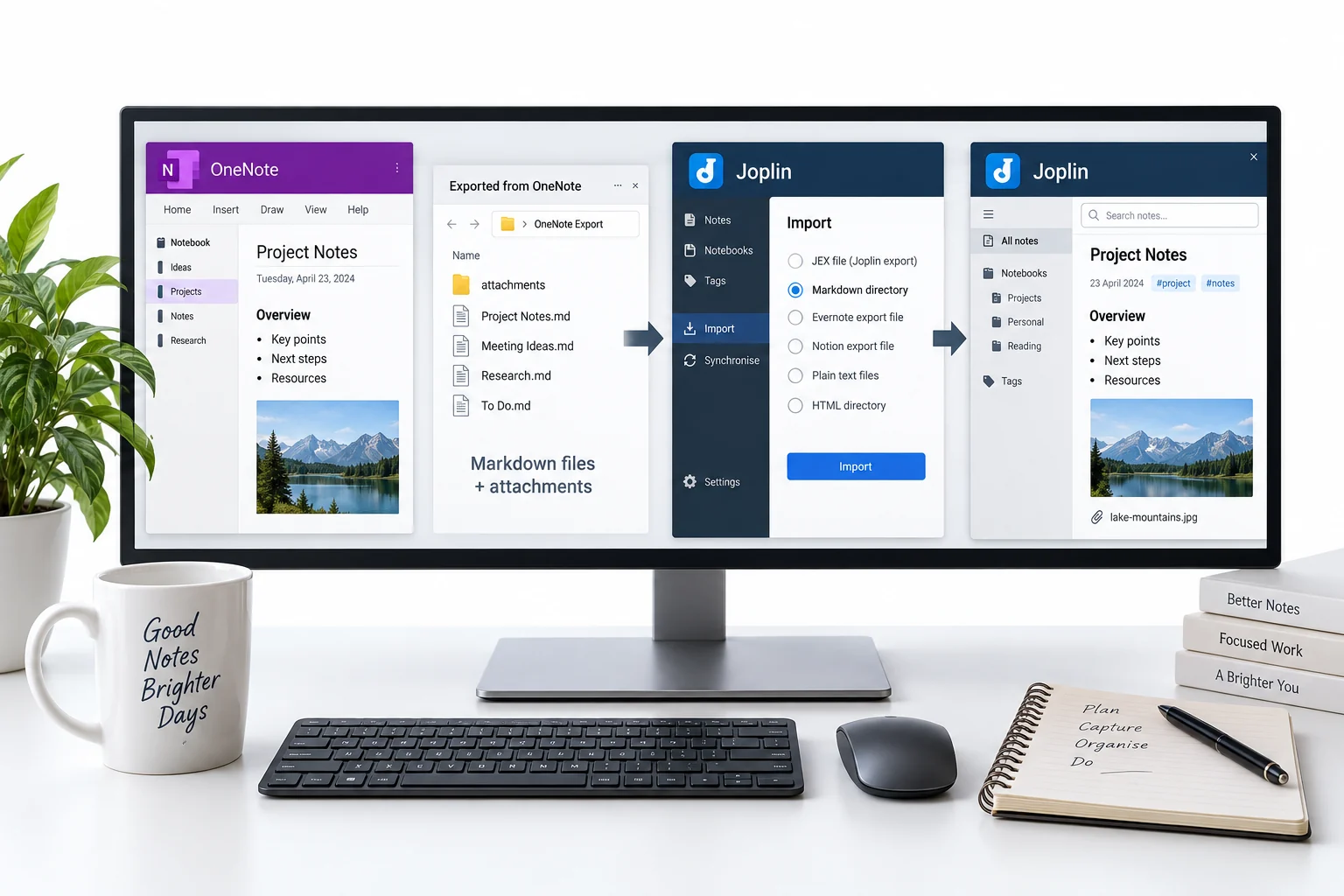
Joplin stores notes as plain Markdown and imports a few outside formats to get them there. For OneNote that leaves two paths.
The pick turns on whether OneNote can export the notebook and how cleanly the importer handles it.
Joplin's Own OneNote Importer
Joplin has a built in OneNote import, run from File then Import. Behind it sits a Rust converter that turns OneNote pages into its Markdown, and it works offline from an exported notebook rather than a live account. You export the notebook out of OneNote, point Joplin at the file and it pulls the notes in. It is a newer, open source piece, so a complex or older notebook can arrive rough, which is where the file route earns its place.
Feed Joplin HTML or Markdown Instead
When the importer struggles, or when OneNote will not export at all, a converter works from the .one itself and turns it into HTML or Markdown for Joplin to take. The .one is a structured store rather than flat text, and Microsoft publishes the OneNote file format spec that a good converter works from, so the real content comes out rather than a scrape.
Making the files is covered in the OneNote to HTML guide and the OneNote to Markdown guide, and every output choice is on the OneNote converter page.
Import the Files into Joplin
Bringing files in is one menu. Open File, then Import, then pick MD or HTML, and choose a single file or a whole folder. The import and export guide lists every format the menu offers.
- Open File then ImportThe Import menu lists the formats Joplin reads.
- Pick MD or HTMLMatch it to the files you converted.
- Choose a file or folderA folder brings a whole notebook in.
- Check the notesOpen a few and confirm they read right.
Give the ONE Converter a .one or .onepkg notebook and it produces clean HTML or Markdown, tables and pictures kept, ready for File then Import.
Free Download See All FeaturesHow Notebooks and Sections Map Across
OneNote holds notebooks, sections and pages. Joplin holds notebooks and notes, with notebooks that nest inside one another.
| In OneNote | In Joplin |
|---|---|
| Notebook | A Joplin notebook |
| Section | A nested notebook |
| Page | A note |
Importing a whole folder keeps those folders as nested notebooks, so the shape of the old notebook rides along instead of collapsing into one flat list.
Everything Ends Up as Markdown
Whichever route you take, the notes settle into Markdown once they are in. Even an HTML import is turned to Markdown on the way, so what you end with is plain text you can search, sync and back up. That is the case for HTML or Markdown over the old workaround, which added a lossy hop for no gain.
Skip the Evernote Gateway into Joplin
Older guides route you through Evernote. You send OneNote to Evernote, export an ENEX file from there and import the ENEX into Joplin. It works, yet the trip drops section and page hierarchy on the way, and it leans on a third app you may not want to sign up for. The direct importer, or a straight HTML or Markdown file, gets there without the detour.
Where a Joplin Import Falls Short
A handful of things do not make it into Markdown.
Locked sections need opening in OneNote before you start, and a free canvas page settles into plain top down text. What reaches Joplin is the readable note, its tables and its pictures.
OneNote to Joplin Questions

Written and maintained by Leena Taylor Paul and the Univik team, developers of Windows data conversion and recovery software since 2013. Joplin's own OneNote import has come a long way, so this guide is honest about trying it first and only reaching for a converted file when the notebook will not export or the import comes through rough. Last verified August 2026. Wrestling a stubborn notebook into Joplin? Contact our support team.