To move OneNote to Apple Notes, convert the notebook to HTML on Windows, move the files to a Mac, then use File and Import to Notes. The Univik ONE Converter writes the HTML that Apple Notes reads.
Apple Notes will not open a OneNote notebook, and unlike some rivals it accepts only a short list of file types. Get the format right, though, and your notes drop straight in on a Mac.
This guide covers the Apple Notes side of the move, the formats it reads and the steps to import them. Making the files is handled in the format guides linked below.
The Formats Apple Notes Takes
Apple Notes imports a narrow set of file types, and it does the work on a Mac. Through File and then Import to Notes, it reads .txt, .rtf, .rtfd, .html and Evernote's .enex, turning each into its own note. On macOS 13 or later it also pulls the tags out of an .enex file. What is missing from the list matters as much as what is on it. Apple Notes will not import Markdown, a PDF or a Word document as a note, so the format you convert to has to be one it accepts. Apple documents the full set on its Notes import help.
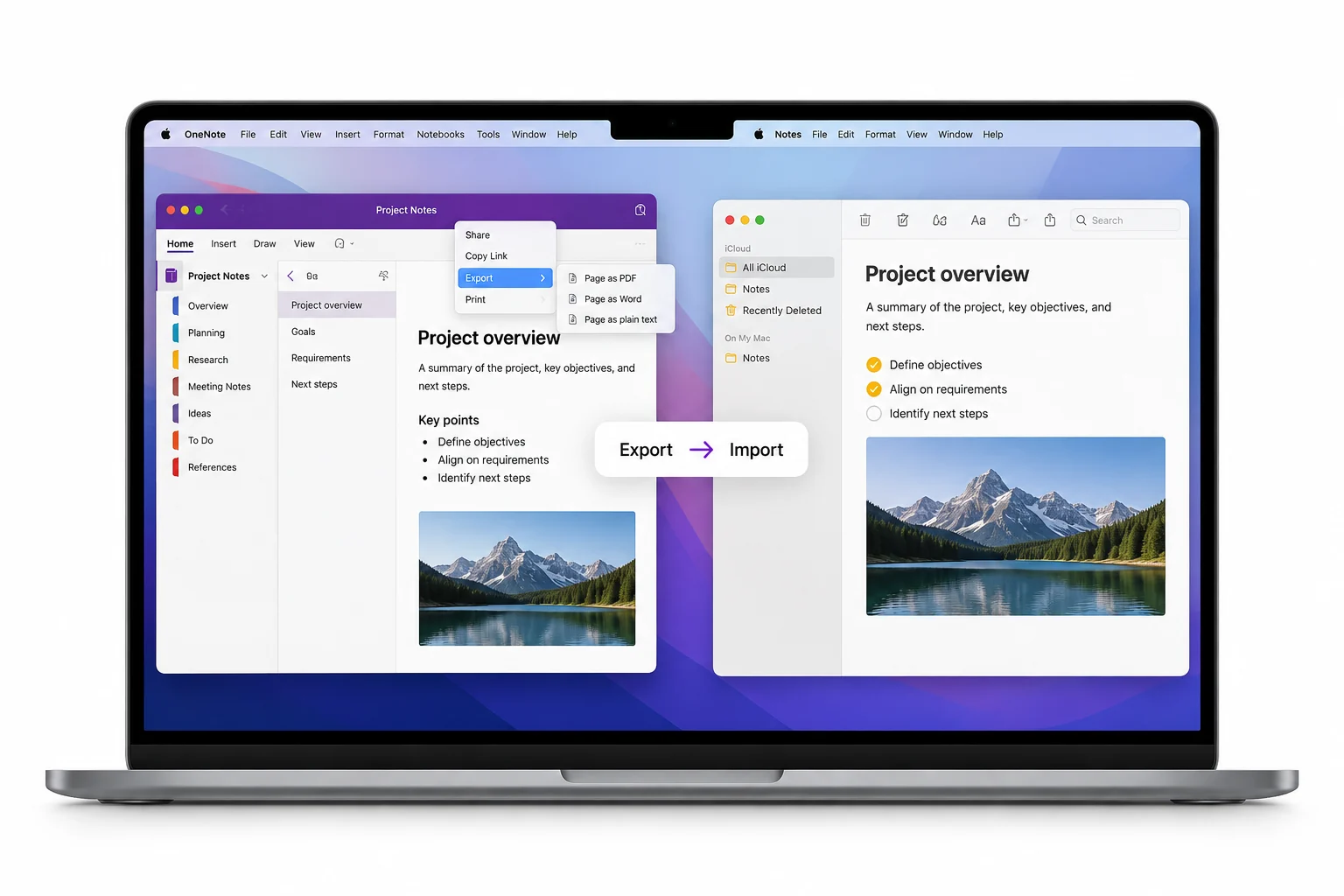
Turn a Notebook into HTML for Notes
If you only need to read the notes rather than convert them, you can view .one files online first — it opens .one and .onepkg files with nothing to install.
Of the types Apple Notes takes, HTML is the one a OneNote converter can write, and it is the one that holds your formatting and images. A converter reads the notebook on Windows and writes HTML files with no OneNote in the picture. The Univik ONE Converter turns a notebook (Microsoft's OneNote file format spec holds the format's details) into HTML you then carry to the Mac.
- Open the notebookAdd a .one or .onepkg file.
- Choose HTMLPick HTML from the list.
- Convert the filesThe HTML saves offline.
- Move to your MacThen import into Notes.
The full range of outputs is on the OneNote converter page.
The ONE Converter writes HTML from a notebook on Windows, ready to carry to a Mac and import into Apple Notes.
Free Download See All FeaturesThe Windows to Mac Handoff
There is a wrinkle worth naming up front. The converter runs on Windows and Apple Notes imports on a Mac, so the move crosses two machines. You convert the notebook to HTML on the PC, get those files onto the Mac by AirDrop, a shared drive, a cloud folder or a USB stick and import them there. If you live entirely on a Mac with no Windows machine in reach, you would need one, or a Windows virtual machine, to run the conversion in the first place.
Import the Files into Apple Notes
On the Mac, open the Notes app and choose File, then Import to Notes. Pick the HTML files you brought over or point it at a folder to take everything inside in one pass, and Apple Notes builds a note from each one. They land in the folder selected in the sidebar. From there you rename, move and group them as you like, since the import drops them in as a flat set rather than a copy of your old notebook tree.
HTML or Plain Text
Two of the converter's outputs fit Apple Notes, and they serve different needs.
HTML is the better pick for most notebooks. Reach for plain text only when you want the words and nothing else.
What the Import Leaves Out
An import is not a clone of your notebook. Apple Notes imports the files one by one, so the sections and pages of your old notebook do not rebuild into the same tree, and you tidy the layout by hand. HTML carries text and images, but ink strokes, audio and video have nowhere to land and drop out. Tags come along only inside an .enex file, which this route does not create, so you tag things again on the Mac. The content arrives, the scaffolding does not.
When a Different App Fits Your Notes
Apple Notes is a fine home, but it is fussy about formats, and another app may suit you more. If you want your notes as Markdown, Obsidian reads it natively and keeps the plain text clean. If you would sooner import Markdown, a PDF or a Word file directly, Evernote takes a wider set of types. And if OneNote still opens your notebook fine, staying put saves the whole trip. The migration hub weighs the options side by side.
Good Reasons to Land in Apple Notes
There are good reasons to choose Apple Notes. You live in the Apple world and want notes syncing across iPhone, iPad and Mac through iCloud. You favour its clean, quick interface over a heavier notebook app. You want notes a tap away on the devices you already carry. Or OneNote is fading for you and Apple Notes is where the rest of your day already sits. When it is the deliberate choice, converting to HTML gets your OneNote content in.
OneNote to Apple Notes Questions

Written and maintained by Leena Taylor Paul and the Univik team, developers of Windows data conversion and recovery software since 2013. The Apple Notes move trips people on two fronts, the short list of formats it takes and the fact that conversion is on Windows while import is on the Mac, so this guide names both up front and points you at HTML. Last verified August 2026. Planning a OneNote to Apple move across machines? Contact our support team.