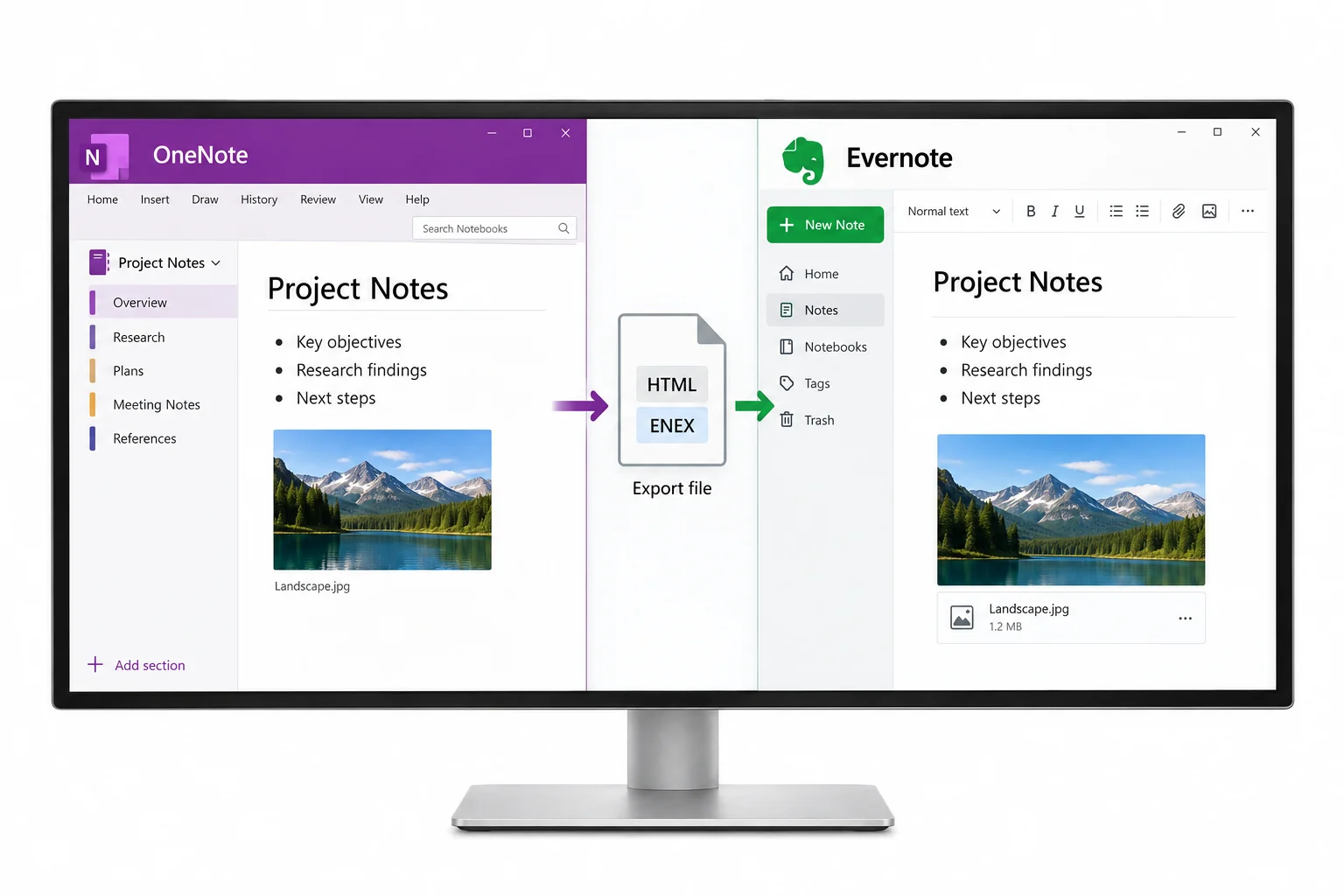
To move OneNote to Evernote, convert the notebook to a format Evernote imports, like Markdown, HTML, PDF or Word, then bring it in through Settings and Import. The Univik ONE Converter writes those files from a .one offline.
Moving from OneNote to Evernote is two jobs, not one, getting your notes out of OneNote and getting them into Evernote in a shape it accepts. Evernote will not open a OneNote notebook, yet it does turn several everyday file types into editable notes.
This guide covers the Evernote side, which formats it takes and how to bring them in. The file conversion itself lives in the format guides linked along the way.
The Formats Evernote Accepts
Evernote does not read a OneNote notebook, and it does not need its own .enex format for this either. Through Settings and Import on the desktop app, Evernote turns .pdf, .txt, .html, .md and .docx files into editable notes, as its own import help spells out. One catch is worth holding on to. If you drag a file that is not .enex straight onto the note list, Evernote attaches it rather than converting it, so the content sits inside a note instead of becoming one. Importing from Settings is the route that gives you real notes, and none of it runs from a phone.
Get the Notebook into an Importable File
If you only need to read the notes rather than convert them, you can view OneNote online first — it opens .one and .onepkg files with nothing to install.
Evernote imports the file, but something has to make it first, and OneNote's own export does not reach Markdown. A converter opens the notebook and writes the format you plan to import, offline and with no OneNote running. The Univik ONE Converter takes the .one (its structure is on record in Microsoft's OneNote format specification) and produces Markdown, HTML, PDF or Word among its outputs, each one a type Evernote accepts.
- Choose the notebookOpen a .one or .onepkg file.
- Pick a format Evernote takesMarkdown, HTML, PDF or Word.
- Convert the fileThe tool writes it offline.
- Import into EvernoteThrough Settings and Import.
How each file is built is written up in the matching format guide, and the complete output list is on the OneNote converter page.
The ONE Converter turns a notebook into Markdown, HTML, PDF or Word offline, ready to import into Evernote from Settings.
Free Download See All FeaturesWhich Format to Import As
The best choice depends on what you care about keeping.
For notes you will keep editing, Markdown or HTML land best. For a faithful copy of the page, PDF holds the layout as it was.
Bring the File into Evernote
With the file made, open Evernote on your computer and go to Settings, then Import. Point it at the converted file and Evernote builds a note from it. Repeat for each file or select several in one go. Because import runs off the desktop app, do this on a Windows or Mac machine, not a phone. Once the notes land, you drop them into notebooks and add tags to match the way you work.
Evernote's Own OneNote Route
Evernote does offer a path of its own for OneNote. Its help pages tell you to open the notebook in OneNote for Windows, use the three dots menu to Print and save that as a PDF you then import. The method works, with one string attached, you need OneNote for Windows installed and the notebook open in it. That rules out a Windows 10 notebook stuck read only, a machine with no OneNote or an orphaned .one that has no app to load it. A converter reads the .one straight off disk, so the file is ready whether or not OneNote will open.
Where the Import Falls Short
Bringing notes over is not the same as cloning your notebook. Import works a file at a time, so OneNote's tree of sections and pages does not rebuild itself, you land a stack of notes and arrange them yourself. Page level tags and any ink, audio or embedded recordings stay behind. A PDF import keeps the look of a page but not the freedom to edit it, the text is there to read and search rather than rework. Go in planning to tidy the structure once the content arrives.
When to Stay in OneNote
Evernote is not always worth the move. If OneNote still opens your notebook and does the job, converting and reimporting only piles on steps. If you are weighing a new home rather than set on Evernote, the migration hub lays out where a notebook can go and how each app takes it. Switch to Evernote because it fits the way you want to work, not because the file happens to convert.
Good Reasons to Move to Evernote
There are solid reasons to land in Evernote. You already run it for everything else and want your OneNote notes beside them. You need notes that sync clean across phone, tablet and desktop. You prefer Evernote's search and web clipper to a pile of notebooks. Or OneNote is winding down for you, a Windows 10 notebook heading toward read only, and you want the content somewhere active. When Evernote is a deliberate pick, converting to a format it imports gets you there.
OneNote to Evernote Questions

Written and maintained by Leena Taylor Paul and the Univik team, developers of Windows data conversion and recovery software since 2013. The Evernote move surprises people, since it takes Markdown and HTML as real notes, so this guide steers you to the format that arrives editable and is plain that the notebook tree and tags do not follow. Last verified August 2026. Sizing up a full switch from OneNote? Contact our support team.