To move OneNote to Google Docs, convert your notebooks to Word, upload the DOCX to Drive and open each file with Docs. Docs reads no OneNote file, so the Univik ONE Converter makes the Word files it opens cleanly.
You are moving to Google Docs, and it does not read a OneNote file.
What it does read is a Word document, and it opens one cleanly. Convert your notebooks to DOCX, then open them in Docs. Markdown works too, and this guide covers both.
Google Docs Opens Word Files Cleanly
Google Docs opens a .docx and keeps the parts that matter, headings, bold, tables, bullet lists and images. That makes Word the format to aim for. A OneNote page carries more than typed text, which Microsoft's OneNote file format spec lays down, so a converter reads that structure into Word rather than flattening it. It also reads Markdown, which suits plainer notes.
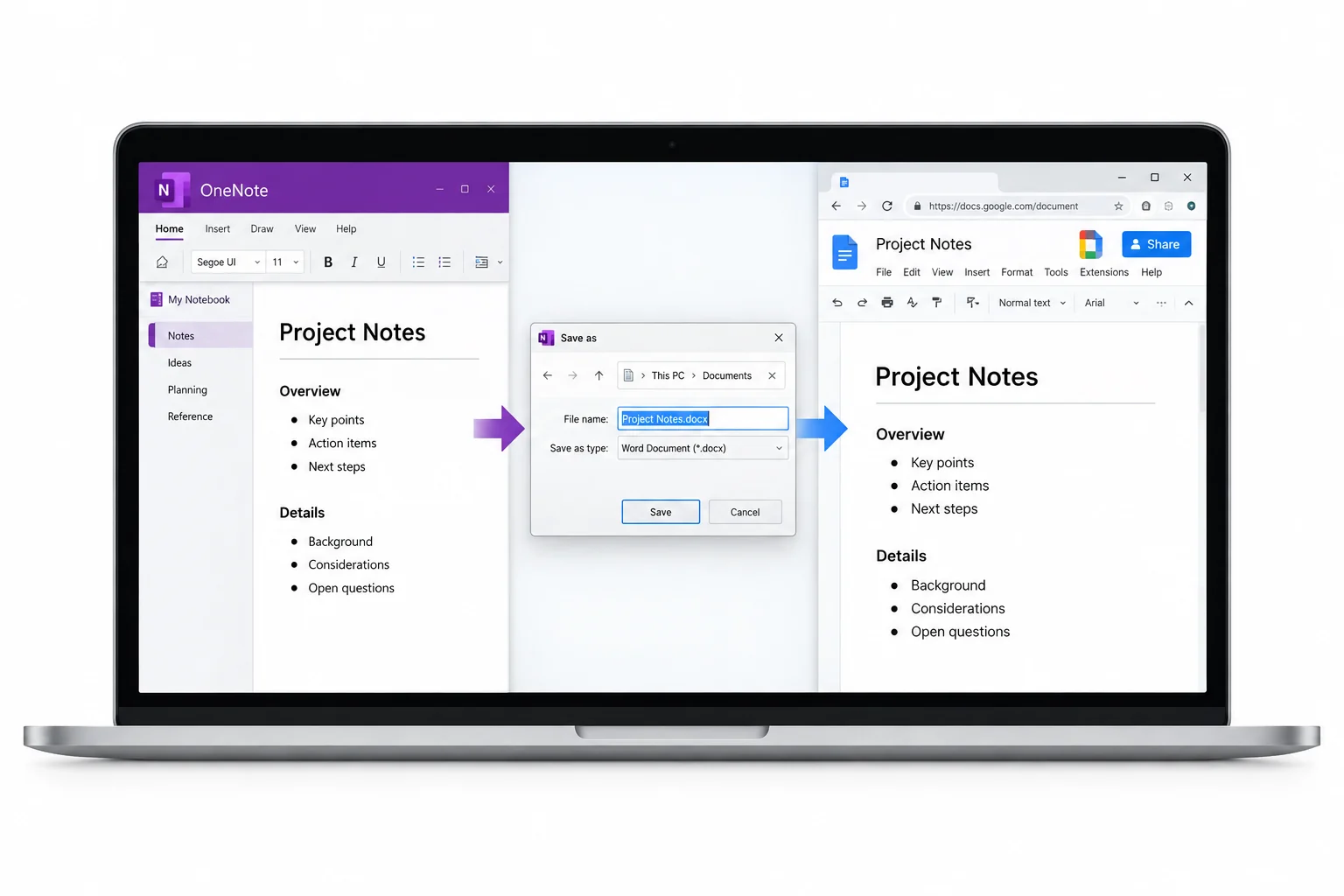
Convert OneNote Then Open in Docs
If you only need to read the notes rather than convert them, you can online OneNote viewer first. That viewer opens .one and .onepkg files with nothing to install.
Docs has no OneNote import, so the move is two steps. Turn the notebooks into Word with a converter, then open the DOCX files in Google Docs.
Making the DOCX is walked through in the OneNote to Word guide, and every output setting sits on the OneNote converter page. For the Markdown path instead, the OneNote to Markdown guide writes the .md files.
Open the Files in Google Docs
Getting a DOCX open takes about a minute per file.
- Upload the DOCX to Drive Drag it into drive.google.com.
- Right click the file Open the menu on the uploaded Word file.
- Choose Open with Google Docs It makes an editable copy.
- Check the document Confirm the tables and images read right.
The ONE Converter reads your .one and .onepkg notebooks and writes tidy DOCX files, tables and pictures in place, ready to drop into Google Drive and open with Docs.
Free Download See All FeaturesHow Notebooks and Pages Land in Drive
OneNote holds notebooks, sections and pages. Docs holds separate documents in Drive folders, so the shapes do not line up one to one.
| In OneNote | In Google Drive |
|---|---|
| Notebook | A Drive folder |
| Section | A subfolder |
| Page | One Google Doc |
Each page becomes its own document. No single Doc holds a whole notebook, so Drive folders are how the old structure stays readable.
What Carries into Google Docs
A DOCX opened in Docs holds most of a note.
When to Use the Markdown Route
Docs imports Markdown on its own, with no add on. Open File, then Open, then Upload and pick the .md, and it turns into a document. This path stays light, so it suits plain notes more than pages full of tables and pictures. For those, the Word route holds up better. The Google Docs Markdown help spells out the import step and the paste options that go with it.
Moving a Whole Notebook a Doc at a Time
The editor works a document at a time, fine for a handful and slow for hundreds. A converter takes the sting out by writing the whole notebook to DOCX in one run, so you upload a folder instead of exporting pages one by one. Turn on Drive's convert setting and each uploaded file becomes a Doc as it arrives.
What Drops on the Way to Google Docs
A couple of things stay behind.
Password protected sections need unlocking in OneNote first. What lands is the readable note with its tables and pictures, ready to edit and share.
OneNote to Google Docs Questions
How do I open OneNote in Google Docs?
Convert the notebook to Word with a converter, upload the DOCX to Google Drive, then right click it and choose Open with Google Docs. The headings, tables and pictures come across into the new document.
Does Google Docs import OneNote files?
No. Docs has no OneNote import at all. You bring notes in by converting the notebook to Word or Markdown first, then opening those files in Docs, since a .docx or .md is what it reads.
Will my formatting survive in Google Docs?
A DOCX keeps most of it, headings, bold, bullet lists, tables and images. Markdown carries the text and structure but stays lighter on layout, so a busy page holds up better as Word.
Can Google Docs open a whole OneNote notebook at once?
Docs makes one document per file, so a notebook comes in as a folder of documents rather than a single merged one. Upload the folder of converted DOCX files and switch on Drive's convert setting so each becomes a Doc as it lands.
Does Google Docs read Markdown from OneNote?
Yes. Open File, then Open, then Upload and pick the .md, and Docs turns it into a document. The Markdown route suits plain notes, while pages full of tables and pictures do better as Word.
Do OneNote images come across into Google Docs?
Yes. A DOCX carries the pictures inside the file, so they show up in the document when Docs opens it. Keep the images a converter saves beside a Markdown file with it if you take that route.

Written and maintained by Leena Taylor Paul and the Univik team, developers of Windows data conversion and recovery software since 2013. Google Docs handles a Word file well, so the part people get stuck on is squeezing a clean DOCX out of a OneNote notebook first, which is the step this guide keeps its focus on. Last verified August 2026. Moving a shared drive of notebooks into Docs? Contact our support team.