To convert OneNote to LaTeX, feed the notebook to a converter that writes a .tex source file, with your text, headings and images turned into LaTeX markup. The Univik ONE Converter writes the .tex offline, and you compile it to PDF with a TeX engine.
LaTeX turns plain text into beautifully typeset documents, and plenty of researchers keep rough notes in OneNote before writing up. Getting from one to the other means producing a .tex file.
A converter writes that source directly. There is a free command line route as well, and one catch around the math that is worth knowing before you start.
What a LaTeX File Actually Is
A .tex file is not a finished document, it is source code. LaTeX is a typesetting language, so a .tex holds your words wrapped in commands like \section for a heading or \textbf for bold, and a TeX engine reads that source and produces the polished PDF. Converting a notebook to LaTeX hands you the editable source, not the final page. That shapes everything else here. You get a file to work on, then you compile it.
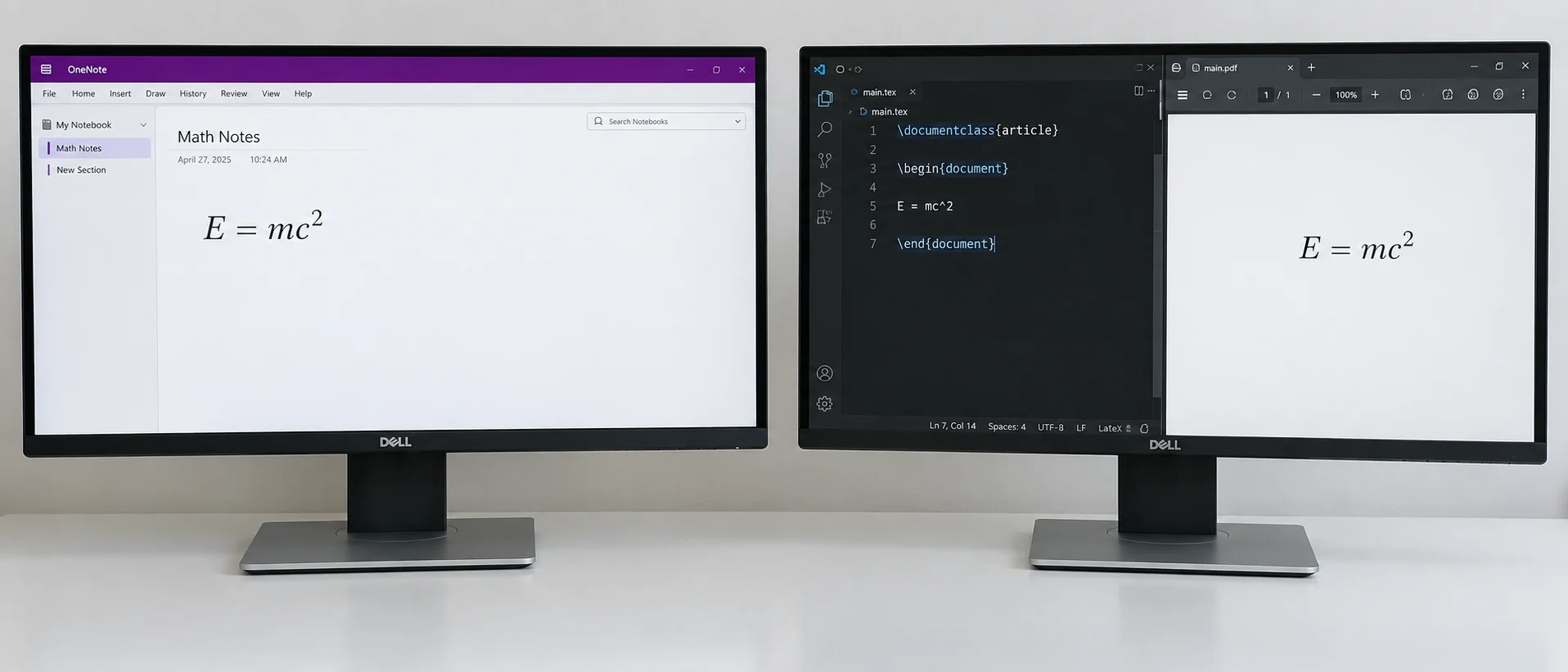
Write a LaTeX File from a Notebook
If you only need to read the notes rather than convert them, you can view OneNote files in browser first — it opens .one and .onepkg files with nothing to install.
A converter takes the notebook and writes a .tex file, carrying the text, headings and images across as LaTeX markup. It saves the source offline with no OneNote or TeX setup on the machine. The Univik ONE Converter reads the .one directly, the format Microsoft has set down in its open specification, and writes the .tex you then edit and compile.
- Select the notebookPoint to a .one or .onepkg file.
- Choose LaTeXPick LaTeX from the list.
- Convert to the sourceThe .tex file saves.
- Compile to PDFRun it through a TeX engine.
The rest of the output formats appear on the OneNote converter page.
The ONE Converter writes a .tex source from a notebook offline, text, headings and images turned into markup, ready for you to compile.
Free Download See All FeaturesHow Notes Map to LaTeX Markup
The conversion lines your notes up with LaTeX equivalents. A page heading becomes a sectioning command, a bulleted list becomes an itemize block, bold and italic become their markup and an inserted picture becomes an \includegraphics reference with the image saved alongside. Plain paragraphs land as body text. What a tool cannot do is invent structure that was never there, so loose free form notes come out as loose LaTeX for you to organise.
The Math Problem
Math is where OneNote to LaTeX gets hard, and it pays to go in with open eyes. LaTeX is prized for its equations, yet OneNote does not store math as LaTeX. It uses its own equation format or handwritten ink in the worst case. A tool can carry a simple fraction or a subscript across, but a multiline derivation, a large matrix or a piecewise definition can arrive broken or flattened into an image. Whichever route you take, verify every equation and retype it where needed.
The Free Pandoc Route
If you would rather not buy a converter, Pandoc does this for free. Export the notebook to Word (the OneNote to Word guide covers that), then run one command, pandoc notes.docx -o notes.tex -s. Pandoc reads the Word file and writes a standalone .tex, and adding --extract-media=. pulls the images into a folder and links them. It converts Word's equations to LaTeX math for the simple cases, though the complex ones still need fixing, as Pandoc's own site and its manual set out. The cost is installing a command line tool and cleaning up after it.
Turning a LaTeX File into a PDF
A .tex on its own does nothing until a TeX engine compiles it. You either install a distribution like TeX Live or MiKTeX and run pdflatex or xelatex on the file, or you upload the .tex to a browser editor like Overleaf that compiles for you. Either way the engine reads the source and the packages it calls and produces the PDF. If your notes carried images, keep them in the same folder so the \includegraphics lines can find them.
When Not to Reach for LaTeX
LaTeX is a specialist tool, and for most people it is more than the moment needs. If you want a document to hand round or edit, Word is the ordinary answer. If you want lightweight text you can read anywhere, Markdown is simpler and Pandoc converts it too. If you only need a finished page to share, go straight to PDF and skip the source stage. LaTeX pays off when you are already writing in it.
When a LaTeX File Earns Its Place
Reach for LaTeX when your writing already lives there. A thesis or a paper built in a TeX workflow, lecture notes you will typeset with real equations, a document where citations and cross references have to be exact. If your notebook holds the raw material for something you will finish in LaTeX, converting it to a .tex drops the content into your pipeline in place of a blank editor. For everyone else, a plainer format saves the trouble.
OneNote to LaTeX Questions

Written and maintained by Leena Taylor Paul and the Univik team, developers of Windows data conversion and recovery software since 2013. LaTeX is the format we field the most questions about, so this guide is plain that a .tex is source you still compile, that the free Pandoc path works, and that the math is the part no tool gets fully right. Last verified August 2026. Wrestling a notebook of equations into a paper? Contact our support team.