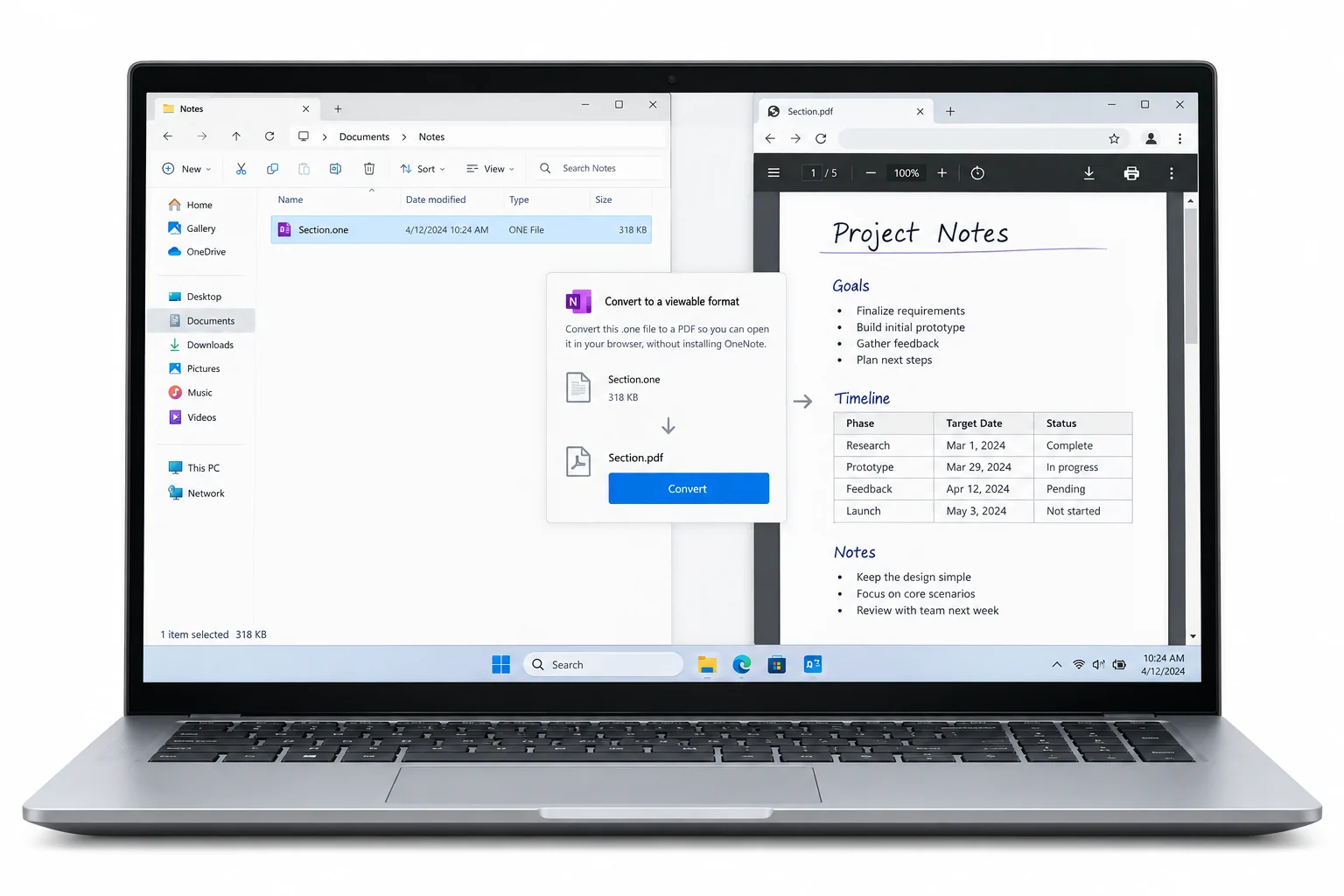
To read a .one file without OneNote, open it in the Univik online viewer, which runs in any browser and uploads nothing. To keep the notes outside OneNote, the Univik ONE Converter writes PDF, Word or HTML copies you own. The free viewer sits at the online OneNote viewer.
You have a .one file and no OneNote to open it in. Maybe a colleague sent it over, or it turned up in an old backup, and double clicking does nothing useful. You can still read what is inside without installing the app.
Here is how to read what is inside and how to decide between viewing it in a browser and keeping a copy you can file away.
The Two Ways to Read a .one File Without OneNote
Yes, and it splits by what you want to do next. To read the notes, the Univik online viewer opens the file in any browser and on any device, uploading nothing. To keep the notes outside OneNote, the Univik ONE Converter writes PDF, Word or HTML copies you own. View when you only need to see what is inside, convert when you want a copy that outlives the app.
Why a .one File Shows Junk in Notepad
Open a .one in Notepad and you get a wall of cryptic characters. The notes sit in a proprietary revision store, set out in Microsoft's OneNote revision store spec, rather than plain text. Renaming the file to .zip fails for the same reason, because a .one is not a ZIP archive underneath.
Read a .one File in Your Browser
The online viewer opens the file and lays each page out the way OneNote would, with the sections down one side and the content on the other. You drop in the file and read, and nothing leaves your device.
- Open the online viewer Go to the Univik online viewer in any browser.
- Drop in your .one file Pick the .one or .onepkg from your device.
- Read the pages The sections and pages show on screen.
- Keep a copy if you want one Convert to PDF, Word or HTML to file it away.
Opening a Loose or Orphaned .one File
A single .one with no notebook around it still opens in a reader, since the section file carries its own pages. These orphans turn up in three common places.
Drop the file into the online viewer wherever it sits and it reads the pages without the rest of the notebook.
What .one, .onepkg and .onetoc2 Mean
Dig through a folder and you may find more than one type of file. Here is what each one is.
.one
.onepkg
.onetoc2
To read the notes you want the .one sections, or the .onepkg if the whole notebook came as one package. The online viewer opens both, and the full list the converter takes is set out on the OneNote converter page.
The Free Way to Read a .one File
The Univik online viewer reads a .one file free in your browser, with no sign in, no install and nothing uploaded. If the notebook already sits in OneDrive, OneNote for the web is a second free route. A text editor is not on the list, since the file is not readable that way.
| What you need | Text editor | OneNote web | Online viewer |
|---|---|---|---|
| Opens a loose file from disk | |||
| Works with no install | |||
| Free to view | |||
| Shows pages and images |
Read any .one or .onepkg free in the online viewer, right in your browser with nothing uploaded. When you want a copy that outlives OneNote, the converter writes PDF, Word or HTML.
Open the Free Viewer Convert to Keep a CopyRead the Notes Now or Convert Them to Keep
The online viewer shows you the notes on screen for free, which is enough when you only need to look. If you want them outside OneNote for good, convert instead. The OneNote to PDF guide makes a fixed copy, the OneNote to Word guide makes an editable document and the image extraction guide pulls the pictures out.
What Opening a .one File Shows You
A reader shows the body of the notes, laid out page by page, everything a OneNote page can hold. A few things stay flat, so it helps to know what carries across before you open a file.
For the pages, the tables and the pictures, viewing the file is enough to read everything you came for. Univik has readers and converters for a stack of other closed Microsoft formats, all sitting on the converters hub and the solutions page.
Opening .one Files Questions
What is the quickest way to open a .one file?
Open the Univik online viewer in your browser, then pick the .one file and it shows the notes, with nothing installed and nothing uploaded. It runs on your own device.
Why does my .one file open as gibberish?
A .one file holds its notes in a proprietary store, not plain text, so a text editor shows raw cryptic characters. A reader that understands the format turns those bytes back into readable pages.
Can I read a .one file that was emailed to me?
Yes. Save the attachment, then drop it into the Univik online viewer in your browser and the pages show, with no notebook and no OneNote around it.
Is there a free way to open a .one file?
Yes. The Univik online viewer reads a .one file free in your browser, with no sign in and nothing to install. If the notebook already sits in OneDrive, OneNote for the web is a second free route.
Does opening a .one file change or damage it?
No. A reader opens the file to view it and leaves the original alone, so a file you are unsure about stays exactly as it was. Nothing is written back into the .one you opened.
Can I open a .one file on a Mac or phone?
Yes. The Univik online viewer opens a .one file in Safari or Chrome on a Mac, iPhone, iPad or Android, so any device with a browser reads it.

Written and maintained by Leena Taylor Paul and the Univik team, developers of Windows data conversion and recovery software since 2013. The .one files people bring us are often orphans, one section pulled off an old drive or mailed by a colleague, with no notebook and no OneNote to open them in, so this guide sticks to reading what is inside. Last verified August 2026. Stuck on a file that will not open? Contact our support team.