 Outlook Guide
 By
By To merge PST files in Outlook, open the target data file, then use File, Open & Export, Import/Export, Import from another program or file, Outlook Data File (.pst). Pick the PST to fold in, choose Do not import duplicates, tick Include subfolders and select Import items into the same folder in the target file. Repeat for each PST, then run Compact Now. For a stack of files, a leaver's five archives or a decade of yearly PSTs, a converter can combine PST files from a whole folder into one PST in a single run without Outlook. Keep the result under 25 GB so Outlook stays quick, and under 20 GB if it is bound for Office 365.
PST files multiply, and sooner or later someone needs to merge Outlook PST files back into one. One per year of archiving, one per PC a person has owned, one per export someone ran for a project, five from an ex-employee's desktop that the manager now has to read. Outlook has no merge button, but its Import wizard can pour one PST into another. Done carefully, that is a real merge. Done carelessly it doubles every message. This guide shows the wizard route with the settings that matter and the size limits that decide when merging is a bad idea. It ends with the bulk route for when clicking through file after file is not an option.
- Before you merge PST files
- Merge in Outlook in 5 steps
- Step 1: Open the target PST and back everything up
- Step 2: Start the Import and Export wizard
- Step 3: Pick the PST and the duplicate rule
- Step 4: Choose the folders and the destination
- Step 5: Repeat, check counts and compact
- How big is too big
- Combine many PST files at once
- When not to merge
- Method comparison
- After the merge
- Fix common problems
- PST merge questions
Before You Merge PST Files
How many files, and where is the result going? Those two answers pick the method.
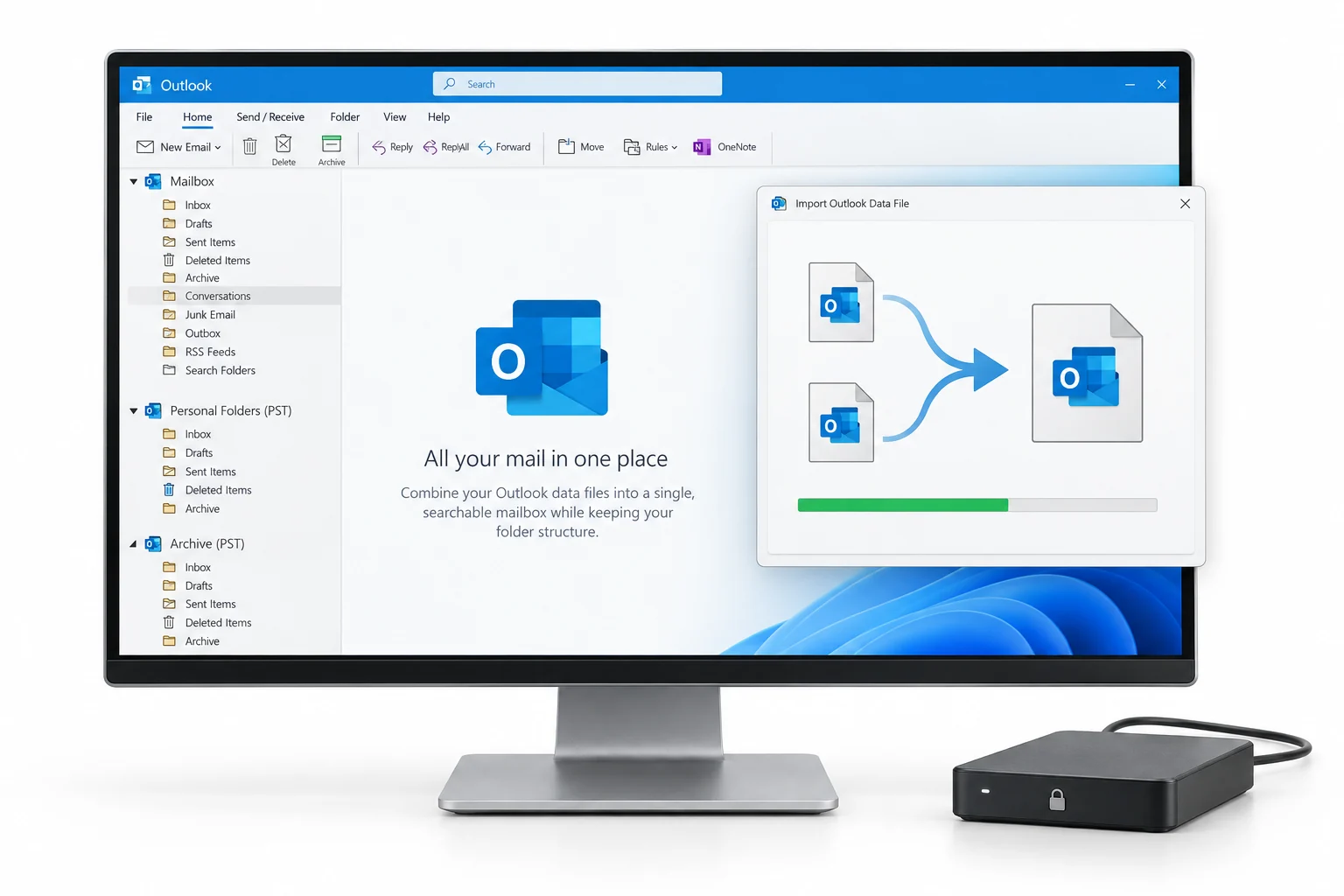
- Copies of every PSTThe wizard reads the source and writes into the target, but a crash mid-import can leave the target in a mess. Copy everything to another drive first.
- Classic Outlook on WindowsThe Import and Export wizard lives in every classic Outlook release from 2013 through Outlook for Microsoft 365. PST import arrived in new Outlook in 2026, but it works only with classic Outlook installed and a Microsoft 365 subscription.
- A target PST that is new or known goodMerge into a fresh Outlook Data File rather than into a ten year old one. Run ScanPST on any source that has ever shown an error.
- A size budgetAdd up the sources. If the total is over 25 GB, plan parts instead of one file. If it is bound for Office 365, the parts must be under 20 GB each.
- Outlook Data File
- Outlook's menu name for a PST. Created from New Items, More Items, Outlook Data File; an existing one is attached from File, Open Outlook Data File.
- Import wizard
- File, Open & Export, Import/Export. The only built-in way to move the contents of one PST into another.
- Do not import duplicates
- The wizard option that skips items already present in the destination. The setting that turns an import into a merge rather than a doubling.
- Compact Now
- Account Settings, Data Files, Settings, Compact Now. Shrinks the file after items are moved or skipped. Without it the merged PST reports the wrong size.
- PST merge
- Combining several PST files into one with the folder tree kept. Outlook has no single command for it, so the job is the wizard or a converter.
Merge PST Files in Outlook in 5 Steps
The wizard imports one PST into another, which is how you merge Outlook PST files without a dedicated tool. Run it once per source file, always into the same target. That is what turns it into a merge.
Open the target PST file and back everything up
Decide which file receives everything. For yearly archives make a new one: Home, New Items, More Items, Outlook Data File, saved as something like combined-archive-2016-2020.pst. For a leaver's files the target is often the manager's own archive PST, attached through File, Open & Export, Open Outlook Data File. Copy every source PST to a backup folder before you start.
You should seethe target PST in the folder pane and the sources still on disk, untouched. The wizard reads the sources; it does not need them attached.
Start Outlook's Import and Export wizard
Go to File, Open & Export, Import/Export. Choose Import from another program or file, then Outlook Data File (.pst) as the file type. Click Next.
Step 2Import from another program or file. The next page asks for Outlook Data File (.pst).
Pick the PST to merge and set the duplicate rule
Browse to the first source PST. Then the option that decides everything: choose Do not import duplicates. Allow duplicates to be created is how people end up with two of every message. Replace duplicates with items imported is for restoring a newer copy over an older one, and in a merge of different years it does nothing useful while making the file larger. The wizard's duplicate check is imperfect: items that an earlier export or another tool rewrote may not be recognised, so expect a few doubles when sources overlap.
Duplicate detection compares the items already in the destination with the items being imported. Items changed by an earlier export may not be recognised as duplicates.
Step 3Do not import duplicates. The one setting that makes this a merge.
Choose the PST folders and the destination
Select the top of the source PST so everything is included and tick Include subfolders. Use Filter only when you want part of a file, such as one year of a bigger archive. Then choose Import items into the same folder in and pick the target PST from the list. This keeps Inbox with Inbox and Sent Items with Sent Items across the merged file. Import items into the current folder is for dropping one PST inside a subfolder of the target instead, which is a tidy way to keep a leaver's mail separate under their name. Click Finish.
You should seea progress bar and then the source's folders appearing inside the target with their items. Open one folder and confirm dates and attachments are intact.
Step 4Include subfolders, then Import items into the same folder in the combined archive.
Repeat for each PST, check the counts and compact
Run the wizard again for every remaining source, always into the same target with the same duplicate setting. When the last one finishes, compare folder item counts: right click a folder, open Properties and add the source counts against the target. Then File, Account Settings, Account Settings, Data Files, select the target, Settings, Compact Now. Keep the source files until you have used the merged one for a few weeks.
| Name | Date modified | Type | Size |
|---|---|---|---|
| archive-2016.pst | 2017-01-03 09:14 | Outlook Data File | 3,145,728 KB |
| archive-2017.pst | 2018-01-04 09:02 | Outlook Data File | 3,670,016 KB |
| archive-2018.pst | 2019-01-07 08:51 | Outlook Data File | 4,194,304 KB |
| archive-2019.pst | 2020-01-06 09:20 | Outlook Data File | 4,718,592 KB |
| old-laptop-outlook.pst | 2021-03-11 17:40 | Outlook Data File | 2,097,152 KB |
| combined-archive-2016-2020.pst | 2026-09-06 10:12 | Outlook Data File | 16,252,928 KB |
ResultFive files in, one combined PST out, smaller than the sum once duplicates were dropped.
How Big Is Too Big for a Merged PST File
Merging trades many files for one big one, and Outlook has opinions about big files. Microsoft's own guidance puts the comfort zone well below the format's ceiling.
| Merged PST size | What Microsoft says | What it means for the merge |
|---|---|---|
| Up to 5 GB | Good experience on most hardware | Merge freely |
| 5 to 10 GB | Short pauses possible, hardware dependent | Fine on an SSD |
| 10 to 25 GB | Short pauses on most hardware | Merge into two or three files by year instead |
| 25 GB and above | Frequent pauses | Do not merge; keep parts |
| 50 GB | Default Unicode ceiling | MaxLargeFileSize can raise it; Microsoft does not recommend doing so |
| 2 GB (ANSI) | Hard limit | Never merge into an ANSI file; import it into a Unicode target instead |
Two more thresholds bite before the file size does: around 100,000 items in one folder and around 10,000 folders in one file both slow Outlook down. A merge of yearly Inboxes into one Inbox crosses the first one fast, which is a reason to keep year folders rather than pouring everything into a single Inbox.
Combine PST Files in Bulk Without Outlook
The wizard is one file per run, with Outlook open and busy for the duration. For a leaver's five archives it is fine. For the forty PST files a migration tool or an Enterprise Vault export left on a share, or for twenty leavers at once, you want to merge PST files in bulk rather than one wizard run at a time. Univik Email Archive Converter reads PST directly, so Outlook is not needed on the machine.
- Add the folder of PST filesAdd Folder picks up every PST inside, including ANSI files and files Outlook is not attached to, with their folder structure.
- Choose one PST outputPick Outlook PST as the format and merge the sources into a single PST in Unicode, with each source kept as its own top-level folder or blended by folder name. For several people, group by mailbox so each person gets one combined file.
- Set a part size if the result would be largeA 60 GB collection becomes numbered parts under 20 GB for Office 365, or 25 GB parts for Outlook, rather than one unusable file.
- Read the logEvery message written is logged against its source file, which is the count check the wizard never gives you.
Univik Email Archive Converter reads PST files without Outlook, merges them into one file or one file per mailbox, splits at whatever size you choose and writes a per-message log. Runs offline on Windows.
Windows 11 / 10 · Outlook not required · the trial merges a sample from each file so you can open the combined PST first
When Not to Merge PST Files
PST Merge Method Comparison
| Method | Cost | Files per run | Needs Outlook | Duplicate handling | Count check |
|---|---|---|---|---|---|
| Outlook Import wizard | Free | One | Classic | Do not import duplicates, imperfect | Manual |
| Drag folders between PST files | Free | One folder at a time | Classic | None | Manual |
| Univik Email Archive Converter | Trial, then licence | A whole folder | No | Per-source folders keep provenance | Per-message log |
After the PST Merge
- Every source folder's item count is accounted for in the combined PST, minus the duplicates you chose to skip
- Compact Now has run and Explorer shows a file size close to the sum of the sources, not double it
- A message from the oldest source opens with its attachment and original date, and search finds it by a word in the body
Detach the source PST files from Outlook but keep them on disk for a month. If the merged file is for a leaver's manager, attach it to their profile and name the top folder after the person. If it is going to Office 365, stop here and use the parts instead, as described above.
Fix Common PST Merge Problems
Three problems follow most PST merges. Red is the symptom, green is what to do.
Do this: Allow duplicates was selected, or the source was a rewritten export the wizard could not match. Delete the imported folders and run the import again with Do not import duplicates. Or import into a separate subfolder and let a de-duplication pass clean it up.
Do this: The target is an ANSI PST at 2 GB, or a Unicode file at the 50 GB ceiling. Create a fresh Unicode Outlook Data File as the target and import into parts by year.
Do this: Compact Now has not run, or the merged file is past 25 GB. Compact first. If it is still over 25 GB, split it into year parts; Outlook's pauses come from size, not from the merge.
Have a PST collection from a leaver or an export folder and not sure whether to merge or split? Send our support team the file list with sizes and where the result is going. We will suggest one file or parts.
PST merge questions
 About This Guide
Written and maintained by Leena Taylor Paul and the Univik team, developers of Windows data conversion and recovery software since 2013. The wizard labels, duplicate options and size guidance in this guide were checked against Microsoft's current Outlook documentation and Microsoft Q&A answers from Microsoft staff. Last verified September 7, 2026. Need a hand? Contact our support team.
Sources checked: Microsoft Support, Import email, contacts and calendar from an Outlook .pst file · Microsoft Learn, Configure the size limit for PST and OST files · Microsoft Learn, Outlook pauses if you have a large data file · Microsoft Q&A, How do I merge two Outlook PST files