 Outlook Guide
 By
By To split PST files in Outlook, create a new Outlook Data File, move folders into it until the old file is under your limit, then run Compact Now on both. To split by date instead, use Export to a file with a Filter on the received date. To split PST files in bulk, or to land every part under 20 GB for Office 365, use a PST splitter with a size setting such as Univik Email Archive Converter. Outlook 2010 and later stop a Unicode PST at 50 GB by default.
A PST file grows until something breaks. Outlook slows to a crawl near the 50 GB ceiling, the Microsoft 365 Import service wants files under 20 GB, Mimecast asks for 5 to 10 GB and an old ANSI file is damaged the moment it touches 2 GB. The fix is the same in every case: divide one big file into smaller ones without losing a message, whether you split PST by size, by date or by folder. A smaller file is also less likely to turn corrupt. This guide shows the two ways Outlook does it on its own and the bulk PST splitter route for when there are too many files to do by hand.
- Before you split a PST file
- Split a PST in Outlook by moving folders
- Step 1: Check the PST size in Data Files
- Step 2: Create a new Outlook Data File
- Step 3: Move folders into the new PST
- Step 4: Compact both PST files
- Split a PST by date range
- PST size limits by target
- Split many PST files at once
- After the split
- Fix common problems
- PST splitting questions
Before You Split a PST File
Three reasons bring people here. Pick yours and the card jumps to the method that fits.
- A copy of the PST fileSplitting moves data out of the original. Copy it to another drive first, so a crash mid-move costs nothing.
- Free disk space equal to the PSTOutlook needs room for the new file and for the compact step. A 48 GB PST wants about 50 GB free on the drive that holds the parts.
- The size limit of the target20 GB for the Microsoft 365 Import service, 5 to 10 GB for Mimecast, 50 GB to keep Outlook happy. Decide the number before you start.
- Classic Outlook on WindowsNew Outlook cannot create or compact PST files. The Outlook Data File commands below live in classic Outlook 2013, 2016, 2019 and Outlook for Microsoft 365.
- Unicode PST
- The PST format Outlook has used since 2003. Default ceiling is 50 GB in Outlook 2010 and later, 20 GB in Outlook 2003 and 2007. The ceiling can be raised in the registry but performance drops well before it.
- ANSI PST
- The pre-2003 PST format with a hard 2 GB limit. Files that reach it are often damaged. Old export tools still write ANSI, which is why a 1.9 GB file from an archive is a warning sign.
- Outlook Data File
- Outlook's name for a PST in its menus. New Items, More Items, Outlook Data File creates one. Account Settings, Data Files lists them.
- Compact Now
- The command that shrinks a PST after items are moved or deleted. Without it the file keeps its old size on disk, so a split looks like it did nothing.
- PST splitter
- Any tool that divides one PST into several at a size or date you set. Outlook has no single button for it, so the job is either manual folder moves or a batch converter.
Split PST File in Outlook by Moving Folders
This is the method for one big file and a spare half hour. You create a second Outlook Data File and move whole folders into it until the first one is under your limit. Nothing is converted, so dates, attachments and read state stay exactly as they were.
Open Data Files and check the PST size
In classic Outlook go to File, Account Settings, Account Settings, then the Data Files tab. Every data file attached to the profile is listed with its path. Select the large PST and click Open File Location to see the size in Explorer. Write it down and decide how many parts you need: a 48 GB file bound for Office 365 needs at least three.
You should seethe PST's full path and a size. If the file is not in the list, Outlook is not using it. Attach it with Add before you continue.
| Name | Location | Size |
|---|---|---|
| maya.patel@contoso.com | C:\Users\maya\...\Outlook\maya.patel@contoso.com.ost | 18.2 GB |
| Archive 2015-2024 | D:\Mail\archive-2015-2024.pst | 47.9 GB |
| Projects | D:\Mail\projects.pst | 6.4 GB |
Select a data file in the list to see its location and size. The default Unicode limit in this Outlook is 50 GB.
Step 1The Data Files tab. The 47.9 GB archive is the one to split.
Create a new Outlook Data File (PST) for the first part
On the Home tab click New Items, More Items, Outlook Data File. Save it next to the original with a name that says what will go in it, such as archive-2015-2017.pst. Keep every part on a local drive: a PST on a network drive or inside a OneDrive folder is a corruption risk that Microsoft does not support. Skip the password unless the target system asks for one, because Mimecast and the Microsoft 365 Import service cannot open password protected PST files. The new file appears at the bottom of the folder pane, empty.
Step 2New Items, More Items, Outlook Data File. One new PST per part you need.
Move whole folders into the new PST
Right click a folder in the big PST and choose Move Folder, then pick the new data file as the destination. Move by folder, not by selecting thousands of messages, because Outlook treats a folder move as one operation and a 20,000 item selection as 20,000. If your archive is one huge Inbox, first create year folders inside it, use Search with a received date range to select each year and move those items into the year folder. Then move the year folders. Repeat until each part is under your limit.
You should seethe folder disappear from the old PST and appear under the new one with the same item count. Check the count by right clicking the folder and opening Properties.
Move the selected folder to the folder:
Step 3Move Folder dialog. The new PST is the destination for the 2015 to 2017 folder.
Compact both PST files
Back in Data Files, select the old PST, click Settings, then Compact Now. Do the same for each new part. Compacting is what returns the freed space to Windows. On a 48 GB file it can take an hour, and Outlook is unusable during it, so start it before a break. When it finishes, Explorer shows the real new sizes.
You should seethe old PST shrink to roughly the size of what is left in it. If it did not shrink, compacting did not finish or the moved folders were copied rather than moved.
Reduces the size of your Outlook Data File. Space freed by moved or deleted items is not returned until you compact.
Step 4Compact Now on the Outlook Data File settings. Run it on every part.
Split PST File by Date Range with Export
When the parts must follow years rather than folders, Outlook's export wizard does the cutting. Start it from File, then Open & Export and Import/Export. Pick Export to a file and Outlook Data File (.pst) as the type. Select the top of the big PST, tick Include subfolders and click Filter. On the Advanced tab add a field: Received, on or before, and a date. Save the export as the first part. Run the wizard again with on or after the next day for the second part, and so on.
Two things to know. Export copies, it does not move, so the original stays full until you delete the exported items and compact. And the export wizard silently skips items it cannot read, so compare item counts between the source folder and the new PST before you delete anything.
Select the folder to export from:
Only items received on or before this date go into the new PST.
Date splitExport to a file with a Received date filter. One run per date range.
Outlook's Clean Up Old Items under File, Info, Tools (and its scheduled twin, AutoArchive) does the same date cut in one pass and moves rather than copies, but it puts everything into one archive PST with no size control. Use it when the goal is "older than two years into one file", not when parts must be under a fixed size.
PST File Size Limits by Target
The number you split to depends on where the PST is going, not on the mailbox size you started with. These are the limits that decide it.
| Where the PST goes | Limit | What happens above it | Split to |
|---|---|---|---|
| Outlook 2010 and later (Unicode PST) | 50 GB default | Outlook refuses new items; searching and opening slow long before that | 25 GB or less for daily use |
| Outlook 2003 and 2007 (Unicode PST) | 20 GB default | Files from newer Outlook over 20 GB will not open | Under 20 GB |
| ANSI PST (Outlook 2002 and older) | 2 GB hard limit | File damage, ScanPST needed, data loss | Convert to Unicode first |
| Microsoft 365 Import service | 20 GB recommended | Accepted but analysis and import slow to a crawl | 15 to 18 GB parts, one mailbox per file |
| Mimecast Legacy Archive Data Management | 50 GB max | 5 to 10 GB recommended, over 20 GB takes much longer | 5 to 10 GB parts named after the mailbox |
| Purview eDiscovery export packages | You choose | Package size picked in the export dialog (1, 2, 5 or 10 GB) | Set it in the export options instead of splitting later |
The 50 GB Outlook ceiling is a registry value called MaxLargeFileSize under the Outlook PST key. It can be raised. Do not. A PST is a single database file with no recovery log, and every gigabyte past about 25 GB makes a damaged file more likely and ScanPST slower. Splitting is the safer answer every time.
Split Many PST Files at Once with a PST Splitter
Moving folders by hand works for one file. It does not work for the forty PST files an Enterprise Vault export or a leaver clean-out leaves on a share, each between 30 and 90 GB and each needing to land under 20 GB for the Microsoft 365 Import service. For that you want a PST splitter that works in bulk: give it a folder of files and a size and it splits PST by size into numbered parts with the folder structure intact.
- Add the folder of PST filesOpen Univik Email Archive Converter and use Add Folder to select the share. Every PST inside is listed with its size, including files Outlook is not attached to.
- Choose PST output and a part sizePick Outlook PST as the output format and set the split size, for example 18 GB for Office 365 or 8 GB for Mimecast. The tool writes
name_PART1.pst,name_PART2.pstand so on, each with the full folder hierarchy, headers and attachments. - Run the batch and read the logThe per-email log records every item written to every part. Compare the totals with the source, then open one part in Outlook to confirm folders and attachments.
- Name the parts for the importFor the Microsoft 365 mapping file, one row per part, all pointing at the same mailbox. For Mimecast,
user@company.com.pst,user@company.com.1.pstand so on.
The same run also fixes the ANSI problem. Old 2 GB files are read and written out as Unicode parts, so the damaged-at-2-GB risk disappears. And because the converter reads the PST directly, Outlook does not need to be installed or attached to any of the files, which matters on a migration workstation that never had a mailbox.
Univik Email Archive Converter reads PST, EML, MSG and archive exports, writes Unicode PST parts at the size you set and logs every message. Nothing leaves your PC.
Windows 11 / 10 · no Outlook needed · the free trial writes sample parts you can open before you buy
After the PST Split
A split is finished when the parts are proven, not when the progress bar ends. It is also the only way to reduce PST size for good; deleting items without Compact Now changes nothing on disk.
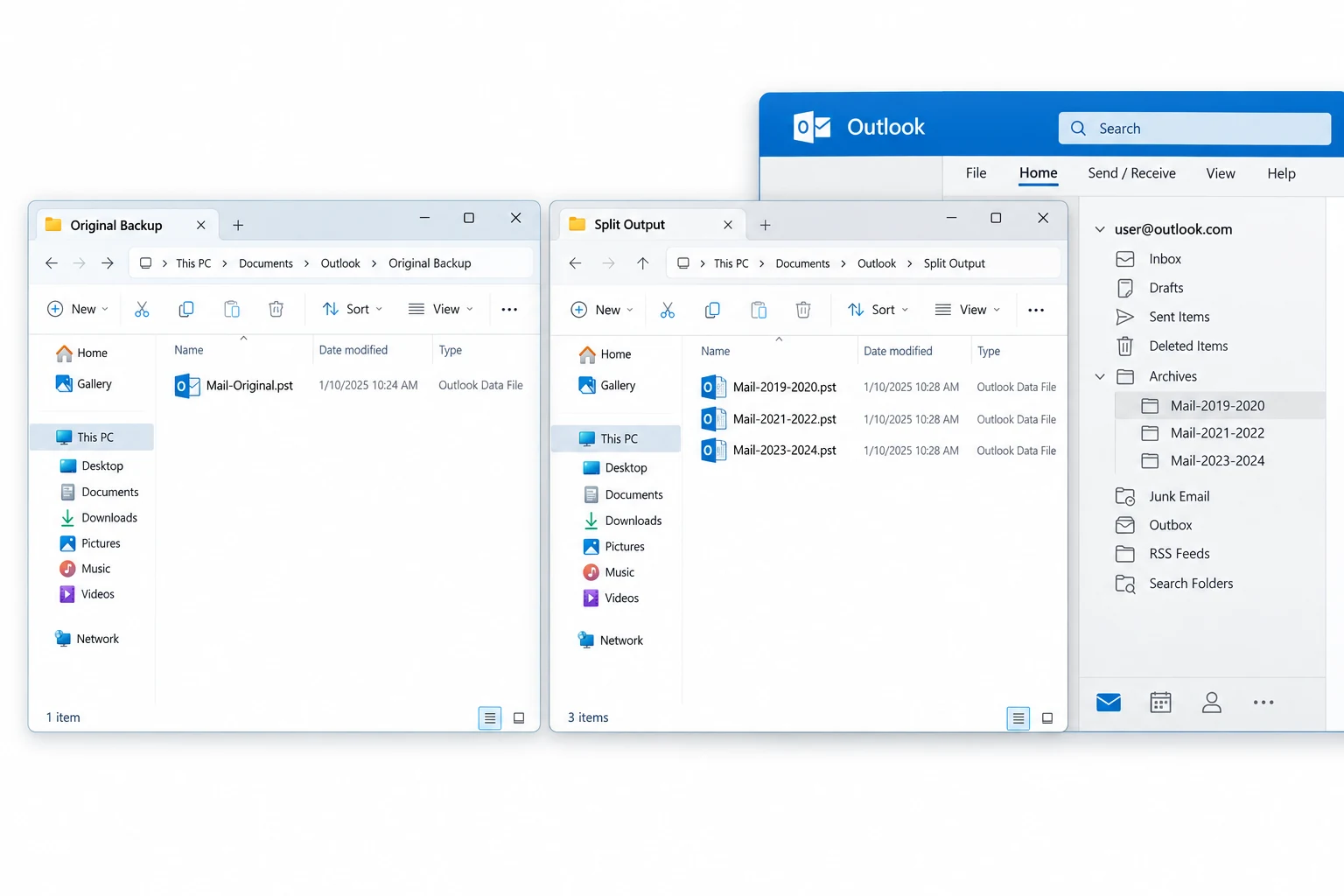
- Every part opens in Outlook through File and Open Outlook Data File with the folder tree matching the original
- The item counts of all parts add up to the source count you noted in Step 1
- Each part is under the target limit in Explorer after Compact Now, not only in Outlook's own size dialog
Keep the original until the parts have been imported and checked in the target system. If the parts are going into Office 365 through the Import service, list every part in the mapping file with the same Mailbox value. If they are going into Mimecast, follow the per-user naming rule. If they stay in Outlook, attach only the parts you use daily and leave older ones detached until you need them. The reverse job, folding several files back into one, is covered in how to merge PST files.
Fix Common PST Splitting Problems
Three faults account for most failed PST splits. Find yours in a red You see box and follow the green Do this text paired with it.
Do this: Compact Now did not run or did not finish. Open Data Files, Settings, Compact Now and let it complete with Outlook idle. If it stops with an error, run ScanPST on the file first, then compact again.
Do this: The destination PST is at its own limit, or it is an ANSI file at 2 GB. Create a fresh Outlook Data File as the destination. Never raise MaxLargeFileSize to get past this.
Do this: It is an ANSI PST at the 2 GB wall. Run ScanPST from the Office folder to repair it, then read it with a converter that writes Unicode PST parts. Do not add anything to the ANSI file.
Stuck with a stack of oversized PST files and a fixed import date? Tell our support team the file count with the sizes and the target system. We will suggest the split size and the fastest path.
PST splitting questions
 About This Guide
Written and maintained by Leena Taylor Paul and the Univik team, developers of Windows data conversion and recovery software since 2013. The Outlook limits and menu paths in this guide were checked against Microsoft's current documentation and a classic Outlook install. Last verified September 7, 2026. Need a hand? Contact our support team.
Sources checked: Microsoft Learn, File size limits of .pst and .ost files · Microsoft Learn, Overview of importing PST files to Microsoft 365 · Mimecast, Archiving PST Data · Microsoft Learn, Purview eDiscovery export options