 Email Migration Guide
 By
By Email archive migration has six steps: inventory what you hold, pick the export format each source platform offers, pilot with one user's data, convert the export into the format the target accepts, import in batches under the target's size rules and verify before you switch the old archive off. The format wall is where most projects stall: Microsoft 365 and Mimecast take PST, many archives export EML, MSG or EDRM packages. Univik Email Archive Converter bridges that gap and splits PST files to size.
An email archive is the place old mail went to die quietly: a Veritas Enterprise Vault server in the basement, a Mimecast or Proofpoint cloud contract, a Google Vault retention rule, a Barracuda appliance. Then the contract ends, the server reaches end of life, a company is bought or a legal team needs everything in one place, and years of mail have to move. This guide is the plan. It covers what each platform hands you when you export and what the common targets will accept. Then it walks the six steps that get every message across with its folders, dates and attachments intact.
- What archive migration means
- Before you plan
- The migration map
- The six steps
- Step 1: Inventory the archive
- Step 2: Choose the export format
- Step 3: Pilot with one mailbox
- Step 4: Convert to the target format
- Step 5: Import in batches
- Step 6: Verify, then retire the old archive
- What each archive platform exports
- What each target accepts
- Fix common problems
- Email Archive Migration Questions
What Email Archive Migration Means and When It Happens
Email archive migration is the move of archived mail from one archive system to another, or into a live mail platform, with folders, dates, attachments and metadata preserved. It is not a mailbox migration. A mailbox migration copies live mailboxes between servers. An archive migration starts from an export that is often years deep and often belongs to people who no longer work at the company. It carries compliance duties with it.
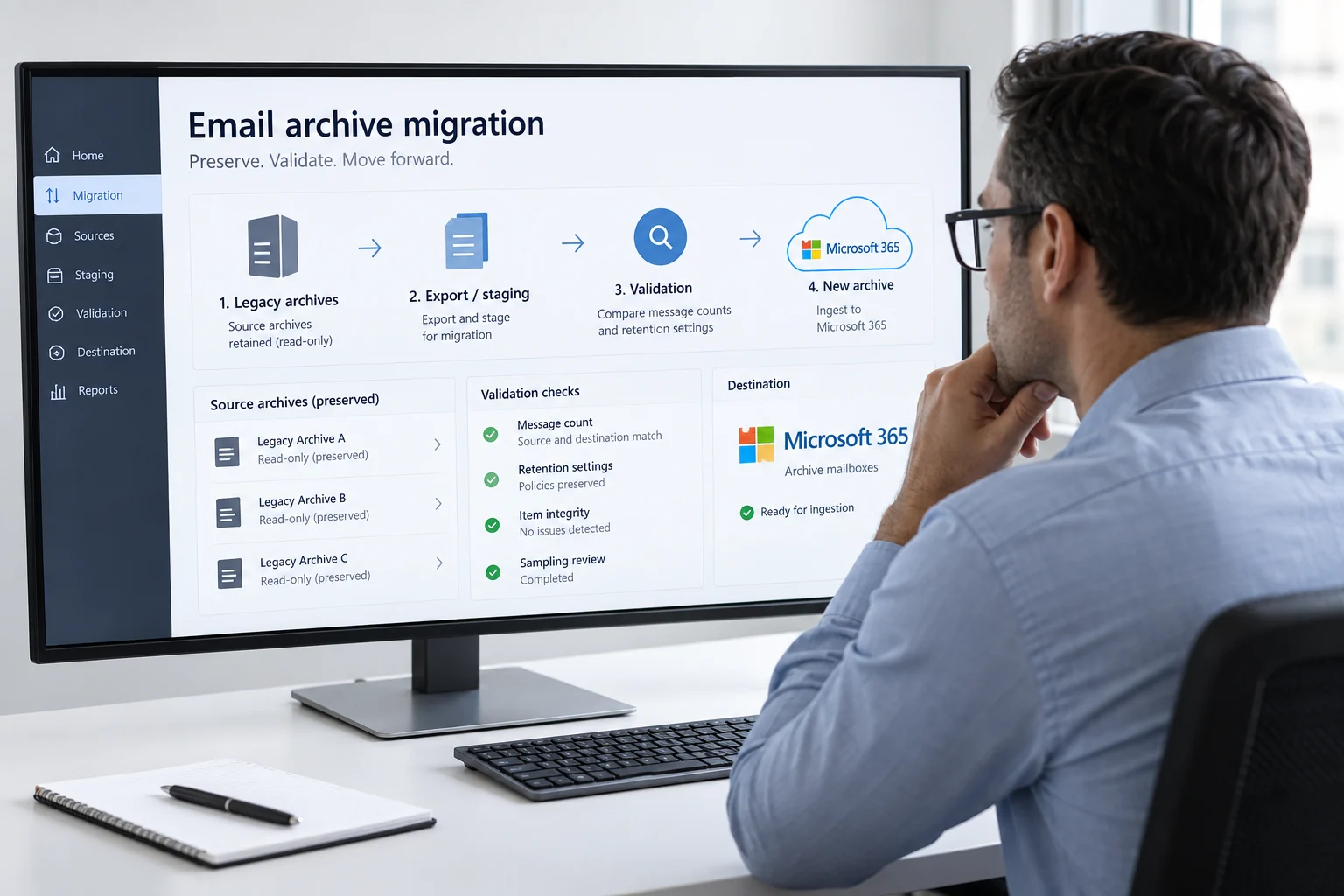
Four triggers start most projects. A cloud archive contract is ending and the price to renew is not worth paying. An on-premises archive server such as Enterprise Vault or SourceOne has reached end of life. A merger means two or three archives must be consolidated into one. Or a regulator, an audit or a court case needs every custodian's mail in a single searchable place. Firms under SEC, FINRA, HIPAA or GDPR rules also have to prove the migration itself did not lose or alter anything, which is why chain of custody runs through every step below.
Before You Plan an Email Archive Migration
Three starting points cover most projects. Pick yours and the card takes you to the right section.
- A list of every legacy archive and its sizeCloud contracts, on-premises servers, appliances and the odd PST share. Size per store, number of users, oldest item. Share the list with the stakeholders who own budget and timeline, so the scope is agreed before you migrate anything.
- The people list, including leaversPer-user data needs a target mailbox for each person. Ex-staff need a decision: shared mailbox, inactive mailbox or journal only.
- Retention and legal hold rulesWhat must be kept and for how long, plus which custodians are under hold. These rules travel with the data and must be re-applied in the target.
- The target's import method and limitsMicrosoft 365 Import service, Mimecast Legacy Archive Data Management or plain Outlook. Each has its own file format and size ceiling.
- Archive vs backup
- A backup is a copy you restore after a failure. An archive is the system of record for old mail, searchable, with retention rules and legal hold. Migrating an archive means keeping that record whole.
- Shortcut (stub)
- A small placeholder the archive leaves in the user's mailbox in place of the full message. Enterprise Vault and SourceOne rely on them. An export must bring back the full message, not the stub.
- Journal data
- A server-side copy of every message sent or received, kept for compliance and not tied to one mailbox. In envelope journal format (EJF) the copy carries the BCC and distribution list recipients too.
- Per-user data
- Mail that belongs to one person's mailbox. Targets import it into that person's account, so the person must exist there first.
- Custodian
- The eDiscovery word for the owner of a mailbox. Export tools and EDRM metadata files group messages by custodian.
- Chain of custody
- The record that shows the data was not altered on the way: export logs, file hashes, conversion logs and import reports kept together.
The Email Archive Migration Map
Every archive migration is the same shape. A source platform produces an export in one or more formats. A target accepts one or two formats under a size rule. When the two do not match, a conversion step sits in the middle. Read your project left to right on this map and you have the outline of the plan.
Two things on the map decide most of the effort. First, whether your source exports PST at all. If it does, and your target is Microsoft 365, Mimecast or Outlook, you may not need the middle column. Second, size. Microsoft wants PST files under 20 GB and Mimecast recommends 5 to 10 GB. A ten year journal store is neither. Splitting is a conversion task even when the format already matches.
Email Archive Migration in 6 Steps
The steps below are the order that avoids rework. Skipping the pilot is the most expensive shortcut in this list.
Inventory the archive before anything moves
Write down every store: platform, size, number of mailboxes, date range and whether it holds per-user data, journal data or both. Ask the archive admin console for its own totals, because folder sizes on disk lie when stores are compressed or single-instanced. Mark which custodians sit under legal hold. This sheet becomes your batch tracker in Step 5.
You should havea sheet with one row per store and a total that the project sponsor has seen. Surprises later usually trace back to a store missed here.
Choose the export format each source offers
Open the export screen of each platform and list the formats. Pick PST where it exists and the target takes PST. Where the only options are EML, MSG, MBOX or an EDRM package, take the richest one that keeps attachments and headers. Then plan a conversion. Section 4 lists the formats platform by platform. Whatever you pick, unzip one export and look at the folder before you order the rest.
| Name | Date modified | Type | Size |
|---|---|---|---|
| PerUser_EML | 2026-09-02 14:10 | File folder | |
| Journal_EJF | 2026-09-02 14:12 | File folder | |
| custodian-annb_PART1.pst | 2026-09-02 13:41 | Outlook Data File | 9,912,344 KB |
| custodian-annb_PART2.pst | 2026-09-02 13:58 | Outlook Data File | 4,201,118 KB |
| edrmXML.xml | 2026-09-02 14:12 | XML Document | 38,204 KB |
| HTMLReport.html | 2026-09-02 14:12 | HTML Document | 412 KB |
| Journal_2019.zip | 2026-09-02 14:30 | Compressed folder | 14,880,020 KB |
| export-manifest.csv | 2026-09-02 14:31 | CSV File | 96 KB |
A mixed export: PST parts for one custodian, an EDRM metadata file, a zipped EML journal and a manifest. Each piece takes a different route to the target.
Pilot the archive migration with one mailbox and one journal slice
Vendors call this the proof of concept (PoC). Export one real user with a large mailbox and one month of journal data. Run them through the whole path: export, convert if needed, import, open in the target. Count messages at each stage and compare. Open the oldest message, one with a large attachment and one with non-English text. If the counts and the three messages survive, the path works. If not, you have found the problem on one mailbox instead of five hundred.
Pilot the leaver case too. Export a mailbox for someone who has left, and decide now where it lands: a shared mailbox, an inactive mailbox on hold or the journal. Leavers are where most "we lost data" complaints start.
Convert the archive export into what the target accepts
Skip this step only when the export format and size already match the target. Otherwise, open the export folder in Univik Email Archive Converter. The tool reads EML, MSG, MBOX and EDRM folders and preserves the metadata that matters in an email archive migration: folder structure, RFC 5322 headers, sent and received dates, Message-ID and attachments. It writes one PST per mailbox, split at the size you set (see how to split a large PST file for the size rules). For loose message files the sister guides on EML to PST and MSG to PST go deeper. Keep journal exports as their own PST or zipped EML set so the target can treat them as compliance data. The per-email log it writes is part of your chain of custody, so file it with the export logs.
You should seethe same message count in the converter log as in the export manifest, and PST files that open in Outlook with the custodian's folder names intact.
Import the archive in batches and track every one
Migrate in batches of 20 to 50 mailboxes with the oldest data first, the archive-first order most migration teams use. Record each batch in the inventory sheet: files, size, job name, status, report result. For Microsoft 365 that means one mapping file and one import job per batch, covered step by step in how to import PST to Office 365. For Mimecast it means one Legacy Archive Data Management submission per batch with per-user and journal data kept apart. Never delete a source export until its batch shows clean.
| Batch | Source store | Format | Mailboxes | Size GB | Converted | Import job | Status | Verified | |
|---|---|---|---|---|---|---|---|---|---|
| 2 | B01 | EV Store 01 (2012-2015) | PST | 40 | 312 | n/a | archive-batch-01 | Complete | Yes |
| 3 | B02 | EV Store 02 (2016-2019) | PST | 40 | 488 | split 20 GB | archive-batch-02 | Complete | Yes |
| 4 | B03 | Mimecast per-user export | EML zip | 50 | 640 | to PST | archive-batch-03 | Analysis | Pending |
| 5 | B04 | Mimecast per-user export | EML zip | 50 | 602 | to PST | Queued | ||
| 6 | J01 | Journal 2019-2021 (EJF) | EML zip | journal | 1,240 | to PST | journal-2019-2021 | Drive shipped | |
| 7 | L01 | Leavers (inactive mailboxes) | PST | 18 | 96 | n/a | leavers-q3 | 2 bad addresses | Fix |
| 8 |
One row per batch. Status and Verified are separate columns on purpose: an import that completed is not a batch that has been checked.
Verify, re-apply retention, then retire the old archive
Verification is three checks per batch. The import report shows zero failed files and no orphaned or corrupted items. Item counts in the target match the export manifest within a small tolerance. Two named users have opened old messages with attachments. Then re-apply retention policies and legal holds in the target, because imports often pause them. Only after every batch passes do you set the old archive to read only. Keep it for 30 to 90 days and then decommission, following the legacy email archive decommissioning guide.
- Every batch row in the tracker reads Complete and Verified
- Legal can run the same search in the new archive and get the same custodians and counts as in the old one
- No user has asked where an old email went for a full month after cutover
Univik Email Archive Converter reads exports from 20+ archive platforms, keeps folders, headers and attachments, splits PST files to the target's limit and logs every message. It runs offline on your Windows PC.
Windows 11 / 10 · your data stays on your PC · prefer a done-for-you migration? See our migration service
What Each Archive Platform Exports
The table below is the export layer of the email archive migration map, platform by platform. Green means the platform can hand you PST, so the Microsoft 365 and Mimecast routes may need no conversion. Amber means you will get EML, MSG, MBOX or an EDRM package and a conversion sits in the middle. Each row links to the Univik page that reads that platform's export and to our click-by-click export guide where we have one.
| Platform | PST out | Export formats | Watch for | Univik pages |
|---|---|---|---|---|
| Mimecast Cloud Archive | Yes | PST, EML in ZIP batches | Per-user and journal exported separately; export windows and size caps | Mimecast archive converter · Mimecast export guide · leaving Mimecast |
| Arctera / Veritas eDiscovery | Yes | PST, PST with EDRM, EML, MSG with EDRM, EDRM Only, OriginalEDRM | EDRM Only has no mail; MSG needs conversion for Mimecast | Arctera eDiscovery export guide |
| Veritas Enterprise Vault (on-prem) | Yes | PST export per archive; journal archives | Shortcuts in mailboxes must be resolved to full items first | Enterprise Vault converter · Enterprise Vault export guide · migrate Enterprise Vault to Office 365 |
| Proofpoint Archive | Yes | PST, EDRM (MSG or EML), Relativity, CSV or JSON | Choose PST for mail targets; EDRM for review platforms | Proofpoint archive converter · Proofpoint export guide |
| Google Vault | Yes | MBOX or PST, with metadata CSV | MBOX splits by size; PST needs the right account scope | Google Vault converter · Google Vault export guide · Google Vault to Office 365 |
| Microsoft Purview eDiscovery | Yes | PST from classic export; loose items in the new export experience | The 2025 export change alters what you get, check before a large run | Purview export converter · Purview export guide |
| Barracuda Message Archiver | Via tools | PST through its Outlook add-in or export tools; backups are encrypted | Bulk exports for thousands of users need Barracuda support | Barracuda archive converter · Barracuda export guide · Barracuda to Office 365 |
| Smarsh, Zix, Mail Assure | Varies | EML or PST depending on plan | Ask for per-user export; journal may be the only store | Smarsh converter · Zix archive converter · Mail Assure converter |
| MailStore, SourceOne, Autonomy EAS, GWAVA Retain, Quest, ArcMail, MailMeter, Global Relay | Varies | PST, EML or native stores | On-premises stores may need the server alive to export | All archive converters |
| Synology MailPlus, QNAP Xeams, TerraMaster | No | Maildir or MBOX on the NAS | Copy the mail store off the NAS first | Synology MailPlus converter · QNAP Xeams converter · TerraMaster mail converter |
What Each Migration Target Accepts
The target sets the rules for a legacy archive migration, and the rules are stricter than most teams expect. These are the ones that shape batches and file sizes.
Journal or per-user decides the target too. In a Microsoft 365 archive migration, per-user data lands in individual accounts, so each account must exist first, including leavers as shared or inactive mailboxes. Journal data is a single compliance store: in Microsoft 365 it goes to a dedicated journal mailbox, in Mimecast to the Not Per User queue, EJF preferred so BCC recipients survive. Mixing the two in one PST is the fastest way to duplicate a year of mail in every inbox. The journal mailbox migration guide compares the three homes a journal can have.
Fix Common Email Archive Migration Problems
Three problems account for most stalled attempts to migrate an email archive. Read the symptom in the red box, then the fix that goes with it.
Do this: The export took shortcuts instead of full items, or a date filter was on. Re-export with shortcut resolution enabled and no filter. Compare item counts against the admin console before converting anything.
Do this: Convert to the format the target names and split to its limit: under 20 GB for Microsoft 365, 5 to 10 GB for Mimecast. Open one file in Outlook before upload. Files near 2 GB from old tools are often damaged ANSI PSTs and need a fresh Unicode write.
Do this: Journal data was imported as per-user, or two exports overlapped in date. Remove the batch, keep journal data in its own store and use the target's duplicate handling on the re-import.
Not sure which route your archive needs? Zip twenty or so messages from the export, note the platform, the total size and the data type (per-user or journal), then send it to our support team. We will map it before you buy anything, or quote the done-for-you migration service if you would rather hand it over.
Email Archive Migration Questions
 About This Guide
Written and maintained by Leena Taylor Paul and the Univik team, developers of Windows data conversion and recovery software since 2013. This guide distils the archive migrations our support team has walked customers through, from Enterprise Vault decommissions to Mimecast contract exits, and the target limits were checked against Microsoft's and Mimecast's current documentation. Last verified September 6, 2026. Need a hand? Contact our support team.
Sources checked: Microsoft Learn, Overview of importing PST files · Microsoft Learn, Network upload · Mimecast, Archiving PST Data · Mimecast, Zipped EML Data · Arctera eDiscovery Help, Exporting emails