 Email Migration Guide
 By
By To migrate Enterprise Vault to Office 365, export each archive to Unicode PST files from the Vault Administration Console (right-click Archives, Export) or with the Export-EVArchive cmdlet, keep every PST under 20 GB, then import the files into the users' Microsoft 365 archive mailboxes with the Purview Import service and a mapping file that sets IsArchive to TRUE. Delete the orphaned Enterprise Vault shortcuts afterwards, and send journal archives to dedicated mailboxes or a compliance archive, because Exchange Online has no journaling mailbox. Old ANSI exports, native MSG exports and failed items go through Univik Enterprise Vault Converter first.
Enterprise Vault has been quietly archiving mail for twenty years, and now the server has to be decommissioned. The mailboxes are already in Exchange Online, or about to be. The vault holds years of mail that users still open through shortcuts, plus a journal archive that legal will not let you drop. Veritas never shipped a button that pushes an archive into Microsoft 365, and the product now belongs to Arctera. So the migration is a sequence you run yourself: export, check, import, clean up. This guide walks that sequence with the limits on both sides and the two traps, shortcuts and journals, that stall most projects.
- Before you migrate Enterprise Vault
- Export the archives to PST in 5 steps
- Step 1: Inventory the archives in the Vault Administration Console
- Step 2: Start Export Archive and pick PST
- Step 3: Set Unicode, the PST size and the filters
- Step 4: Run the export task or Export-EVArchive
- Step 5: Attach a PST in Outlook and check counts
- What to do with EV shortcuts
- Journal archives and Office 365
- Import the PST files into Microsoft 365
- Native export vs migration tools
- After the migration
- Fix common problems
- Enterprise Vault migration questions
Before You Migrate Enterprise Vault to Office 365
Three kinds of archive live in a vault. Each needs a different route, so find yours first.
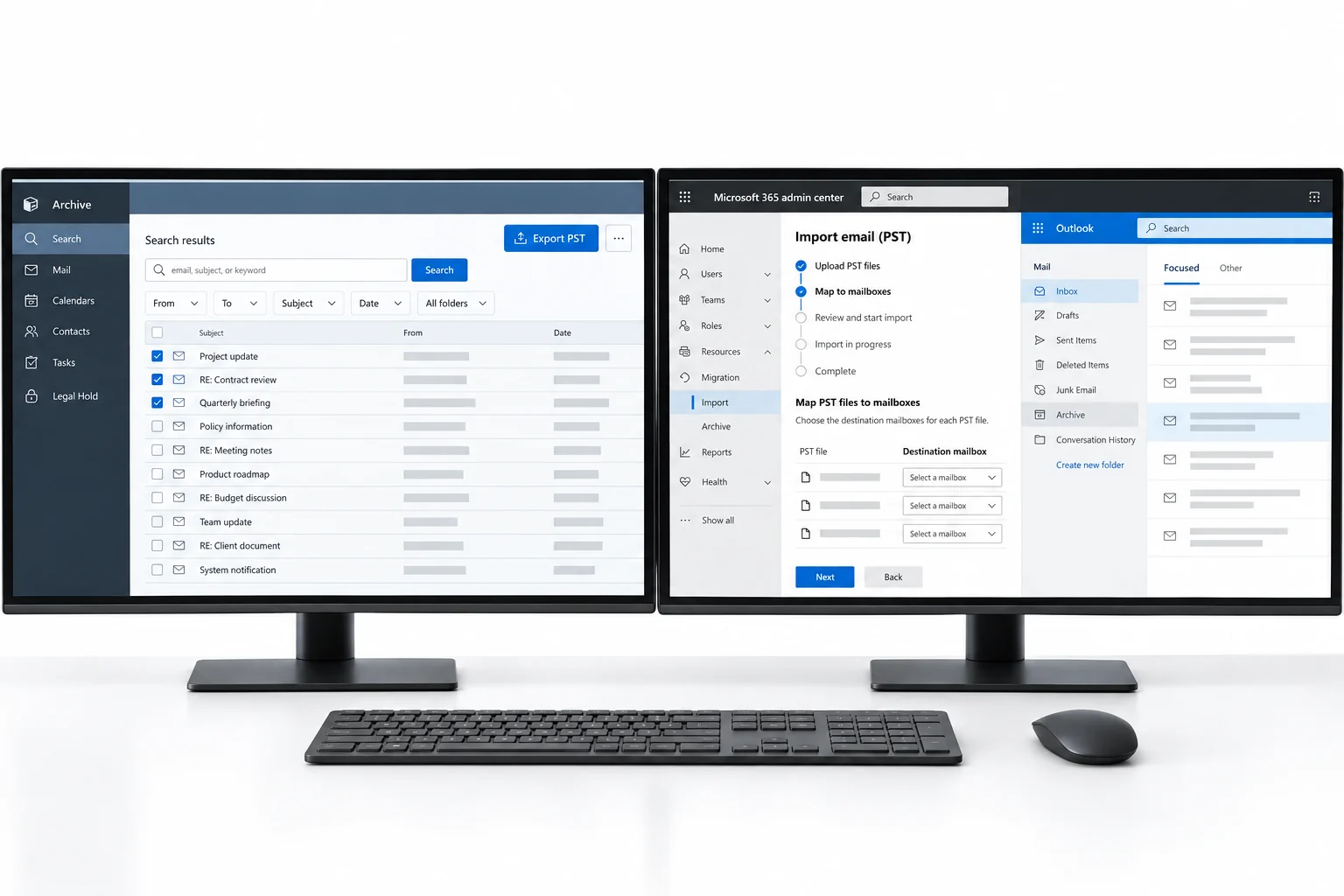
- Vault Administration Console accessThe Export Archive wizard and the Tasks node live here. You need an Enterprise Vault administrator role on the EV server, not on Exchange.
- Disk space on a share for the PST filesBudget the archive size plus 15 percent. A 3 TB journal archive needs 3.5 TB free before the first file is written.
- Microsoft 365 licences with archive mailboxes enabledThe Import service can target the archive mailbox only when it exists. Enable Exchange Online Archiving for every user first and confirm the 100 GB per archive import ceiling covers them.
- The Purview Import role and AzCopyThe mapping file, the SAS URL and the 20 GB per PST rule are covered in the Import PST to Office 365 guide. Read it before the export so the file sizes come out right.
- Archive
- One Enterprise Vault container of items for one mailbox, one journal or one shared purpose. The Archives node lists every one of them with type and size.
- Shortcut
- The small stub Enterprise Vault leaves in a mailbox after it archives a message. It points at the vault. When the vault is switched off, every shortcut breaks.
- Export Archive
- The wizard in the Vault Administration Console that writes archives to PST files, back to their original mailboxes or into a chosen mailbox.
- Export-EVArchive
- The PowerShell cmdlet that does the same job for many archives from a script, with -Format PST and -MaxPSTSizeMB switches.
- Journal archive
- An archive fed by Exchange journaling. Each item is an envelope journal report with the original message attached, so BCC recipients and expanded distribution lists are preserved.
- Import service
- The Microsoft Purview feature that takes PST files by network upload or drive shipping and writes them into mailboxes or archive mailboxes.
Export Enterprise Vault Archives to PST in 5 Steps
The wizard does one thing well. An Enterprise Vault export to PST writes the full archived items, not the shortcuts, into PST files with the folder structure kept. Everything that follows depends on the size and format choices made here.
Inventory the archives in the Vault Administration Console
Open the Vault Administration Console and expand your site down to Archives. The three containers that matter are Exchange Mailbox, Exchange Journal and Shared, the last one holding shared archives for teams and projects. Switch to details view and export the list, because every archive name here becomes a row in your migration sheet and later a row in the Office 365 mapping file. Note the item counts. They are your proof at the end.
You should seeevery archive with its type and size. Archives for people who left years ago are still here. Decide now which of those go to an inactive mailbox in Microsoft 365 and which are out of retention and can be dropped.
| Name | Type | Items | Size |
|---|---|---|---|
| Adams, Priya | Exchange Mailbox | 61,204 | 14.8 GB |
| Bello, Marcus | Exchange Mailbox | 118,930 | 31.2 GB |
| Chen, Sarah | Exchange Mailbox | 44,017 | 9.6 GB |
| Journal - Contoso 2014-2026 | Exchange Journal | 9,812,455 | 2.9 TB |
| Finance shared | Shared | 203,118 | 57.1 GB |
| Legal shared | Shared | 88,406 | 22.4 GB |
Step 1The Archives node. One journal archive at 2.9 TB sits next to 386 mailbox archives.
Start Export Archive and pick PST files as the destination
Right click Archives and choose Export. The first page asks where the data should go. Pick Export to PST files. The other two options put items back into Exchange mailboxes, which is a way to rehydrate shortcuts but not a way to move an archive to another tenant. On the next page select the archives for this batch. Twenty to forty mailbox archives per run keeps the output folder manageable and the failure list short, and matches the batch size an Office 365 import job handles comfortably.
| Name | Type | Items | Size |
|---|---|---|---|
| Adams, Priya | Exchange Mailbox | 61,204 | 14.8 GB |
| Bello, Marcus | Exchange Mailbox | 118,930 | 31.2 GB |
| Chen, Sarah | Exchange Mailbox | 44,017 | 9.6 GB |
Step 2Export to PST files. The mailbox options are for rehydration, not migration.
Set Unicode, the PST size and the filters
Choose Unicode. ANSI is still offered and still capped at 2 GB, and a 2 GB ANSI file is the single most common cause of a failed Enterprise Vault export. Set the maximum PST size to about 18 GB (18432 MB). The wizard allows up to 20480 MB for Unicode and rolls over to a numbered file when the limit is hit. The Office 365 Import service wants each PST under 20 GB. Tick the option to keep folder structure. Use the date filter only when you are splitting one very large archive by year on purpose; otherwise leave it clear so nothing is left behind.
You should seean output folder on a share with room for the whole batch. Point it at a UNC path on a server with fast disks, not at a workstation.
Step 3Unicode, 18 GB parts, folder structure kept. These three settings decide whether the import goes smoothly.
Run the export task, or script it with Export-EVArchive
Finish the wizard and watch progress under Enterprise Vault Servers, Tasks. For a few hundred archives, the wizard is slow to drive by hand. The Enterprise Vault Management Shell has Export-EVArchive, which takes an archive ID, an output folder, -Format PST and -MaxPSTSizeMB. Feed it a CSV from Get-EVArchive and it runs through the list, writing numbered PST parts per archive. Native export throughput is in the low hundreds of thousands of items per hour on a healthy server. A 10 million item journal archive is a multi-day job, so plan for it.
You should seeone PST per archive, or several numbered parts for archives over your size limit, plus the export log. Read the log for Failed entries before you move on. A failed archive is usually a corrupt saveset or an item over Outlook's size limit.
Step 4Export-EVArchive over a CSV of archive IDs. One archive failed with a corrupt store error and goes on the repair list.
Attach one exported PST in Outlook and check the item counts
On a PC with classic Outlook, attach one PST from the batch through File, Open & Export, Open Outlook Data File. Check three things. The messages are full items with bodies and attachments rather than shortcuts. The folder names match the archive. The item count across all parts equals the count from Step 1. Do this for a handful of archives per batch. When it holds, the batch is ready for the import.
| ! | From | Subject | Received |
|---|---|---|---|
| 📎 | sarah.chen@vendor.com | Re: Supplier contract renewal | Wed 12/03/2014 09:48 |
| mike.turner@acme-partner.com | Q2 partnership update | Tue 11/03/2014 16:17 | |
| 📎 | legal@vendor.com | Updated agreement for review | Mon 10/03/2014 11:03 |
| david.kim@acme-partner.com | Meeting next week | Sun 09/03/2014 15:26 |
Full messages, not shortcuts. Original 2014 dates, attachments present, folder names as in the archive.
Step 5The exported PST in Outlook. Full messages, original dates, folder tree intact.
What to Do with Enterprise Vault Shortcuts
Every mailbox Enterprise Vault has touched is full of shortcuts. They look like messages, but the body is a stub that fetches the real item from the vault when a user opens it. Move the mailbox to Office 365 and the shortcuts move with it. Switch the vault off and every one of them becomes a dead link. This is the part of an Enterprise Vault migration that generates helpdesk tickets, so sequence it deliberately.
The alternative is to use the wizard's Export to original mailboxes option before the mailbox moves to Exchange Online. It restores the archived items into the on-premises mailbox and Enterprise Vault replaces its own shortcuts as it does so. That works for small archives. For a 30 GB archive it turns a 2 GB mailbox into a 32 GB one that then has to be migrated. Most projects import to the Microsoft 365 archive mailbox instead.
Journal Archives and Office 365
An Enterprise Vault journal archive is a different animal. Each item is an envelope journal report: sender, every recipient including BCC and expanded distribution lists, with the original message attached. It exists because a regulator or a legal team asked for it, and it is often the largest archive in the vault by a factor of ten.
When you migrate Enterprise Vault to Office 365, this is the archive with no obvious home. Microsoft 365 has no place for it as it is. Exchange Online will not serve as a journaling mailbox and offers nothing to import a journal into. The realistic options are three. Import the journal PST files into holder mailboxes in Microsoft 365 that sit under a retention policy and a legal hold, one per year, since the Import service writes at most 100 GB into an archive mailbox per job. Or send the journal to a compliance archive that understands envelope journals, such as Mimecast, which accepts PST in envelope journal format as non per user data. Or have a migration tool explode the journal, which means writing a copy of each message into every internal recipient's own mailbox. The journal mailbox migration guide weighs the three. Whatever you pick, export the journal archive last with the same wizard and keep the envelope intact.
Import the Enterprise Vault PST Files into Office 365
The import side is the Office 365 Import service, covered in full in how to import PST to Office 365. The Enterprise Vault specific parts are these.
- One row per PST part. Bello_Marcus.pst and Bello_Marcus_1.pst are two rows with the same Mailbox value.
- IsArchive set to TRUE. Archived mail belongs in the archive mailbox, not the primary. The job fails for a user whose archive mailbox is not enabled.
- TargetRootFolder. Leave it empty and the folder tree merges into the archive mailbox root. Set it to a name such as Enterprise Vault and the whole tree lands under one folder, which users find easier.
- 100 GB per archive per job. A 150 GB archive is two import jobs, or one job after the user's archive is switched to auto-expanding.
- Retention hold. The Import service turns on a retention hold for each mailbox it imports into so old items are not deleted by policy before anyone has seen them. Turn it off deliberately later.
Not every file will be ready for that. Old exports on a share are often 2 GB ANSI PST files. Some are native MSG folders from an Export-EVArchive run with a different format switch. Others are PST files the export log marks as partial. That is where a converter earns its place. Univik Enterprise Vault Converter reads the EV PST exports directly without Outlook. It rebuilds the folder tree, splits the output into Unicode parts at the size you choose and keeps the journal envelope data intact. It also cross-checks the export log, so skipped items are reported rather than lost. Run it on the export share, then hand the parts to AzCopy.
Univik Enterprise Vault Converter reads EV PST, MSG and journal exports without Outlook. It rebuilds folders, keeps envelope journal data and writes Unicode PST parts sized for the Microsoft 365 Import service. Nothing leaves the EV server's network.
Windows Server or Windows 11 / 10 · reads exports offline · free trial processes a sample of every archive first
Native Export vs Migration Tools for Enterprise Vault
Four ways to migrate Enterprise Vault to Office 365, side by side.
| Route | Cost | Shortcuts | Journal | Needs EV running | Fits |
|---|---|---|---|---|---|
| Export Archive wizard + Import service | Free | Manual cleanup | PST to mailboxes | Yes, for export | Up to a few hundred archives, in-house team |
| Export-EVArchive script + converter + Import service | Converter licence | Manual cleanup | Envelope kept, split to size | Only for export | Hundreds of archives, old exports, mixed formats |
| Migration platform (Quest Archive Shuttle, TransVault, Cloudficient) | Per mailbox or per GB | Rehydrated | Split or exploded | Yes, plus their servers | Thousands of archives, multi TB journals, fixed deadline |
| Export to original mailboxes, then mailbox migration | Free | Replaced by EV | Not applicable | Yes | Small archives on mailboxes still on-premises |
After the Enterprise Vault Migration
- Every archive in the Step 1 inventory has an import job marked Completed and the mailbox item counts match within the tolerance you set
- A sample of users can open a 2014 message from their Office 365 archive mailbox with its attachment, and no Enterprise Vault shortcuts remain in their Inbox
- The journal data is readable in its new home with BCC recipients visible in the envelope. Legal has signed off on the retention settings
Keep the exported PST files and the export logs for the retention period your policy demands, on storage that is backed up. Then decommission: stop the Enterprise Vault services and remove the Outlook add-in from the client build. Take the SQL databases and vault store partitions offline before deleting anything. The wider plan for archives that are not Enterprise Vault lives in the email archive migration guide. If the vault export was produced for a legal case rather than a migration, the Arctera eDiscovery export guide covers that product's own export formats.
Fix Common Enterprise Vault Migration Problems
Three faults stop most Enterprise Vault migrations. Each red You see box has its green Do this repair.
Do this: The output is an ANSI PST that hit its limit, or an existing PST is being appended to. Re-run with Unicode and a fresh output folder. If one archive keeps failing, export it by date range in two halves and read the log for the item that breaks it.
Do this: The vault was switched off before the shortcuts were removed. Bring the EV server back online, import the archive PST into the Microsoft 365 archive mailbox, then purge items of class IPM.Note.EnterpriseVault.Shortcut from the mailbox and retire the server again.
Do this: One of three limits is in the way: Exchange Online Archiving is off for that user, a part is over 20 GB or the archive already holds close to 100 GB. Enable the archive, split the part or turn on auto-expanding archiving, then retry that row.
Planning an Enterprise Vault exit with a journal archive in the mix? Send our support team the archive count, the journal size and the target for each. We will map out the export order and the PST sizes before you buy anything.
Enterprise Vault migration questions
 About This Guide
Written and maintained by Leena Taylor Paul and the Univik team, developers of Windows data conversion and recovery software since 2013. The Export Archive options, Export-EVArchive parameters and shortcut deletion settings in this guide were checked against Veritas and Arctera documentation, and the Microsoft 365 Import limits against Microsoft Learn. Last verified September 7, 2026. Need a hand? Contact our support team.
Sources checked: Veritas Enterprise Vault Administrator's Guide, Exporting archives · Veritas, Export-EVArchive PowerShell cmdlet · Veritas, Shortcut deletion in Exchange Mailbox Policy · Microsoft Learn, Overview of importing PST files to Microsoft 365 · Arctera, Cloud Software Group completes acquisition of Arctera