 Email Migration Guide
 By
By If you still have access to Arctera eDiscovery (formerly Veritas), export the emails as PST. It is the default format and Mimecast accepts it as it is. If all you have is an old EDRM export folder, the mail inside is EML or MSG files. Convert them to PST with Univik Email Archive Converter, keep each PST between 5 and 10 GB, then upload the files to Mimecast. Mimecast accepts PST and zipped EML only, never MSG.
A client wrote to us with a common confusion: "I have EDRM data files from Arctera, previously Veritas. Can I convert them to PST and import into Mimecast?" The short answer is yes, and in many cases the export tool itself can give you a PST. This guide shows the export screens in Arctera, what each export format puts on disk and what Mimecast will and will not take, so your archived email data lands in the new email archive in one pass. It applies whether you are closing an old archive, moving a company to Mimecast Cloud Archive or keeping legal hold data for compliance.
One naming note first. The same product has carried three names: Enterprise Vault.cloud Advanced eDiscovery, Veritas Alta eDiscovery and now Arctera eDiscovery. The help pages still live on veritas.com. If your old notes say Veritas, this is the same tool.
- Before you export
- Export from Arctera in 5 steps
- Step 1: Open the Arctera case
- Step 2: Run or open the search
- Step 3: Select emails and click Export
- Step 4: Choose PST and export options
- Step 5: Download the export batch
- What each export format gives you
- Convert old EDRM exports to PST
- Prepare PST files for Mimecast
- Fix common problems
- Arctera and EDRM Questions
Before You Export from Arctera
Which one sounds like you? Each card points to the part of this guide that matters most for you.
- An Arctera reviewer or admin loginExports are started from inside a case. If you only have export folders, skip to the conversion section.
- The case and the search you want to exportArctera exports what a search returns. Saved searches, review sets and custodian lists all work as the starting point.
- Mimecast Legacy Archive Data Management set upYou need the account SMTP addresses for per-user data and to know whether the data is per-user or journal.
- A Windows PC with OutlookTo open each PST once before upload. Mimecast only processes PST files that Outlook can open.
- EDRM
- Electronic Discovery Reference Model. A set of standards for handling electronically stored information (ESI) in legal cases. When Arctera says "EDRM" in an export format, it means the export includes an EDRM XML metadata file.
- edrmXML.xml
- The EDRM XML load file. It lists every message and attachment in the export with its custodian, dates, hash values and Bates numbers (legal page numbers). Review platforms such as Relativity read it. Mimecast does not.
- Custodian
- The person whose mailbox the messages came from. Mimecast calls the same idea a per-user account.
- PST
- Outlook Data File. One file that holds a whole mailbox with folders, messages and attachments. Modern PST files are Unicode and can grow past 2 GB. Older ANSI PST files cannot.
- Journal data
- A copy of every message a mail server sent or received, kept for compliance. An envelope journal (EJF) also records BCC and distribution list recipients.
- Legacy Archive Data Management
- The Mimecast service that takes in old archive data. Mimecast also calls this process Simply Migrate in its help articles.
Export Email from Arctera eDiscovery in 5 Steps
Arctera eDiscovery is the product that used to be Veritas Enterprise Vault.cloud Advanced eDiscovery. The screens below show the export flow from a case called Acme Investigation. Your case names differ, the buttons do not.
Open the Arctera case that holds the email
Sign in, open the eDiscovery tab and click Cases. The left tree lists every case with its Searches, Custodians, Collections, Review Sets and Exports underneath. Click the case you need. The overview shows how many custodians and collections it holds, which is a quick check that you are in the right place.
You should seethe case status as Active. A Closed case can still be exported, but ask the case owner first.
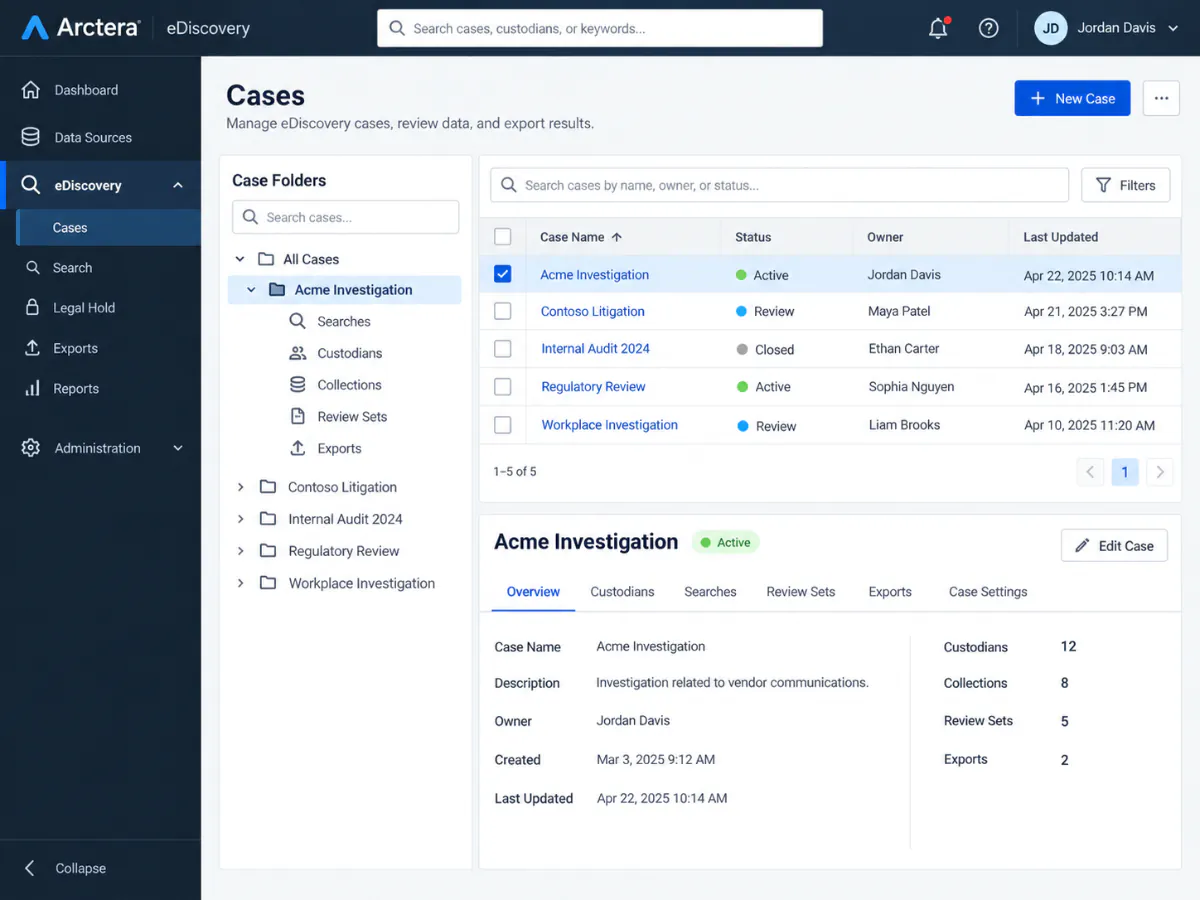
The Arctera eDiscovery case tree on the left, the case list and overview on the right. Click the image to open it full size.
Run or open the eDiscovery search
Open the Searches tab inside the case. Pick a saved search, a research set or a review set. You can also click New Search and type your query. Filters for date range, custodian, source and file type narrow the result. For a full mailbox migration, search with no keyword and only a custodian filter so every message is included.
You should seea result count next to the Emails tab. Note it down. You will compare it with the export summary in Step 5.
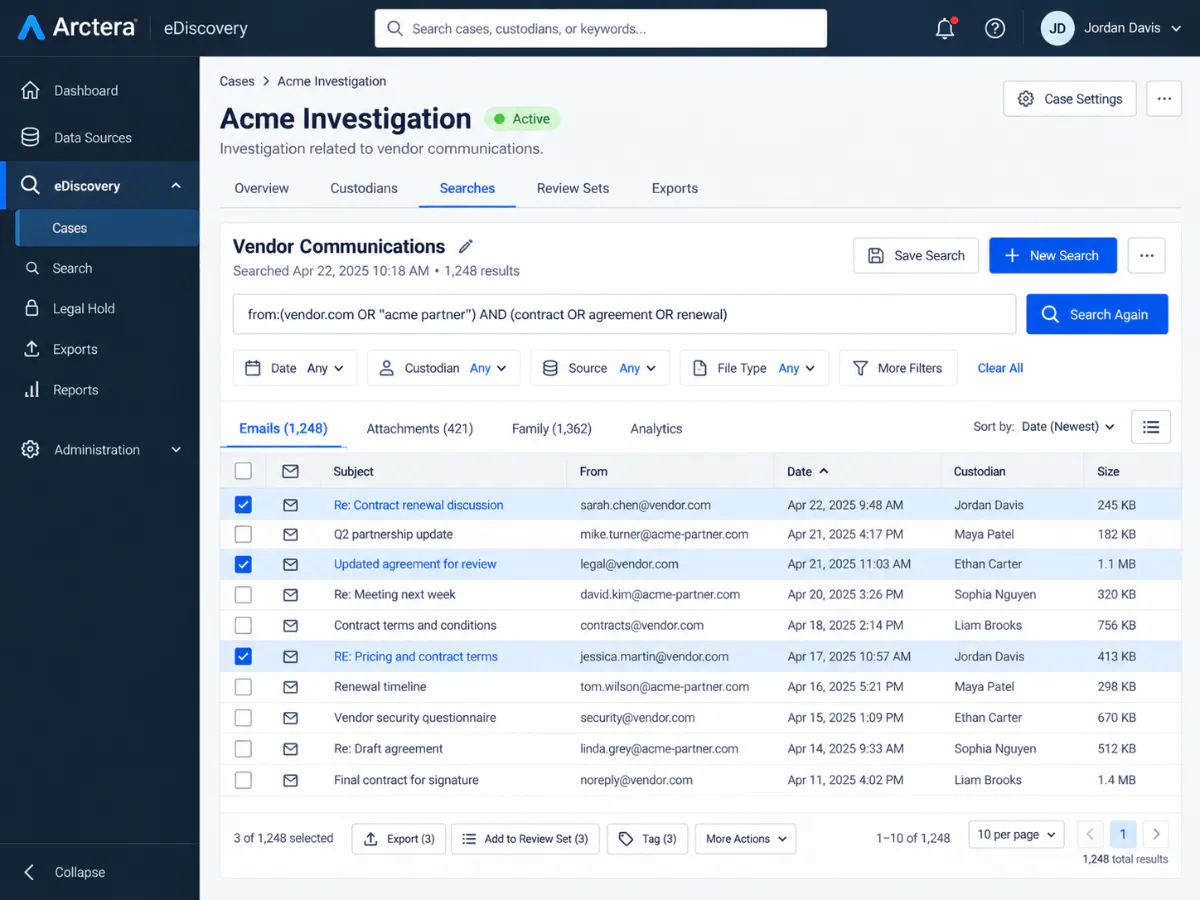
A saved search with 1,248 results. The Emails, Attachments and Family tabs split the same result set. Click the image to open it full size.
Select the emails and click Export
On the Emails tab tick the messages you want, or tick nothing and export everything. Click Export. The menu offers four scopes: Export current page, Export selected emails, Export all emails and Export by custodians. For a migration, Export all emails or Export by custodians is the one you want.
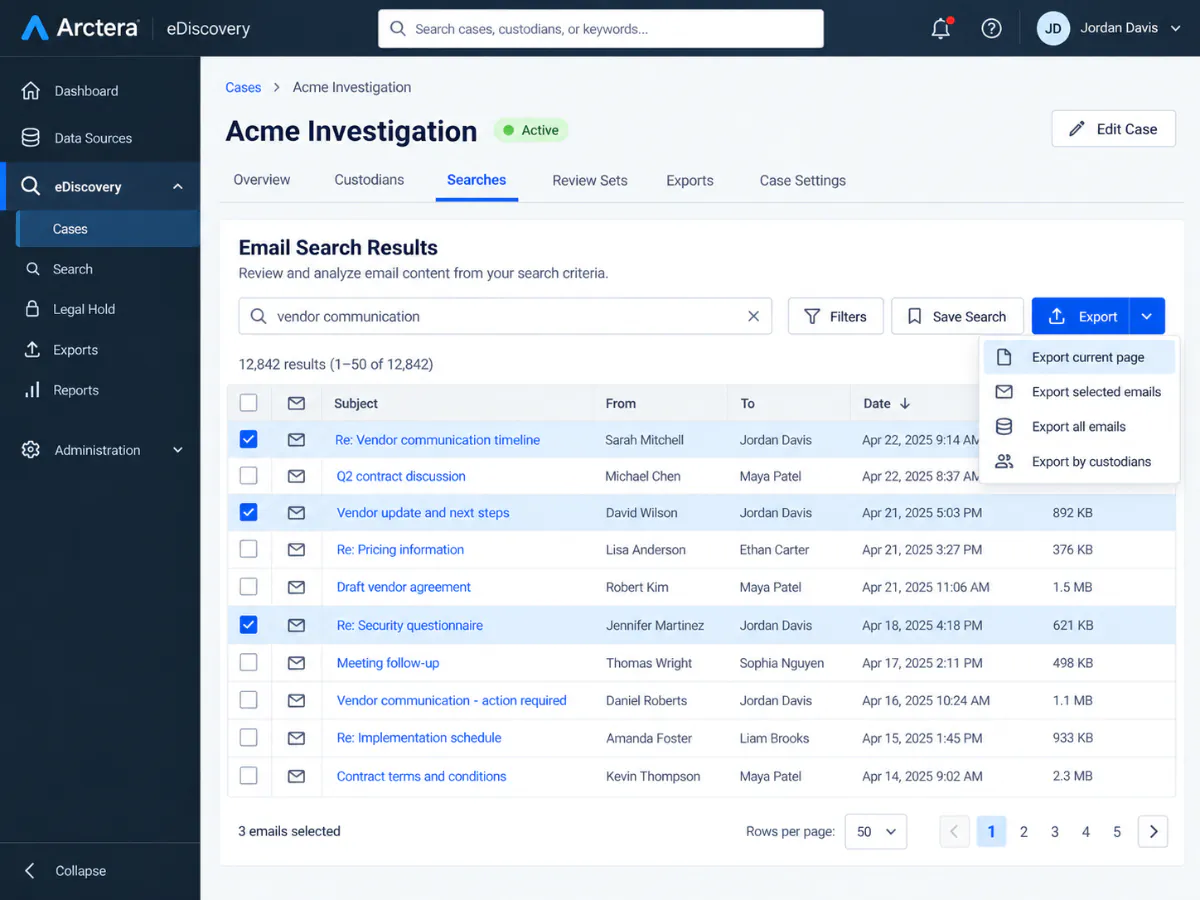
The Export menu. Three emails are ticked here, so Export selected emails would export those three. Click the image to open it full size.
If you pick Export by custodians, the Add/Remove Custodians dialog opens. Tick the people whose mail you need. Each custodian becomes a per-user mailbox on the Mimecast side, so this is the best choice when you migrate named users.
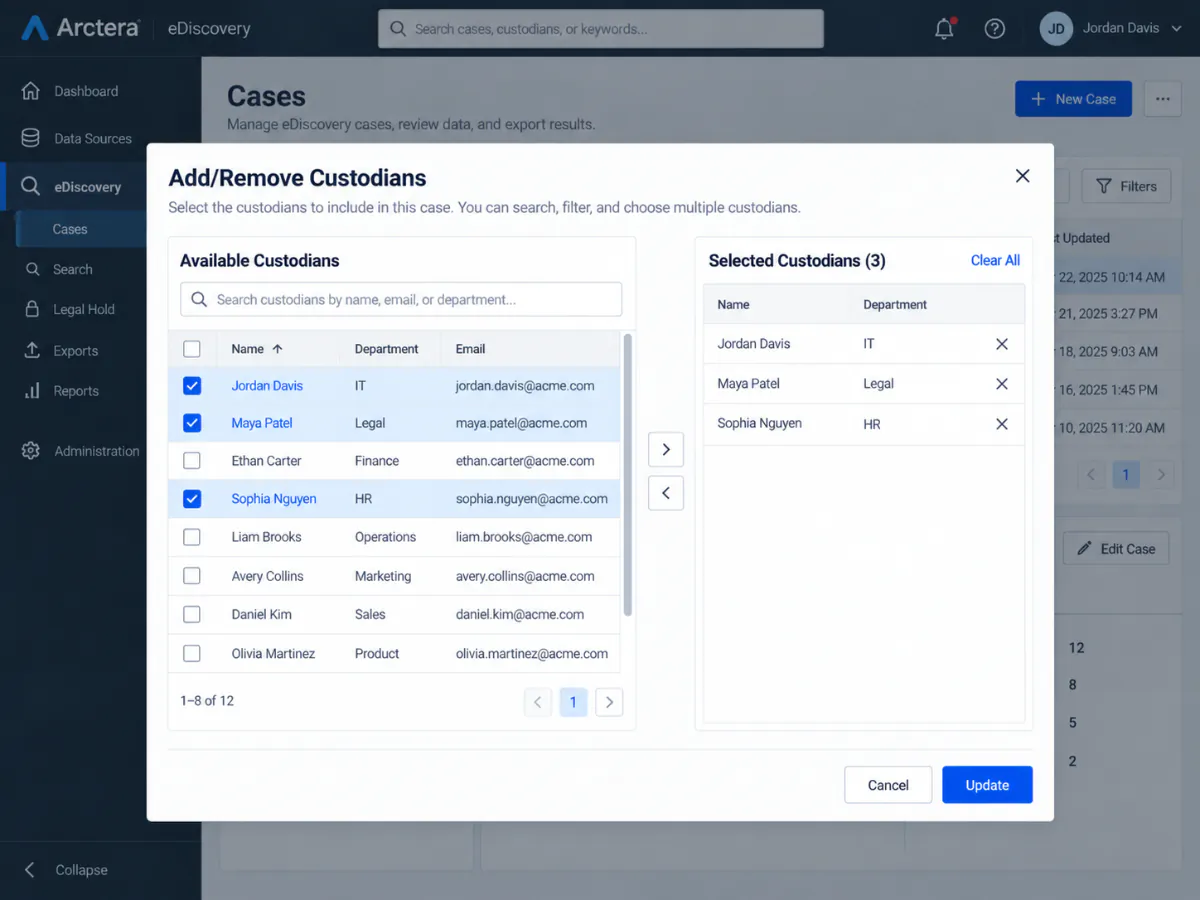
Custodian picker for Export by custodians. Available people on the left, the chosen three on the right. Click the image to open it full size.
Choose PST and set the export options
The Export Options dialog is where you choose the format. Give the export a name, then open Message Format. The list is long: Clearwell, EML, EML with EDRM, PST with EDRM, MSG with EDRM, FTI-RingTail, EDRM Only, PST, OriginalEDRM and Original. To export PST from Arctera for Mimecast, pick PST. Pick PST with EDRM if you also want the metadata XML for your records. Section 3 explains what each one puts on disk. The full list and option names come from Arctera's own help page on exporting emails.
Three options matter for migration. Include Journaling Envelope keeps the envelope that records BCC and distribution list recipients, so tick it for journal data. Exclude Exported Messages skips mail already exported from this case, which works like the remove-duplicates (deduplication) option in Microsoft 365 eDiscovery and is useful for a second export run. Enable AES-256 Encryption protects the download with a password. Note the password somewhere safe, because Mimecast cannot open a password-protected file and you will need to extract the files first.
You should seePST in the Message Format box and a green tick on Include Journaling Envelope if this is journal data. Click Create Export.
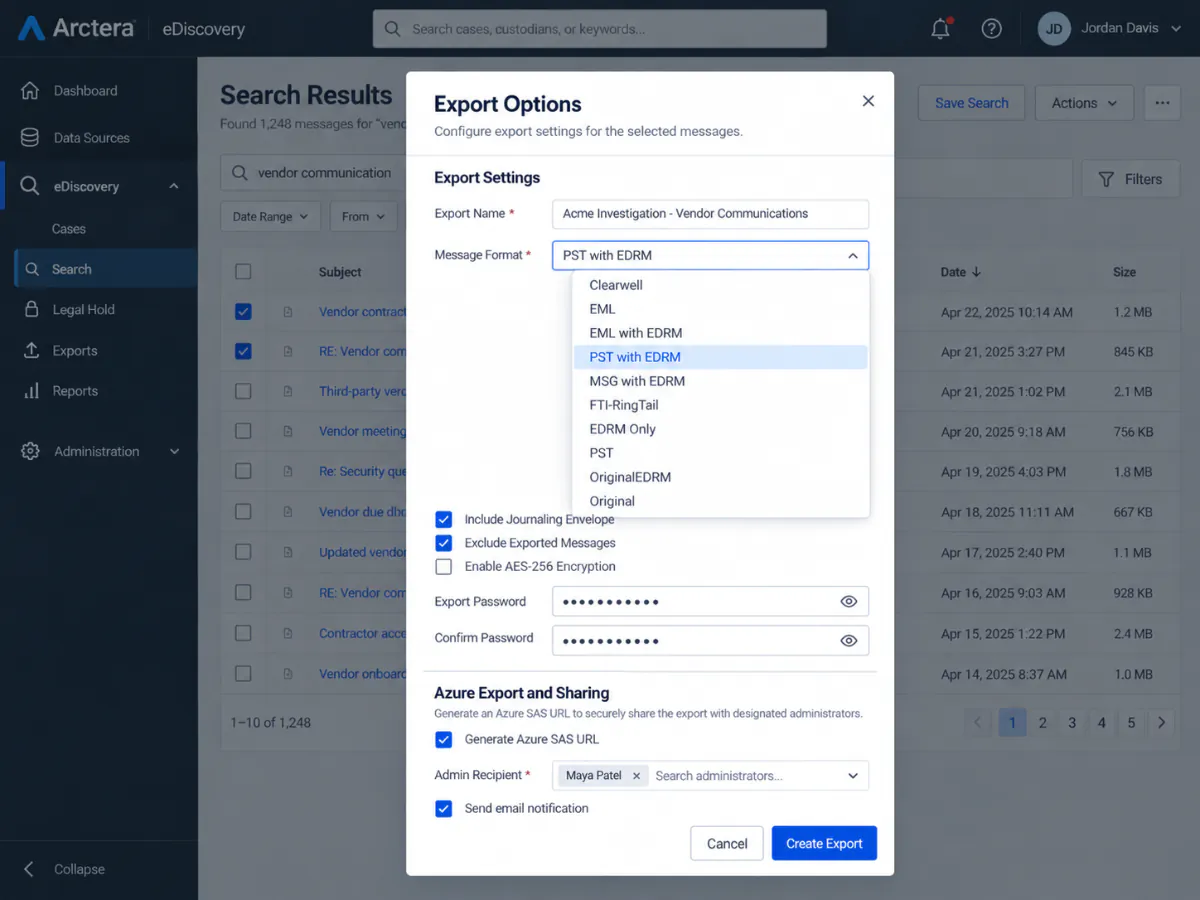
The Message Format list. PST is the plain Outlook file, the EDRM variants add the XML metadata. Click the image to open it full size.
OriginalEDRM and Original only appear for accounts that Arctera support has enabled. Both contain each email as MSG and EML side by side. OriginalEDRM adds edrmXML.xml and HTMLReport.html as well. If your old export folders look like that, you already know which export type you have.
Download the Arctera export batch
Arctera builds the export in the background. When it finishes, the Export Details page shows a green Export Completed banner, then a summary with the item count and format and a list of files. Large exports arrive as several ZIP parts. Click Download All or download each part. If you generated an Azure SAS URL in Step 4, the same files are in that Azure storage location.
You should seeItems Exported equal to the result count you noted in Step 2. A lower number means a filter or the Exclude Exported Messages option cut the set.
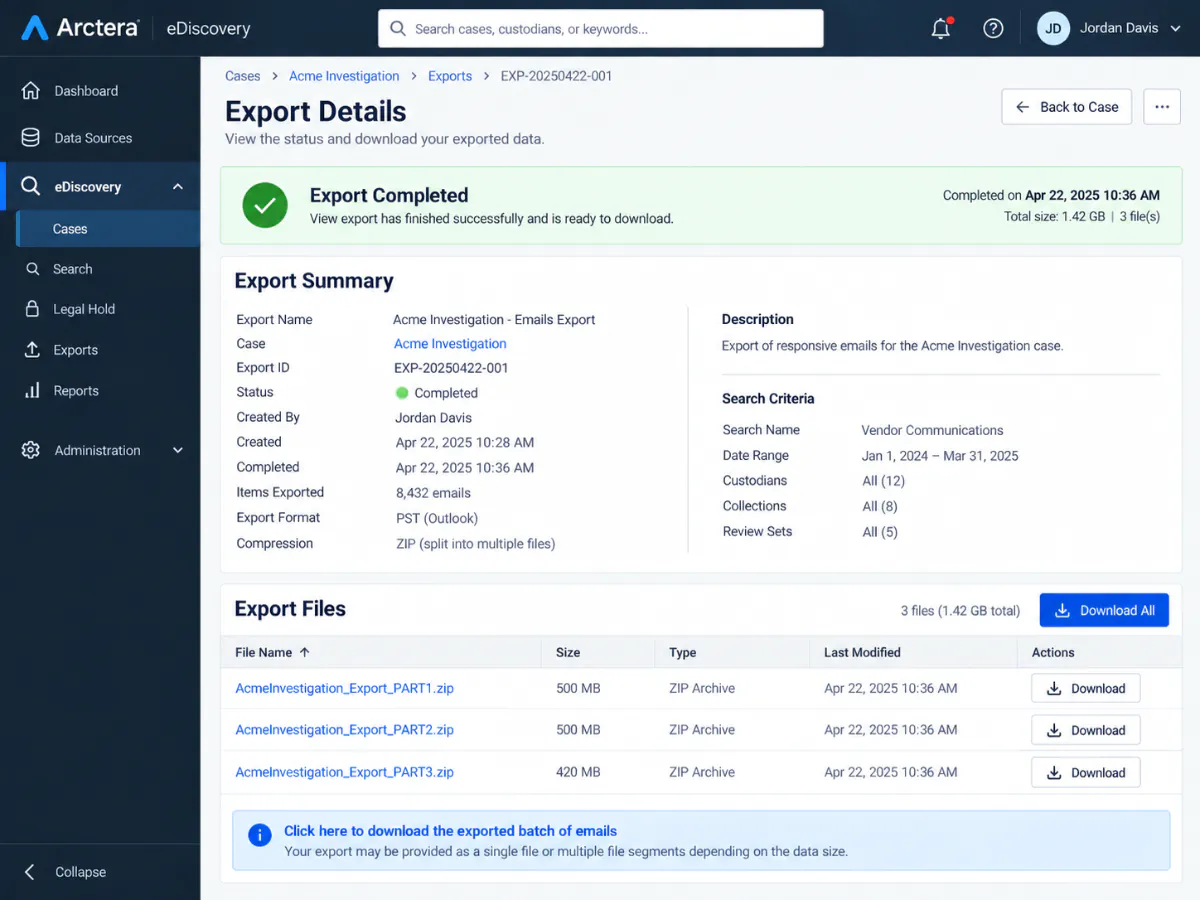
Export Completed in Arctera. 8,432 items as PST, split into three ZIP parts of about 500 MB each. Click the image to open it full size.
The Exports page under the case node lists every export batch with its format, requester and status, so you can come back later and re-download or check which format an older batch used.
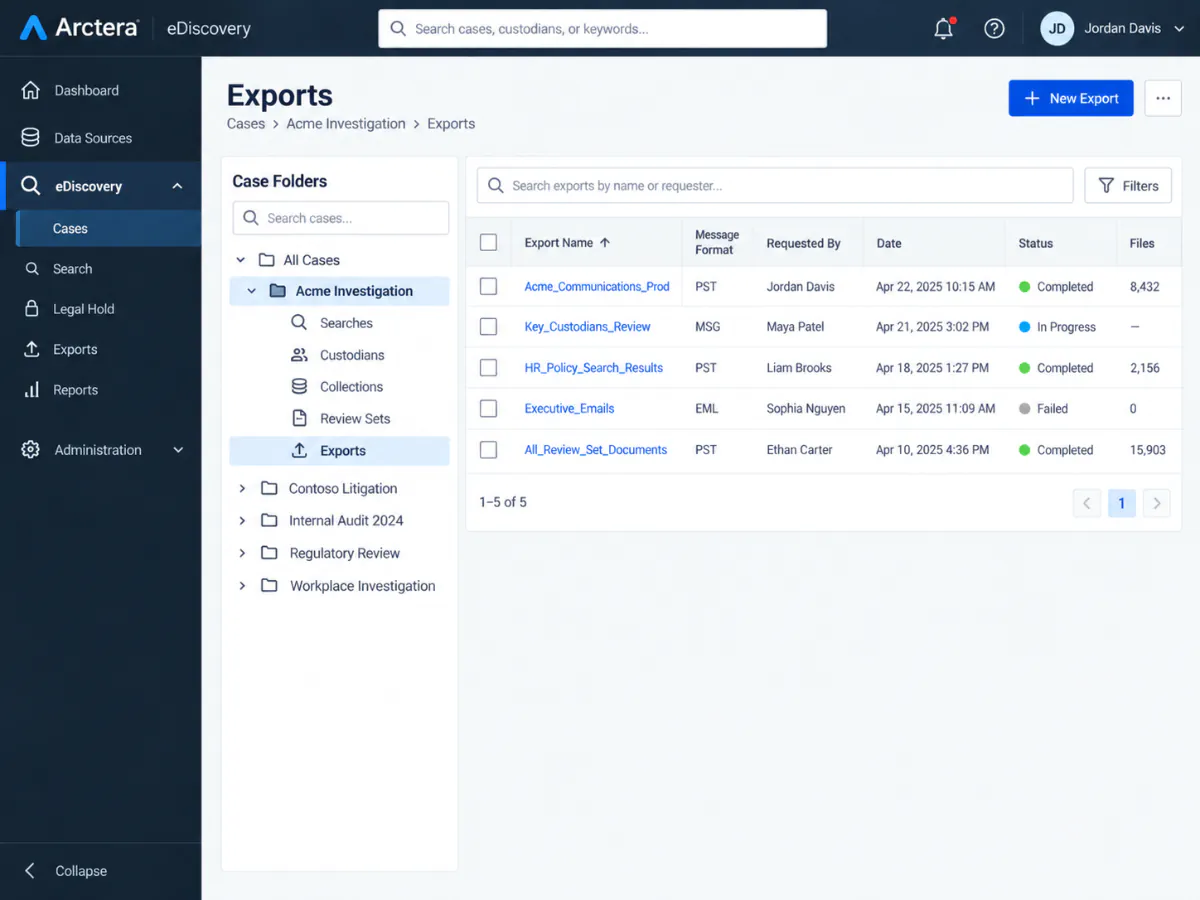
The Exports list. The Message Format column tells you which batches are PST and which are EML or MSG. Click the image to open it full size.
What Each Arctera Export Format Gives You
Unzip a batch and the folder contents depend entirely on the format picked in Step 4. Green means Mimecast can take it as is. Amber means it needs a conversion to PST first. Red means there is no mail in it to import.
| Arctera format | Mimecast | What is in the folder | What to do |
|---|---|---|---|
| PST | Ready | One or more Outlook PST files | Check size and Outlook access, then upload |
| PST with EDRM | Ready | PST files plus edrmXML.xml | Upload the PST. Keep the XML for your records |
| EML | Ready | One .eml file per message | Zip into the Mimecast folder layout, or convert to PST |
| EML with EDRM | Ready | .eml files plus edrmXML.xml | Same as EML. The XML is not uploaded |
| MSG with EDRM | Convert first | One .msg file per message plus edrmXML.xml | Convert MSG to PST. Mimecast does not accept MSG |
| OriginalEDRM | Convert first | MSG and EML of each message, edrmXML.xml, HTMLReport.html | Convert to PST, or zip the EML copies |
| Original | Convert first | MSG and EML of each message | Convert to PST, or zip the EML copies |
| EDRM Only | No mail | edrmXML.xml metadata only | Re-export with a mail format |
| Clearwell, FTI-RingTail | Convert first | Files made for those review platforms | Re-export as PST if you still can |
The EDRM XML itself is not email. It is a map: which document belongs to which custodian, which attachment belongs to which message, plus dates, hash values (a fingerprint of each file) and Bates numbers (the page numbers used in legal cases). The EDRM group designed it so eDiscovery systems can pass data to each other without loss. Review platforms read it. Mimecast does not. That is why an "EDRM export" is only useful for migration when the actual email files, EML or MSG, are in the same folder as the XML.
Convert Old EDRM Exports to PST
This is the situation the client above was in. The Arctera subscription had ended and what was left was a set of export folders on a shared drive. An EDRM to PST conversion is what they needed. Before doing anything, open one folder and look at the extensions. Then match it to the table above.
- Open the export folder in Univik Email Archive ConverterClick Add Folder and point it at the unzipped export. The tool scans every subfolder and lists the EML and MSG files it finds, with the folder names as they were exported. The edrmXML.xml and HTMLReport.html files are not changed.
- Pick PST as the outputChoose Outlook PST, which turns the EDRM export into an Outlook Data File Mimecast can read. In simple terms this is an EML to PST or MSG to PST job, with the folder names kept. Keep Maintain folder hierarchy on so custodian and folder names survive. Attachments and full RFC 5322 headers, including Message-ID and the original sent and received dates, are written into each message.
- Split at 5 to 10 GBSet the PST split size so each file lands in the range Mimecast recommends. One PST per custodian is the simplest result for per-user import.
- Convert and check the logRun the conversion. The per-email log lists every message written and anything skipped, which is your audit trail for chain of custody. Open one PST in Outlook before you upload.
The converter runs offline on your PC. Nothing is uploaded anywhere during the conversion, which matters when the export is legal hold data. Keep the original export folders as they are, so the preservation copy, the original evidence, stays untouched. If your target is Microsoft 365 instead of Mimecast, the same PST files go in through the Import service, covered in how to import PST to Office 365. The Email Archive Converter page lists the other archive platforms it reads, including Enterprise Vault PST exports, Proofpoint archive exports and Mimecast archive exports themselves.
Univik Email Archive Converter reads the export folder, keeps custodian folders, headers and attachments and writes Unicode PST files split to the size you choose. Try it on a sample folder first.
Windows 11 / 10 · runs offline · the trial converts a sample of each folder so you can check the result in Outlook
Prepare the PST Files for Mimecast Import
The PST batch you downloaded from Arctera in Step 5, or the PST files you made from an EDRM export, now need to pass Mimecast's checks. To import PST into Mimecast you go through Legacy Archive Data Management, which takes two input formats: PST and zipped EML. Everything else, including loose MSG files, is rejected. The Mimecast import checklist walks the preparation step by step; the rules below come from Mimecast's own guides on archiving PST data and zipped EML data. They decide whether your upload is processed or sent back.
Per-user or journal? Mimecast processes them differently. Per-user PST files are named after the mailbox they belong to, user@company.com.pst, and a second file for the same person is user@company.com.1.pst. Journal data goes in as Not Per User, either SJF or EJF. EJF is the envelope journal format that carries BCC and distribution list recipients, which is exactly what Include Journaling Envelope in Step 4 preserves. Zipped EML follows the same split with a fixed folder layout: Company_Tag\PerUser\user@company.com\ for mailbox data and Company_Tag\NotPerUser_EJF\ for journal data.
A few more Mimecast rules cause rejected uploads. PST files must not be zipped, password protected or marked read-only. Per-user data needs the Mimecast account to exist first. Addresses that do not exist, such as former staff, are listed in a Bad Addresses report. You then fix the address or ask for the account to be created. Copy the data for the import rather than moving it. Keep the source until Mimecast confirms the result. Mimecast counts the retention period from each message's Sent Date, so mail older than your retention period will not appear. After processing you get ten working days to check the archive and approve the import.
- Each PST opens in Outlook and the folder names match the custodian folders from the export
- The Outlook item count for a mailbox matches the Items Exported figure on the Export Details page
- The Mimecast import report lists no rejected files, no Bad Addresses and no skipped messages beyond the few oversized ones you expected
Mimecast allows up to two resubmissions of the same data after you fix a rejected file. Open every PST in Outlook before the first upload and you will rarely need them.
Fix Common Arctera to Mimecast Problems
Three things stop most Arctera to Mimecast moves. Find the one you see in a red box and do what the green Do this text says.
Do this: MSG is not an accepted format. Convert the folder to PST with Email Archive Converter (the detail is in how to convert MSG to PST), keep each PST under 10 GB and upload the PST files instead.
Do this: The batch was exported as EDRM Only, which is metadata without mail. Go back to Step 4 and re-export as PST. If Arctera access is gone, ask whoever ran the export for the matching EML or MSG batch.
Do this: Check the size. A file near 2 GB from an older export is often ANSI and damaged. Re-export from Arctera in smaller batches, or run the export folder through the converter to write fresh Unicode PST files.
Not sure what is in your folders? Zip a small sample of 10 to 20 emails with attachments and send it to our support team with the total data size and whether it is per-user or journal data. We will tell you which route applies before you buy anything.
Arctera and EDRM Questions
 About This Guide
Written and maintained by Leena Taylor Paul and the Univik team, developers of Windows data conversion and recovery software since 2013. This guide started with a real support request about Arctera EDRM exports meant for Mimecast, and the export options and Mimecast limits were checked against the vendors' current documentation. Last verified September 5, 2026. Need a hand? Contact our support team.
Sources checked: Arctera eDiscovery Help, Exporting emails · Mimecast, Archiving PST Data · Mimecast, Zipped EML Data · Mimecast, Legacy Data Management Processing · EDRM, EDRM XML