 Email Migration Guide
 By
By A Google Vault to Office 365 migration has three parts. In Vault, create a matter, search Gmail for the accounts and date range you need and run a Google Vault export to PST or MBOX; the download is available for 15 days. A Vault export puts every message in one flat folder with no labels. Run the files through Univik Google Vault Converter to rebuild Gmail labels as Outlook folders and write one PST per user under 20 GB. Then import the PST files with the Office 365 Import service. Microsoft's own Google Workspace migration copies live mailboxes only, so anything that exists only in Vault has to take this route.
The Workspace contract is ending and the mailboxes are moving to Microsoft 365. The live mail is the easy half; Microsoft has a migration batch for that. The hard half is Google Vault. It holds years of retained mail, including messages users deleted long ago, kept for legal reasons and invisible to any mailbox migration. Get it out wrong and it lands in Outlook as one folder of 400,000 messages. Get it out late and the export has expired. This guide covers the Vault export as it works in 2026, the label problem, the conversion and the Microsoft 365 import, in the order that avoids both mistakes.
- Before you migrate Google Vault
- Export Gmail from Vault in 5 steps
- Step 1: Create a matter
- Step 2: Search Gmail for the accounts and dates
- Step 3: Export as PST or MBOX
- Step 4: Download the export within 15 days
- Step 5: Check counts and open one Vault PST
- The single-folder problem
- Convert Vault exports to import-ready PST
- Import into Microsoft 365
- Vault export vs the other two routes
- After the migration
- Fix common problems
- Google Vault migration questions
Before You Migrate Google Vault to Office 365
What are you actually trying to move? Pick the card and it takes you to the part that matters.
- A Vault licence on every account you exportVault only holds data for licensed users. Delete a user or remove the licence and the retained data can be purged at once. Keep licences until the Microsoft 365 import is verified.
- Vault privileges: Manage Matters, Manage Searches, Manage ExportsA super admin does not have them by default. Assign the Vault privileges to the account doing the work.
- Disk space for the download and the conversionVault ZIP files, the extracted PST or MBOX files and the converted output can each be the size of the archive. Budget three times the total.
- Microsoft 365 licences with archive mailboxes enabledVault data belongs in the users' archive mailboxes. Enable Exchange Online Archiving before the import and read the 20 GB per PST rule in the Import PST to Office 365 guide.
- Matter
- A Vault container for one eDiscovery job: its searches, exports and holds. Everything you export lives under a matter. Vault calls each account in scope a custodian.
- Hold
- A Vault rule that keeps data regardless of retention rules and stops the account being deleted. Holds must be lifted, deliberately and after the migration, before accounts go.
- Export
- Vault's output of a search as PST or MBOX files inside ZIP archives, plus a metadata XML, a result counts CSV and an errors XML. It is available for 15 days.
- Metadata XML
- The file beside the mail that lists every exported message with its labels, account and Message-ID. It is the only place Gmail labels survive in a Vault export.
- Import service
- Microsoft Purview's route for bringing PST files into mailboxes or archive mailboxes, by network upload or drive shipping, with a retention hold applied.
Export Gmail from Google Vault in 5 Steps
Vault exports are search results. There is no export whole archive button, so the search has to be wide enough to catch everything and small enough to finish inside Vault's 24 hour processing window.
Create a matter for the Google Vault export
Sign in at vault.google.com and open Matters, then Create. Name it for the job, such as Workspace exit - Gmail archive 2016-2026. A matter is a container; you will run several searches and exports inside it, one per organisational unit or per year. Each stays listed here with its own download.
| Matter | Owner | State | Created |
|---|---|---|---|
| Workspace exit - Gmail archive 2016-2026 | admin@contoso.com | Open | 2026-09-01 |
| Legal hold - Vendor dispute | legal@contoso.com | Open | 2026-03-14 |
| HR review 2025 | hr@contoso.com | Closed | 2025-06-02 |
Step 1Matters. One matter for the migration, with a search and export per organisational unit inside it.
Search Gmail for the accounts and the date range
Inside the matter, open Search. Set the service to Gmail. For entity choose Organizational unit and pick one OU at a time, or Specific accounts for up to 500 custodian addresses. All accounts works for a small domain but produces one export too large to finish. Set the sent date range to cover the whole retention period and leave the terms box empty so every message matches. Click Count first. The number tells you whether to split the search by year before you export.
You should seea count per account. Anything over a few hundred thousand messages in one export is a candidate for splitting by year, because Vault stops processing at 24 hours and marks the export partial.
Step 2Gmail, one organisational unit, full date range, no terms. Count before you export.
Export the Google Vault search as PST or MBOX
Click Export, name it and choose the format. PST is the obvious choice for an Office 365 destination. A Google Vault export to PST splits into 1 GB files per account. MBOX processes faster and splits into 10 GB files. Either is fine when a converter sits in the middle, so pick MBOX for very large OUs to get the export done inside the window and PST for smaller ones. Both formats have the same limitation described in the next section: no folders.
Step 3PST or MBOX. PST splits at 1 GB per account and MBOX at 10 GB. Neither keeps labels as folders.
Download the Google Vault export within 15 days
Open the matter's Exports tab. Large exports take hours; Vault emails you when one completes. Download every ZIP part plus the three side files: the metadata XML, the result counts CSV and the errors XML. Exports are deleted 15 days after they were started and cannot be recovered, only re-run. Put the downloads on a drive with room to extract them, and extract the ZIP files there.
You should seeone or more ZIP files per export, each holding PST or MBOX files named account-randomstring, plus metadata, counts and errors files that share the export name. If a conversion_errors ZIP appears, it holds messages Vault could not write to PST as EML files.
| File | Contents | Size |
|---|---|---|
| sales-gmail-2016-2026-1.zip | priya.adams@contoso.com-a1b2c3.pst and 6 more | 9.8 GB |
| sales-gmail-2016-2026-2.zip | priya.adams ...-a1b2c3-1.pst, marcus.bello ...-d4e5f6.pst | 9.9 GB |
| ... 41 more zip files | ||
| sales-gmail-2016-2026-metadata.xml | Labels, accounts, Message-IDs | 612 MB |
| sales-gmail-2016-2026-result-counts.csv | Messages per account | 6 KB |
| sales-gmail-2016-2026-errors.xml | Messages that could not be exported | 3 KB |
Export files are available for 15 days after you start the export. After 15 days they are deleted.
Step 4Download every ZIP and the three side files before the 15 days run out.
Check the counts and open one Vault PST to see the single-folder problem
Open the result counts CSV and add up the messages per account. Then attach one of the PST files in classic Outlook through File, Open & Export, Open Outlook Data File. It opens as a single folder named after the account with every message in it: Inbox, Sent, Spam and Trash mixed together, with the account split across several 1 GB files. That is a correct Vault export. It is also not what a user or an import should receive, which is why the next two sections exist.
| Name | Date modified | Type | Size |
|---|---|---|---|
| priya.adams@contoso.com-a1b2c3.pst | 2026-09-06 09:14 | Outlook Data File | 1,048,576 KB |
| priya.adams@contoso.com-a1b2c3-1.pst | 2026-09-06 09:14 | Outlook Data File | 1,048,576 KB |
| priya.adams@contoso.com-a1b2c3-2.pst | 2026-09-06 09:15 | Outlook Data File | 611,204 KB |
| marcus.bello@contoso.com-d4e5f6.pst | 2026-09-06 09:15 | Outlook Data File | 1,048,576 KB |
| sales-gmail-2016-2026-metadata.xml | 2026-09-06 09:20 | XML Document | 626,688 KB |
| sales-gmail-2016-2026-result-counts.csv | 2026-09-06 09:20 | CSV File | 6 KB |
| sales-gmail-2016-2026-errors.xml | 2026-09-06 09:20 | XML Document | 3 KB |
Step 5One account, three PST parts of 1 GB each, plus the metadata XML that holds the labels.
The Single-Folder Problem in Every Google Vault Export
Gmail has no folders. It has labels, and a message can carry several. When Vault writes a PST or MBOX it drops the labels from the message and records them in the metadata XML instead. Google's own documentation says it plainly: the labels used in Gmail to classify messages are not converted into mailbox folders, and all messages appear in a single folder. Vault does not add the X-Gmail-Labels header that Google Takeout adds either.
For an eDiscovery review that is fine. For an Office 365 migration it is a problem three times over. Users get one folder of everything they ever sent, received or binned. The Microsoft 365 Import service writes that flat pile into the archive mailbox exactly as it is. And each account arrives as a stack of 1 GB PST parts that each need their own row in the mapping file. The fix is to rebuild the structure from the XML before anything is imported.
One record per message with the account it belongs to, its Message-ID, Gmail's internal date and every label on it. A converter that reads the XML alongside the mail can put a message with the labels Inbox and Vendors into an Inbox folder and a Vendors folder. Spam and Trash go into their own folders, where they can be excluded.
Convert Google Vault Exports to Import-Ready PST
This is the step in a Google Vault to Office 365 migration that Google does not offer and Microsoft does not need to know about. Univik Google Vault Converter reads the Vault ZIP files directly, links each message to its record in the metadata XML and writes output the Office 365 Import service is happy with.
- Add the Vault ZIP filesClick Add ZIP and select every part of the export. The converter reads the PST or MBOX content and the metadata XML together, so there is nothing to extract or match by hand.
- Filter to the scope you needPreview by account, date range and label. Exclude Spam and Trash if policy allows, or keep them in their own folders for the legal team.
- Rebuild folders and choose PST per userLabels become Outlook folders: Inbox, Sent, Drafts and every custom label. Output is one Unicode PST per account, so the three or four 1 GB Vault parts for a user merge into one file, or into numbered parts under 20 GB for the largest mailboxes.
- Read the reportThe post-conversion report lists messages per account and flags anything from the Vault errors file, which is the evidence you keep with the export.
The conversion runs offline on a Windows PC and needs neither Outlook nor a Google API connection. Vault exports that contain Chat and Groups data alongside Gmail are separated by service in the output, so the Gmail PST files go to the Import service and the Chat transcripts go wherever your records policy sends them.
Univik Google Vault Converter reads Vault PST and MBOX exports with the metadata XML. It rebuilds labels as Outlook folders, writes one Unicode PST per account and reports every message against the Vault error file. Nothing goes back to Google.
Windows 11 / 10 · works on the downloaded export offline · trial output for a sample of every account, so you open a PST before paying
Import the Google Vault PST Files into Office 365
From here the job is the standard one described in how to import PST to Office 365: create an import job in Purview, upload with AzCopy, fill the mapping file, run the job. The Google Vault specifics are these.
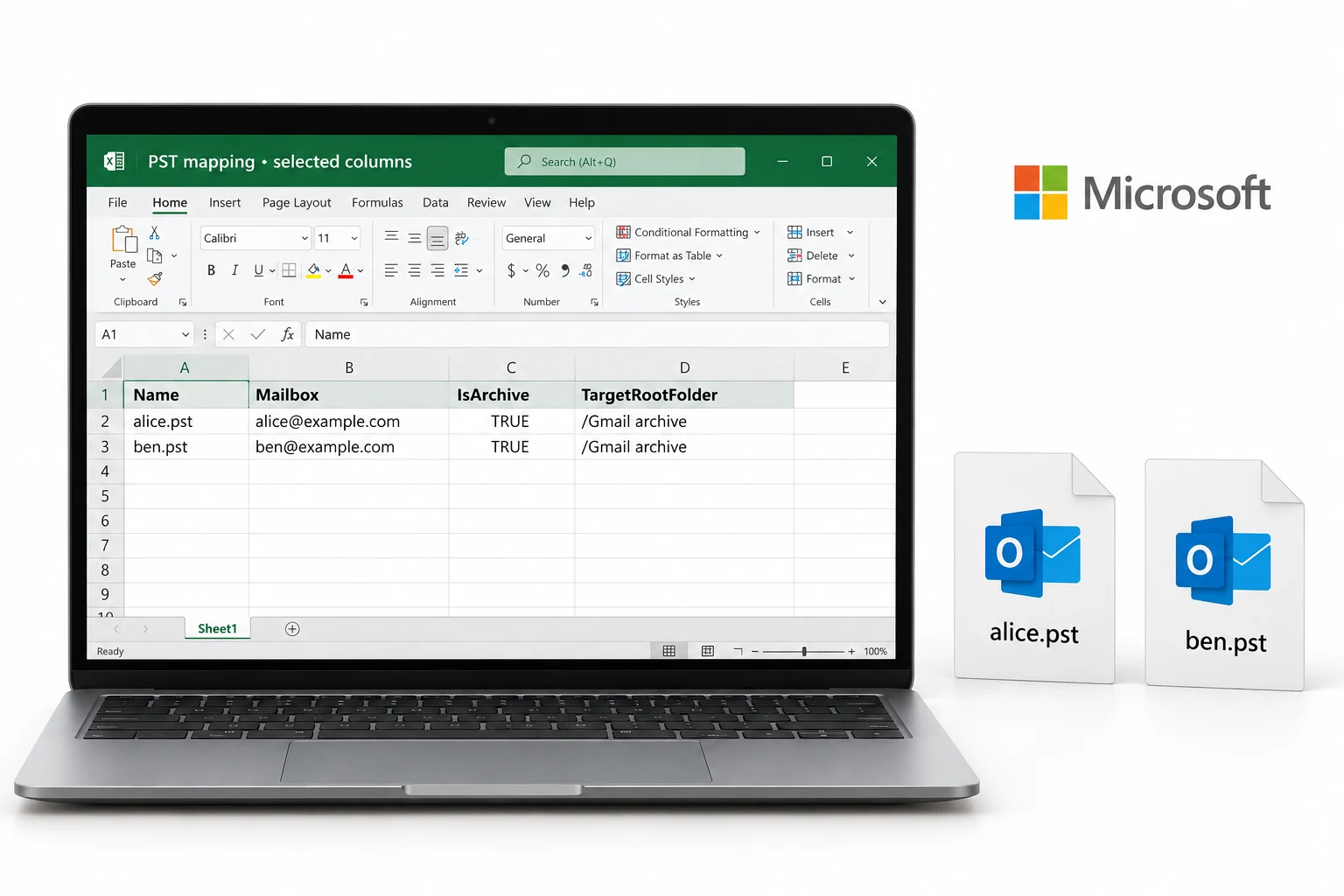
- Mailbox column. The user's Microsoft 365 address, which after a domain move is often the same as the Gmail address. For people who left Workspace long ago, create an inactive mailbox or a shared mailbox to hold their data first.
- IsArchive TRUE for retained Vault data, so it lands in the archive mailbox next to the live mail the Google Workspace migration batch brought across.
- TargetRootFolder. Set it to something like Gmail archive so the rebuilt label folders sit under one root and do not merge with the Exchange folders.
- Under 20 GB per PST and at most 100 GB per archive mailbox per import job. A user with 150 GB in Vault needs auto-expanding archiving or two jobs.
- Retention hold. The Import service switches it on for each mailbox it writes to. That is what you want for Vault data, but note it for the compliance team.
Run the import while the Workspace licences are still active. Only when the Office 365 side has been verified should Vault holds be released and accounts deleted, because that deletion is what purges the Google copy.
Google Vault Export vs the Other Two Routes to Microsoft 365
| Route | What it moves | Deleted but retained mail | Folders | Effort | Use it for |
|---|---|---|---|---|---|
| Microsoft Google Workspace migration batch (Exchange admin center) | Mail, calendar, contacts in the live mailbox | No | Labels become folders | Low | Every active user's current mailbox |
| Google Vault export + converter + Import service | Everything Vault retains for the accounts you choose | Yes | Rebuilt from XML | Medium | Retention data, leavers, legal holds |
| Workspace Data Export tool (Admin console) | Whole organisation to a Cloud Storage bucket, once per 30 days | Vault data included, flat | Depends on format | High | A full-tenant copy for the record, not a per-user migration |
Most Google Vault to Office 365 projects use the first two together. The migration batch moves the live mailboxes into Office 365 on the cutover weekend. The Vault export moves the retained history into archive mailboxes in the weeks around it.
After the Google Vault to Office 365 Migration
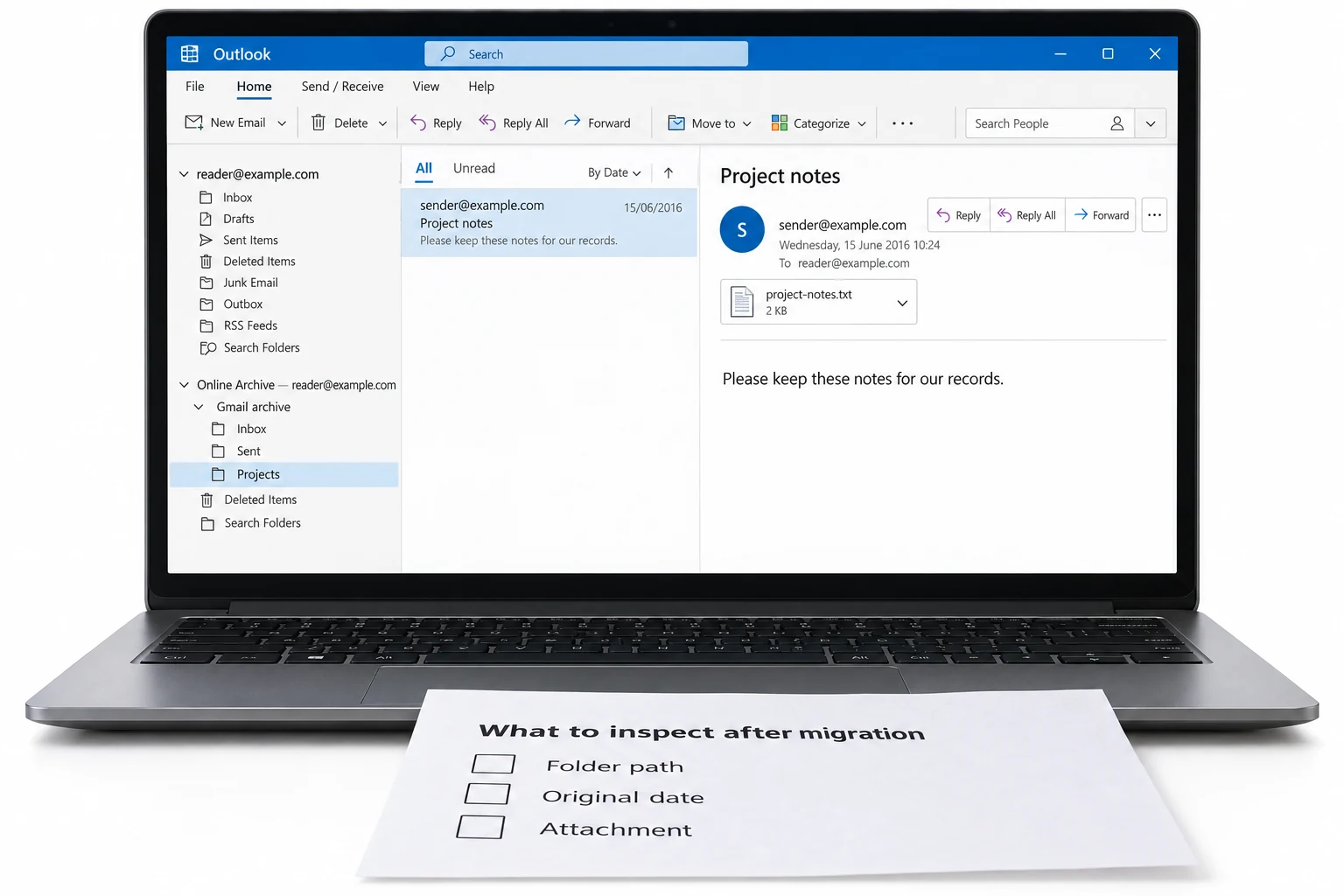
- The result counts CSV totals match the converted PST counts, and the import jobs for every account show Completed in Purview
- A user opens their Microsoft 365 archive mailbox and finds Gmail labels as folders under the root you set, with a 2016 message and its attachment intact
- Legal has the metadata XML, the errors XML and the conversion reports filed with the PST copies. Legal has also agreed which Vault holds can be released
Only then release the holds in Vault, let retention rules expire the data or delete the accounts. Keep the downloaded Vault ZIP files on backed-up storage for as long as your policy requires, because they cannot be re-downloaded and re-exporting needs a live Workspace subscription. The email archive migration guide covers the same journey for archives that are not Google, and how to split a large PST file helps when a single account comes out over 20 GB.
Fix Common Google Vault Migration Problems
Vault migrations trip on three things. Each red You see box is paired with its green Do this repair.
Do this: Vault stopped after 24 hours. Continue the export for another 24, then re-run the search split by year or by smaller organisational unit. MBOX exports process faster than PST if the window is still too tight.
Do this: That is normal for a Vault export; labels are only in the metadata XML. Convert the export with the XML alongside so labels become folders, then import the converted PST, not the Vault one.
Do this: The Gmail address has no matching Microsoft 365 mailbox, usually a leaver. Create an inactive or shared mailbox for them, or map their Vault data to a manager's archive under a named TargetRootFolder, and retry those rows.
Have a Vault export downloading and a Workspace end date in view? Tell our support team the account count and the total size. We will confirm the conversion plan and the PST sizes before the clock runs out.
Google Vault migration questions
 About This Guide
Written and maintained by Leena Taylor Paul and the Univik team, developers of Windows data conversion and recovery software since 2013. The Vault export behaviour, file splits, 15 day expiry and licensing in this guide were checked against Google Workspace Admin Help, and the Microsoft 365 Import limits against Microsoft Learn. Last verified September 7, 2026. Need a hand? Contact our support team.
Sources checked: Google Vault Help, Export data from Vault · Google Vault Help, Contents of a Vault export · Google Vault Help, Review messages exported with Vault · Google Vault Help, Supported editions and services · Microsoft Learn, Perform a Google Workspace migration · Microsoft Learn, Overview of importing PST files to Microsoft 365