 Google Vault Guide
 By
By Outlook cannot open a Google Vault MBOX file, because Outlook reads only PST and OST. Convert the Vault MBOX to PST and import it through File, Open and Export, Import and Export. One catch decides the result: a Vault export puts every Gmail label into a single folder, so convert with a tool that rebuilds the labels as folders from the metadata XML.
People reach this page for one of two reasons. Either they exported Gmail from Google Vault as MBOX and found Outlook will not touch it, or they exported as PST and imported it to find thousands of messages in a single folder. Both come from the same two facts about Vault exports, and both have the same clean fix.
The first fact is that Outlook has never supported MBOX. The second is that Google Vault does not convert Gmail labels into folders. Sort those two out and the archive lands in Outlook the way a case or a migration needs it.
Why Will Outlook Not Open a Vault MBOX?
Outlook stores mail in PST and OST files and reads nothing else. MBOX is the plain text mailbox format that Gmail, Thunderbird and most Unix mail systems use. Google Vault hands Gmail exports out as MBOX or, if you pick it at export time, as PST. There is no menu in Outlook that opens an MBOX and no add-on from Microsoft. Renaming the file does not help either. The message has to be rewritten into a PST that Outlook understands.
Vault also puts a metadata XML file next to the MBOX. That file holds the labels, the custodian account and the Rfc822MessageId and GmailMessageId for every message. A plain MBOX-to-PST converter ignores it. Univik Google Vault Converter reads it, which is what lets it rebuild the folders and keep the custodian trail that a legal export needs.
How Do I Get a Google Vault MBOX into Outlook?
Five steps, about fifteen minutes plus the download. No Outlook or Google account is needed on the PC that runs the conversion.
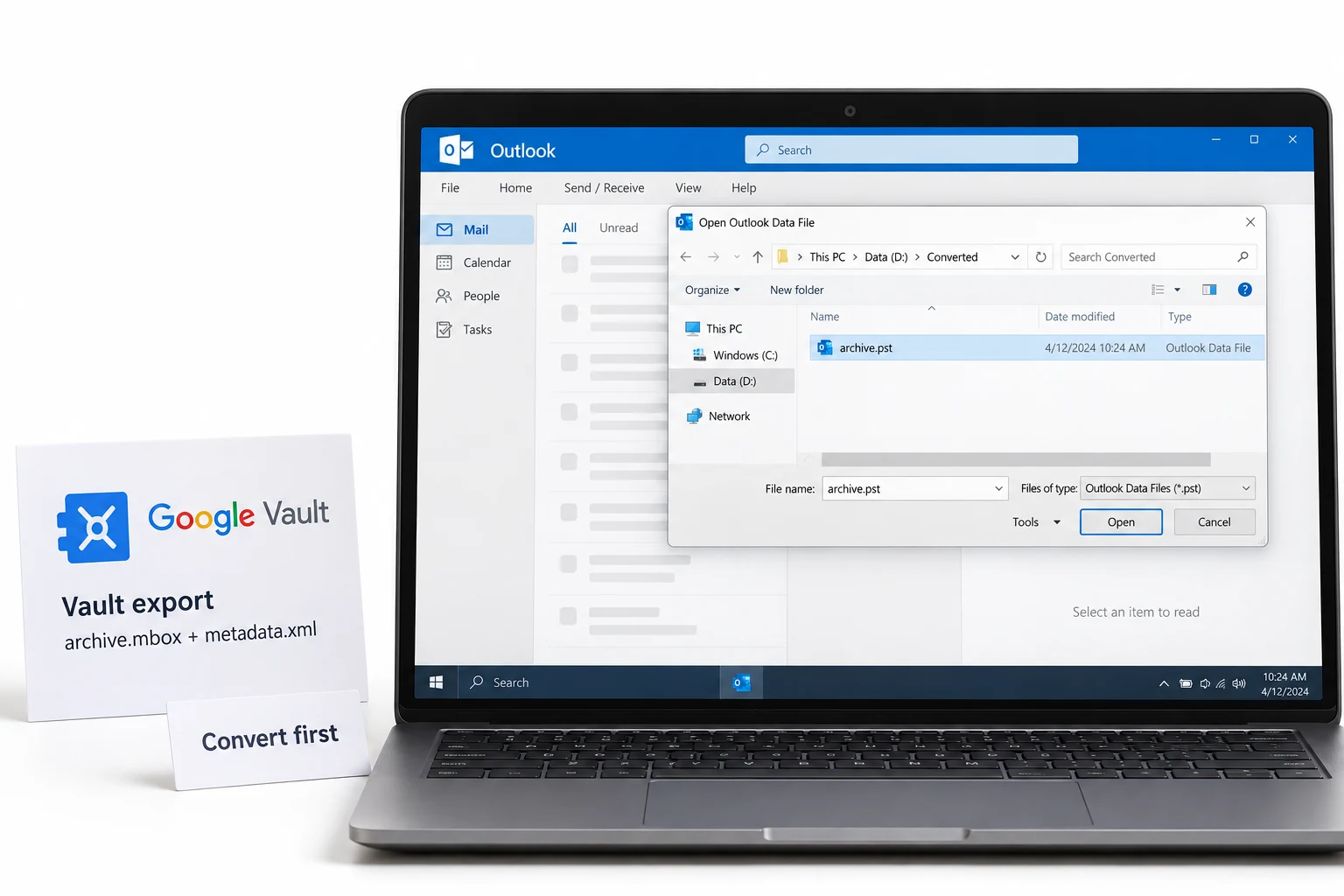
Download the Vault export ZIP within 15 days
Open Google Vault, go to the matter and the Exports tab and click Download next to your export. Google keeps a finished export for 15 days, then removes it, so pull it down early. Unzip it. Inside you get the MBOX file or files, a metadata XML file and a CSV that lists how many messages came from each account.
Check whether you have MBOX or PST
Look at the file extension. A .mbox file will not open in Outlook at all. A .pst file will import, but every Gmail label collapses into one folder because Vault does not turn labels into folders. Either way the plan below gives you a clean PST with the folders rebuilt, so you do not lose the label structure a review or a case needs.
Load the export into Univik Google Vault Converter
Install and open Univik Google Vault Converter, click Add ZIP or Add Folder and point it at the unzipped export. The tool reads the MBOX content and the metadata XML as one job, linking each message to its custodian record. No Outlook and no Google account are needed on the PC that runs it.
Choose PST and turn label folders on
Pick PST as the output. Switch on the option to rebuild Gmail labels as folders, so the converter reads the label names from the metadata XML and recreates Inbox, Sent, Drafts and custom labels instead of one flat folder. Choose one PST per custodian, or a single merged PST, to match how you will import.
Import the PST into Outlook
In Outlook open File > Open & Export > Import/Export, choose Import from another program or file, then Outlook Data File (.pst), and select the PST the converter made. The Gmail archive appears in the folder pane with its folders, dates and attachments intact. For a shared machine you can also open the PST read-only with Open & Export > Open Outlook Data File.
Why Is Every Vault Email in One Folder?
This is the surprise that catches most people, and it is by design at Google's end. Gmail uses labels rather than folders, and a single message can carry several of them. When Vault exports the mailbox it keeps the label names in the metadata XML but writes the messages into a single flat container. Google says as much in its own Vault Help: labels are not converted into mailbox folders, so all messages appear in one folder when the file opens in a client.
Import a Vault PST straight into Outlook and you see the result at once, one folder with the whole archive in it. For a personal copy that may be fine. For a review, a production or a migration it is not, because Inbox, Sent and the case-specific labels have merged. Univik Google Vault Converter reads the label values from the XML and recreates each one as a folder in the PST, so the structure a reviewer expects is back before the mail reaches Outlook.
The MBOX not opening is the problem people notice. The labels collapsing into one folder is the problem that actually costs them time, and it hits the PST route too. We read the XML so the folders come back on their own.
Can I Read the MBOX Without Converting?
If you only need to look at what is in the export, yes. Mozilla Thunderbird opens a Vault MBOX once you import it, and the free Univik Online MBOX Viewer opens one in a browser with nothing to install. Both are quick ways to confirm the export holds what you expected before you commit to a full conversion.
Neither route puts the mail into Outlook and neither rebuilds the label folders. Thunderbird shows the same single folder, because it reads the MBOX as Vault wrote it. So a viewer answers what is in here, and the PST conversion answers get it into Outlook the right way.
Which Vault MBOX Route Should You Take?
Three ways end up in front of a Vault export. Only one gets the archive into Outlook with the folders and the custodian trail kept.
| What you need | Read the MBOX | Vault PST straight in | Convert to PST, folders on |
|---|---|---|---|
| Opens in Outlook | No, MBOX unsupported | Yes, imports as PST | Yes, imports as PST |
| Keeps Gmail labels as folders | Not applicable | No, one flat folder | Yes, rebuilt from XML |
| Reads the metadata XML | No | No | Yes, custodian kept |
| One file per custodian | No | No | Yes, or merged |
| Needs Outlook to convert | No | No | No |
| Good for | A quick read only | A rough dump into Outlook | Review, case or clean archive |
Univik Google Vault Converter reads the export ZIP, the MBOX and the metadata XML together, rebuilds Gmail labels as folders and writes a PST you import into Outlook. It also saves PDF, MSG, EML and MBOX. It can write one file per custodian.
Windows 7 to 11 · no Outlook needed · the trial converts 25 emails per export
The short version
- Outlook cannot open MBOX in any version, so a Vault MBOX has to become a PST first.
- A Vault export flattens Gmail labels into one folder, and the PST export does it too.
- Convert with Univik Google Vault Converter, label folders on, then import the PST in Outlook.
- Import path: File, Open and Export, Import/Export, Outlook Data File.
- To only read the export, use Thunderbird or the free online MBOX viewer.
Convert a Google Vault MBOX to PST, free trial
Google Vault Questions
 About This Guide
Leena Taylor Paul prepared this guide for Univik, which has built Windows email tools since 2013. The Outlook import path, the Vault export contents and Google's note that labels are not converted into folders were checked against Google Vault Help in September 2026. 23 September 2026. Stuck on an import error? Support is a click away below.
Sources: Google Vault Help: review exported messages · Google Vault Help: export data from Vault · Univik Google Vault Converter