 Email Conversion Guide
 By
By To save a Gmail email as PDF for free, open the message, click the printer icon at the top right of the email, set the output to Save as PDF and click Save. It works the same in the Gmail app through the Print option on Android and iPhone. That handles one message at a time. To save a whole label or account, export it with Google Takeout and convert the MBOX file it gives you. You can also connect a converter to Gmail over IMAP, which writes one PDF per message with the attachments kept.
Saving a Gmail message as a PDF gives you a copy that opens anywhere, prints cleanly and files next to your other records. Gmail can do it for free, one email at a time, on the web and in the phone app. When you want a label, a year of mail or the whole account, the free route gets slow and drops the attachments, so this guide covers both: the free Save as PDF on every device, and the faster way to save many Gmail emails at once.
- Save a Gmail email as PDF on the web
- Save a Gmail email as PDF on Android
- Save a Gmail email as PDF on iPhone
- What Gmail's Save as PDF leaves out
- Save many Gmail emails as PDF
- Export a whole Gmail account with Google Takeout
- Keep Gmail attachments in the PDF
- Which way to save Gmail as PDF?
- Turn an exported Gmail file into PDF
- Gmail to PDF FAQ
Save a Gmail email as PDF on the web
On a computer, Gmail can make the PDF from its own print window, so one message needs no extra software.
- Open the message in Gmail.
- Click the printer icon at the top right of the open email, above the message, not the browser menu.
- In the window that opens, set the output to Save as PDF.
- Click Save and choose where the file lands.
The printer icon inside the message opens a clean print view, without the browser's toolbars around it. Two things help on a long conversation. The icon prints the whole thread, so to save one reply on its own, open that message's three-dot menu and use its Print instead. Gmail also hides older replies behind an Expand all control. Open them first, or a collapsed reply can be missing from the PDF.
In Chrome, Edge and Firefox the print dialog calls it Save as PDF; Safari calls it Export as PDF. Either way the steps are the same.
Open the message, click the print icon inside the email, then pick Save as PDF under Destination and Save.
Save a Gmail email as PDF on Android
The Gmail app on a phone or tablet makes the PDF the same way, through Print.
- Open the message in the Gmail app.
- Tap the three-dot menu at the top of the email, then tap Print.
- At the top of the preview, choose Save as PDF as the destination.
- Tap the download button and the file lands in your Downloads or a folder you pick.
In the Gmail app, open the email, tap the three-dot menu then Print. Choose Save as PDF as the destination and tap the download button.
Save a Gmail email as PDF on iPhone
On an iPhone or iPad the Gmail app makes the PDF through AirPrint and the share sheet.
- Open the message in the Gmail app.
- Tap the three-dot menu, then tap Print.
- Pinch outward on the preview to make it full screen.
- Tap the share button and pick Save to Files. The message is saved as a PDF.
In the Gmail app, open the email, tap the three-dot menu then Print. Make the preview full screen, use the share button and pick Save to Files.
What Gmail's Save as PDF leaves out
The built-in option is ideal for one or two messages. A few gaps show up once you have more than a handful.
- It saves one message at a time, so a full label means clicking through each one.
- The files on the email are not written into the PDF, only the words.
- A collapsed reply in a long thread can drop out unless you open it first.
- Labels and dates are not held together as one tidy set of files.
On a work or school Google Workspace account, an administrator can switch off printing and downloading. If Save as PDF is greyed out or missing, that setting is the reason. Only the account owner can change it.
For a handful of emails the steps above are plenty. For a label, a client's history or a legal request, the ways below finish the job faster and keep the attachments.
Save many Gmail emails as PDF
Gmail has no button that turns a group of selected emails into PDFs, so there are three practical ways to handle a lot at once.
A browser add-on. Extensions such as Save Emails as PDF sit inside Gmail and export the messages you tick. They are quick for a small run, but most free versions cap how many you can convert and only work in the browser they are installed in.
Google Takeout, then convert. Takeout gives you the whole account as one MBOX file, which a converter turns into PDFs. This is the free path for a full backup and is shown below.
A desktop converter over IMAP. Sign the tool in to Gmail and it reads every label live, then writes one PDF per message with the attachments kept, no export step first. The complete steps for many mailboxes at once are in the batch guide: how to convert multiple emails to PDF →
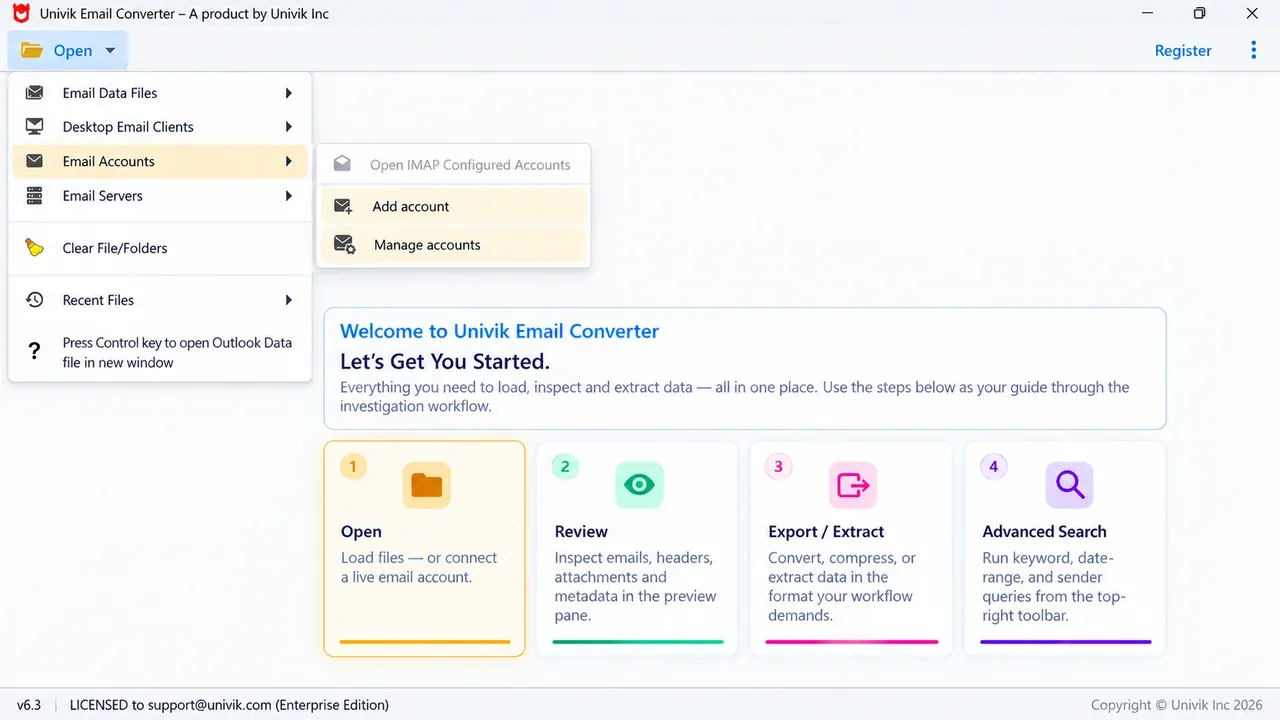
Sign in to Gmail over IMAP and every label loads, ready to turn into PDFs with nothing exported first.
Export a whole Gmail account with Google Takeout
Google Takeout is Google's own export service, and it is the free way to export an entire Gmail account in one download.
- Go to Google Takeout and deselect everything, then choose Mail on its own.
- Pick all mail or specific labels, then start the export.
- Google emails a link when the archive is ready. Download it and unzip it to find an MBOX file.
- Open that MBOX in a converter and export it to PDF, one file per message.
Takeout itself does not make PDFs, so the MBOX to PDF step is where the download becomes readable records. The converter link for that file sits at the end of this guide.
Keep Gmail attachments in the PDF
Losing the attachments is the part people notice later, because Gmail's own Save as PDF keeps only the message body. A converter closes that gap in two ways.
It can put each message's files into a folder kept right beside its PDF, so the invoice or photo stays with the email it came on. It can also add the header details, the sender, date and subject, onto the page, which the quick print route often trims off. The result is a complete record rather than the text alone.
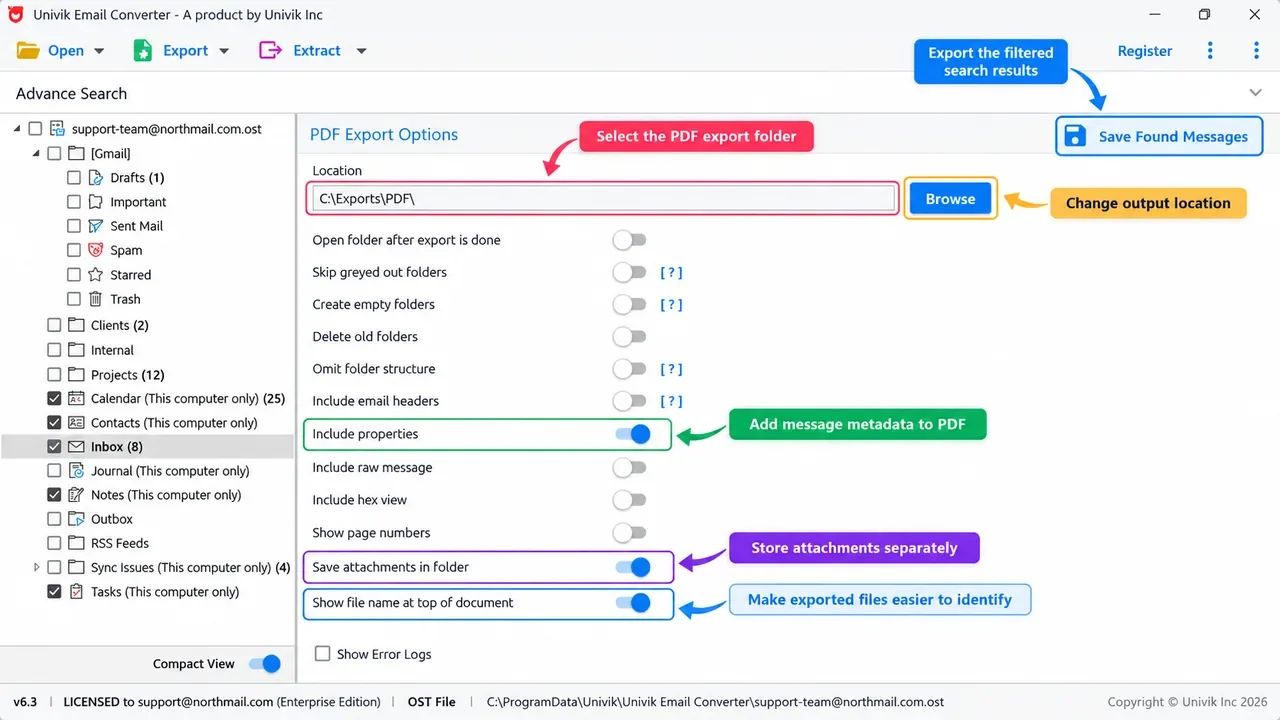
Switch on include properties and save attachments so each Gmail message keeps its files and header details.
Univik Email Converter connects to Gmail over IMAP and turns every label into its own PDF files, with the attachments kept and nothing exported first. Try it free on your own inbox.
Free trial converts the first 10 emails per folder. Runs on Windows 11, 10, 8 and 7.
The one thing people miss with Gmail is the thread. Open Expand all before you print, or the older replies will not be in the PDF at all.
Which way to save Gmail as PDF?
Pick by how much Gmail you need to save.
| Method | Best for | Attachments | How many |
|---|---|---|---|
| Gmail print, Save as PDF (free) | One message | Left out | Single message |
| A browser add-on | A few tagged emails | Sometimes | A small set, often capped |
| Google Takeout, then convert | A free full backup | Kept after converting | Whole account |
| Univik Email Converter over IMAP | A label or account with attachments | Kept in a folder | Every message in one run |
Turn an exported Gmail file into PDF
Once Gmail mail lands on your disk as a file, the converter made for that format is the fastest way to PDF:
- Takeout MBOX
- A Google Takeout download arrives as an MBOX file. Feed it to the MBOX to PDF converter.
- Saved EML messages
- Single messages you dragged out of Gmail. See the EML converter.
- Outlook PST or OST
- If Gmail already syncs into Outlook. Try the PST converter or the OST tool.
- Any mailbox at once
- Files and live accounts together. See the Univik Email Converter.
The short version
- For one email, click Gmail's printer icon then Save as PDF, on the web or in the app.
- Open Expand all first so a long thread saves in full.
- Gmail's Save as PDF leaves the attachments behind.
- For a label or the whole account, use Google Takeout or a converter over IMAP, which keeps the attachments.
Gmail to PDF FAQ
How do I save a Gmail email as PDF for free?
Open the message in Gmail and click the printer icon at the top right of the email, then choose Save as PDF in the window that opens and click Save. It is built into Gmail, so nothing extra is needed for a single message. For a whole label or account, a converter over IMAP or a Google Takeout export handles the volume.
How do I save a Gmail email as PDF on my phone?
In the Gmail app, open the message, tap the three-dot menu and tap Print. On Android, choose Save as PDF as the destination and tap download. On an iPhone, pinch outward on the preview to open it full screen, then tap share and choose Save to Files. Either way the message is saved as a PDF.
How do I save multiple Gmail emails as PDF at once?
Gmail cannot batch selected emails on its own. A browser add-on can export a small set, but most free ones cap the count. For a label or the whole account, export it with Google Takeout and convert the MBOX file it gives you. A converter signed in to Gmail over IMAP can also write one PDF per message in a single run.
Does saving a Gmail email as PDF include the attachments?
No. Gmail's Save as PDF keeps only the message body, so the attached files are left in the email. A converter can keep each message's files in a folder alongside its PDF, or you can download them from the email by hand. Switch on the save attachments choice before converting to hold the whole record together.
How do I save my entire Gmail account as PDF?
Two ways. Google Takeout exports the account as an MBOX file that a converter turns into PDFs, which is free. Or connect a converter to Gmail over IMAP, which reads every label live and writes the PDFs with attachments kept and no export step. Both keep the folder names, so the PDFs match how the account was arranged.
Will the PDF look the same as the Gmail email?
Yes. Fonts, colours, spacing and inline images all carry across, so the PDF matches what you saw in Gmail. A converter can also add the sender, date and subject to the page, details a quick print sometimes trims from a long thread.
Why is my Gmail PDF missing some messages from the thread?
Gmail collapses older replies in a long conversation, and a collapsed message can be left out when you print. Open the thread's Expand all control, or open each reply, before you save as PDF. That puts the whole conversation in the file.
Why is Save as PDF greyed out in my Gmail?
On a Google Workspace account for work or school, the administrator can turn off printing and downloading with a rights or data-loss rule. When that is on, the print and Save as PDF options are blocked. Only the account owner can change the setting.
 About This Guide
Written and maintained by Leena Taylor Paul and the Univik team, developers of Windows data conversion and recovery software since 2013. The free Gmail steps and the IMAP export here are checked on real Gmail and Google Workspace accounts before publishing. Last verified September 12, 2026. Need a hand? Contact our support team.
Sources checked: Google: print emails in Gmail · Google: download your data with Takeout · Google: read Gmail messages over IMAP