 Email Conversion Guide
 By
By To convert multiple emails to PDF at once, load the folder, Outlook PST or live account into an email converter, select what you need and start a single run with PDF as the output. Every email comes out as its own PDF with the attachments kept, so hundreds of messages are handled together rather than one at a time.
Saving one email as a PDF is quick, but a full inbox is a different job. When you need every message from a folder, an entire mailbox or a full account as PDF, the built-in print menu is far too slow and it drops the attachments. This guide shows how to convert emails to PDF in bulk, from files and from live accounts, with the attachments kept.
- Why saving them one by one does not work
- Convert a folder of emails to PDF
- Batch convert Outlook emails to PDF
- Batch convert Gmail and webmail to PDF
- Keep attachments and folder names in bulk
- Keep each email separate, or combine into one
- Files and accounts you can batch
- Which batch method fits?
- Batching one file type?
- Bulk email to PDF FAQ
Why saving them one by one does not work
The Save as PDF built into Outlook, Gmail and other apps handles a single message at a time. That is fine for one or two, but a mailbox with hundreds or thousands of emails would take days by hand, and the attachments are left out of every file. When you need to save all emails as PDF, a batch converter is the right way.
It reads your emails in one go and writes a separate PDF for each one, keeps the attachments and holds the folder names together, so the result is a clean set you can share or store. Every email stays its own file, so you are not left with one giant merged PDF.
Convert a folder of emails to PDF
These steps use Univik Email Converter to export emails to PDF in bulk. Load your mail, mark what you need, set the output to PDF and let one run finish the lot.
Add your emails
Start the tool and click Open. Add a saved file such as a PST or MBOX, an app installed on the PC or a live account you sign in to. Whatever you add, its folders show up in a list on the left.
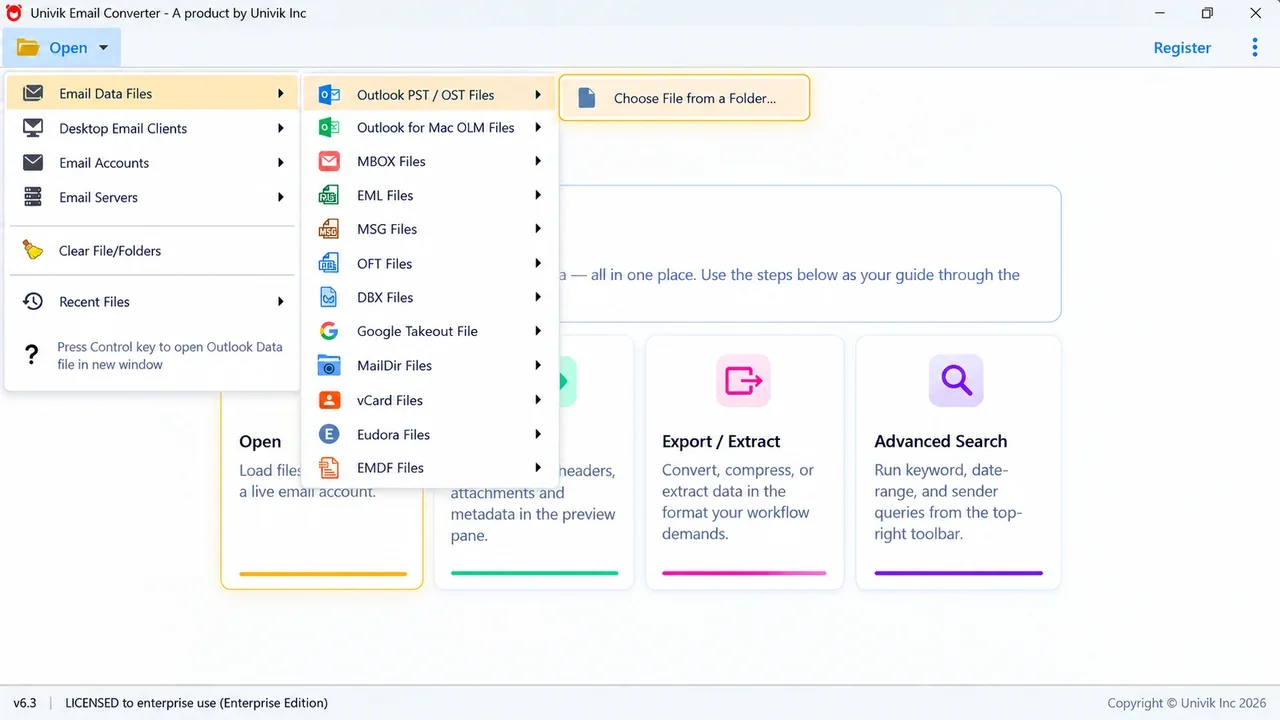
Add a saved file, an installed app or a live account. Everything inside it is ready to convert.
Tick the folders you want
Each folder carries a checkbox. Tick the whole mailbox for everything, or pick only the folders that matter, such as Inbox and Sent. A date filter is there too if you only want a certain date range.
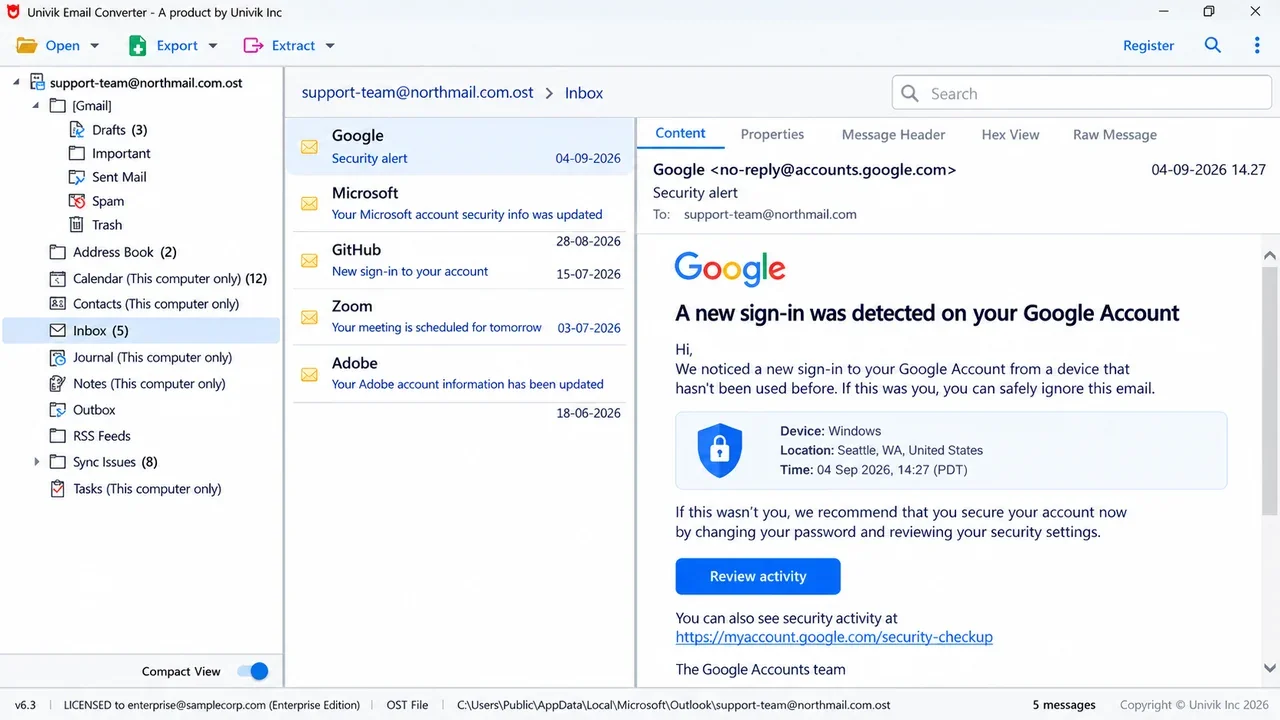
Every folder gets a checkbox. Tick the whole mailbox, or only the folders you want as PDF.
Pick PDF as the output
Open the Export menu and choose PDF. Every ticked email becomes its own PDF file.
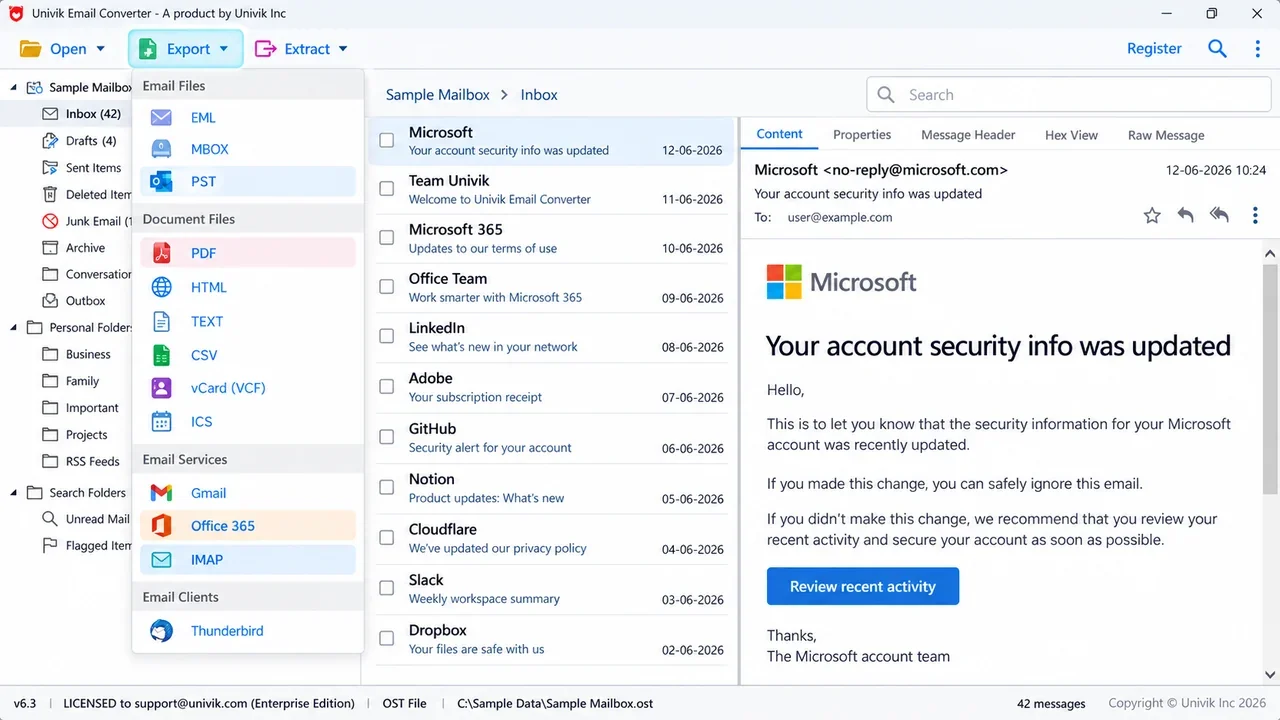
Pick PDF as the output. One PDF comes out for each email you ticked.
Set the options and run
Give the files a naming pattern so they sort well, such as date then subject. Switch on include properties and save attachments, pick a folder and start. The tool works through every message on its own.
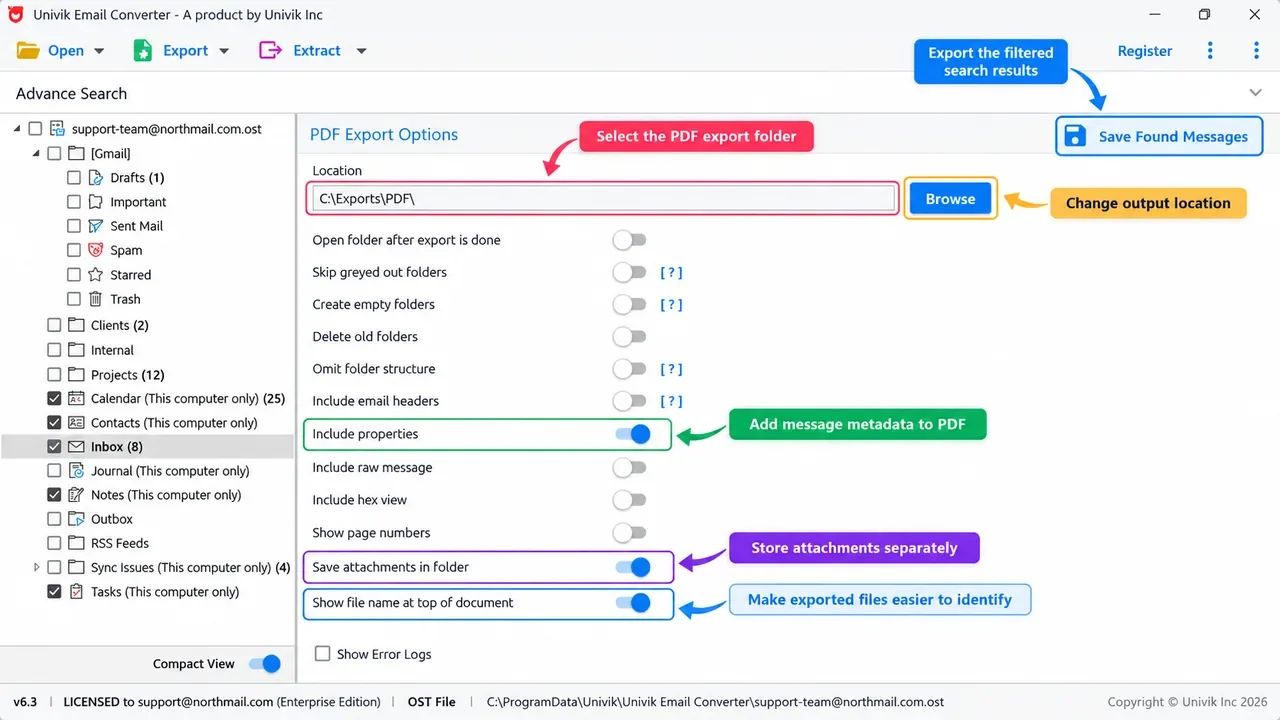
Choose a name pattern and switch on save attachments, then start the run.
- Check a few PDFs across different folders
- Confirm the attachments landed in the folder beside them
- Confirm the folder names match the original mailbox
- Keep the source until the whole set looks right
Batch convert Outlook emails to PDF
Outlook is the most common place people start. You can add a live Outlook profile or point the tool at a PST or OST archive, then tick the folders and convert to PDF in one run. No add-in and no printing dialog. For the single-email print methods and every Outlook version, see the Outlook to PDF guide.
Batch convert Gmail and other webmail to PDF
Web accounts are not saved in a file, so you connect them by IMAP instead. Switch IMAP on in the account settings, connect the converter with your sign-in, then mark the labels or folders and send them to PDF. Gmail, Yahoo, Outlook.com, iCloud, Office 365 and Microsoft 365 all work this way, so you can save a whole online mailbox as PDF without downloading it first.
Keep attachments and folder names in bulk
Two things usually get lost when people rush a big job: the files attached to each email, and the shape of the mailbox. A converter holds both.
Turn on the save attachments choice and each message's files drop into a folder that sits with its PDF. The folder names from your mailbox, such as Inbox, Sent and any custom ones, carry over as folders of PDFs, so a big export still reads the way your mailbox did.
Univik Email Converter reads files and live accounts and saves every message as a PDF, with the attachments and folders kept. Try it free on your own mail.
Free trial converts the first 10 emails per folder. Runs on Windows 11, 10, 8 and 7.
Keep each email separate, or combine them into one PDF
This trips a lot of people up. When you select several emails in Outlook and print, it often merges them into a single file with no clean way to split them back out. So decide up front which you want.
A separate PDF for each email. This is the usual choice and the default here. Every message becomes its own PDF, named for you, so each one is easy to find, search and share. The converter keeps them separate on purpose, even when you convert thousands at once.
One combined PDF. If you would rather have a single document, convert the emails to PDF first, then merge those PDFs with any PDF tool. Doing it in that order keeps the page breaks clean and holds the attachments in place, which is the tidy way to combine multiple emails into one PDF with attachments.
Files and accounts you can batch
The same run works from almost anywhere your mail lives.
Saved files: PST and OST archives from Outlook, MBOX stores from Thunderbird or Apple Mail, plus folders full of EML or MSG messages.
Live accounts: any provider that supports IMAP. Sign in and batch it straight to PDF, with nothing to export first. That covers Gmail, Yahoo, Outlook.com, iCloud, Office 365, Microsoft 365 and most others.
The trap is Outlook's own print, which merges everything into one file with no clean way to split it. A converter keeps each email as its own PDF, named for you, even across thousands.
Which batch method fits?
Pick by how many emails you are saving.
| Method | Best for | Attachments | How many |
|---|---|---|---|
| Print each email (free) | A few emails | Not included | One at a time |
| A browser add-on for webmail | A small set | Sometimes | A few, often capped |
| Univik Email Converter | A folder, PST or account | Kept in a folder | Thousands in one run |
Batching one file type?
When every message is already the same file type, a converter made for that one format is the quickest path:
- Outlook PST or OST
- A whole Outlook archive at once. See the PST converter or the OST tool.
- MBOX from Thunderbird or Apple Mail
- Batch a mail store to PDF. Use the MBOX to PDF converter.
- A pile of EML files
- Turn a folder of messages into PDFs. See the EML converter.
- MSG files from Outlook
- Several saved Outlook messages together. See the MSG converter.
The short version
- The built-in Save as PDF does one email at a time and drops the attachments.
- A converter turns a whole folder, PST or account into PDF in one run.
- You get one PDF per email by default, named for you, kept separate even across thousands.
- To combine instead, convert first then merge the PDFs, which keeps the page breaks and attachments clean.
Bulk email to PDF FAQ
How do I convert multiple emails to PDF at once?
Point an email converter at the whole folder, mailbox or account rather than opening messages one by one. Mark the folders you need, set PDF as the output and start the run once. Each message lands as its own named PDF, so nothing is saved by hand.
Can I save all emails in a folder to PDF in one go?
Yes. Point a converter at the folder, an Outlook PST or a live account, tick it and export to PDF. It works through the whole folder on its own and keeps the attachments, so nothing is dropped.
How do I batch convert Outlook emails to PDF?
Add a live Outlook profile or the PST file to a converter, tick the folders and convert to PDF in one run. You do not need an add-in, and Outlook does not have to stay open. For the single-message print steps, see the Outlook to PDF guide.
Can I batch convert emails to PDF with attachments?
Yes. The free print method leaves attachments out, but a converter can drop the attached files into a folder beside each PDF. Switch on the save attachments choice before the run so the whole record is kept.
How do I convert a whole Gmail account to PDF?
Turn on IMAP in Gmail, sign in to the converter, tick the labels you want and export to PDF. Every message comes out as a PDF. Any webmail that supports IMAP, such as Yahoo, Outlook.com or iCloud, works the same way.
How do I convert multiple emails to PDF and keep them separate?
Use a converter set to one PDF per email, which is the default. Each message becomes its own file, named for you, so they stay separate even across thousands. The Outlook print menu does the opposite and merges selected emails into one file, which is why people search for this.
How do I combine multiple emails into one PDF with attachments?
Convert the emails to PDF first, then merge those PDF files with any PDF tool. Doing it in that order keeps the page breaks clean and the attachments in place. Going straight to one file from the print menu often drops the attachments.
 About This Guide
Written and maintained by Leena Taylor Paul and the Univik team, developers of Windows data conversion and recovery software since 2013. Univik Email Converter is ours, and we run the batch export in this guide across real Outlook, Gmail and MBOX mailboxes holding tens of thousands of messages before it is published. Last verified September 12, 2026. Need a hand? Contact our support team.
Sources checked: Microsoft: save all emails in a folder (Outlook) · Google: turn on IMAP in Gmail · Microsoft: Outlook data files (.pst and .ost)