 Email Conversion Guide
 By
By The fastest free way to convert an email to PDF is the Save as PDF option in your email app. In Outlook, Gmail, Apple Mail or on your phone, open the email, choose Print, then pick Save as PDF instead of a printer. That saves one email at a time. To turn a whole mailbox into PDFs, or to keep the attachments inside each file, use an email converter that does the batch in one run.
A PDF is the easy way to keep an email, print it, file it or send it on. Every email app can make one for free, one message at a time. When you have a folder full of mail, or you need the attachments saved too, a converter does the whole lot in one run. This guide shows how to convert email to PDF both ways.
- Convert an Outlook email to PDF (free)
- Convert a Gmail email to PDF (free)
- Apple Mail, Yahoo and other apps
- Save an email as PDF on your phone
- What the free way leaves out
- Convert many emails to PDF at once
- Keep the attachments inside the PDF
- Make PDFs from any file or account
- Which way should you use?
- Convert a specific file type to PDF
- Email to PDF FAQ
Convert Outlook email to PDF (free)
In classic Outlook the free route is File, then Print, with the printer set to Microsoft Print to PDF. The web app and new Outlook use Print then Save as PDF. Either way you get the message as a PDF.
This route skips the attachments. For every Outlook version, several messages together and a whole PST with the attachments, see the Outlook to PDF guide.
Convert a Gmail email to PDF (free)
Gmail has Save as PDF built into its own print window, so a single message needs no extra tool: open the email, click the printer icon on the message, then pick Save as PDF as the output.
Gmail behaves a little differently on each device, and it leaves attachments out of the file. For the web, Android and iPhone steps, plus a whole account and the attachments, see the dedicated guide: how to convert Gmail emails to PDF →
Save an email as PDF in Apple Mail, Yahoo and other apps
The idea is the same everywhere: open the message and use the app's own Save as PDF.
- Apple Mail: on a Mac, use File then Export as PDF; on an iPhone, Print the message and save it to Files. The full Mac and iPhone steps, a whole mailbox and the attachments are in the Apple Mail to PDF guide.
- Yahoo Mail: open the email, click the print icon, then set the destination to Save as PDF.
- Windows Mail or any webmail: open the message, press Ctrl and P together, then choose Save as PDF as the printer.
Convert an email to PDF on iPhone or Android
- iPhone: in Mail, open the message, use Print, then pick Save to Files from the share sheet. The device-by-device steps for Gmail and Apple Mail are in their own guides above.
- Android: open the email in Gmail, tap the three dots, tap Print, then choose Save as PDF as the destination.
On an iPhone, open the print preview, spread two fingers to make it full screen, then Share and Save to Files.
What the free way leaves out
Save as PDF is perfect for one email. It runs into limits the moment you have more than a few.
- It does one email at a time, so a full inbox takes hours.
- Attachments are left out of the PDF.
- Folder names and dates are not kept as a set.
- Long emails can split across pages in odd spots.
For one or two files, the steps above are all you need. For a mailbox, a year of records or a legal export, the batch way below is faster and keeps the attachments.
Convert many emails to PDF at once
The free methods above handle one email at a time. When you have a folder, a mailbox or a whole account to save, an email converter turns every message into its own PDF in one run and keeps the attachments. You add your mail, tick the folders you want, pick PDF and let it work.
The full batch steps, with Outlook, Gmail and MBOX examples, are in the dedicated guide: how to convert multiple emails to PDF →
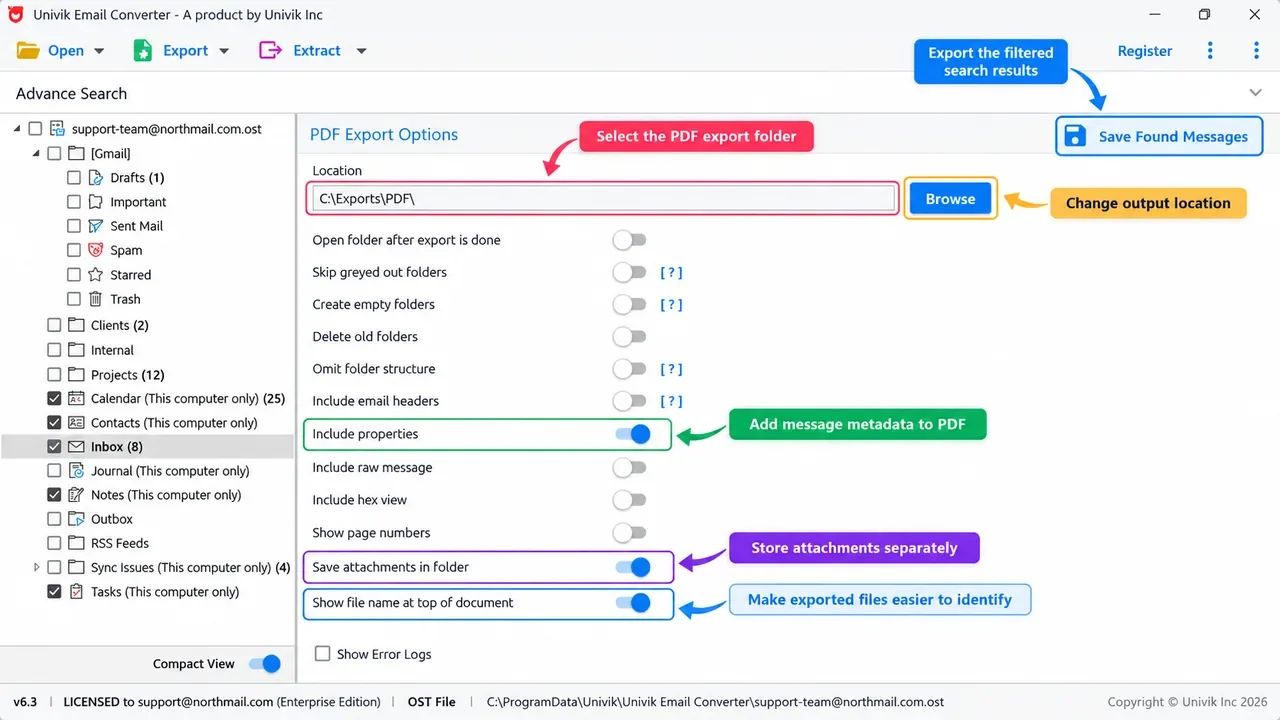
Turn on include properties and save attachments in a folder, so nothing from the email is lost.
Keep the attachments inside the PDF
The built-in Save as PDF drops attachments, which is the part people miss. To convert emails to PDF with attachments, a converter gives you two ways to keep them.
You can save each email's attachments in a folder right next to its PDF, so they stay together. You can also stamp the message details, such as the sender, date and subject, onto the PDF page itself. Either way the record is complete, not only the words on screen.
Make PDFs from any file or account
You are not limited to one app. A converter reads saved files and live accounts, so you can make PDFs from almost anywhere.
From files: Outlook PST and OST, Thunderbird or Apple Mail MBOX and single EML or MSG files.
From live accounts: sign in to a webmail box by IMAP and save it to PDF right away. Gmail, Yahoo, Outlook.com, iCloud and Microsoft 365 all work this way, along with most other providers.
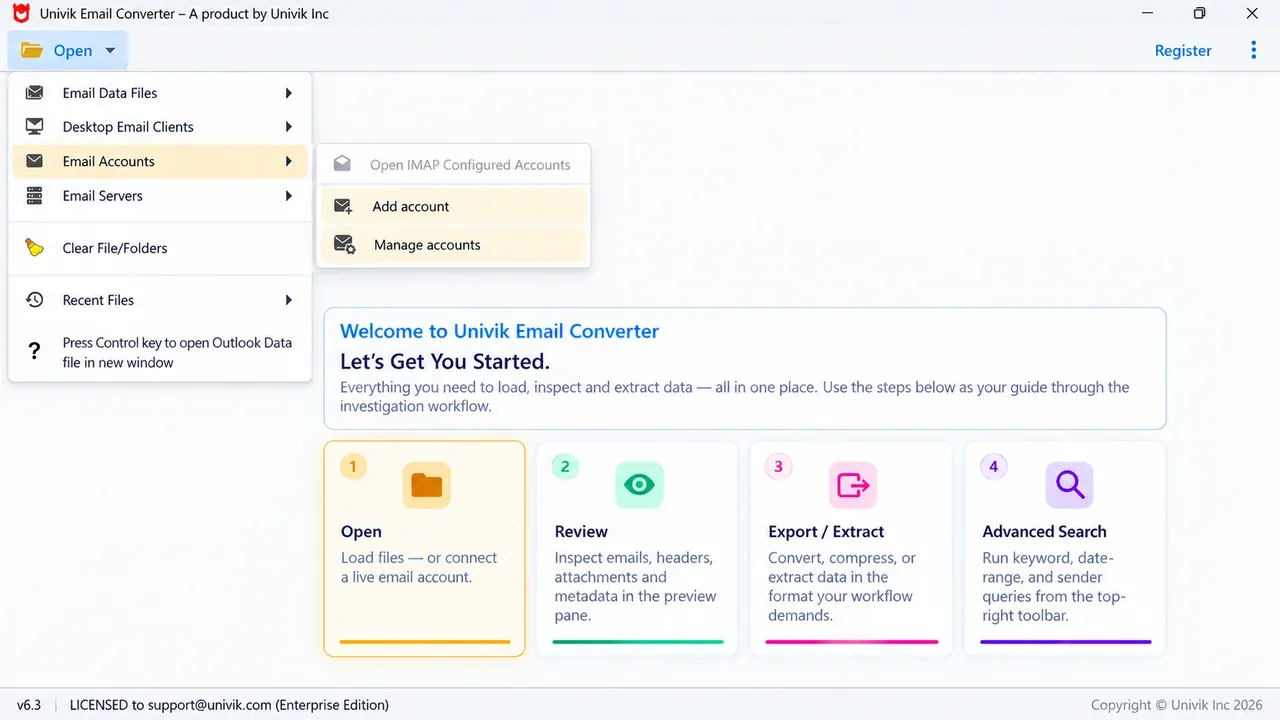
Connect a live Gmail, Yahoo, Office 365 or iCloud mailbox by IMAP and turn it into PDFs, with no file to export first.
Univik Email Converter turns every message into a PDF and keeps the attachments, from files or a live account. Try it free on your own mail.
Free trial converts the first 10 emails per folder. Runs on Windows 11, 10, 8 and 7.
The free Save as PDF in each app is perfect for one message. The moment you need a folder saved with its attachments, that is where a converter earns its place.
Which way should you use?
Match the method to the job.
| Method | Best for | Attachments | How many at once |
|---|---|---|---|
| The app's Save as PDF (free) | One or two emails | Not included | Single email |
| A browser add-on | A small set in webmail | Sometimes | A few, often capped |
| Univik Email Converter | A folder, mailbox or account | Kept in a folder | A whole mailbox at once |
Convert a specific file type to PDF
If your email is already in one file type, the tool built for it takes you straight there:
- Outlook PST or OST
- Turn a whole Outlook mailbox into PDFs. Try the PST converter or the OST tool.
- MBOX files
- Mail from Thunderbird or Apple Mail. Use the dedicated MBOX to PDF converter.
- EML files
- Single saved messages to PDF. See the EML converter.
- MSG files
- Single Outlook emails to PDF. See the MSG converter.
- Any source
- Files, apps and live accounts in one place. See the Univik Email Converter.
The short version
- For one or two emails, use the app's own Save as PDF (Outlook, Gmail, Apple Mail or your phone).
- The free way saves the message but not the attachments, and it works one email at a time.
- For a folder, mailbox or whole account, an email converter makes one PDF per message and keeps the attachments.
- Already have PST, OST, MBOX, EML or MSG files? Use the converter built for that format.
Email to PDF FAQ
How do I convert an email to PDF without printing?
Saving as PDF does not use a printer or paper. The print menu is only a shortcut to make the file. Open the email, choose Print, then set the destination or printer to Save as PDF instead of a real printer. If you would rather skip the print menu, an email converter makes the PDF straight from the Export menu, and it can do a whole folder at once.
Can I save an Outlook email as PDF for free?
Yes. In classic Outlook it is File, Print, then the Microsoft Print to PDF printer; the web and new Outlook save to PDF from their own Print screen. The Outlook to PDF guide covers every version, several at once and a whole PST.
Can I save a Gmail email as PDF without an extension?
Yes. Gmail has Save as PDF built in, so no add-on is needed for one message: open the email, click the printer icon on the message, then pick Save as PDF and save. The device steps, a whole account and the attachments are covered in the Gmail to PDF guide.
How do I convert an email to PDF on my iPhone?
In Mail, open the email and use the Print option, then choose Save to Files from the share sheet to store it as a PDF. The step-by-step for Gmail and Apple Mail on a phone is in their own guides.
Can I convert emails to PDF with the attachments?
The built-in Save as PDF saves the words, not the files, so anything attached is left in the email. A converter can write each email's attachments into a matching folder alongside its PDF, keeping the record whole. Switch that option on before the run.
How do I convert many emails or a whole mailbox to PDF at once?
For a whole folder, an archived PST or a signed-in account, an email converter makes a separate PDF for every message and keeps the attachments. It names each file for you, so a big mailbox is done in one run. The convert multiple emails to PDF guide walks through it.
Does saving an email as PDF keep the formatting?
Yes. The PDF keeps the layout, fonts, colours and inline images, so it looks like the email on screen. A converter also keeps the sender, date and subject on the record, which the quick print method can leave off.
 About This Guide
Written and maintained by Leena Taylor Paul and the Univik team, developers of Windows data conversion and recovery software since 2013. We maintain Univik Email Converter, and the free app steps plus the batch export here are checked on real Outlook, Gmail and Apple Mail before publishing. Last verified September 12, 2026. Need a hand? Contact our support team.
Sources checked: Google: print emails in Gmail · Apple: use Mail on your Mac · Microsoft: Outlook help and learning