 Email Conversion Guide
 By
By To save an Apple Mail email as PDF on a Mac, select the message, open the File menu and choose Export as PDF. You can pick several messages and export them together. On an iPhone, open the email, tap the reply arrow, choose Print, then share the preview to Save to Files. For a whole mailbox, export it to an MBOX file and turn that into PDFs with a converter, which keeps the attachments.
A PDF turns an Apple Mail message into a copy that opens on any device, prints cleanly and files with your other records. Mail on a Mac can make one for free with Export as PDF, and the iPhone app can do it too. When you need a whole mailbox, or the attachments saved with each message, a converter reads the exported mail and handles them all. This guide covers both, from one email to a full mailbox.
- Save an Apple Mail email as PDF on Mac
- Save several Apple Mail emails as PDF at once
- Save an Apple Mail email as PDF on iPhone or iPad
- What Export as PDF leaves out
- Convert a whole Apple Mail mailbox to PDF
- See inside an Apple Mail mailbox before you convert
- Keep Apple Mail attachments in the PDF
- Which way to save Apple Mail as PDF?
- Turn an Apple Mail export into PDF
- Apple Mail to PDF FAQ
Save an Apple Mail email as PDF on Mac
Mail on a Mac has Export as PDF built into the File menu, so a single email needs nothing extra installed.
- Open the message in Mail, or click it once in the list.
- Open the File menu at the top of the screen.
- Choose Export as PDF.
- Name the file, pick a folder and click Save.
On an older macOS where the File menu has no Export as PDF, use File then Print, open the PDF pop-up in the lower-left corner of the print window and choose Save as PDF. The result is the same file.
Good to know: the PDF keeps the text and any images shown in the message, but the attached files stay in the email unless you save them yourself.
Lease agreement: signed copy
Warranty registration
Re: Friday plan
Select the messages, open the File menu and choose Export as PDF. Two are picked here, so both save in one go.
Save several Apple Mail emails as PDF at once
This is where Mail on a Mac helps: Export as PDF works on more than one message at a time, which many email apps cannot do.
- Hold Command and click each message you want, or hold Shift to select several in a row.
- Open the File menu and choose Export as PDF.
- Point it at a folder. Each message is saved as its own PDF, named after its subject.
This is quick for a dozen or two. For hundreds, or for the whole account, the mailbox route further down is faster and cleaner.
Save an Apple Mail email as PDF on iPhone or iPad
On iPhone and iPad, the Mail app builds the PDF from its Print preview.
- Open the message in Mail.
- Tap the reply arrow at the bottom, then choose Print.
- Widen the preview with two fingers so it fills the screen.
- Tap Share and pick Save to Files. That stores the email as a PDF.
In Mail, open the message and tap the reply arrow, then Print. Widen the preview, tap Share and pick Save to Files as the spot.
What Export as PDF leaves out
The built-in way is ideal for a message or a small batch. A few things trip people up once the numbers grow.
- Attachments stay behind in the email; only the message and its pictures go into the PDF.
- Images loaded from the web can come out blank unless you let the message load them first.
- Hundreds of emails by hand take a long time, even with multi-select.
- The EMLX files in the Mail library are not PDFs, and they do not open on their own outside Mail.
A few emails this way is no trouble. For a full mailbox, a case file or a legal request, the mailbox route below keeps the attachments and finishes in a single run.
Convert a whole Apple Mail mailbox to PDF
To save an entire mailbox, export it from Mail first, then convert the export to PDF.
- In Mail, click the mailbox in the sidebar you want to save.
- Open the Mailbox menu and choose Export Mailbox, then pick a folder. Mail writes an MBOX package.
- Load that MBOX into a converter and turn it into PDFs. Every message becomes its own file, with the folder names and attachments kept.
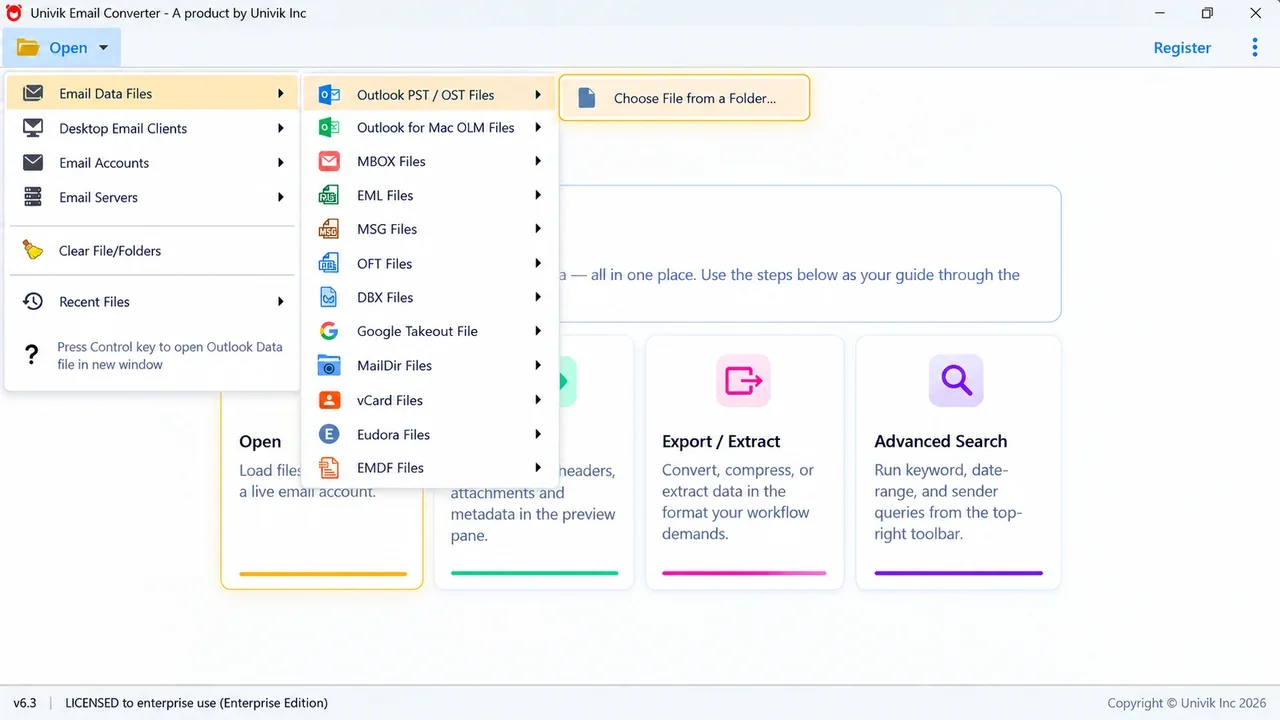
Add the exported Apple Mail MBOX, or the live Mail library. Each folder shows up with a checkbox, ready to convert.
See inside an Apple Mail mailbox before you convert
An MBOX export is one file with every message inside, so it helps to check the contents before a big conversion. You can do that in a browser, with nothing to install.
Univik's Online Apple Mail Viewer opens an exported .mbox and lists every message to read on screen. The Online MBOX Viewer does the same for any MBOX file, and the Online EML Viewer opens single saved messages. All three run in the browser, so the mail never leaves your machine.
Keep Apple Mail attachments in the PDF
Export as PDF keeps the message, not the files on it, which is the gap people find later. A converter closes it in two ways.
One option keeps a message's attachments in a folder that sits next to its PDF, so the contract or photo travels with the email it came on. Another writes the sender, date and subject straight onto the page, the header line a plain export tends to skip. Either way the saved record is complete.
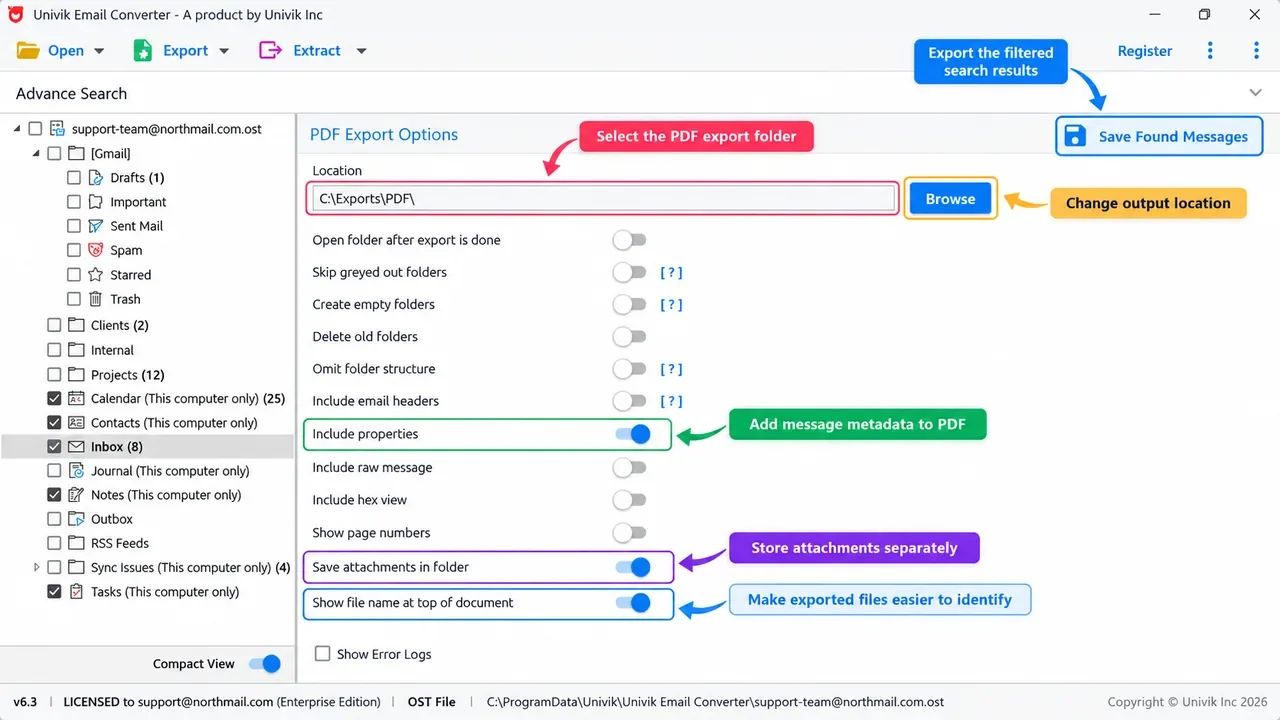
In the PDF options, tick save attachments and include properties so every Apple Mail message keeps its files and header line.
Univik Email Converter reads an exported Apple Mail MBOX or the live Mail library, then saves each message as its own PDF and keeps the attachments with it. Try it free on your own mail.
Free trial converts the first 10 emails per folder. Runs on Windows 11, 10, 8 and 7.
On a Mac you can select several messages and Export as PDF in one go. For a full mailbox, export it to MBOX first, then convert. That order is what keeps the attachments.
Which way to save Apple Mail as PDF?
Your choice depends on how much Apple Mail there is.
| Method | Best for | Attachments | How many |
|---|---|---|---|
| File, Export as PDF (free) | One or a few emails | Not included | Several with multi-select |
| iPhone Print, Save to Files | A message on the phone | Not included | One at a time |
| Export Mailbox, then convert | A full mailbox | Kept in a folder | Whole mailbox in one run |
Turn an Apple Mail export into PDF
Once your mail is a file on disk, the converter built for that format is the quickest way to PDF:
- Exported MBOX
- A mailbox you exported from Mail is an MBOX package. Convert it with the MBOX to PDF converter.
- Saved EML or EMLX
- Single messages dragged to the desktop. The EML converter reads EMLX as well.
- Any source in one place
- Files and live mailboxes both, in the Univik Email Converter.
The short version
- On a Mac, select the messages and use File, Export as PDF; it can do several at once.
- On an iPhone, use the reply arrow, Print, then Save to Files.
- Export as PDF saves the message, not the attached files.
- For a whole mailbox, use Mailbox then Export Mailbox to make an MBOX, then convert that to PDF.
Apple Mail to PDF FAQ
How do I save an Apple Mail email as PDF on a Mac?
Open or select the message, open the File menu and choose Export as PDF, then name the file and save. On an older macOS, use File then Print, open the PDF pop-up in the lower-left corner and choose Save as PDF. Both make the same PDF, and no extra software is needed for one message.
How do I save an Apple Mail email as PDF on my iPhone?
Open the message in Mail, tap the reply arrow and choose Print. Widen the preview with two fingers, tap Share and pick Save to Files. That gives you a PDF of the email to keep or pass on.
How do I save multiple Apple Mail emails as PDF at once?
On a Mac, hold Command and click each message you want (or Shift for several in a row), then choose File and Export as PDF. Each one saves as its own PDF. For hundreds of emails or a full account, export the mailbox to an MBOX file and convert that with a converter instead.
Does Apple Mail's Export as PDF include attachments?
No. Export as PDF saves the message body and its images, so the attached files stay in the email. A converter can save each message's attachments to a folder next to its PDF; turn that option on before you convert so the full record stays together.
How do I convert a whole Apple Mail mailbox to PDF?
Export the mailbox from Mail first: select it, open the Mailbox menu and choose Export Mailbox to write an MBOX file. Then load that MBOX into a converter and run it to PDF. Each message ends up as its own PDF, and the folder names and attachments are kept.
Where does Apple Mail store my emails?
Mail keeps messages in your Library folder as EMLX files, which are not PDFs and do not open on their own outside Mail. A mailbox you export from the Mailbox menu is a single MBOX file, and you can read one in a browser with the Univik Online Apple Mail Viewer before converting it.
Does the PDF look exactly like the Apple Mail email?
Yes. Spacing, fonts, colours and any inline pictures come through, so the file looks like the Apple Mail message did. A converter can also print the sender, date and subject on the page, which a plain export sometimes drops.
 About This Guide
Written and maintained by Leena Taylor Paul and the Univik team, developers of Windows data conversion and recovery software since 2013. Every step here was checked on a Mac: the Export as PDF menu, the Export Mailbox route and the MBOX to PDF conversion, run against real Apple Mail libraries before this guide went out. Last verified September 12, 2026. Need a hand? Contact our support team.
Sources checked: Apple: save emails as files or PDFs in Mail · Apple: import or export mailboxes in Mail · Apple: use Mail on your iPhone