 Email Conversion Guide
 By
By To convert an Outlook email to PDF, open the email, click File and Print, then choose Microsoft Print to PDF as the printer and save. New Outlook and Outlook on the web use Print, then Save as PDF. To convert many Outlook emails at once, or a whole PST folder with the attachments, an email converter saves the lot as PDF in one run.
Outlook keeps your mail, but a PDF is easier to file, print or send on. Windows has a free way to save one Outlook email as PDF, and a converter handles a folder or a whole PST when you have many. Below you will see how to convert Outlook email to PDF the free way, and how to convert Outlook emails to PDF in bulk, on every version of Outlook.
Save an Outlook email as PDF (classic Outlook)
The desktop version of Outlook has no Save as PDF button, so you use the print menu. It makes a PDF file, not a paper print. You need no other software.
- Open the message you want to keep.
- Click File, then Print.
- In the Printer box, choose Microsoft Print to PDF.
- Press Print, then give the file a name and folder.
Pick Microsoft Print to PDF in the Printer box, then press Print to save the Outlook message as a PDF.
New Outlook and Outlook on the web
The newer Outlook and the browser version work a little differently. There is no File menu, so you print from the message itself.
- Open the email, then click the three dots (More actions) at the top of the message.
- Pick Print. A preview opens in a new tab.
- In the print box, set the destination to Save as PDF and click Save.
Outlook for Mac
On a Mac, open the email, choose File and Print, then open the PDF menu at the bottom left and pick Save as PDF. Give it a name and you are done.
Convert several Outlook emails to PDF at once
The print menu handles one email at a time. If you pick a few messages and print them together, Outlook merges them into a single file, not one PDF each. To get a separate, tidy PDF for every message while keeping the folder names, an email converter is the quick way.
Add your Outlook data file or account, tick the folders you want, choose PDF and run one job. Thousands of emails come out as PDF files together, each named for you.
Convert a whole Outlook folder or PST to PDF
This is the route for a full mailbox, a shared folder or an old PST archive. Here is how it works with Univik Email Converter.
Open the Outlook file
Start the converter and click Open. Add the Outlook PST or OST file, or read an installed Outlook straight from the app. There is no need to have Outlook running.
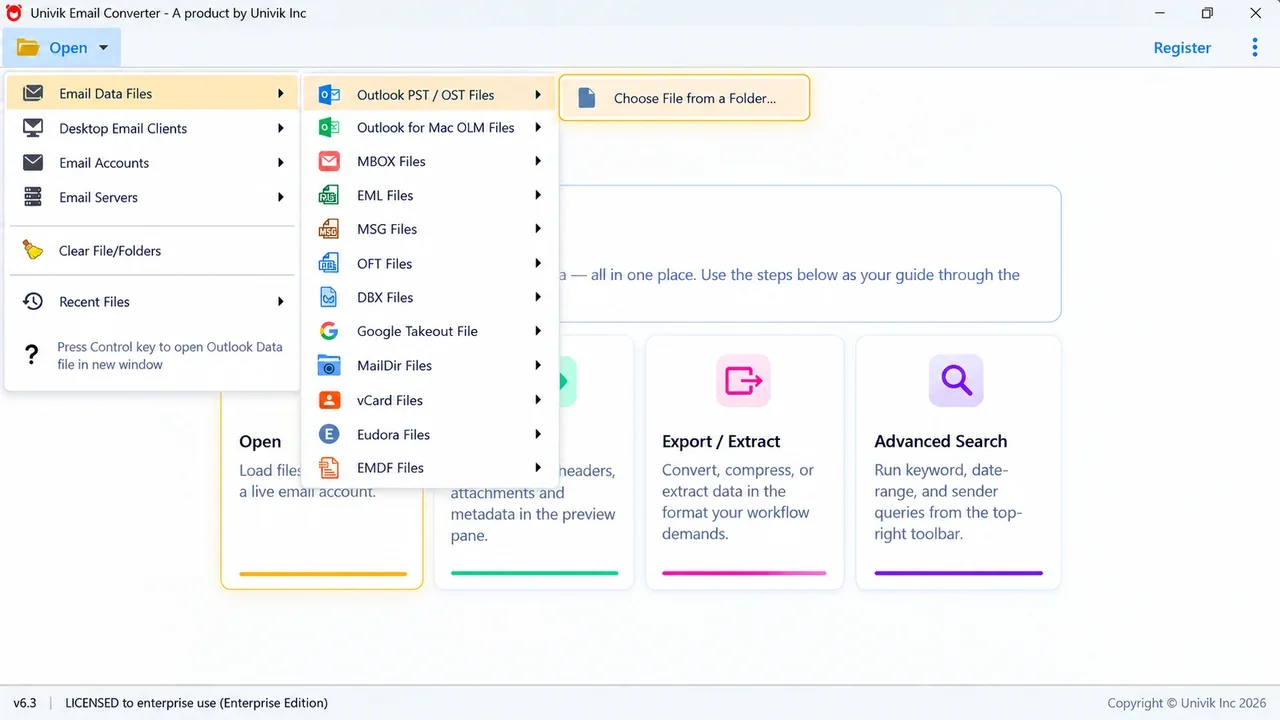
Add the Outlook PST or OST file. Its folders load with a checkbox on each one.
Choose PDF
Open the Export menu and pick PDF under document files. Each email will be saved as its own PDF.
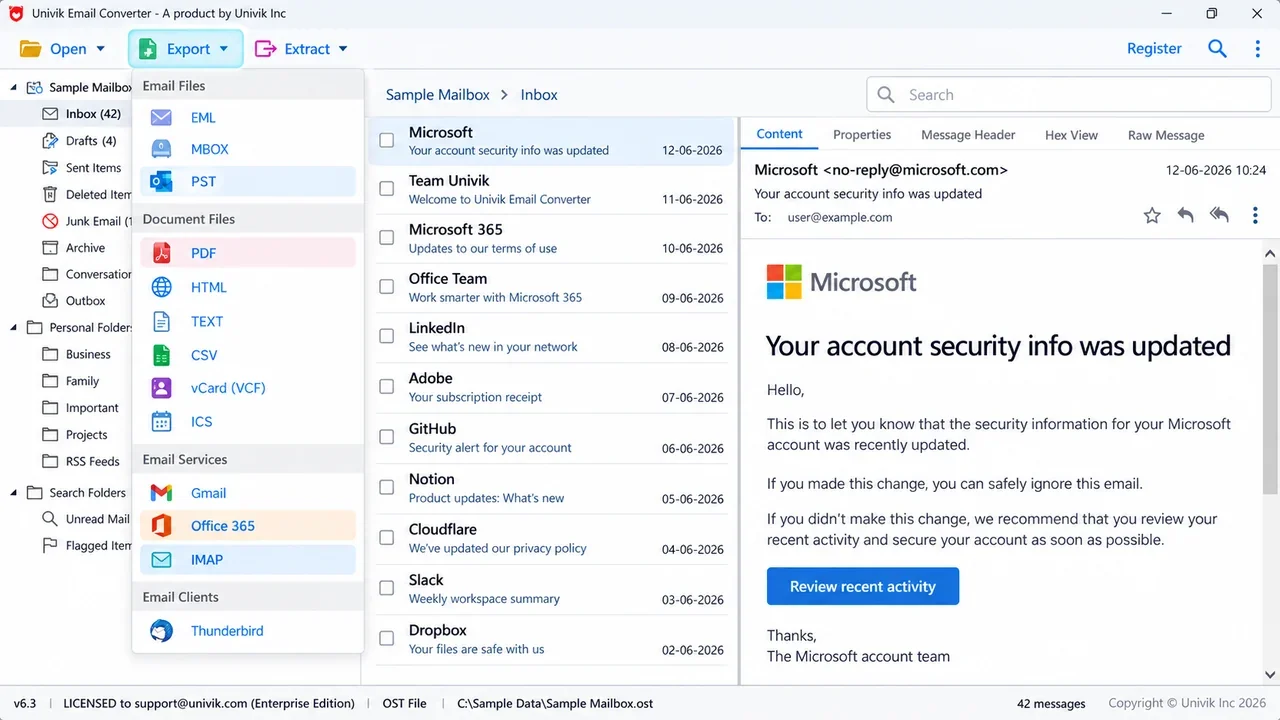
Choose PDF from the Export menu. Every Outlook email becomes its own PDF.
Set the options and convert
Turn on include properties so the sender, date and subject sit on the page. Turn on save attachments so nothing is left behind. Pick a folder and a name pattern, then convert.
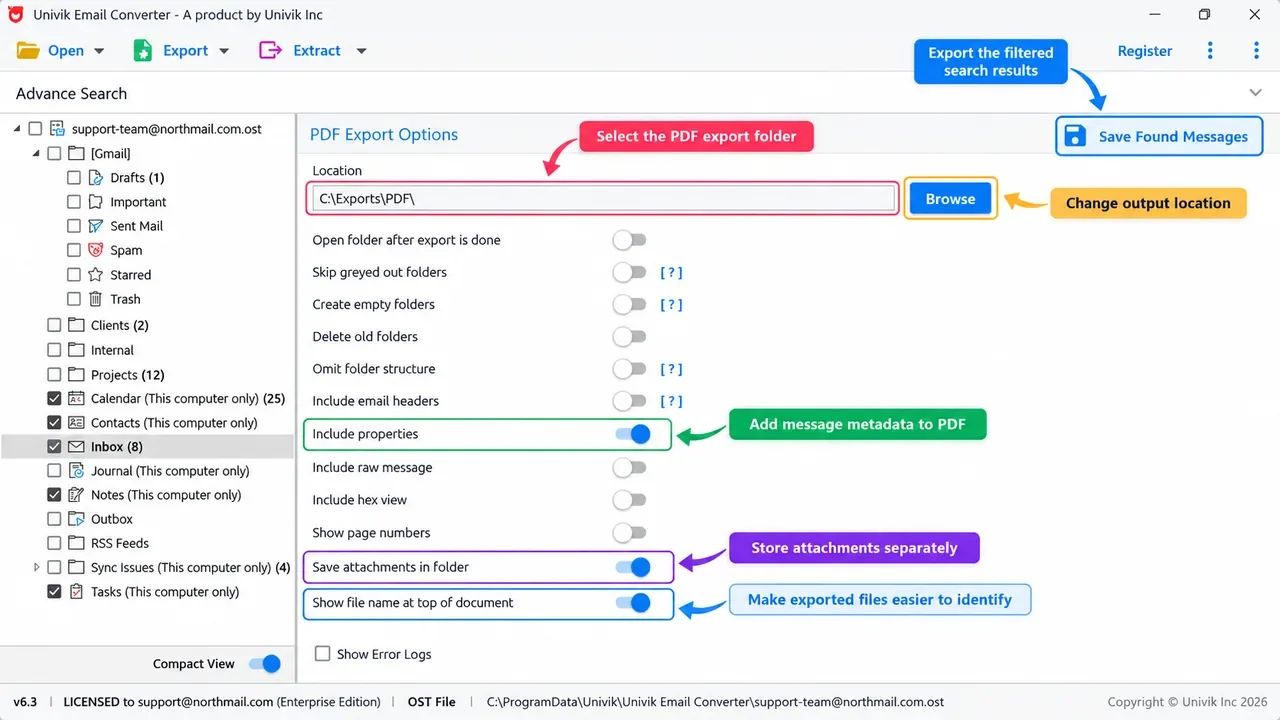
Switch on include properties and save attachments, then convert the whole folder.
- Open a few PDFs and read the message and headers
- Check the attachments saved next to them
- Check the Outlook folder names carried over
- Keep the Outlook data until the PDFs look right
Keep Outlook attachments in the PDF
The print menu writes the words on screen but leaves the attached files behind. A converter brings them along in one of two ways.
It can drop each email's attached files into a folder that sits next to the PDF. It can also print the header details onto the page itself. Switch the save attachments option on before you begin.
Univik Email Converter opens your Outlook PST or OST and saves every email as a PDF with the attachments kept. Try it free on your own file.
Free trial converts the first 10 emails per folder. Runs on Windows 11, 10, 8 and 7.
Outlook has no Save as PDF button, but Microsoft Print to PDF does the same job. For a whole PST or a shared mailbox, a converter is faster and it keeps the attachments.
Which Outlook method fits?
It depends on how much Outlook mail you have.
| Method | Best for | Attachments | How many |
|---|---|---|---|
| Microsoft Print to PDF (free) | One email | Not included | One at a time |
| Print in new Outlook or the web | A few messages | Not included | A handful |
| Univik Email Converter | A folder, PST or shared mailbox | Kept in a folder | Hundreds in one run |
More Outlook to PDF help
Depending on where your Outlook mail lives, one of these takes you straight there:
- Any email app, not only Outlook
- The cross-app guide covers Gmail, Apple Mail and phones. See how to convert email to PDF.
- Start from a PST file
- Point the tool straight at an Outlook data file. See the PST converter.
- Orphaned OST file
- No Outlook profile needed. See the OST converter.
The short version
- For one email, use File then Print and pick Microsoft Print to PDF.
- New Outlook and Outlook on the web use Print, then Save as PDF.
- The print menu leaves the attachments behind and merges a multi-select into one file.
- For a folder, a PST or a shared mailbox, a converter makes one PDF per email and keeps the attachments.
Outlook to PDF FAQ
How do I convert an Outlook email to PDF without extra software?
Use the print menu. Open the email, click File and Print, choose Microsoft Print to PDF as the printer and save. This is built into Windows, so you do not need Adobe or any add-in. New Outlook and Outlook on the web use Print, then Save as PDF.
How do I save an Outlook email as PDF in new Outlook?
Open the email, click the three dots at the top of the message and pick Print. A preview opens in a new tab. Set the destination to Save as PDF and click Save. The same steps work in Outlook on the web.
How do I convert multiple Outlook emails to PDF at once?
The print menu turns selected emails into one merged file, not a PDF each. For a separate PDF per message, add the folder or PST to an email converter, choose PDF and run one job. It saves every email as its own PDF and keeps the folder names.
Can I convert Outlook emails to PDF with attachments?
The print menu keeps only the message, not the attachments. A converter can place the attached files in a folder beside each PDF, so the full record stays together. Switch on the save attachments option before you convert.
How do I convert an Outlook PST file to PDF?
Add the PST file to an email converter, tick the folders you want, choose PDF and convert. You do not need Outlook installed, since the tool reads the PST on its own. This is the fastest way to turn an old Outlook archive into PDF files.
Does saving an Outlook email as PDF keep the formatting?
Yes. Your PDF shows the same layout, fonts and pictures you see in Outlook. The one thing the quick print can miss is the header line, so a converter adds the sender, date and subject back onto the page.
 About This Guide
Written and maintained by Leena Taylor Paul and the Univik team, developers of Windows data conversion and recovery software since 2013. The print methods and the PST export here are checked on classic Outlook, new Outlook and Outlook for Mac before publishing. Last verified September 12, 2026. Need a hand? Contact our support team.
Sources checked: Microsoft: Outlook help and learning · Microsoft: Microsoft Print to PDF · Microsoft: Outlook data files (.pst and .ost)