 Email Conversion Guide
 By
By To convert email files, first find out what file type you have: PST and OST come from Outlook, MBOX from Thunderbird or Apple Mail, EML and MSG are single messages. Then open those files in an email converter, choose the output you need such as PDF, PST or MBOX. Then run the conversion. You do not always need a file either: if your mail is still in a live account, sign in by IMAP, such as Gmail, Yahoo or Office 365, then convert straight from there. A batch converter does the whole folder at once and keeps your attachments, folders and formatting.
Email files hold your messages on your computer, but every email app saves them in its own way. When you switch apps, clear out an old account or need a PDF for your records, you have to change those files into a format the new place can read. This guide walks through it in plain steps, whether you have one saved email or a mailbox with thousands.
- What email files are
- Find out what format you have
- Convert straight from your account
- Pick the right output
- The free and manual ways
- Convert email files step by step
- Step 1: Open your email files
- Step 2: Preview the mailbox
- Step 3: Pick your output format
- Step 4: Set the options for that format
- Step 5: Convert and check nothing is missing
- Converting one specific format
- Convert without losing attachments
- Email file conversion FAQ
What email files are (PST, OST, MBOX, EML, MSG)
An email file is where an app keeps your mail on disk. The name ends in an extension that tells you which app made it. Here are the ones you are most likely to run into.
| File type | Comes from | What it holds |
|---|---|---|
| PST | Microsoft Outlook | A whole mailbox: mail, folders, contacts and calendar |
| OST | Outlook (offline copy) | The same as a PST, cached from the mail server |
| MBOX | Thunderbird, Apple Mail | Mail in a folder, saved as one file per folder |
| EML | Many apps | One saved email per file |
| MSG | Outlook | One saved Outlook email, with its attachments |
There are more, such as PFC from AOL Desktop and NSF from Lotus Notes. If you have one of those, jump to converting one specific format lower down.
Find out what format you have
Two quick ways to tell what you are dealing with:
Look at the file. Right click the email file and check the extension after the dot. A file called archive.pst is an Outlook file, Inbox.mbox is Thunderbird or Apple Mail, and a file ending in .eml is a single message.
Let the tool find it. If you still use the app, a converter can read the installed program and list the account files for you, so you do not have to search through folders to find where your mail is.
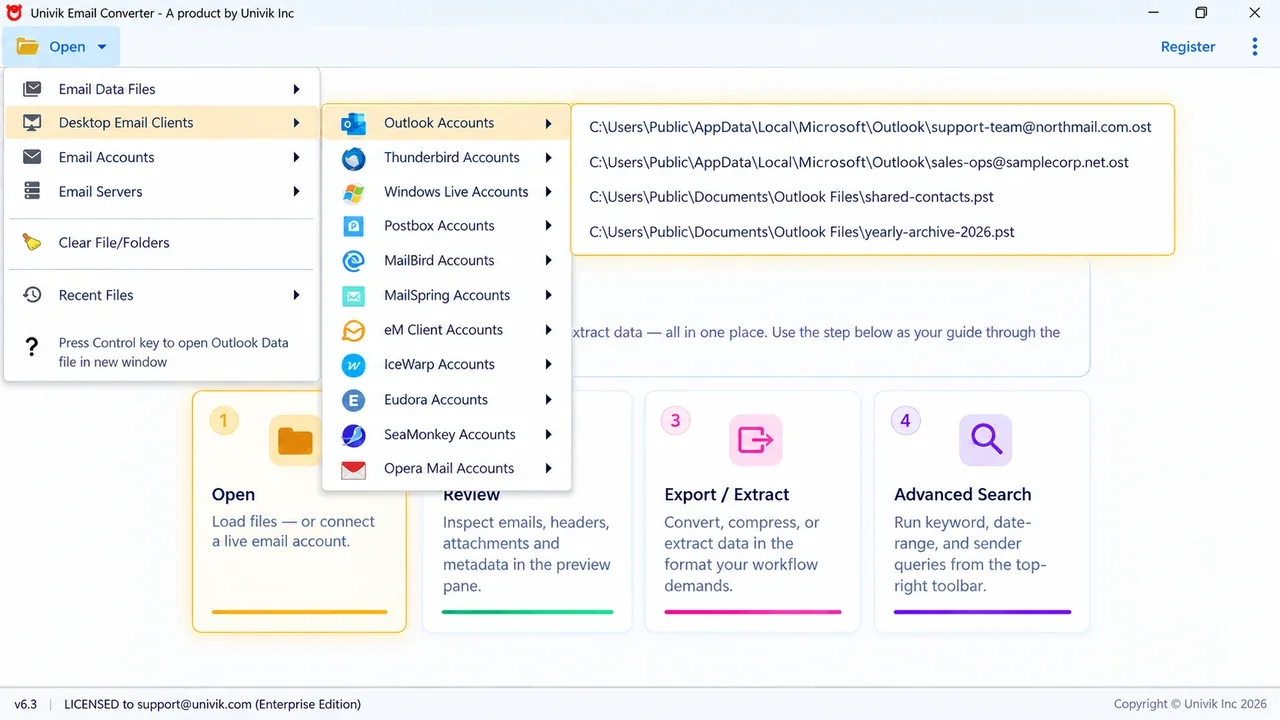
Point the tool at an installed app and it lists the account files it found, so you do not have to look for them.
Convert email from Gmail, Office 365 or any IMAP account
You may not need a file at all. Not every email is saved in a file on your computer, and if your mail is still in a live account you can connect it and convert straight from there, with no need to save a file first.
Any account that supports IMAP is covered. That includes Gmail, Yahoo Mail, Outlook.com, Office 365, iCloud Mail, Zoho, GoDaddy, AOL and nearly every other provider. Turn IMAP on in the account settings, sign in from the converter and your folders load the same way a file would.
The tool can also read an app already installed on the PC, or a company mail server such as Exchange, Zimbra, MDaemon or Kerio. So whether your mail is a file, an installed app, a webmail login or a server, there is a way to reach it.
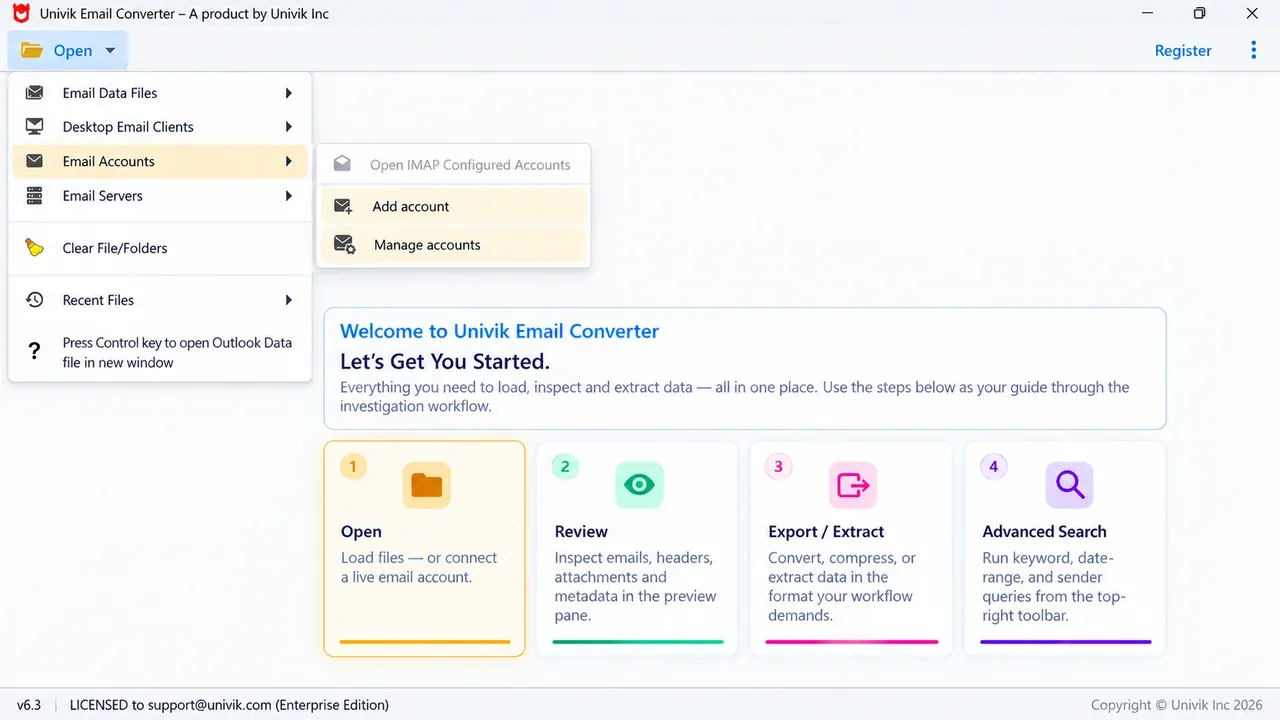
Sign in to a Gmail, Office 365, iCloud or any IMAP account and read it live. No file to find and no export first.
Pick the right output: PDF, PST, MBOX and more
Choose the output by what you plan to do next. That one decision saves you converting twice. The most common job by far is email to PDF for reading, printing or keeping a record. Outlook users often export emails from Outlook to PST, and people moving apps pick MBOX.
| What you want to do | Best output |
|---|---|
| Read, print or file emails for your records | |
| Move your mail into Outlook | PST |
| Move into Thunderbird or Apple Mail | MBOX |
| Keep a few single messages | EML or MSG |
| Open emails in any web browser | HTML |
| Move mail into another Gmail or Office 365 account | Gmail or Office 365 login |
| List senders and dates in a spreadsheet | CSV |
The free and manual ways to convert email
For one or two emails, you may not need a tool at all. These free routes work, but each has a downside worth knowing before you start.
- Print to PDF. Open an email, print it and choose Save as PDF. Fine for a couple of messages. Slow for a mailbox, and it makes a separate file each time.
- Drag and drop in Outlook. Moves mail between Outlook folders. It does not make a PDF or an MBOX file, and both apps have to be open.
- Google Takeout. Downloads your Gmail as an MBOX file. It is the whole account at once and can be a very large download.
- Online converters. Handy for a single file. The catch is that they upload your mail to someone else's server and cap the file size.
For a full mailbox, or for private mail you would rather not upload anywhere, a desktop converter is the safer choice. Here is how that works, step by step.
Convert email files step by step
These steps use Univik Email Converter, but the steps are the same in most tools: open, preview, pick a format, set the options, convert.
Open your email files
Start the converter and click Open. Pick how your mail is stored: a saved file such as PST, OST, MBOX or EML, an app installed on the PC, a webmail or IMAP account or a mail server. Browse to your files and add them.
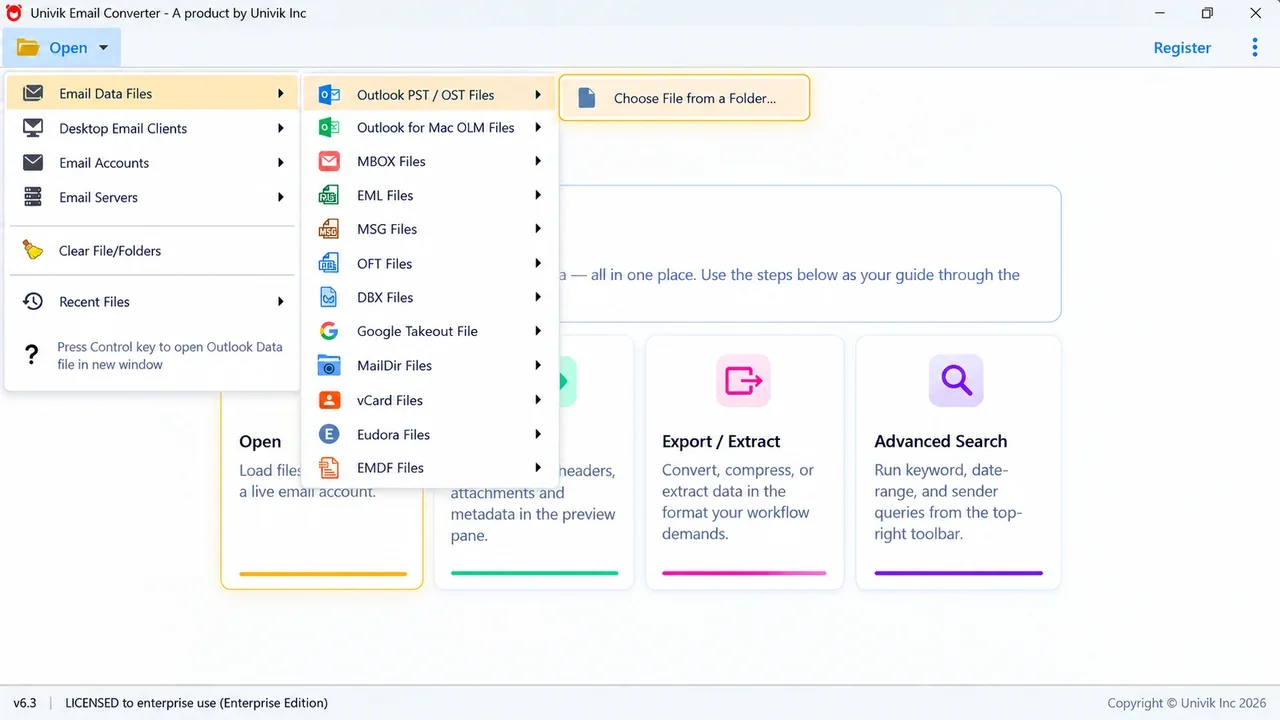
One Open menu covers saved files, installed apps, IMAP accounts and servers. Pick the type and point it at your mail.
You should see every folder from your mailbox listed with a checkbox, ready to tick.
Preview the mailbox
Open a few emails in the preview pane before you convert anything. Check the message, the attachments and the dates look right. This is the quickest way to be sure you added the correct files.
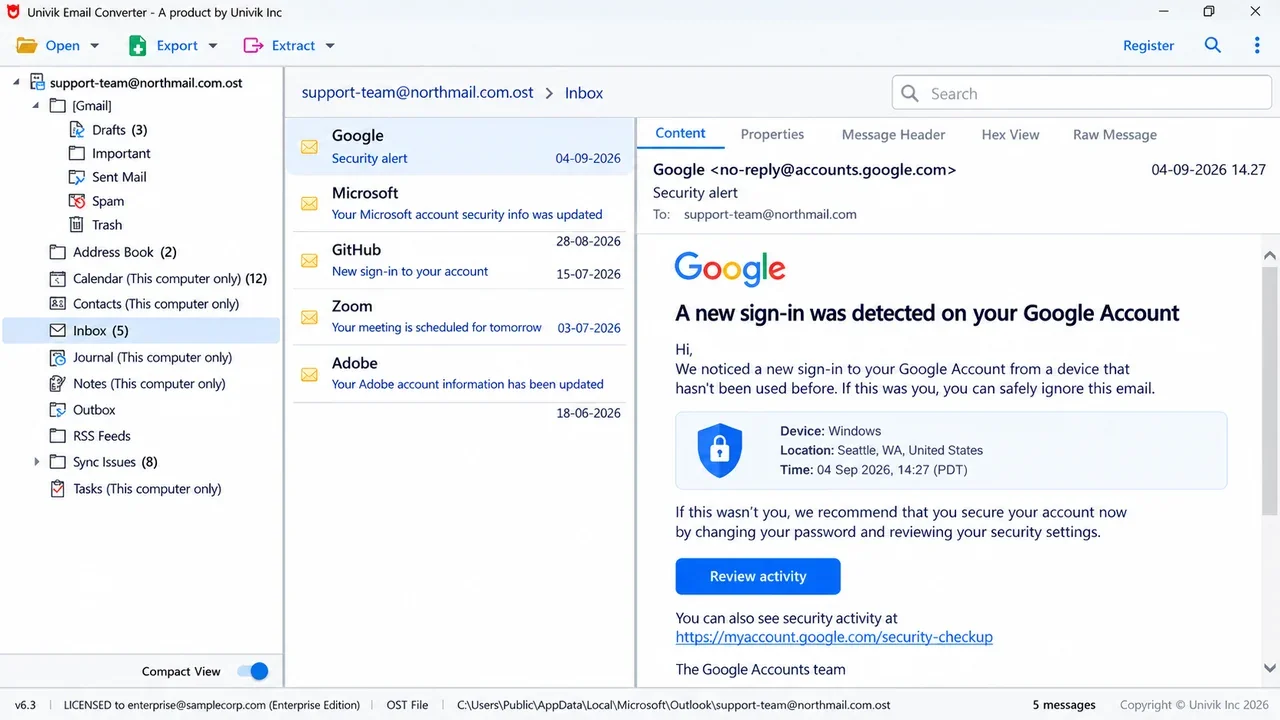
Read an email in place first. Content, headers and attachments are all there, so you know the file loaded correctly.
You should see the email open with its content, headers and attachments, the same as it was.
Pick your output format
Open the Export menu and choose what you want to end up with. The formats are grouped by kind: email files like PST, MBOX and EML, document files like PDF and HTML, plus live services like Gmail and Office 365.
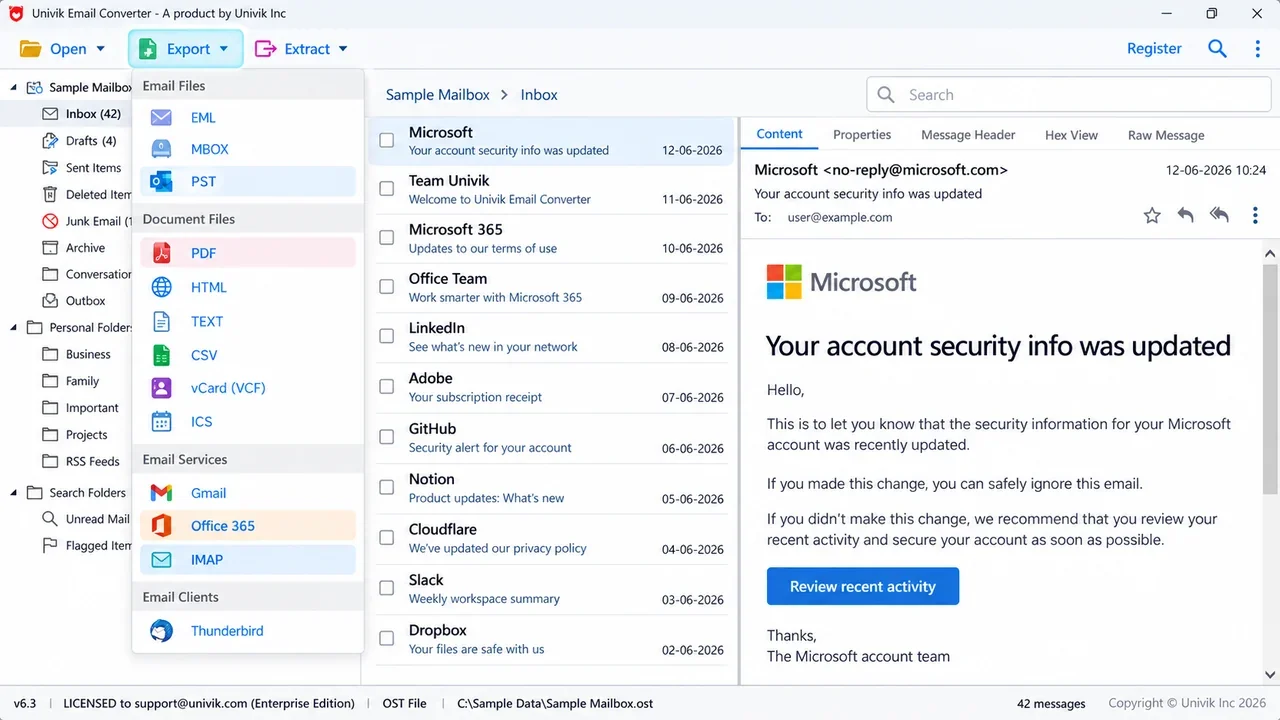
The output list is grouped the way you think about it, so the format you need is easy to find.
You should see your chosen format highlighted, ready to set up.
Set the options for that format
Each format has a few options. For PDF you can add the message properties and keep attachments in a folder beside the file. For PST you can keep the email headers and make one file per folder. Set a save location and a naming pattern so the files are easy to find later.
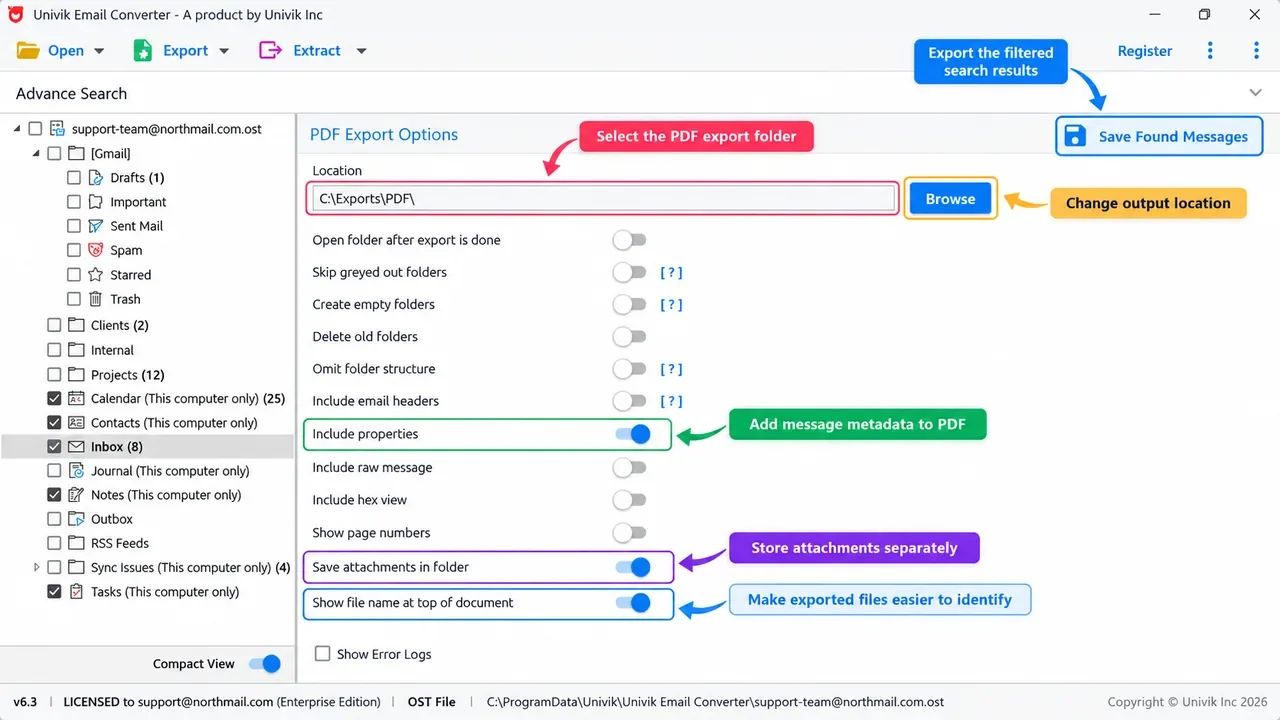
Shown here for PDF. Every format has its own options, with sensible defaults already ticked.
You should see the options for the format you chose, most of them already set for you.
Convert and check nothing is missing
Click convert and let the job run. A batch job works through the whole mailbox on its own. When it finishes, open two or three converted emails and check the attachments and layout came through. If anything was skipped, the log lists it so you can rerun that part.
- Open a few converted emails and check the attachments open
- Check the folder names match your old mailbox
- Check the dates and senders are the same
- Keep the original files until you are sure the copy is complete
Converting one specific format
If you only ever deal with one kind of file, a dedicated converter covers it in more detail and gets you to the right page faster. Pick yours:
- PST or OST files
- Full Outlook mailboxes. See the PST converter or the OST converter.
- MBOX files
- Thunderbird and Apple Mail, one file per folder. See the MBOX converter.
- EML files
- Single saved messages. See the EML converter.
- MSG files
- Single Outlook emails with attachments. See the MSG converter.
- DBX files
- Old Outlook Express mail. See the DBX converter.
- NSF files
- HCL and Lotus Notes mailboxes. See the NSF converter.
- PFC files
- Saved AOL Desktop mail. See the AOL PFC converter.
- Maildir folders
- Dovecot and qmail style mail. See the Maildir converter.
Most people are stuck at step one: they do not know which file they have. Find that out, and the right converter is obvious.
Convert without losing attachments
Losing attachments or formatting is the worry most people have, and it is the easy part to get right. A good converter copies the whole message, not only the words on screen.
It keeps your attachments and inline images, the HTML layout and fonts, the folder structure and the message metadata such as the original sender and date. The converted email looks the same as the one you started with. Two habits help: preview a few emails first, and for a very large mailbox convert one folder at a time so nothing is rushed.
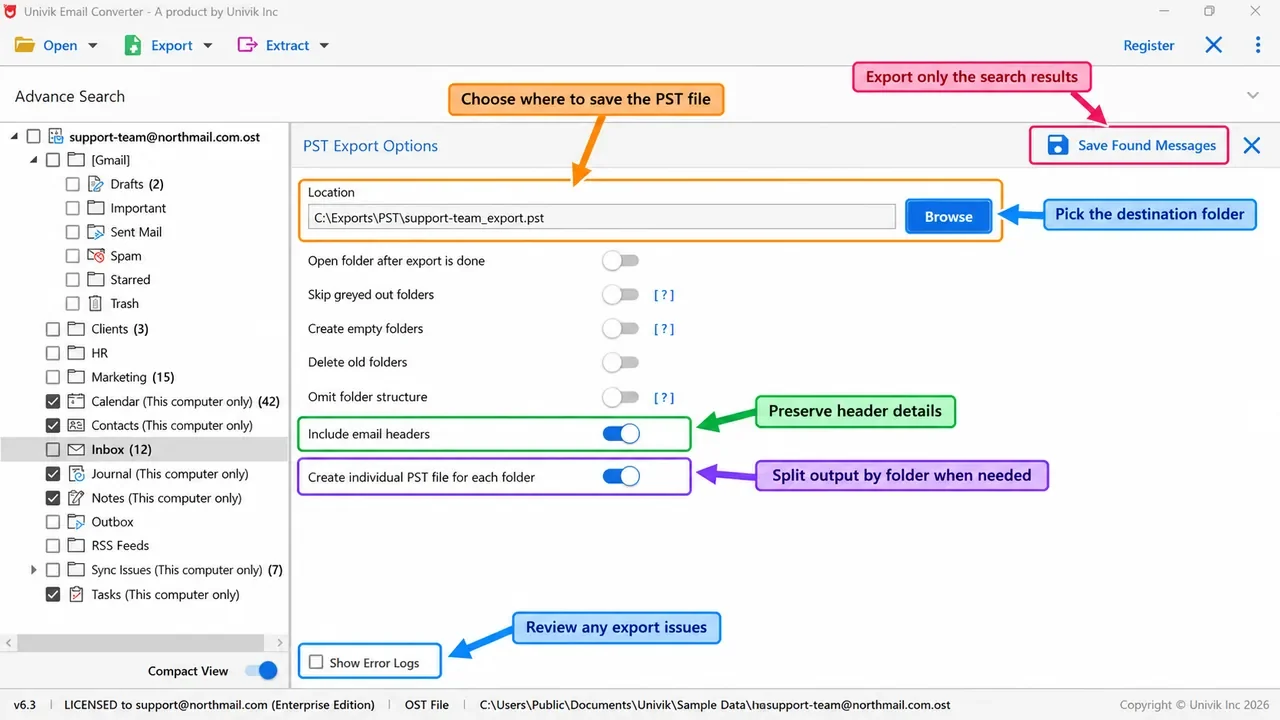
Options like keeping the email headers and one file per folder are what keep the whole mailbox in order during the conversion.
Univik Email Converter reads 50+ email sources and writes to PDF, PST, MBOX and more. Try it free on your own files, then convert without limits.
Free trial converts the first 10 emails per folder. Runs on Windows 11, 10, 8 and 7.
The short version
- Find out which file you have first: PST or OST from Outlook, MBOX from Thunderbird or Apple Mail, EML or MSG for single messages.
- Pick the output by the goal: PDF to read or file, PST for Outlook, MBOX for Thunderbird or Apple Mail.
- Free routes handle one email or one account at a time and often drop the folder structure.
- A converter reads the files without the old app installed and keeps attachments, folders and dates.
Email file conversion FAQ
What is the easiest way to convert email files?
The quickest way is a batch email converter. You open your files or your account in the tool, pick the output you want such as PDF, PST or MBOX. Then you click convert. It handles a whole folder in one go and keeps your attachments and folders in place, so you do not work through emails one by one.
Can I convert emails from Gmail, Yahoo or Office 365?
Yes. These are webmail services, so you connect them by IMAP instead of a file. Turn IMAP on in the account, sign in from the converter and pick your output. Any provider that supports IMAP works the same way, including iCloud, Zoho, GoDaddy and AOL, so you are not limited to a set list.
Can I convert email files for free?
Yes, for small jobs. You can print an email to PDF, drag messages between Outlook folders or use Google Takeout to download Gmail as an MBOX file. These free routes handle one email or one account at a time and often drop the folder structure. For a whole mailbox, a converter with a free trial is faster and safer.
How do I convert email files without losing attachments?
Use a converter that copies the whole message, not only the text. Preview a few emails first and check the attachments are there. Good tools keep attachments, inline images, the HTML layout, the folder structure and the original dates, so the converted copy looks the same as the email you started with.
Which format should I convert my emails to?
Pick the format by what you plan to do. Choose PDF to read, print or file emails for records. Choose PST to move mail into Outlook. Choose MBOX to move into Thunderbird or Apple Mail. Choose EML or MSG for a few single messages. Choose CSV when you want a spreadsheet of senders, dates and subjects.
How do I convert email files in bulk?
Add the whole folder or mailbox to the converter instead of single files, tick the folders you want and run one job. A batch converter processes thousands of emails together and gives each file a clear name, so you are not converting them by hand.
Can I convert email files without the original app installed?
Yes. A converter reads the saved files directly, so you do not need Outlook, Thunderbird or the old app open. Point it at the PST, OST, MBOX or EML files on your computer and it reads them on its own. This helps when the old app is gone or the computer it lived on is retired.
How do I convert emails to PDF?
Add your emails to the converter, choose PDF and convert. Each email becomes its own PDF with the message, headers and attachments kept. You can convert a whole mailbox to PDF at once, which saves emails as PDF for records or legal review without printing them one at a time.
 About This Guide
Written and maintained by Leena Taylor Paul and the Univik team, developers of Windows data conversion and recovery software since 2013. We build Univik Email Converter and test every format on this page against real mailboxes, from a single EML file to Outlook PST archives with tens of thousands of messages. Last verified September 12, 2026. Need a hand? Contact our support team.
Sources checked: Microsoft: Outlook data files (.pst and .ost) · Mozilla Thunderbird: where your data is stored · Google: download your data with Takeout